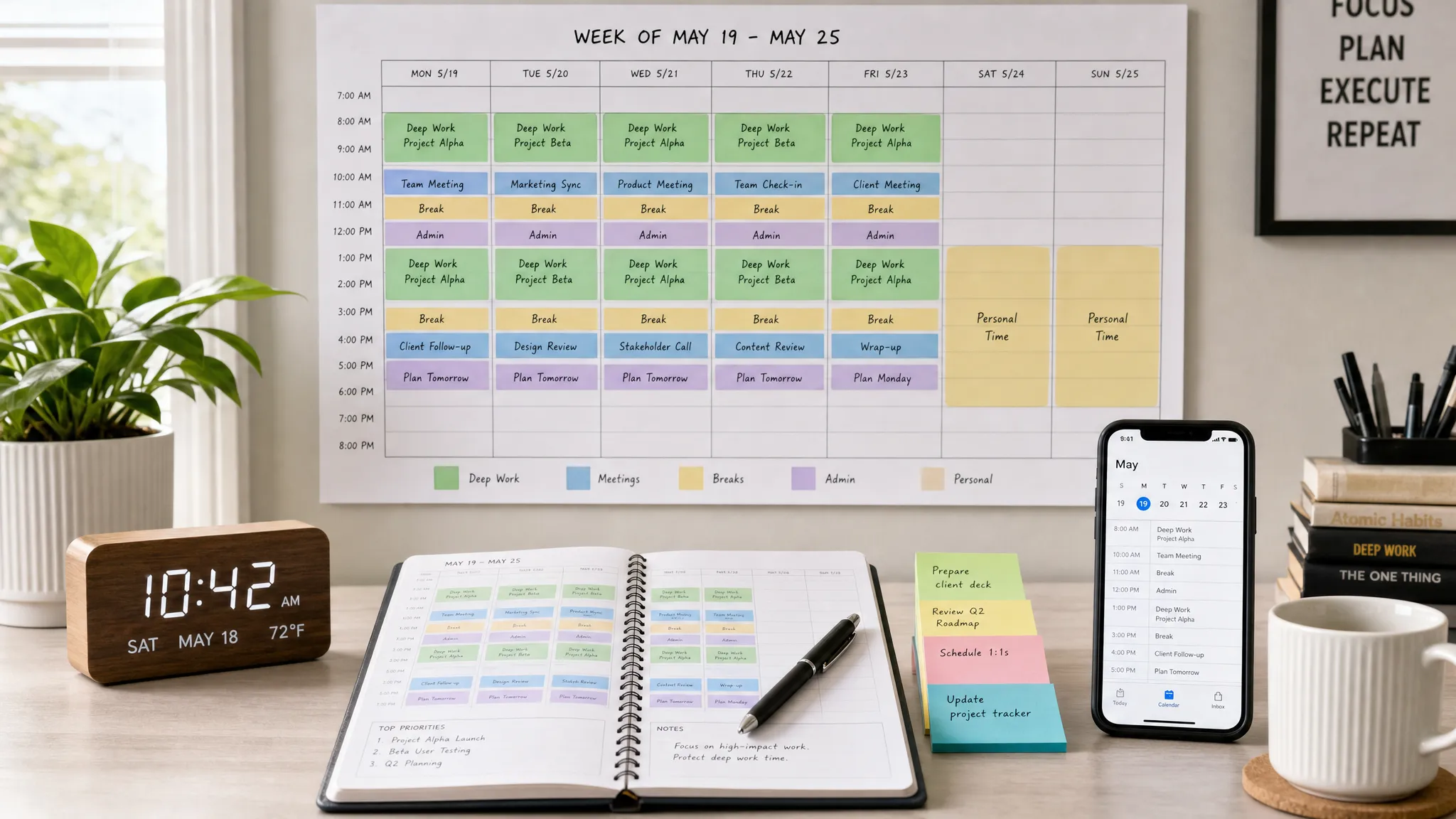
Time blocking sounds simple: decide what matters, put it on your calendar, and follow the plan. In practice, the right calendar app makes the difference between a realistic schedule and a colorful calendar you ignore by Wednesday.
The best calendar apps for time blocking in 2026 do more than store meetings. They help you turn tasks into blocks, protect deep work, add buffers, coordinate across time zones, and recover when your day changes. Some are clean manual calendars. Others use AI to automatically rebuild your schedule around deadlines, habits, and meetings.
Below is a practical comparison of the strongest options, based on real time-blocking needs for freelancers, managers, students, creators, sales teams, and remote workers.
Quick picks: best calendar apps for time blocking in 2026
| Calendar app | Best for | Main time-blocking strength | Watch out for |
|---|---|---|---|
| Google Calendar | Most people and Google Workspace users | Simple blocks, Focus Time, Tasks, broad integrations | Advanced automation often needs add-ons |
| Microsoft Outlook Calendar | Microsoft 365 and Teams workplaces | Enterprise scheduling, categories, shared availability | Best experience inside Microsoft ecosystem |
| Motion | Busy professionals who want AI planning | Automatically schedules and reshuffles tasks | Requires trust in auto-scheduling |
| Reclaim.ai | Teams protecting routines and focus | Smart habits, task scheduling, meeting defense | Works best when your calendar data is clean |
| Sunsama | Intentional daily planning | Guided planning and shutdown rituals | Less aggressive automation than AI schedulers |
| Akiflow | Power users with tasks across many tools | Unified inbox, keyboard-first task blocking | Setup discipline matters |
| TickTick | Task-first time blockers | Tasks, calendar, habits, Pomodoro in one app | Collaboration is not its main strength |
| Todoist | Simple task management plus calendar | Fast task capture and calendar sync | Calendar depth depends on setup |
| Notion Calendar | Notion users and project planners | Links calendar events to Notion workspaces | Best if you already plan in Notion |
| Fantastical | Apple-first users | Natural language scheduling and calendar sets | Premium features may be overkill for casual users |
| Calendly | External booking control | Buffers, booking rules, meeting limits | It complements a calendar, it does not replace one |
What makes a calendar app good for time blocking?
A normal calendar answers one question: “When is my next meeting?” A time-blocking calendar answers a better question: “What should I be doing with this hour?”
That means the app needs to handle both fixed commitments and flexible work. A sales call at 2 p.m. is fixed. Writing a proposal, studying, editing a video, clearing admin, or reviewing invoices may be flexible, but it still needs a protected place on your calendar.
When comparing calendar apps, look for these capabilities:
- Fast block creation so you can capture tasks without friction.
- Drag-and-drop rescheduling for when your day inevitably changes.
- Task integration so work does not live in a separate forgotten list.
- Focus protection through busy status, automatic declines, or notification controls.
- Buffer options before and after meetings.
- Recurring blocks for habits, admin, planning, and deep work.
- Cross-device reliability across desktop, web, and mobile.
- Team visibility controls so others can see when you are unavailable without seeing private details.
Time blocking is not only for work projects. If you are coordinating a personal project with several steps, such as comparing housing options, booking tours, and reviewing financing with a local provider like Homes2Go San Antonio, a structured calendar helps you batch research, calls, visits, and paperwork instead of scattering them across your week.
How we evaluated these calendar apps
For this guide, the priority is practical time blocking, not just general calendar popularity. A great time management tool should help you plan the week, run the day, and recover from interruptions.
| Evaluation factor | Why it matters for time blocking |
|---|---|
| Task-to-calendar workflow | The best apps make it easy to turn tasks into scheduled blocks. |
| Rescheduling speed | Time blocking fails when moving blocks feels tedious. |
| Focus protection | Busy status, DND workflows, and meeting declines help defend deep work. |
| Scheduling intelligence | AI or smart rules can reduce manual calendar cleanup. |
| Integrations | Project tools, email, tasks, and meeting apps should connect cleanly. |
| Team fit | Some apps are ideal for solo planning, while others help teams coordinate. |
| Learning curve | A powerful system is useless if it becomes another productivity chore. |
| Privacy and permissions | Calendar apps often access sensitive meeting and availability data. |
Pricing changes often, especially for AI and productivity tools, so this guide focuses on fit, strengths, and workflow value rather than quoting plan details that may change.
1. Google Calendar: best overall starting point
Google Calendar remains the easiest recommendation for most people because it is familiar, fast, and deeply integrated with Gmail, Google Meet, Google Tasks, and thousands of third-party tools.
For time blocking, Google Calendar handles the essentials well. You can create separate calendars for deep work, meetings, personal commitments, workouts, admin, or content production. Color-coding makes your week readable at a glance, and recurring events are simple to set up.
The biggest advantage for Google Workspace users is Focus Time. In eligible Workspace accounts, Focus Time can show you as unavailable and can be configured to decline meetings automatically. If you want a detailed walkthrough, see our guide on creating Focus Time blocks in Google Calendar.
Google Calendar is best if you want a dependable system without a major learning curve. It is less ideal if you want your calendar to automatically prioritize and reshuffle tasks for you. For that, you will likely want an AI scheduling layer like Motion or Reclaim.ai.
2. Microsoft Outlook Calendar: best for Microsoft 365 and Teams workplaces
If your company runs on Microsoft 365, Outlook Calendar is usually the most practical time-blocking choice. It connects naturally with Teams, Outlook email, Microsoft To Do, Planner, and enterprise availability settings.
Outlook is especially strong for organizations where calendar visibility, meeting scheduling, and team coordination matter. Categories can help separate deep work, client calls, internal meetings, admin, and personal appointments. Shared calendars and scheduling assistant features make it easier to find open time without endless back-and-forth.
Outlook also pairs well with Microsoft Teams presence. If you are using focus blocks to reduce interruptions, combine your calendar blocks with calendar and Teams settings like Do Not Disturb or Quiet Hours. Our guides on Microsoft Teams Do Not Disturb and Teams Quiet Hours can help you turn calendar intent into actual interruption control.
Choose Outlook if your workplace already lives in Microsoft. Skip it as your main personal time-blocking app if you prefer lightweight task capture or a more visual daily planning workflow.
3. Motion: best AI calendar for automatic replanning
Motion is built for people who have too many tasks and not enough patience for manual scheduling. Instead of asking you to drag every task into place, Motion uses deadlines, priorities, meetings, and available hours to build a schedule automatically.
This is useful if your day changes frequently. When a meeting appears, a task runs long, or a deadline approaches, Motion can help reorganize your calendar so unfinished work is not lost. That makes it attractive for founders, consultants, managers, and anyone juggling project work with unpredictable meetings.
The tradeoff is control. AI scheduling works best when you enter accurate task durations, deadlines, working hours, and priority levels. If you dislike algorithmic planning or prefer to personally decide every block, Motion may feel too opinionated.
Use Motion if your biggest time-blocking problem is constant rescheduling. Avoid it if your week is stable and you only need a clean manual calendar.
4. Reclaim.ai: best for routines, habits, and team focus protection
Reclaim.ai is another strong AI scheduling option, but it has a slightly different personality than Motion. It is especially useful for protecting recurring routines, habits, breaks, planning time, and flexible tasks around meetings.
For example, you can create recurring blocks for deep work, lunch, exercise, email processing, or weekly planning, then let Reclaim find realistic space for them. This is helpful for teams because it makes focus and routines visible without requiring everyone to manually defend every block.
Reclaim is best when your calendar is already your team’s source of truth. If your meetings are messy, duplicated, or scattered across accounts, clean that up first. AI scheduling depends on reliable availability data.
Choose Reclaim if you want smarter scheduling boundaries and recurring focus protection. Choose Motion if you want heavier task and project auto-planning.
5. Sunsama: best guided daily planner
Sunsama is ideal for people who want time blocking to feel calm and intentional rather than automated and aggressive. Its strength is guided daily planning. You review tasks, decide what matters, estimate workload, place work on your calendar, and close the day with a shutdown routine.
This makes Sunsama a great fit for knowledge workers who overcommit. Instead of creating a giant task list and hoping for the best, Sunsama encourages you to decide what can realistically fit into the day.
It also works well when your tasks live across tools. Many users connect task and project sources, then plan from a central daily view. The result is a more deliberate workflow than a standard calendar.
Sunsama is not the best choice if you want AI to automatically rebuild your schedule all day. It is better for people who want a planning ritual that makes time blocking sustainable.
6. Akiflow: best command center for power users
Akiflow is designed for people who collect tasks from everywhere: email, Slack, project management apps, notes, and personal reminders. Its value is bringing those inputs into one command center so you can process them and schedule them quickly.
The keyboard-first workflow is a major advantage for power users. If you like fast capture, quick commands, and a clean bridge between tasks and calendar blocks, Akiflow feels efficient.
It is especially useful for operators, agency owners, product managers, and freelancers who switch between many workstreams. You can capture incoming commitments, assign them to a date, and block time without constantly opening different apps.
Akiflow works best if you already have a habit of triaging tasks. If your task sources are chaotic and you never review them, the app will not magically fix the behavior. It gives you a strong system, but you still need to run it.
7. TickTick: best task-first calendar app
TickTick is a strong choice if your time blocking starts with tasks rather than meetings. It combines task lists, recurring tasks, calendar views, habits, reminders, and Pomodoro-style focus tools in one approachable app.
That combination makes TickTick useful for students, freelancers, solo creators, and personal productivity users. You can capture tasks quickly, assign dates, view them in a calendar layout, and use focus timers to execute the block.
TickTick is also less intimidating than many advanced productivity platforms. If Motion, Akiflow, or Sunsama feel too heavy, TickTick may be the right middle ground.
The limitation is team coordination. TickTick can support shared lists, but it is not primarily built as an enterprise scheduling or project visibility tool. For team-heavy environments, Outlook, Google Calendar, Reclaim, or a project management platform may be a better fit.
8. Todoist: best simple task manager with calendar blocking
Todoist remains one of the cleanest task managers for people who value speed. Natural language input makes it easy to capture tasks like “draft proposal Friday 10am” or “review invoices every Monday.” When paired with calendar views or Google Calendar sync, Todoist becomes a practical time-blocking system.
The best use case is simple: capture everything in Todoist, prioritize the list, then schedule important tasks as calendar blocks. This keeps your calendar from becoming overloaded with low-value tasks while still protecting meaningful work.
Todoist works well for users who do not want a full productivity cockpit. It is clean, fast, and flexible. The tradeoff is that it may require more manual planning than AI calendar apps.
Choose Todoist if you want a trusted task manager that can support time blocking. Choose TickTick if you want more built-in focus and habit features in the same app.
9. Notion Calendar: best for Notion-based planning
Notion Calendar is a natural fit if your projects, notes, content calendar, or personal operating system already live in Notion. Its biggest advantage is context. Instead of seeing a calendar event with no background, you can connect scheduled work to the Notion pages, databases, and project details that explain what the block is for.
This is especially helpful for creators, students, founders, and teams who use Notion as a planning hub. You can plan content deadlines, project milestones, meetings, and focused work with more context than a traditional calendar provides.
If you are building a full Notion-based planning system, start with our guide on building a time-blocking template in Notion. If your workflow depends on Google Calendar, also review our walkthrough on integrating Notion with Google Calendar.
Notion Calendar is not the best choice if you do not use Notion. But if Notion is already your workspace, it can make calendar blocks much more meaningful.
10. Fantastical: best for Apple-first power users
Fantastical is a polished calendar app for Apple users who want a faster, more elegant experience than the default calendar. Its natural language event creation, calendar sets, widgets, time zone support, and Apple ecosystem integration make it a favorite among Mac, iPhone, and iPad users.
For time blocking, Fantastical is useful because it reduces friction. Creating and adjusting events feels fast, and calendar sets help you switch between work, personal, family, or project-specific views.
Fantastical is best if you live in the Apple ecosystem and care about speed and interface quality. It may be unnecessary if Apple Calendar already meets your needs or if you work primarily across Windows and Android.
11. Calendly: best companion for external meeting control
Calendly is not a full time-blocking calendar, but it deserves a place here because external meetings are one of the biggest threats to time blocking. If anyone can book any open slot, your deep work disappears.
Calendly helps you define when people can book you, how much notice they need, how long meetings last, and where buffers should exist. That makes it a strong companion to Google Calendar, Outlook, or other primary calendars.
Use Calendly for client calls, sales demos, recruiting conversations, coaching sessions, and office hours. Instead of manually negotiating times, you can expose only the windows you are willing to offer.
If your organization uses Microsoft Bookings instead, our guide on adding buffer time between appointments in Microsoft Bookings covers a similar scheduling principle.
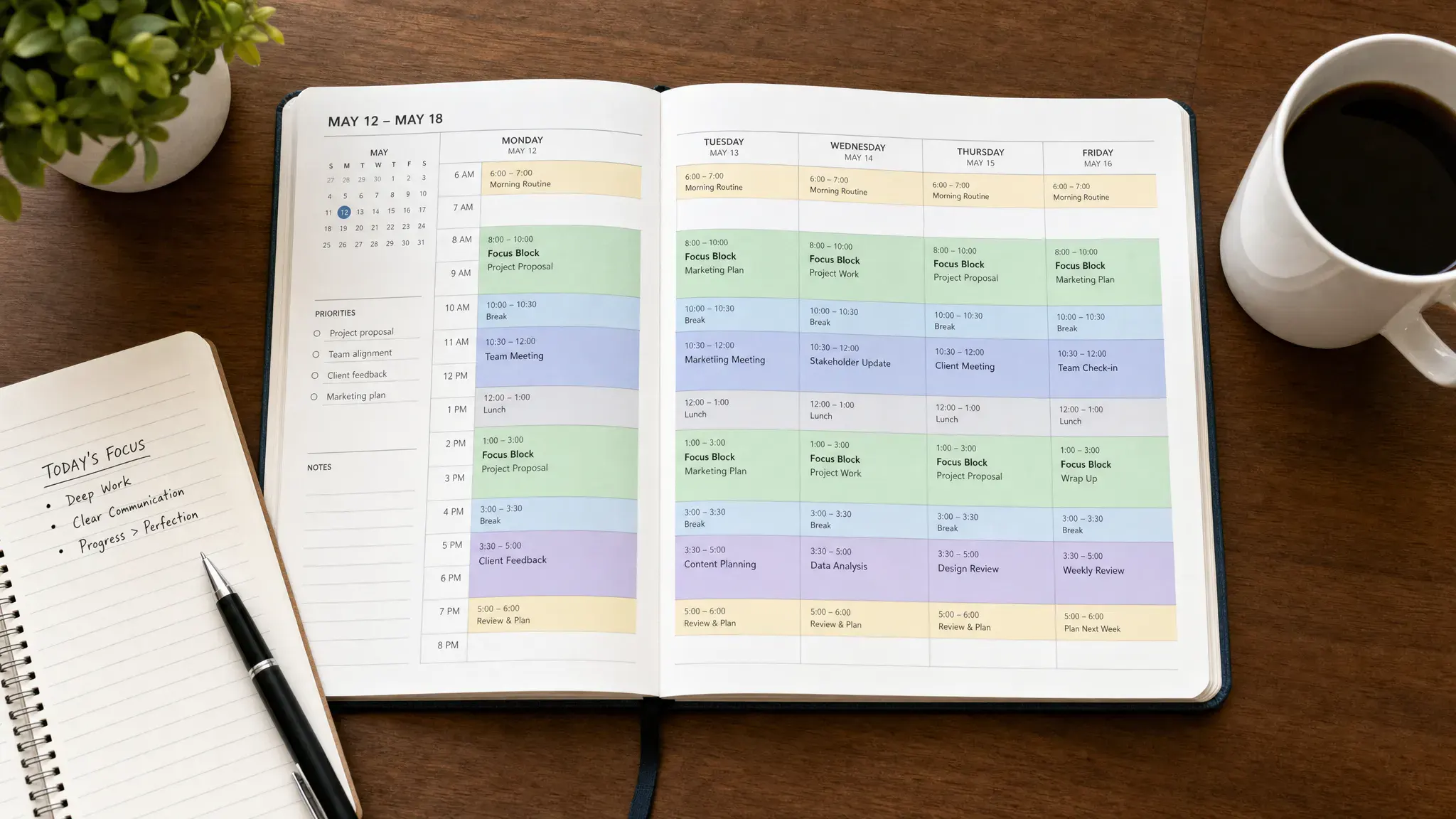
Which calendar app should you choose?
The best choice depends less on features and more on the failure point in your current schedule.
| If your main problem is… | Choose this app | Why |
|---|---|---|
| You need a free, familiar time-blocking system | Google Calendar | It is simple, reliable, and integrates widely. |
| Your company runs on Microsoft 365 | Outlook Calendar | It fits Teams, Outlook, and enterprise workflows. |
| Your day changes constantly | Motion | AI replanning reduces manual rescheduling. |
| Your routines keep getting squeezed out | Reclaim.ai | It protects habits, breaks, and recurring focus. |
| You overcommit every morning | Sunsama | Guided planning forces realistic daily choices. |
| Tasks arrive from many tools | Akiflow | It centralizes capture and scheduling. |
| You want tasks, habits, and focus timers together | TickTick | It combines personal productivity features well. |
| You need a clean task manager first | Todoist | It is fast, simple, and calendar-friendly. |
| Your projects live in Notion | Notion Calendar | It connects schedule with project context. |
| You are deep in the Apple ecosystem | Fantastical | It is fast, polished, and Apple-friendly. |
| Other people keep booking bad times | Calendly | It controls inbound scheduling rules. |
For most readers, the best starting point is Google Calendar or Outlook Calendar, depending on your work ecosystem. Then add a specialist tool only if you feel a specific pain: Motion for auto-planning, Reclaim for focus defense, Sunsama for daily planning, Akiflow for task capture, or Calendly for booking boundaries.
A simple time-blocking setup that works in any app
You do not need a perfect system to get value from time blocking. Start with a structure that is easy to maintain.
| Setup step | What to do | Why it works |
|---|---|---|
| Define block categories | Use categories like deep work, meetings, admin, learning, personal, and buffer. | Your calendar becomes readable at a glance. |
| Plan the week first | Add major focus blocks before small tasks fill the space. | Important work gets protected early. |
| Add daily buffers | Leave 15 to 30 minutes between demanding blocks or meetings. | Real days include transitions, overruns, and breaks. |
| Schedule admin in batches | Group email, invoices, approvals, and small tasks. | Context switching decreases. |
| Use recurring blocks carefully | Repeat planning, review, exercise, and deep work blocks. | Good routines become automatic. |
| Review every Friday | Move unfinished work and delete blocks that no longer matter. | Your calendar stays realistic. |
If your team struggles with too many meetings, time blocking will only help if you also change meeting culture. Consider pairing your calendar system with meeting-free days so people have shared expectations around deep work.
Manual calendar vs AI calendar: which is better?
AI calendar apps are useful, but they are not automatically better for everyone. The right choice depends on how dynamic your schedule is.
| Calendar style | Best for | Strength | Weakness |
|---|---|---|---|
| Manual calendar | Stable schedules, simple routines, personal planning | Maximum control and low complexity | Requires manual rescheduling |
| Task-calendar hybrid | People who plan from to-do lists | Connects tasks with time | Still needs regular review |
| Guided planner | Overcommitters and intentional planners | Encourages realistic daily planning | Less automatic replanning |
| AI scheduler | Busy professionals with shifting priorities | Rebuilds schedules dynamically | Requires accurate inputs and trust |
| Booking companion | Client-facing professionals | Protects availability from external meetings | Does not manage your whole day |
A good rule: use the simplest tool that solves your actual bottleneck. If your problem is forgetting tasks, choose a task-calendar hybrid. If your problem is other people booking over your focus time, use a booking tool with buffers. If your problem is constant schedule chaos, try AI scheduling.
Common time-blocking mistakes to avoid
The most common mistake is treating your calendar like a wish list. If you schedule ten hours of focused work around six hours of meetings, the problem is not the app. The plan is unrealistic.
Another mistake is forgetting buffers. Back-to-back blocks look efficient, but they rarely survive real life. You need transition time, bio breaks, note cleanup, meeting overrun protection, and mental reset space.
A third mistake is blocking every tiny task. Time blocking works best when it protects meaningful work. Batch small tasks into admin blocks instead of creating a separate event for every five-minute item.
Finally, do not ignore energy. Put demanding work when you are most alert. Use lower-energy hours for email, cleanup, planning, or routine tasks. A calendar that matches your energy is easier to follow than one that only matches availability.
Privacy and security considerations
Calendar apps can reveal sensitive information: client names, medical appointments, travel plans, hiring conversations, financial meetings, and internal project details. Before connecting a new calendar app, review what data it can access.
For personal use, check whether the app needs full calendar access or only availability access. For teams, look for admin controls, permission management, single sign-on options, data retention policies, and clear offboarding procedures.
Also consider naming conventions. A shared calendar block titled “Therapy appointment” reveals more than necessary. A private event titled “Personal appointment” protects the time without exposing details.
The more automation you add, the more important clean permissions become. AI scheduling tools can be powerful, but they should not have access to calendars or workspaces they do not need.
Frequently Asked Questions
What is the best calendar app for time blocking in 2026? For most people, Google Calendar is the best starting point because it is free or already included in many workflows, easy to use, and widely integrated. Microsoft Outlook Calendar is the best default for Microsoft 365 workplaces. If you want AI scheduling, consider Motion or Reclaim.ai.
Is Google Calendar enough for time blocking? Yes, Google Calendar is enough if you are willing to manually create and adjust blocks. It works especially well with color-coded calendars, recurring events, Tasks, and Focus Time in eligible Workspace accounts.
Are AI calendar apps worth it? AI calendar apps are worth it if your schedule changes often, you manage many tasks, or you frequently miss deadlines because work never gets rescheduled. If your week is predictable, a manual calendar may be simpler and cheaper.
Should I put every task on my calendar? No. Put important work, meetings, routines, and task batches on your calendar. Small tasks are usually better grouped into admin blocks so your calendar does not become cluttered.
What is the best calendar app for students? TickTick, Todoist, Google Calendar, and Notion Calendar are strong student options. TickTick is good for tasks and study timers, Google Calendar is great for class schedules, and Notion Calendar works well if your notes and assignments already live in Notion.
What is the best calendar app for teams? Outlook Calendar is best for Microsoft 365 teams, Google Calendar is best for Google Workspace teams, and Reclaim.ai is useful when teams want to protect focus time and routines more intelligently.
Build a calendar system you will actually use
The best time-blocking app is the one that makes your next action obvious. Start with your existing calendar, add clear block categories, protect deep work, and only upgrade when you know what problem you are solving.
If you want to keep improving your productivity stack, explore more Online Tool Guides tutorials on calendars, task management, automation, and digital workflow optimization. A better schedule is not about filling every minute. It is about making your most important work easier to start and harder to interrupt.



