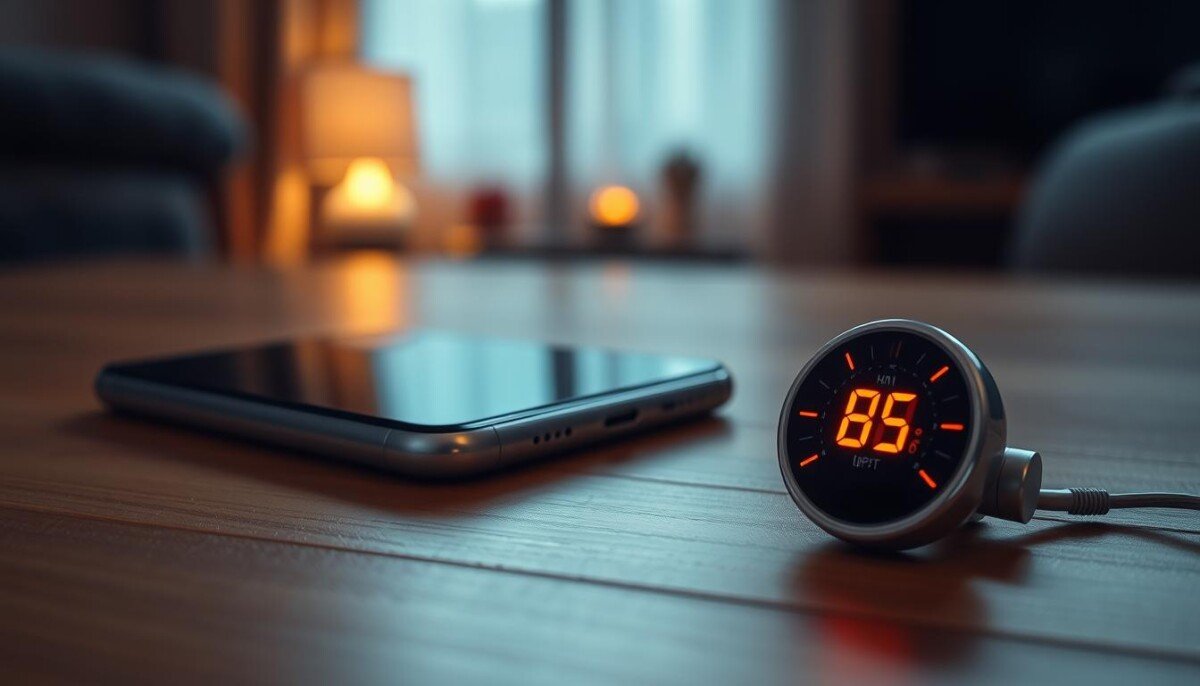
Have you ever held a device that feels too warm to touch and wondered if it will refuse power on purpose?
Thermal protection is a safety feature that stops charging to avoid damage. Modern gadgets reduce power intake or enter a safe mode if internal temps rise too high. This prevents chemical harm to lithium-ion batteries and keeps circuits safe.
Paul’s V20 heated badly even while off, which shows that excessive heat can signal a deeper hardware or software issue. If your unit gets hot while idle, you should consider diagnostic help rather than just swapping chargers.
Learn how thermal limits, charging patterns, and environmental factors interact and what steps to take next at smartphone overheating causes & fixes.
Key Takeaways
- Thermal protection can block charging to prevent battery damage.
- Severe heat while idle may indicate software or hardware failure.
- Limit exposure to direct sunlight and remove cases while charging.
- Use diagnostics if the device gets hot repeatedly or painfully.
- Safe-mode charging reduces power intake to cool internal components.
Understanding Why Your Phone Wont Charge When Hot
Thermal limits inside your gadget are the usual reason charging slows or pauses. Internal charger management watches battery and circuit heat. Once temps rise past about 40°C (104°F), the system reduces power to avoid damage.
Recognizing overheating symptoms helps you act fast. You may see the screen dim or notice sluggish performance. Charging speed drops and battery charging can stretch over many minutes instead of finishing quickly.
Common causes include heavy background apps, poor-quality wall chargers, or intense use while plugged in. A bad charger can fail to regulate power and add heat. If the device gets hot within a few minutes of plugging in, check for software updates or battery charging settings.
The Role of Thermal Protection
- Your device uses a charger management system to monitor heat and adjust power flow.
- Slowing battery charging preserves cell life and prevents permanent degradation.
- Closing unused apps lowers processor load and reduces heat during charging.
Common External Factors Causing Thermal Overheating

Small mistakes outside the device can create big thermal problems during charging.
Damaged cables or a dirty charging port often create uneven power flow. This forces the battery and charger circuitry to work harder and produce excess heat.
Placing your phone on a soft surface like a bed or sofa traps warmth. A thick case can act as an insulator and raise internal temps further.
Non-certified chargers and cheap adapters fail to regulate power well. Over time, that misuse can cause permanent damage and shorten battery life.
- Keep the charging port clean and use a high-quality cable for reliable charging.
- Place the device on a hard, flat surface to allow heat to dissipate.
- Avoid direct sunlight and remove bulky cases while charging to reduce overheating risk.
Take these simple steps and you cut the chance of heat-related failures and extend the useful life of your phones.
Troubleshooting Steps to Restore Charging Functionality

A stepwise check of software, cables, and environment often restores normal charging within minutes.
Optimizing Software and Background Processes
Close unused apps and restart the device every 48 hours to clear hidden tasks. This simple habit reduces processor load and stops unnecessary heat during charging.
Update your software to fix bugs that cause high battery drain. If the screen is unresponsive, force stop troublesome apps and reboot to remove lingering software damage.
Inspecting Cables and Charging Ports
Check the cable for frays and try a different certified charger or USB port. A damaged cable or poor connector often limits power flow and can cause overheating.
Clean the port gently with a soft brush and follow guidance to clean the charging port. That reduces debris-related faults and restores steady charging speed.
Managing Environmental Conditions
Move the device to a cool, hard surface and remove bulky cases to improve heat dissipation. Switch to airplane mode to lower load and let the unit cool in a few minutes.
For reliable fast charging, use a stable power source like the EcoFlow RIVER 3 Plus, which can fully charge a handset in about 60 minutes via high-speed USB-C.
| Check | Action | Expected Result | Time |
|---|---|---|---|
| Background apps | Close or force stop unused apps | Lower CPU use and less heat | 1–2 minutes |
| Cable & charger | Swap to certified cable and charger | Stable power and faster charging | Immediate |
| Charging port | Clean lint and inspect pins | Improved connection, fewer errors | 2–5 minutes |
| Environment | Move to cool, flat surface; remove case | Better heat dissipation and steady speed | Minutes |
When to Seek Professional Repair Services

If basic fixes fail, a trained technician can reveal hidden hardware faults quickly.
Signs you need expert help:
- If your phone keeps running warm even after resets and cable swaps, this suggests internal circuit or battery damage.
- Smell burning, visible swelling, or a screen that reacts poorly are urgent red flags. Avoid charging and power down the device.
- When multiple chargers and cables fail to restore power, the fault is likely physical and needs service.
Wireless charging can lose 20–30% of energy as heat. That makes wireless setups more likely to cause overheating than a wall charger.
| Symptom | Likely Cause | What a Shop Will Do | Expected Time |
|---|---|---|---|
| Gets warm while off | Shorted circuit or bad battery | Full diagnostic and thermal test | 10–30 minutes |
| Fails to accept power | Damaged port or power chip | Inspect port, replace or repair part | 30–60 minutes |
| Burn smell or swelling | Severe battery damage | Immediate battery removal and replace | Minutes to 1 hour |
| Overheats on wireless pad | Inefficient coil transfer | Recommend wall charger and test | 10–20 minutes |
Warranty and shop choice: A certified technician can check warranty coverage and advise on repair versus battery or port replacement. A trusted shop provides a clear quote and fast service to get your device back at safe power and speed.
Conclusion
A simple habit—managing temperature while charging—prevents many common power issues.
Keep the device on a hard, cool surface and remove thick cases to let heat escape. Use certified cables and adapters to lower risk and extend battery life.
If problems persist, restart the unit and test another power source. For recurring faults or signs of damage, seek professional help to avoid bigger failures.
Learn more about possible causes and fixes at why won’t my phone charge. Follow these simple habits and you will enjoy more reliable charging and fewer surprises.



