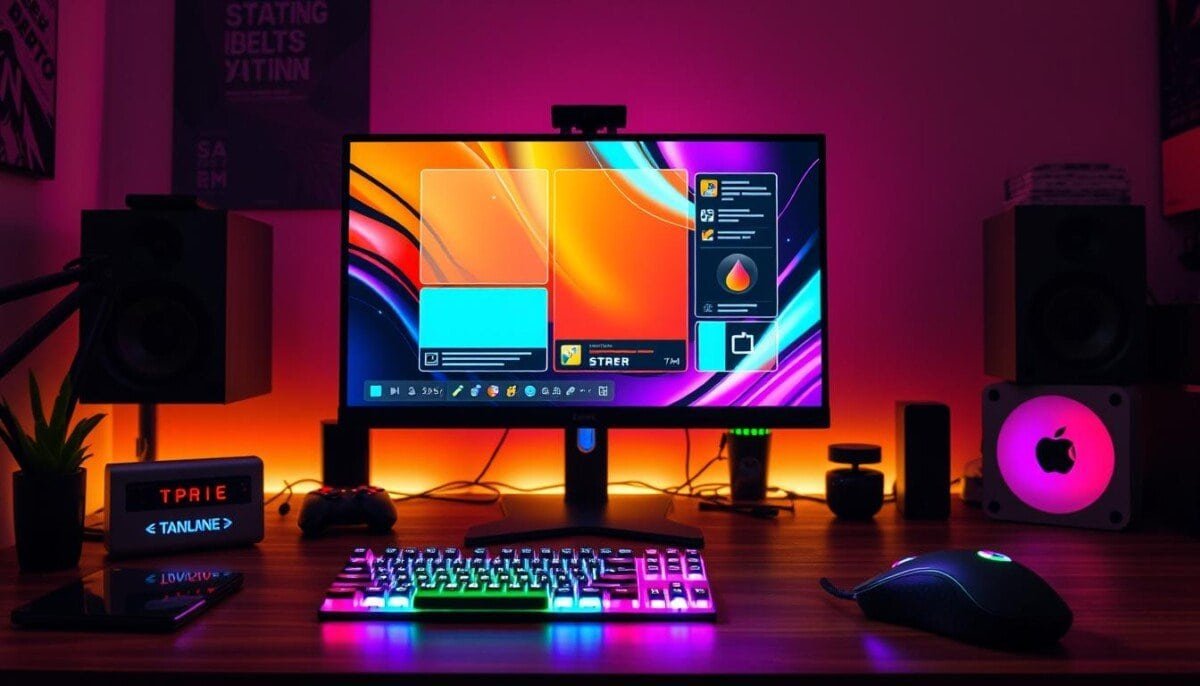
Can a single design choice lift your channel from amateur to polished in under an hour? You want a clean look that keeps viewers watching. You also need tools that cut setup time and reduce technical friction.
Stream Maker has already produced over 720k graphics for creators without a subscription or account. That means you can grab ready assets fast and focus on content, not design.
OBS Studio gives you a free, stable foundation across Windows, Mac, and Linux. Combine it with quality graphics, panels, and alerts to build a reliable broadcast in minutes.
This guide shows how to choose solutions that fit your workflow. You’ll learn which software and assets speed your setup and how to integrate custom visuals to boost production value.
Key Takeaways
- Choose tools that shorten setup and reduce technical hurdles.
- Use pre-made graphics and panels to create a polished layout in minutes.
- OBS Studio is a free core tool that works on major platforms.
- Alerts and custom assets raise viewer engagement quickly.
- Stream Maker offers instant graphics without account barriers.
Why Professional Visuals Matter for Your Channel
A clear visual identity helps viewers know what to expect the moment they click into your live show.
The Impact of Branding
Consistent design builds recognition. When your overlays and colors match, people spot your channel faster. That recognition saves viewers time and builds trust.
Good visual style supports your content. It signals that you value the details. Viewers stay longer when a layout feels polished.
Attracting New Viewers
Professional overlays act as a visual anchor for new visitors. They make a strong first impression and guide attention to your goals.
When your streams show a cohesive look, your audience can find you again in category lists. High-quality visuals tell newcomers you take streaming seriously.
- Consistent branding = faster recognition
- Polished design = higher perceived value
- Cohesive style = easier discovery across platforms
| Benefit | Why it Matters | Quick Action |
|---|---|---|
| Recognition | Viewers spot your channel faster in lists | Use a consistent color palette |
| Retention | Clean overlays reduce distraction | Limit on-screen elements to essentials |
| Discovery | Professional look raises click-through | Apply the same style across scenes |
Top Rated Best Stream Overlay Makers for Twitch and YouTube
Turn-key designs and editable templates let you refresh visuals in minutes without design skills.
StreamSpell has served over 750k streamers across 120 countries and completed 1,500+ custom projects. That track record shows their capacity to create polished stream overlays and custom panels that fit pro channels.
Core tools creators use include CapCut, Streamlabs, StreamPro, Nerdordie, Twitch Overlay, and Kudos.tv. These designs and tools help you upgrade stream aesthetics in minutes and work across common platforms like OBS Studio.
- Fast edits: CapCut and Streamlabs let you change colors and text in minutes.
- Live data: StreamPro and Nerdordie integrate real-time alerts and stats into streams.
- Compatibility: Many packages include overlays stream files ready for OBS Studio.
| Tool Type | Strength | When to Use |
|---|---|---|
| Template editors | Quick visual updates | When you need new designs fast |
| Custom studios | Brand partnerships, unique graphics | For channels seeking distinct identity |
| Integration tools | Alerts & data feeds | When you want real-time engagement |
Compare these top-rated options to match your technical needs. If you also take donations, learn to set up donations cleanly to support growth.
Essential Elements of a High-Quality Stream Layout
A clear layout puts your webcam, alerts, and chat where viewers expect them.
Webcam Frames
Webcam frames keep your face visible and remove distracting borders. A simple frame highlights reactions during intense moments and keeps viewers connected.
Alert Boxes
Use compact alert boxes so new followers and subscribers are noticed without blocking action. Well-placed alerts reward engagement and boost the live experience.
Chat Overlays
Chat overlays let your audience see conversation without leaving the screen. This improves participation and keeps viewers on the page.
Proper setup in OBS Studio ties these elements together. Position sources with margins and scene transitions to avoid clutter.
- Frame the webcam near action but away from key UI elements.
- Place alerts where they draw attention without covering critical content.
- Keep chat readable with contrast and small fonts.
| Element | Purpose | Quick Setup Tip |
|---|---|---|
| Webcam Frame | Maintain personal connection | Use a subtle border and fixed size |
| Alert Box | Recognize supporters in real-time | Anchor to screen corner and test timing |
| Chat Overlay | Show conversation without leaving view | Use semi-transparent background for readability |
These components guide the eye and make your overlays work for both new and returning viewers. If you also accept donations, learn how to set up donations to support growth.
How to Choose the Right Design Software for Your Needs

Choose software that matches how much control you want over visuals and how quickly you need results.
Templates speed setup; manual editing gives depth. If you want polished stream overlays in minutes, look for editors with built-in libraries and AI helpers. CapCut, for example, offers AI-powered templates and exports at 1920×1080 so your graphics look sharp on every display.
If you prefer hands-on control, pick software that supports layers and precise editing. That gives long-term flexibility when you refine designs or scale your brand.
Consider workflow time. Drag-and-drop tools cut setup time and reduce the work needed for scene builds. More advanced apps add export options and file quality control for professional broadcast needs.
- Quick setup: template-based editors with high-res exports.
- Deep control: layer support and manual editing tools.
- Balance: pick software that fits your available time and future goals.
| Need | Recommended feature | Why it matters |
|---|---|---|
| Fast launch | Templates + AI | Get designs live in minutes |
| Custom brand | Layer editing | Fine control for unique looks |
| Consistent output | High-res export | Sharp overlays on all displays |
For more tools and workflow ideas, see this guide to social content tools.
Integrating Custom Graphics with OBS Studio
Connecting your visuals to broadcasting software is the final step that makes design practical. A clean integration keeps alerts, scenes, and graphics responsive so viewers see a professional feed.
Connecting Your Graphics to Streaming Software
Add files as image or browser sources to show static assets and animated elements. Use browser sources for alert widgets and HTML-based overlays so they update live.
Follow simple configuration guides for your software to set up positions, scaling, and scene order. Test alerts and timing in a private recording before you go live.
- Organize scenes by purpose (chat, gameplay, intermission) for fast switching.
- Anchor alerts to corners and lock layers to avoid accidental moves.
- Use high-resolution PNGs or transparent web assets to keep graphics sharp.
| Action | Why it helps | Quick tip |
|---|---|---|
| Image source | Displays static frames and panels | Use 1920×1080 or scaled vector files |
| Browser source | Presents live alerts and animated overlays | Test URL and local cache settings |
| Scene collection | Switch layouts without reconfiguring | Name scenes clearly for fast access |
OBS Studio runs on Windows, Mac, and Linux, so this setup works across major platforms. Once the setup is complete, you can focus on content, confident your graphics stay linked to your streaming software.
Leveraging Animated Elements for Viewer Engagement

Animated motion draws immediate attention and rewards viewer actions in ways static graphics cannot. Use animated alerts to highlight follows and subscriptions so people feel seen the moment they interact.
Dynamic overlays add life to your broadcast without adding noise. Small, looping effects keep the layout lively while you focus on content. These moves help deep engagement during long runs of gameplay or chat.
Pro streamers use motion graphics to craft a richer experience. On Twitch, well-timed animations make on-screen moments feel earned. Place them where they support the action, not block it.
- Immediate feedback: alerts that animate for 1–2 seconds grab attention.
- Balanced motion: subtle overlays stop fatigue and keep viewers watching.
- Strategic placement: anchor animations to corners or margins to boost interaction.
When you add animated elements thoughtfully, you encourage more chat and repeat visits. That interaction is the base for a loyal community and steady channel growth.
Building a Consistent Brand Identity Across Platforms
Use the same colors and typography across profiles so your content reads as one unified brand.
Consistency helps your audience find you fast. Use a single color palette, type family, and icon set across your Twitch channel and social profiles. This creates a clear style that makes your stream overlays and panels feel like parts of the same brand.
Custom panels and overlays keep visual signals steady across platforms. When you upgrade stream assets to match your logo, you show viewers you care about quality. That clarity turns casual visits into repeat views.
- Match colors and fonts across pages to speed recognition.
- Use the same icon set in panels and social banners.
- Apply a single visual rule for motion and still graphics.
| Element | Why it matters | Quick action |
|---|---|---|
| Panels | Organize info and reinforce brand | Create templates using your logo colors |
| Overlay | Frames content and ties scenes together | Export at consistent resolution for all platforms |
| Social banners | Extend identity beyond live video | Reuse palette and a single headline style |
For cohesive packages, consider dedicated services like StreamSpell to speed the process and keep designs unified across YouTube and Twitch. A consistent style is a long-term investment that makes your content easier to market and more memorable for new viewers. For more branding tips, see our guide on visual branding for stream overlays and tools for cross-platform work at content creation platforms.
Optimizing Your Stream for Better Audience Retention

A tidy layout and clear prompts help viewers understand what to do next and keep them watching longer.
Improving Viewer Experience
Prioritize clarity over clutter. Place your webcam, chat, and key info so the audience can follow the action at a glance.
Keep the visual setup focused on the content and not on busy graphics. A clean setup reduces distractions and improves the viewing experience.
Highlighting Stream Goals
Show short goals and milestones on screen to invite participation and extend time on your channel.
Update overlays regularly to reflect current targets. Fresh visuals make returning viewers feel the channel is active and relevant.
- Display clear goals and calls to action so new viewers know how to engage.
- Use compact text boxes to state objectives without covering gameplay or main content.
- Manage screen space to keep important info readable on small displays.
For business-focused setups and tools that speed your setup, see our guide to live streaming tools for business. Apply these steps and your audience will find it easier to stay, interact, and return.
Advanced Customization Options for Pro Streamers
Pro-level customization turns simple scenes into dynamic, interactive stages that keep viewers engaged.
Use advanced tools to add complex transitions, layered widgets, and interactive triggers that standard setups cannot match.
Deep edits to your webcam and alerts make the broadcast feel like a high-budget production. Custom graphics and precise timing set you apart and keep attention on key moments.
- Work in After Effects or similar apps to gain full control over animation and export.
- Sync alerts with audio cues and scene changes for seamless feedback.
- Build scene collections in OBS Studio to switch layouts without losing source order.
| Tool | Use | Quick tip |
|---|---|---|
| After Effects | Custom animated graphics | Export PNG sequences or web-ready HTML |
| Widget engines | Live alerts & interactions | Test signals locally before going live |
| Scene builders | Complex transitions | Keep a backup collection for fast restores |
Investing in high-end options ensures your channel keeps a unique, professional look that reflects your brand. For curated options, see the Streamelements overlays shop.
Conclusion
Choose tools that save time and raise production value so viewers focus on your content.
Selecting the right software and assets matters for your channel. The right mix makes your stream look polished and reduces setup friction.
Follow clear guides to improve your streaming setup step by step. Consistent design choices build recognition and help retain viewers over time.
Let visuals support what you do, not compete with it. Use crisp overlays and simple rules so actions and alerts read fast on small screens.
Start today: explore options, test a few exports in OBS, and pick the set that fits your workflow and goals on Twitch.



