Approval workflows are one of the easiest business processes to improve with no-code tools. If requests still live in email threads, Slack messages, spreadsheets, or hallway conversations, your team is probably losing time to follow-ups, unclear ownership, and missing context.
The good news is that you do not need to build custom software to fix it. A no-code approval workflow can collect a request, route it to the right person, send reminders, record the decision, and notify everyone involved. You can create one with tools your team may already use, such as Google Forms, Airtable, Slack, Microsoft Teams, ClickUp, Notion, Zapier, Make, or Power Automate.
This guide walks through a practical approval workflow you can build without coding, including how to choose the right structure, map your approval rules, automate notifications, and avoid common mistakes.
What Is an Approval Workflow?
An approval workflow is a repeatable process for reviewing and approving a request before action is taken. It defines who submits the request, what information is required, who reviews it, what happens after approval or rejection, and where the decision is recorded.
Common examples include:
- Purchase requests
- Expense approvals
- Contract reviews
- Content approvals
- PTO requests
- Access requests
- Vendor onboarding
- Design or campaign reviews
- Policy change approvals
A good approval workflow removes ambiguity. Instead of asking, “Who needs to approve this?” or “Did anyone reply yet?”, the process automatically moves the request through each required step.
Why Build an Approval Workflow Without Coding?
Custom-built approval systems can be powerful, but they are often slow to launch and expensive to maintain. For many teams, a no-code workflow is faster, easier to adapt, and more than sufficient.
No-code approval workflows are especially useful when:
- The process is repetitive but still handled manually
- Requests follow predictable rules
- The team needs better visibility into status
- Approvers are spread across departments or time zones
- You want a lightweight audit trail without building a custom app
- The process may change as the business grows
No-code does not mean unstructured. The strongest no-code workflows are designed carefully before any automation is turned on. If you want a broader foundation first, this guide to automating repetitive tasks without coding explains the core principles behind triggers, actions, and no-code automation logic.
Start With the Process, Not the Tool
The biggest mistake people make is opening a tool before defining the workflow. Before you choose software, document how the approval should work in plain English.
Start by answering five questions.
| Question | Why it matters | Example |
|---|---|---|
| What is being requested? | Defines the form fields and required context | New software purchase |
| Who can submit it? | Controls access and accountability | Any department manager |
| Who approves it? | Determines routing rules | Finance if over $500, IT if software related |
| What outcomes are possible? | Creates clear decision paths | Approved, rejected, needs changes |
| Where should the record live? | Builds your audit trail | Airtable, Google Sheet, ClickUp task, CRM |
This planning step keeps the workflow simple. A clear process can be automated in many tools. A confusing process stays confusing, even inside expensive software.
Choose the Right No-Code Approval Workflow Stack
You do not always need a dedicated approval tool. Most approval workflows combine three to five basic components.
| Workflow component | What it does | Common no-code options |
|---|---|---|
| Request form | Captures structured information | Google Forms, Typeform, Microsoft Forms, Jotform |
| Database or tracker | Stores requests and decisions | Airtable, Google Sheets, Notion, ClickUp |
| Routing logic | Sends requests to the right approver | Zapier, Make, Power Automate, Airtable Automations |
| Notifications | Alerts submitters and approvers | Email, Slack, Teams, Discord |
| Audit trail | Records status, timestamps, comments, and approvers | Airtable, ClickUp, SharePoint, Google Sheets |
For a simple workflow, a form plus a spreadsheet and email notifications may be enough. For a more operational workflow, use a structured database like Airtable or ClickUp so you can track statuses, owners, deadlines, and history.
If your workflow depends on changes outside your internal tools, such as a vendor changing pricing or a policy page being updated, you can pair your approval system with website change monitoring alerts so the right team is notified when an external page changes and a review is needed.
A Simple Approval Workflow Blueprint
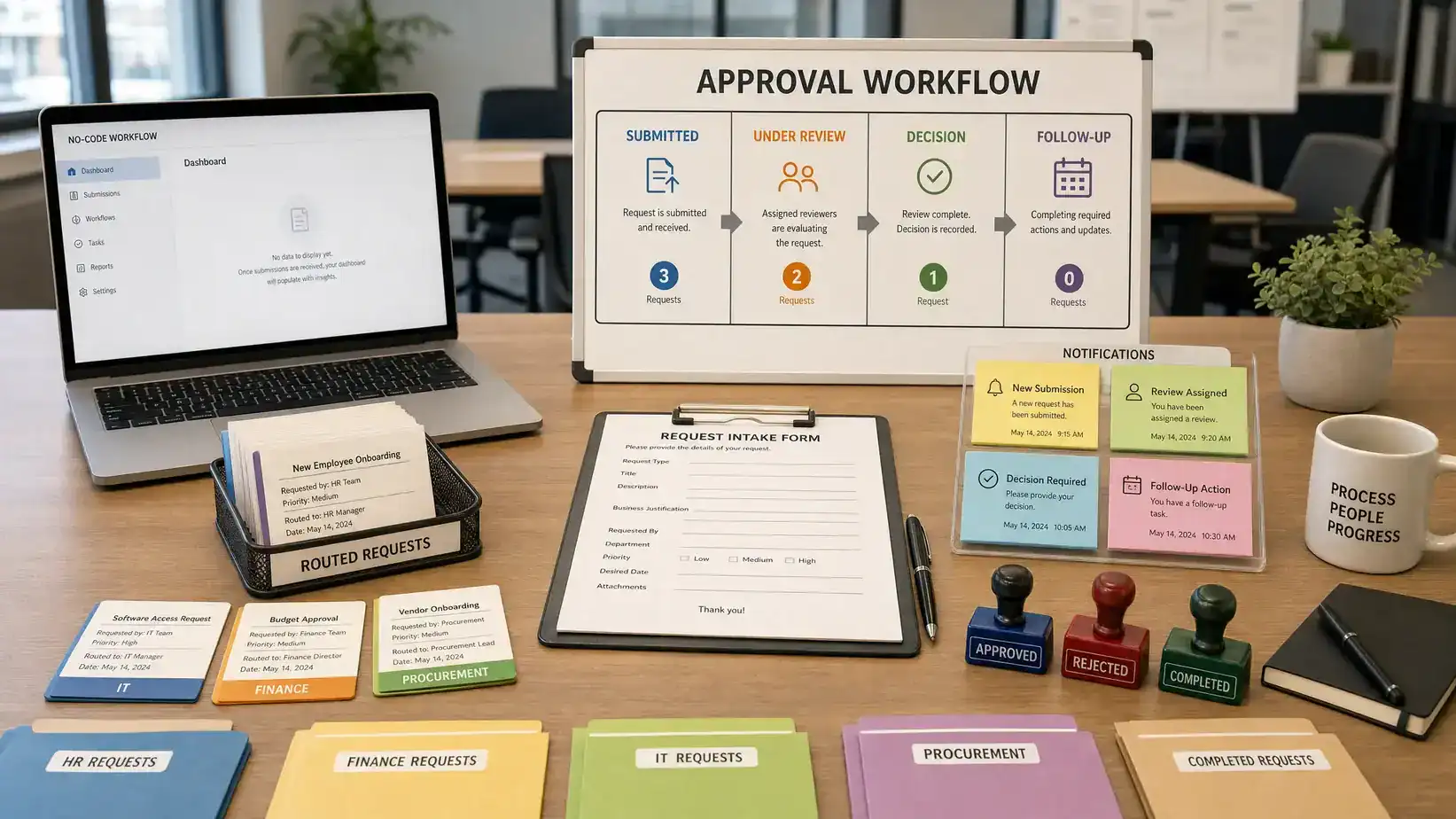
Here is a flexible structure you can adapt to almost any approval process:
- Requester submits a form: The form collects the request type, business reason, amount, due date, attachments, and any supporting notes.
- Request is added to a tracker: A new record is created in Airtable, Google Sheets, ClickUp, Notion, or another shared system.
- Workflow checks routing rules: The automation determines who needs to approve based on department, budget, request type, urgency, or risk level.
- Approver receives a notification: The approver gets an email, Slack message, Teams message, or task assignment with the request details.
- Approver makes a decision: The approver selects approved, rejected, or needs changes, ideally from a controlled field or button.
- Status updates automatically: The tracker updates with the decision, timestamp, approver, and comments.
- Requester is notified: The submitter receives the result and any next steps.
- Follow-up actions run if needed: The workflow can create a task, notify finance, send a contract for signature, or archive the request.
This blueprint works because it separates the process into clear stages. You can start with the simplest version and add complexity only when the workflow proves useful.
Step 1: Define Your Approval Rules
Approval rules tell the workflow where each request should go. Keep them as simple as possible at first.
For example, a software purchase approval might use rules like these:
| Condition | Required approval |
|---|---|
| Under $100 per month | Team lead |
| $100 to $1,000 per month | Department head |
| Over $1,000 per month | Department head and finance |
| Handles customer data | IT or security review |
| Requires annual contract | Legal review |
Avoid designing for every edge case on day one. Start with the 80 percent of requests that follow a predictable path. For unusual cases, route them to a manual review queue.
A practical rule of thumb: if the approver would make the same decision about routing three times in a row, that routing rule is probably ready to automate.
Step 2: Build the Request Form
Your form is the front door of the workflow. If it asks for too little information, approvers will chase details. If it asks for too much, people will avoid using it.
For most approval workflows, include fields such as:
- Requester name and email
- Department or team
- Request type
- Business reason
- Requested amount or scope
- Due date or urgency
- Link or attachment for supporting documents
- Preferred vendor or option, if relevant
- Notes for the approver
Use dropdowns instead of open text fields whenever possible. Structured answers make automation more reliable. For example, a dropdown for “Request type” can trigger different approval paths, while a free-text answer like “software thing” cannot.
If your process involves sensitive information, be careful about what you collect and where it is stored. Use tools with appropriate permissions, and avoid sending confidential details into public channels.
Step 3: Create the Approval Tracker
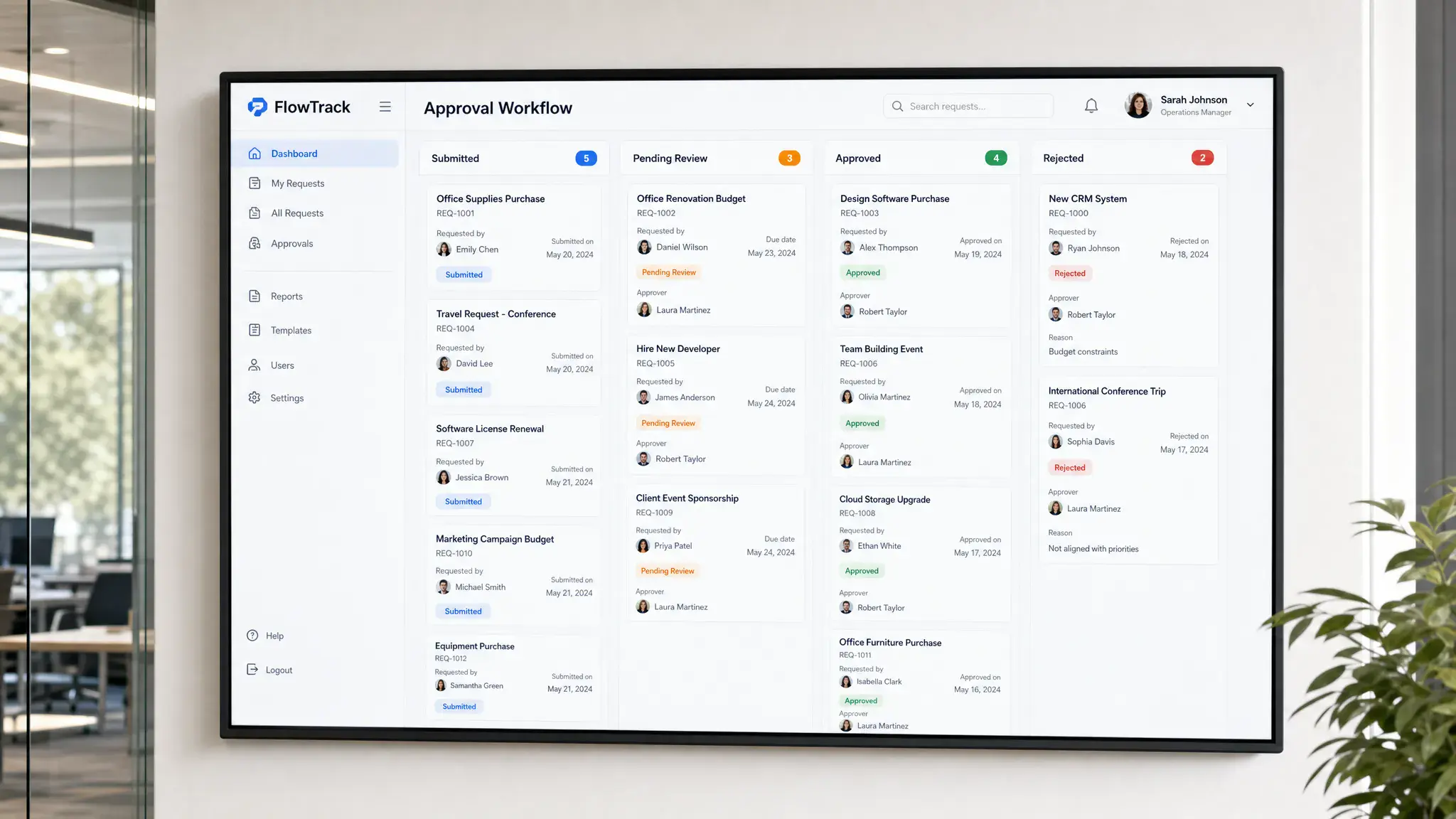
The tracker is the source of truth. It should show every request, current status, owner, decision, and next action.
A basic tracker can include these columns:
| Field | Purpose |
|---|---|
| Request ID | Gives each request a unique reference |
| Submitted date | Shows when the process started |
| Requester | Identifies who needs the result |
| Request type | Helps with filtering and routing |
| Approver | Shows who owns the decision |
| Status | Tracks submitted, pending, approved, rejected, or needs changes |
| Decision date | Records when the approval was completed |
| Comments | Captures context for future review |
Airtable is popular for this because it combines spreadsheet-like editing with database views, forms, permissions, and automations. If you are already using Airtable and want to go beyond basic triggers, our guide to advanced Airtable automations covers more sophisticated multi-step workflows.
Step 4: Automate Notifications and Routing
Once the form and tracker are ready, add automation. The trigger is usually “new form response” or “new record created.” The actions depend on your workflow.
A simple automation might do this:
- Create a new request record
- Check the request type and amount
- Assign the correct approver
- Send a notification to the approver
- Set the status to pending approval
- Send confirmation to the requester
For notifications, include enough context for the approver to act without searching through multiple systems. A good approval notification includes the requester, summary, amount or scope, due date, business reason, and a direct link to the record.
If you use Slack or Teams, avoid flooding channels with every small update. Send approval requests to the responsible person or a specific workflow channel. For team status and lightweight internal workflows, you may also find this guide on creating Slack workflows for availability updates useful, especially if your approvals depend on who is currently available.
Step 5: Make the Decision Step Easy
The approval step should be frictionless. If approvers have to open five tabs or manually edit a spreadsheet, the workflow will slow down.
Depending on your tools, you can let approvers respond in different ways:
- Change a status field in Airtable, ClickUp, Notion, or a spreadsheet
- Click an approval button in an email or workflow app
- Submit a short approval form
- Reply through Slack or Teams if your automation platform supports it
- Complete a task assigned to them in a project management tool
The most reliable method is usually a controlled status field. For example: submitted, pending approval, approved, rejected, needs changes, and completed. Controlled statuses keep reports clean and prevent variations like “Approved,” “approved,” “yes,” and “done” from breaking your automation.
Also decide whether comments are required for rejections. In most approval workflows, a rejection without a reason creates more confusion than clarity.
Step 6: Add Reminders and Escalations
Approvals often stall because the approver is busy, unavailable, or unsure what to do. Automated reminders help, but they should be thoughtful.
A practical reminder pattern looks like this:
| Timing | Action |
|---|---|
| Immediately after submission | Notify the assigned approver |
| After 24 hours | Send a friendly reminder if still pending |
| After 48 or 72 hours | Notify a backup approver or manager |
| After approval deadline | Mark as overdue and alert the requester |
Do not send reminders every hour. That creates notification fatigue and teaches people to ignore the workflow. Instead, set expectations clearly, such as “standard approval time is two business days.”
For critical processes, create backup approvers. This is especially important for finance, procurement, customer operations, and security requests where delays can block work.
Step 7: Create an Audit Trail
An approval workflow should answer three questions at any time: who requested it, who approved it, and when the decision happened.
At minimum, capture:
- Original request details
- Status changes
- Approver name
- Decision timestamp
- Approval or rejection comments
- Related files or links
- Final outcome
Some no-code tools maintain history automatically. Others require you to add fields like “decision date” or create separate log records. If approvals affect money, compliance, customer commitments, or security access, do not rely only on chat messages. Store the final decision in a system that can be searched later.
This does not need to be complicated. Even a well-structured Airtable base or SharePoint list can provide a useful audit trail if fields are consistent and permissions are managed properly.
Example: No-Code Content Approval Workflow
To make this concrete, imagine a marketing team needs to approve blog posts before publication.
The workflow could look like this:
| Stage | Tool action |
|---|---|
| Draft submitted | Writer fills out a form with title, draft link, target publish date, and notes |
| Record created | Airtable or ClickUp creates a new approval item |
| Editor assigned | Automation routes the item based on content type |
| Review requested | Slack or email notification goes to the editor |
| Decision made | Editor changes status to approved, rejected, or needs changes |
| Next step triggered | Approved posts move to scheduling, revisions return to the writer |
| History stored | Decision date, reviewer, and comments stay in the tracker |
This setup keeps the process visible without requiring a custom content operations platform. As the team grows, you can add more steps, such as SEO review, legal review, design approval, or final publishing confirmation.
Example: No-Code Purchase Approval Workflow
A purchase approval workflow usually needs stronger rules because money, vendors, and compliance may be involved.
A simple version could use Google Forms, Google Sheets, and Zapier or Power Automate:
| Request condition | Workflow action |
|---|---|
| Under $250 | Notify team manager |
| $250 to $2,500 | Notify department head |
| Over $2,500 | Notify department head and finance |
| New software vendor | Add IT review step |
| Contract required | Add legal review step |
Once approved, the workflow can notify procurement or finance. If rejected, it can email the requester with the reason. If more information is needed, it can set the status to needs changes and ask the requester to update the record.
The key is to avoid using personal inboxes as the system of record. Email can deliver notifications, but the tracker should hold the truth.
Common Mistakes to Avoid
No-code approval workflows are easy to build, but they can become messy if there is no structure. Watch out for these common issues.
Too many approval steps. Every extra approver adds delay. Use multiple approval layers only when risk, cost, or compliance justifies them.
Unclear ownership. If a request goes to a shared channel without a named approver, everyone may assume someone else is handling it.
Free-text statuses. Inconsistent status labels make automation and reporting unreliable. Use dropdowns or single-select fields.
No fallback path. If the approver is out of office, the workflow should have a backup or escalation route.
Poor requester communication. Submitters should know when their request was received, who is reviewing it, and what decision was made.
Over-automation too early. Do not automate a broken process. Run a simple version manually or semi-automatically first, then improve it.
How to Test Your Approval Workflow Before Launch
Before rolling the workflow out to the whole team, test it with realistic examples. Use simple, complex, approved, rejected, and edge-case requests.
Check whether:
- Required fields are clear
- Routing rules send requests to the correct approver
- Notifications include enough context
- Status updates trigger the right next step
- Reminders do not fire too soon or too often
- Rejections include comments
- The audit trail is complete
- Permissions prevent unauthorized edits
Ask at least one requester and one approver to test the workflow. Their feedback will reveal friction you may not notice as the builder.
When Should You Use a Dedicated Approval Tool?
A DIY no-code workflow is a strong starting point, but it is not always the final answer. Consider a dedicated approval platform if your process requires advanced permissions, complex compliance reporting, legally binding approvals, multi-entity finance rules, or hundreds of requests per week.
That said, many teams never need to go that far. A well-built no-code workflow can handle a surprising amount of operational complexity if the rules are clear and the tracker is maintained.
Use this decision guide:
| Situation | Best fit |
|---|---|
| Fewer than 50 requests per month | Form plus spreadsheet or Airtable |
| Team already works in ClickUp, Notion, or Airtable | Build inside the existing workspace |
| Microsoft-heavy organization | Microsoft Forms, SharePoint, Power Automate, Teams |
| Many app integrations required | Zapier or Make |
| Strict compliance and audit requirements | Dedicated approval or workflow management software |
Frequently Asked Questions
Can I create an approval workflow without coding? Yes. You can create an approval workflow without coding by combining a form, a tracker, automation rules, and notifications. Tools like Airtable, Google Forms, Zapier, Make, Power Automate, ClickUp, and Slack can handle most common approval processes.
What is the simplest approval workflow setup? The simplest setup is a form that sends responses to a spreadsheet, then notifies an approver by email. The approver updates a status field, and the requester receives the result. This works well for low-volume processes.
Which tool is best for no-code approval workflows? The best tool depends on your existing workflow. Airtable is strong for database-style tracking, Power Automate works well in Microsoft environments, Zapier and Make are useful for connecting multiple apps, and ClickUp works well when approvals are tied to tasks.
How do I prevent approval workflows from becoming too complicated? Start with one request type, one tracker, and a small number of approval rules. Add steps only when there is a clear business reason. Complexity should solve a real problem, not anticipate every possible exception.
Do approval workflows need an audit trail? Yes, especially for expenses, contracts, access requests, vendor approvals, and compliance-related processes. At minimum, store the requester, approver, decision, date, comments, and original request details.
Build Your First Approval Workflow This Week
You do not need a developer, a custom app, or a months-long implementation plan to create a useful approval workflow. Start with one recurring process that causes delays, map the decision rules, collect requests through a form, track them in one place, and automate the handoffs.
Once the workflow is running, improve it based on real usage. Add reminders, backup approvers, better reporting, and extra review steps only when they clearly reduce friction.
For more practical guides on no-code systems, productivity tools, and digital workflow optimization, explore Online Tool Guides and build a workflow stack that fits how your team actually works.