Repetitive tasks are the quiet productivity killer. They rarely feel difficult, but they drain attention one small action at a time: copying details from an email into a spreadsheet, saving attachments, assigning tasks, sending reminders, updating statuses, or moving data between apps.
The good news is that you no longer need to be a developer to fix this. With no-code automation tools, you can connect the apps you already use and build simple workflows that run in the background. A trigger happens, a rule checks the details, and an action follows automatically.
This guide walks you through how to automate repetitive tasks without coding, from choosing the right tasks to building your first workflow, testing it safely, and avoiding common mistakes.
What No-Code Automation Actually Means
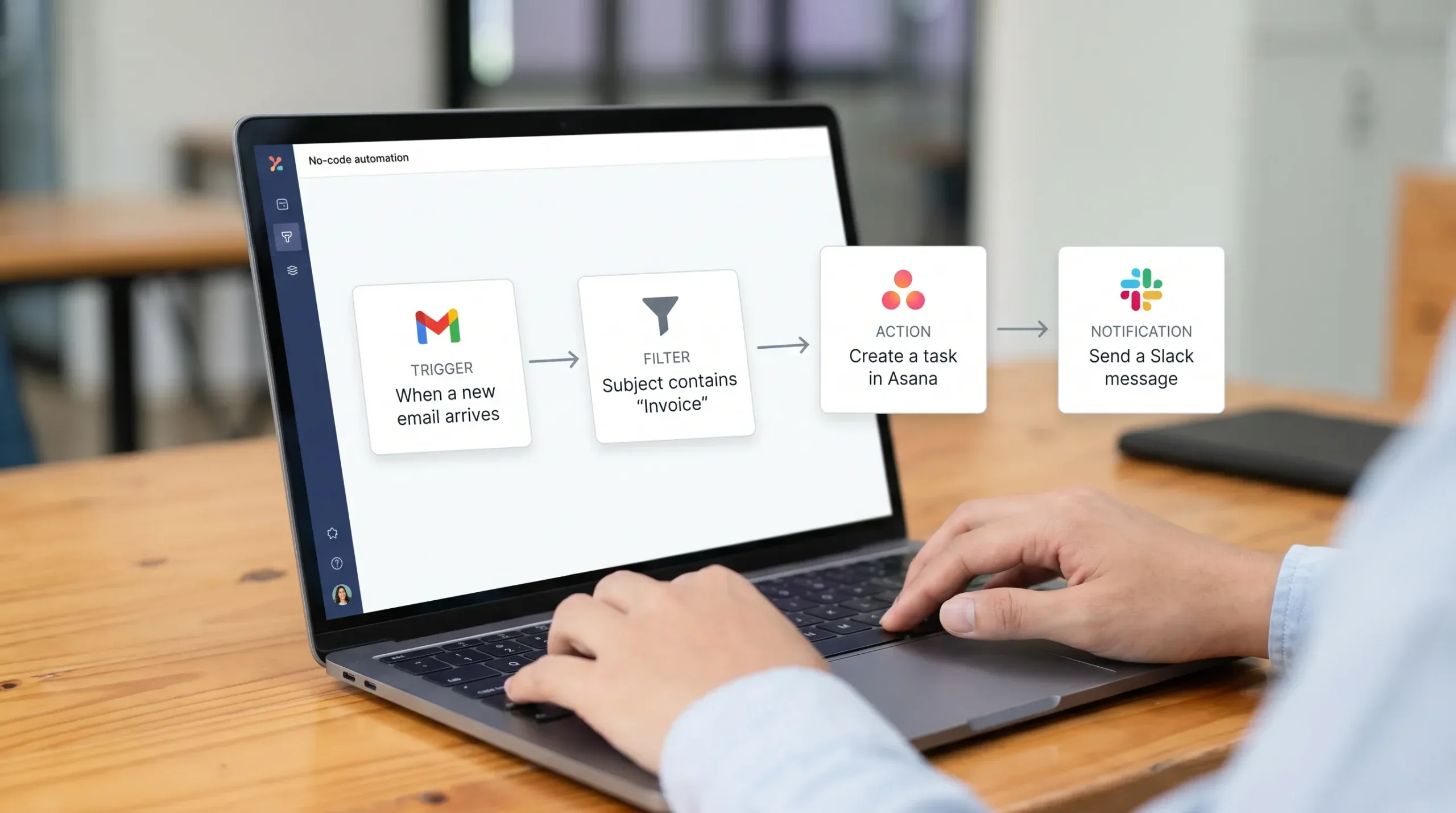
No-code automation is the process of creating automated workflows using visual builders, templates, menus, and prebuilt integrations instead of writing code. You choose a trigger, define conditions, map data fields, and select one or more actions.
For example, you might create a workflow like this:
| Workflow part | Example |
|---|---|
| Trigger | A new form response is submitted |
| Condition | The request type is “urgent” |
| Action | Create a task in ClickUp or Asana |
| Follow-up | Send a Slack message to the assigned team member |
This is different from traditional coding because the tool handles the technical connection between apps. You still need to understand your process, but you do not need to write JavaScript, Python, or API requests.
Popular no-code automation platforms include Zapier, Make, Microsoft Power Automate, IFTTT, Airtable Automations, Notion automations, and built-in rules inside tools like Gmail, Outlook, Slack, ClickUp, Asana, and Calendly.
According to Zapier’s business automation research, 94% of workers said they perform repetitive, time-consuming tasks in their role. That is why automation is no longer just a technical advantage. It is a practical productivity skill.
The Best Tasks to Automate First
The easiest mistake is trying to automate everything immediately. Start with tasks that are repetitive, predictable, and low-risk. A good automation candidate has clear rules, happens often, and does not require complex human judgment.
Tasks worth automating first include:
- Saving email attachments to cloud storage services
- Creating tasks from form submissions or emails
- Sending meeting reminders or follow-up messages
- Moving leads from forms into a CRM or spreadsheet
- Updating Slack or Teams statuses from calendar events
- Sorting emails into folders or labels
- Creating recurring reports from time tracking or project tools
- Sending approval notifications when a database record changes
Avoid automating tasks that require sensitive decision-making, legal review, medical judgment, high-value financial approval, or nuanced client communication. Those workflows can still be supported by automation, but a human should remain in the approval step.
For example, appointment-heavy businesses, from consultants to specialized clinics such as Laprin Clinic, can often automate booking confirmations, reminder messages, and internal intake routing while still keeping personal consultations and final decisions human-led.
Step 1: Audit Your Repetitive Work
Before opening an automation tool, spend 20 minutes writing down the tasks you repeat every week. Look for moments where you copy, paste, download, rename, forward, assign, remind, or update the same type of information.
A simple audit table helps you decide what to automate first:
| Repetitive task | Frequency | Time lost | Risk level | Automation priority |
|---|---|---|---|---|
| Copy form leads into spreadsheet | Daily | Medium | Low | High |
| Send weekly client reminder | Weekly | Low | Low | Medium |
| Approve vendor payments | Weekly | Medium | High | Low |
| Save invoices from email to Drive | Daily | Medium | Low | High |
| Update project status manually | Several times weekly | Medium | Medium | High |
Your best first automation should be high-frequency, low-risk, and easy to reverse. A workflow that saves five minutes every day is often more valuable than a complex automation that saves one hour once per quarter.
If you already track your time, review reports from tools like Toggl Track, Clockify, or ClickUp. Time tracking data can reveal where repetitive admin work is hiding. For a deeper productivity review, see our guide on running a weekly time audit using Toggl Track.
Step 2: Map the Workflow in Plain English
Every automation should be written in plain English before it is built. This prevents confusion and helps you catch missing steps.
Use this structure:
“When this happens, check this condition, then do this action.”
Here are a few examples:
| Plain-English workflow | Automation logic |
|---|---|
| When a new sales form is submitted, create a CRM contact and notify the sales channel | Trigger, create record, send message |
| When an invoice email arrives, save the attachment to a finance folder | Trigger, filter by sender or subject, upload file |
| When a task is marked complete, send a short update to the project owner | Trigger, condition, notification |
| When a calendar event starts, update Slack status to “In a meeting” | Trigger, status update |
| When a support request is urgent, assign it to the on-call person | Trigger, filter, task assignment |
This step matters because automation tools are literal. If your workflow rules are unclear, the automation will behave unpredictably.
Step 3: Choose the Right No-Code Automation Tool
There is no single best automation tool for everyone. The right choice depends on your app stack, technical comfort, budget, and workflow complexity.
| Tool | Best for | Strength | Watch out for |
|---|---|---|---|
| Zapier | Connecting common SaaS apps quickly | Large app ecosystem and beginner-friendly templates | Multi-step workflows may require paid plans |
| Make | Visual, flexible workflows | Powerful scenario builder and branching logic | Slightly steeper learning curve |
| Microsoft Power Automate | Microsoft 365 and enterprise workflows | Strong integration with Outlook, SharePoint, Teams, and Excel | Interface can feel complex for beginners |
| IFTTT | Simple personal automations | Easy applet-based setup for basic triggers | Less suited to detailed business workflows |
| Airtable Automations | Database-driven workflows | Great for records, approvals, and structured processes | Best if your workflow already lives in Airtable |
| Built-in app automations | Simple rules inside one app | Fastest option when you only need one platform | Limited when data must move between many tools |
If your workflow stays inside one app, start with that app’s built-in automation. For example, Outlook rules can auto-sort messages, Gmail templates can speed up repeated replies, and ClickUp or Asana rules can automate task movement.
If your workflow crosses multiple apps, use a connector platform like Zapier, Make, or Power Automate. For example, if a Google Form response needs to create a task in Asana and notify Slack, a connector is usually the better choice.
For database-heavy workflows, Airtable is often a practical starting point. Our tutorial on setting up Airtable automations for database management covers triggers, actions, testing, and documentation in more detail.
Step 4: Build Your First Automation
Start with one small workflow. Do not build a full company-wide system on your first attempt. A simple workflow teaches you the most important concepts: triggers, filters, data mapping, testing, and error handling.
Here is a practical beginner example: automatically save invoice attachments from Gmail or Outlook to Google Drive, OneDrive, or Dropbox.
- Choose your trigger app, such as Gmail or Outlook.
- Select the trigger event, such as “new email matching search” or “new email with attachment.”
- Add a filter so only invoice-related emails continue, such as emails from a vendor or messages with “invoice” in the subject line.
- Choose the action app, such as Google Drive, OneDrive, or Dropbox.
- Map the attachment field from the email to the file upload action.
- Choose the destination folder, such as “Finance > Incoming Invoices.”
- Add a notification action if needed, such as a Slack message or email confirmation.
- Test the workflow with one sample email before turning it on.
The key is to keep your first automation narrow. If it works reliably for a week, then you can add more conditions or follow-up actions.
Step 5: Use Filters and Conditions to Prevent Mistakes
Filters are what separate helpful automation from messy automation. Without filters, a workflow may run too often or act on the wrong data.
For example, if every new email creates a task, your task manager will become unusable. But if only emails from specific clients with “request” or “approval” in the subject create tasks, the workflow becomes practical.
Common filter criteria include:
- Sender email address
- Subject line keywords
- Form response values
- Task priority
- Due date
- Status field
- Calendar event type
- File name or folder location
Conditions are especially useful when you want different actions based on different inputs. A form submission marked “sales” can go to the sales pipeline, while one marked “support” can create a support ticket.
This is where task management tools become powerful. If your team uses ClickUp, custom fields and statuses can drive more accurate automation. Our guide to ClickUp custom fields for advanced project tracking explains how structured fields make workflows easier to filter, report, and automate.
Step 6: Add Human Approval Where It Matters
Automation should remove routine friction, not remove accountability. For sensitive workflows, use automation to prepare the next step but keep a person in control of the final decision.
A good human-in-the-loop workflow might look like this:
| Use case | Automation role | Human role |
|---|---|---|
| Client proposal | Generate task and collect request details | Review pricing and send final proposal |
| Expense approval | Route form to manager | Approve or reject expense |
| Social media publishing | Draft and schedule content | Review brand tone before posting |
| Customer support escalation | Detect urgent keywords and assign ticket | Decide response and resolution |
| Hiring pipeline | Move applicants by form status | Conduct interviews and final selection |
This approach gives you speed without sacrificing quality. It is especially important for customer-facing, financial, compliance, and HR processes.
Step 7: Test Before You Trust
Never turn on an automation and assume it will work perfectly. Test it with sample data, edge cases, and realistic mistakes.
A basic test plan should answer these questions:
- Does the trigger fire only when expected?
- Do filters block irrelevant records?
- Are fields mapped to the correct destination?
- What happens if a field is blank?
- What happens if a file is too large?
- Does the notification go to the right person or channel?
- Can you undo or correct the result easily?
Run the automation in a low-risk environment first if possible. For example, send test notifications to a private channel, use a test spreadsheet, or create tasks in a sandbox project.
Keep the first week of automation under close review. Look at task histories, error logs, and app notifications. Most no-code tools provide run history so you can inspect what happened and why.
Step 8: Document the Workflow
Documentation may feel unnecessary for a personal automation, but it becomes essential when the workflow affects a team. If no one knows why an automation exists, they will not know how to fix it when something changes.
Your automation documentation can be short. Include the workflow name, owner, purpose, trigger, actions, connected apps, and what to do if it fails.
| Documentation field | Example |
|---|---|
| Workflow name | Invoice attachment saver |
| Owner | Finance operations lead |
| Purpose | Save incoming invoice PDFs to Drive automatically |
| Trigger | New Gmail email from approved vendors with attachment |
| Actions | Upload attachment to Drive, notify finance channel |
| Failure check | Review automation run history every Friday |
| Last reviewed | Monthly or after vendor changes |
This prevents “mystery automations,” where a workflow keeps running but no one understands it. Good documentation also helps when employees change roles or when your app permissions need to be updated.
Practical No-Code Automation Ideas by Role
Different teams repeat different tasks. Use the examples below as starting points, then adapt them to your actual workflow.
| Role or team | Repetitive task | Automation idea |
|---|---|---|
| Freelancer | Sending project follow-ups | Schedule email reminders or create recurring tasks |
| Marketer | Moving leads from forms to CRM | Trigger CRM contact creation from form submissions |
| Project manager | Assigning tasks after intake | Auto-create tasks based on request type |
| Sales team | Updating deal notes | Send form responses or meeting notes into CRM fields |
| Support team | Routing urgent messages | Create tickets from emails with priority keywords |
| Content creator | Publishing reminders | Create calendar events from content spreadsheet rows |
| Operations | Saving documents | Auto-file attachments into cloud folders |
| Remote team | Sharing availability | Sync calendar events with Slack or Teams status |
If your main pain point is team availability, you might start with status and calendar workflows. For example, our guide on using Zapier to update status across multiple apps explains how to keep availability signals consistent across tools.
Built-In Automation Examples You Can Use Today
You do not always need a dedicated automation platform. Many everyday tools already include automation features that are enough for simple workflows.
In Outlook, rules can automatically move, flag, or categorize messages based on sender, subject, or keywords. If your inbox is overloaded, start with our guide to setting up Outlook email filters.
In Slack, scheduled messages can reduce manual reminders and prevent off-hours pings. You can schedule weekly updates, standup prompts, and recurring team nudges. Our Slack message scheduling guide walks through the basics.
In calendar tools, focus blocks and buffer times can automate boundaries around your workday. Google Calendar Focus Time, Calendly buffers, and Outlook working hours all help reduce manual scheduling friction.
In project management tools, recurring tasks, templates, custom statuses, and assignment rules can automate task assignments without requiring a separate workflow builder.
The best automation is often the simplest one that solves the problem.
Common Mistakes to Avoid
No-code tools make automation accessible, but they do not remove the need for thoughtful workflow design. Watch for these common errors.
Automating a broken process: If the current process is unclear, automation will make the confusion happen faster. Simplify the workflow before automating it.
Skipping filters: A trigger without filters can create duplicate tasks, noisy notifications, and messy databases.
Using personal accounts for team workflows: If the automation owner leaves or changes passwords, the workflow may break. Use shared or role-based accounts where appropriate.
Ignoring permissions: Automations can expose data to the wrong app, folder, or channel if access settings are too broad.
Creating too many notifications: Replacing manual work with constant alerts is not a productivity win. Notify only when action is needed.
Never reviewing automations: Apps change, fields get renamed, team structures shift, and workflows can become outdated. Review important automations monthly or quarterly.
Security and Privacy Basics for No-Code Automation
Automation tools often connect to email, calendars, cloud storage, CRMs, and task managers. That makes security important, even for simple workflows.
Before connecting apps, review what permissions the tool is requesting. A workflow that only needs to create calendar events should not need broad access to your entire file system. Use the least access required.
Also consider data sensitivity. Avoid sending private customer details into public channels. Be careful when automating workflows that involve health information, financial records, HR data, legal documents, or personal identifiers.
Use these basic safeguards:
- Enable multi-factor authentication on connected accounts
- Remove old app connections you no longer use
- Use shared workspaces instead of individual accounts for team automations
- Review workflow run history for errors or unusual behavior
- Keep sensitive approvals human-reviewed
- Document who owns each workflow
If you are automating business-critical processes, check your company’s compliance requirements before connecting third-party tools.
How to Measure Whether Automation Is Working
Automation should save time, reduce errors, or improve consistency. If it does none of those, it may not be worth maintaining.
Track simple before-and-after metrics:
| Metric | What to measure |
|---|---|
| Time saved | Minutes saved per workflow run multiplied by frequency |
| Error reduction | Fewer missed tasks, duplicate entries, or lost files |
| Response time | Faster lead follow-up, ticket routing, or approvals |
| Notification quality | Fewer unnecessary pings, more actionable alerts |
| Team adoption | Whether people actually trust and use the workflow |
For example, if a workflow saves eight minutes per invoice and runs 30 times per month, that is four hours saved monthly. That may justify keeping and improving it.
McKinsey has reported that many jobs contain activities that are technically automatable, even if the entire job is not. Its research on automation and the future of work is a useful reminder: automation works best when it removes routine activities so people can focus on judgment, creativity, service, and strategy.
A Simple 7-Day Plan to Start Automating
If you want to take action this week, follow a small rollout plan rather than trying to redesign your entire workflow.
- Day 1: List the repetitive tasks you perform weekly and estimate time spent on each.
- Day 2: Pick one low-risk task that happens at least several times per week.
- Day 3: Write the workflow in plain English using trigger, condition, and action.
- Day 4: Choose the simplest tool that can handle the workflow.
- Day 5: Build the automation with filters and test data.
- Day 6: Turn it on for a limited test and monitor the results.
- Day 7: Document the workflow and decide whether to improve, expand, or stop it.
This plan keeps automation practical. The goal is not to build the most advanced workflow. The goal is to remove one real source of friction.
Frequently Asked Questions
Can I automate repetitive tasks without any technical skills? Yes. No-code automation tools are designed for non-developers. You still need to understand the process you want to automate, but you can usually build workflows using templates, dropdown menus, and visual steps.
What is the easiest no-code automation tool for beginners? Zapier and IFTTT are often easiest for simple workflows, while Airtable Automations is beginner-friendly if your process is database-based. Microsoft Power Automate is a strong option if your work happens mostly inside Microsoft 365.
What should I automate first? Start with a repetitive, low-risk task that has clear rules. Good examples include saving attachments, sorting emails, creating tasks from forms, sending reminders, and updating team notifications.
Can automation replace employees? In most small business and productivity workflows, automation replaces repetitive steps rather than full roles. It helps people spend less time copying data and more time making decisions, serving customers, and doing higher-value work.
How do I stop an automation from creating mistakes? Use filters, test with sample data, add human approval for sensitive actions, and review run history regularly. Start small before adding complex multi-step logic.
Do I need Zapier, Make, or Power Automate for every workflow? No. Many tools have built-in automation. Use email filters, calendar settings, task rules, templates, and scheduled messages before adding a separate automation platform.
Start Small, Then Build a Smarter Workflow
The easiest way to automate repetitive tasks without coding is to begin with one annoying task, map it clearly, and use the simplest tool that can handle it. Once you see that first workflow run successfully, automation becomes less intimidating and much more useful.
For more practical tutorials, reviews, and productivity workflows, explore the guides on Online Tool Guides. Start with one workflow this week, measure the time it saves, and keep improving from there.