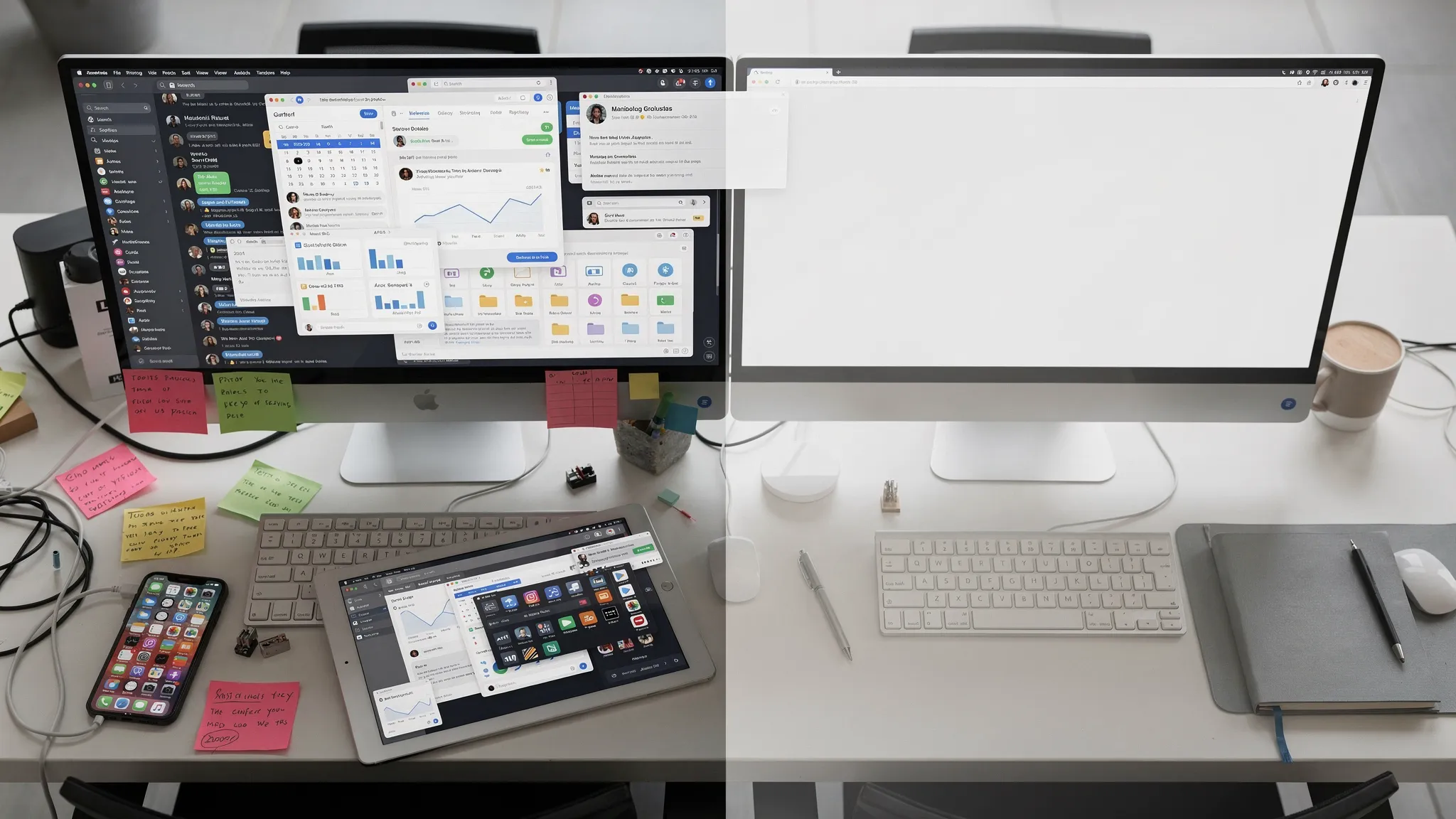
App overload rarely starts with a bad decision. It starts with a good intention: one app to manage tasks, another for notes, another for chat, another for files, another for calendar blocking, another for AI summaries, and then three more because a client, manager, or teammate prefers them.
At first, each tool promises speed. Over time, the workflow gets heavier. You check five inboxes before starting work. Tasks live in multiple places. Notifications interrupt deep work. You spend more time maintaining the system than using it.
The fix is not to delete every app and go back to paper. The fix is to design a lean workflow where every tool has a clear job, every task has one source of truth, and automation reduces handoffs instead of creating new ones.
Why app overload hurts productivity
App overload is the point where your tool stack creates more friction than value. It is also a form of context switching. Research summarized by the American Psychological Association shows that switching between tasks can cost time and increase mental load, especially when the tasks require different rules or types of attention.
That is exactly what happens when you bounce between Slack, Teams, Gmail, Asana, Notion, Google Drive, ClickUp, Calendly, Zapier, and half a dozen browser tabs just to answer one question.
Microsoft has also described this problem as “digital debt.” In its Work Trend Index, Microsoft reported that many workers struggle to find uninterrupted focus time because communication and information volume keep rising.
The real issue is not the number of apps alone. A designer may need creative tools. A data analyst may need spreadsheets, databases, dashboards, and data analysis tools. A project manager may need task management, calendar, documentation, and reporting software. The problem appears when tools overlap, rules are unclear, and information moves without structure.
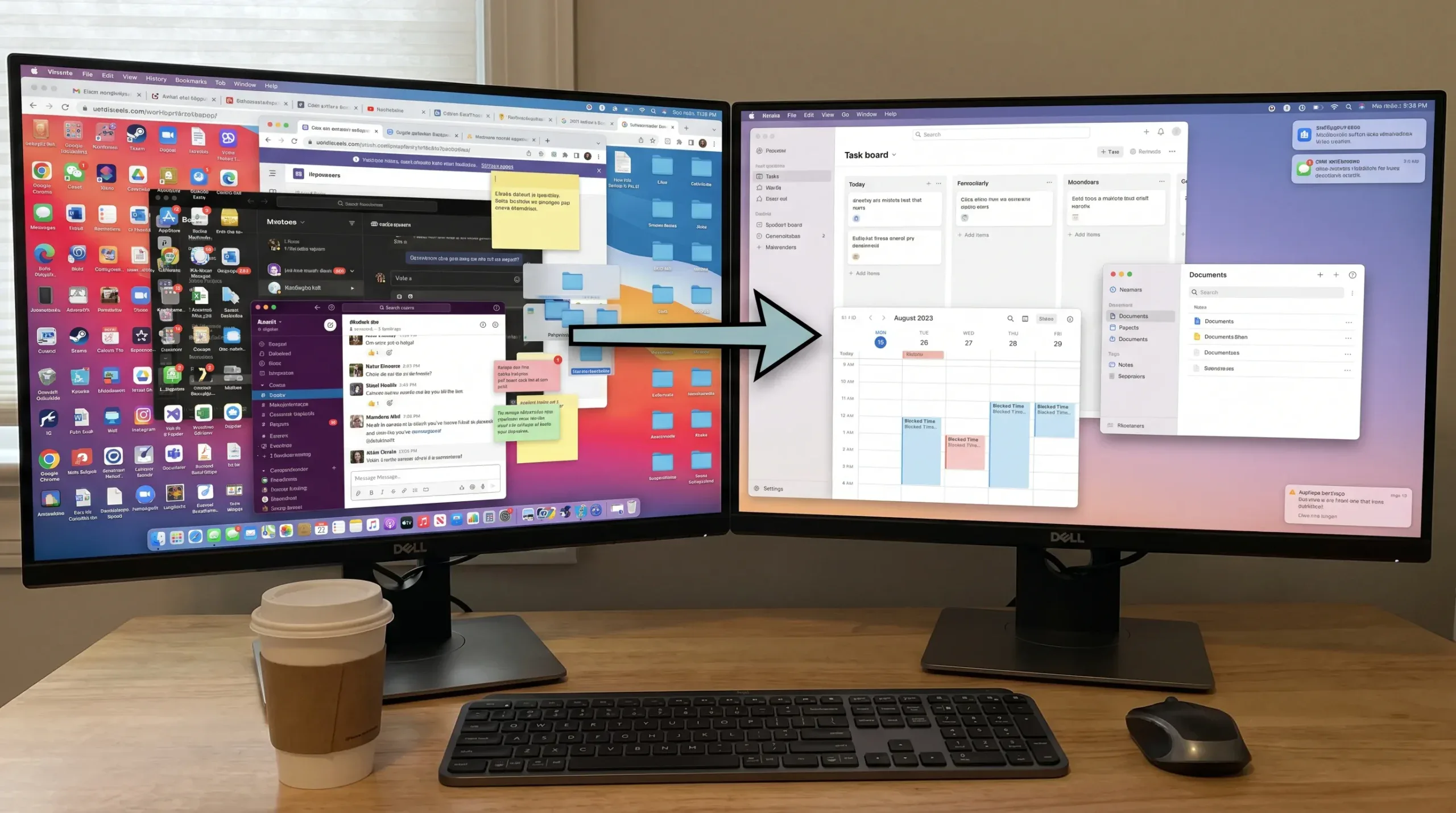
Common signs your workflow has too many apps
Before cutting tools, diagnose the friction. App overload often hides inside small daily habits that feel normal until you measure them.
| Symptom | What it usually means | First fix to try |
|---|---|---|
| You check several apps to know what to do next | There is no single task source of truth | Pick one task manager for commitments |
| The same project has updates in chat, email, docs, and meetings | Communication channels are not defined | Assign each channel a purpose |
| You copy and paste the same data between tools | Handoffs are manual and repetitive | Automate only the stable handoff |
| Notifications feel constant | Defaults are controlling your attention | Change app-level and channel-level alerts |
| Nobody knows which file is final | Storage and naming rules are unclear | Create a document hub and naming system |
| You keep adding tools to fix confusion | The workflow is broken, not the app | Map the process before buying anything |
If two or more of these feel familiar, your next productivity gain probably will not come from a new app. It will come from simplifying how your existing tools work together.
Start with a workflow audit, not an app purge
Deleting apps too quickly can break important processes. Instead, run a workflow audit. The goal is to understand what each tool does, who uses it, and what work would be at risk if it disappeared.
Create a simple inventory with these columns:
| App | Primary purpose | Owner | Used daily, weekly, or rarely | Keep, merge, or remove |
|---|---|---|---|---|
| Example: Slack | Team chat and quick decisions | Operations | Daily | Keep |
| Example: Notion | Documentation and planning | Marketing | Daily | Keep |
| Example: Trello | Old project board | No clear owner | Rarely | Remove or archive |
For each tool, ask one question: “What job does this app perform better than the alternatives we already use?”
If you cannot answer clearly, the app may be duplicate, abandoned, or poorly integrated. If the answer is strong, keep it, but define its role.
This is also a good time to review your subscriptions, browser extensions, mobile apps, connected accounts, and integrations. App overload is not only visible on your desktop. It also lives in old automations, OAuth permissions, unused Chrome extensions, and notification settings you forgot existed.
Define one source of truth for every type of work
A source of truth is the official place where a certain type of information lives. Without it, teams waste time asking, “Where is the latest version?” or “Is this task still active?”
You do not need one app for everything. In fact, all-in-one tools can become overloaded too. What you need is one official place per category.
A lean workflow might look like this:
| Work category | Source of truth | What should not happen |
|---|---|---|
| Tasks and deadlines | ClickUp, Asana, Todoist, or similar | Tasks assigned only in chat |
| Meetings and availability | Google Calendar or Outlook Calendar | Important deadlines hidden in DMs |
| Documentation | Notion, Confluence, Google Docs, or SharePoint | Final policies scattered in email threads |
| Files | Google Drive, OneDrive, Dropbox, or Box | Multiple final versions on local desktops |
| Fast communication | Slack, Teams, or email | Strategic decisions buried without documentation |
| Reporting | Dashboard, spreadsheet, or BI tool | Manual status updates recreated every week |
Once you define these locations, write the rule down. A workflow rule does not need to be complicated. For example: “If it requires action, it goes in Asana. If it is a decision, it gets summarized in Notion. If it is urgent today, it can be discussed in Slack.”
That kind of clarity reduces app switching because people know where to look first.
Consolidate tools by function, not popularity
The best productivity tools are not always the most popular tools. They are the tools that fit your actual work with the least friction.
A common mistake is to select apps because they are trending, not because they solve a specific workflow problem. This creates a stack full of powerful software that nobody uses consistently.
Use these categories to decide what belongs in your stack:
- Capture tools for collecting ideas, requests, notes, and inputs.
- Planning tools for prioritizing work, assigning owners, and setting deadlines.
- Execution tools for creating, editing, designing, analyzing, or building.
- Communication tools for discussion, updates, approvals, and decisions.
- Storage tools for documents, assets, and shared files.
- Automation tools for repeatable handoffs between systems.
- Reporting tools for reviewing progress, time, cost, and outcomes.
If you have three tools in the same category, decide whether each has a distinct role. For example, Notion may be your documentation hub while ClickUp is your task execution hub. That can work. But if Notion, ClickUp, Trello, and Google Sheets all contain active project tasks, overload is almost guaranteed.
If you are still building your stack, start with a curated resource like our online tools list instead of randomly testing every app you see recommended on social media.
Reduce notification noise before changing tools
Many workflows feel overloaded because notifications are uncontrolled. You may not need fewer apps yet. You may need quieter apps.
Start with the tools that interrupt you most often. Chat apps, email, calendar alerts, task comments, shared document mentions, and mobile push notifications are usually the biggest sources.
A practical notification system has three levels:
| Alert level | Use it for | Example setting |
|---|---|---|
| Immediate | Urgent work that needs same-day response | Direct mentions from key teammates |
| Batched | Useful updates that can wait | Project comments, daily summaries, newsletters |
| Silent | Reference information | FYI channels, low-priority shared docs, old threads |
For team chat, mute channels you do not need to monitor constantly. If Slack is your main source of interruptions, follow a workflow like our guide on how to mute Slack channels without leaving them. If your team uses Microsoft Teams, review your channel and banner settings with our guide to customizing Teams channel notifications.
The rule is simple: alerts should match urgency. If every app can interrupt you, every app becomes urgent.
Build workflows around people, not software
Reducing app overload is not only a technical project. It is a human workflow project. People have different attention patterns, accessibility needs, cognitive loads, and working styles.
A workflow that looks efficient on paper may fail if it forces everyone to check too many systems or remember too many rules. This matters especially in environments that support learning, care, coaching, or neurodiverse teams. Organizations like Ons Plekske, which focuses on structured work, study, sport, and relaxation, are a useful reminder that clear routines and supportive systems matter more than digital complexity.
In a workplace, the same principle applies. The workflow should make the next step obvious. A teammate should not need to know your entire app ecosystem to submit a request, find a file, or see project status.
Ask these questions when designing your process:
- Can a new teammate understand where work lives within one day?
- Can a manager see progress without asking for a separate update?
- Can a contributor complete a task without opening five apps?
- Can someone return from vacation and quickly see what changed?
- Can a client or stakeholder interact with the workflow without confusion?
If the answer is no, simplify the process before adding another integration.
Use automation carefully
Automation can reduce app overload, but it can also multiply it. A bad automation moves messy information faster. A good automation moves clean information at the right moment.
Automate only when the workflow is stable. If your team cannot agree where tasks belong, do not build a Zapier workflow that creates tasks automatically from every message. You will simply create more clutter.
Good automation candidates include:
- Creating a task from a form submission.
- Sending a meeting summary to the correct project page.
- Updating a status field when a task moves to a new stage.
- Adding calendar events from approved bookings.
- Sending weekly reporting data to a dashboard.
Poor automation candidates include vague chat messages, temporary experiments, inconsistent manual processes, and workflows where nobody owns the output.
If you want to explore automation, start small. Our guide on how to use Zapier to update status across multiple apps explains how to think through triggers, actions, field mapping, and testing without creating sync chaos.
Control browser tab overload too
App overload often appears as browser overload. You may technically use only a few tools, but if each tool creates 12 open tabs, your workspace still feels chaotic.
A better browser workflow uses sessions, tab groups, and single-purpose windows. For example, one window for communication, one for the current project, and one for research. When a focus block starts, close or save everything unrelated.
If you routinely keep dozens of tabs open because you are afraid of losing work, use a session manager or a tool like OneTab. Our OneTab guide for reducing browser memory and distractions walks through a simple way to collapse tabs into organized lists and restore only what you need.
This small habit can make your entire workflow feel lighter because it removes visual noise before you even start working.
Run a 30-day app diet
Once you have audited your stack, defined sources of truth, and adjusted notifications, run a 30-day app diet. This is a controlled simplification period where you pause nonessential tools and measure what improves or breaks.
Do not remove mission-critical systems immediately. Instead, place questionable tools into one of three categories: keep active, freeze, or retire.
| Category | Meaning | Action |
|---|---|---|
| Keep active | The app supports daily work and has a clear owner | Improve settings and documentation |
| Freeze | The app may be useful, but usage is unclear | Stop new work inside it for 30 days |
| Retire | The app duplicates another tool or is abandoned | Export data, revoke access, cancel renewal |
During the 30 days, track a few simple signals. How many apps do you open before starting deep work? How many places contain active tasks? How many notifications arrive per hour? How often do people ask where something is?
You do not need perfect analytics. You need enough evidence to make better decisions.
Create lightweight workflow rules your team will actually follow
A workflow rule is useful only if people remember it. Keep rules short, visible, and tied to real behavior.
Here are examples of practical rules:
- If a message requires action, convert it into a task.
- If a decision is made in chat, summarize it in the project document.
- If a file is final, store it in the shared folder and use the naming convention.
- If a meeting creates follow-up work, assign owners before the meeting ends.
- If an app has no owner, it cannot become part of the core workflow.
These rules reduce the need for constant clarification. They also make tool reviews easier because every app must support the workflow instead of creating a parallel system.
Choose new tools with a stricter checklist
After reducing overload, you may still need new software. That is fine. The goal is not minimalism for its own sake. The goal is digital workflow optimization.
Before adding a new app, answer these questions:
| Question | Why it matters |
|---|---|
| What current problem does this tool solve? | Prevents buying software for vague improvement |
| Which existing tool could it replace? | Avoids duplicate functionality |
| Who owns setup and maintenance? | Prevents abandoned systems |
| What data will it store or access? | Supports privacy and security reviews |
| How will success be measured after 30 days? | Keeps adoption tied to outcomes |
| What happens if we cancel it? | Avoids lock-in and messy migrations |
For AI tools, be especially selective. AI can save time with summaries, drafting, categorization, and automation, but it can also create another inbox to manage. If you are evaluating options, compare use cases first with a resource like our best AI productivity tools guide.
A simple lean workflow example
Imagine a small marketing team that uses Gmail, Slack, Google Drive, Notion, ClickUp, Canva, Google Calendar, Zoom, Airtable, and several AI writing tools.
Before simplification, campaign ideas arrive through Slack, email, and meetings. Tasks are stored in ClickUp, Notion checklists, and a spreadsheet. Drafts live in Google Docs, final assets live in Drive, and approval comments appear in both Slack and Canva.
A leaner version might look like this:
| Workflow stage | Tool rule |
|---|---|
| New campaign request | Submit through one form |
| Task management | All assigned work lives in ClickUp |
| Documentation | Strategy, briefs, and decisions live in Notion |
| File storage | Drafts and final assets live in Google Drive |
| Design execution | Canva is used only for creative production |
| Communication | Slack is for quick discussion, not task storage |
| Reporting | Weekly metrics are pulled into one dashboard |
The team did not eliminate every tool. It eliminated ambiguity. That is the difference between a large but manageable stack and true app overload.
Frequently Asked Questions
What is app overload? App overload happens when the number of tools, notifications, logins, dashboards, and duplicate workflows makes work slower instead of faster. It is usually caused by unclear processes, overlapping apps, and too many places to check for updates.
How many apps should a productive workflow have? There is no universal number. A solo creator may work well with five core apps, while a business team may need 15 or more. The better question is whether each app has a clear purpose, owner, and source-of-truth role.
Should I use an all-in-one productivity tool? An all-in-one tool can reduce switching, but it is not always the best choice. If one platform handles tasks, docs, dashboards, and automation well enough for your needs, it may simplify your stack. If it becomes slow or confusing, separate best-fit tools may work better.
What is the fastest way to reduce app overload today? Turn off nonessential notifications, choose one task source of truth, and close unrelated browser tabs during focus blocks. These changes usually create immediate relief without requiring a full software migration.
Can automation make app overload worse? Yes. Automation can create duplicate tasks, noisy alerts, and sync errors if the workflow is unclear. Automate stable, repeatable handoffs only after you define ownership, data fields, and success criteria.
Build a calmer tool stack one workflow at a time
Reducing app overload is not about rejecting technology. It is about using online tools with intention. Start by auditing your current stack, defining sources of truth, quieting notifications, and retiring tools that no longer earn their place.
For more practical reviews, tutorials, and workflow tips, explore Online Tool Guides and build a productivity system that helps you focus instead of forcing you to constantly switch apps.



