Have you ever confirmed your gear is connected and still heard nothing—what’s really stopping your audio?
Many users see their headphones connected yet get zero audio output. This common issue can come from hardware faults, misconfigured settings, or app-level problems. You need a clear, step-by-step approach to find the root cause.
In this guide you will learn how to check device compatibility, inspect audio output and default device options, and reset relevant system or network settings. The walkthrough covers both a Windows computer and mobile devices. It also points to community-tested fixes and when to consider a hardware reset.
Start with simple checks—volume, output selection, and apps—then move to driver and manager tasks if basic steps fail. For a detailed troubleshooting checklist, see our full guide for connection problems troubleshooting Bluetooth headphones.
Key Takeaways
- Confirm your device shows as connected, then verify the active audio output.
- Start simple: check volume, default device, and app settings first.
- Use systematic troubleshooting to separate hardware from software issues.
- Reset network or system settings if drivers or profiles look corrupted.
- Follow device-specific steps for Windows or mobile to restore full audio.
Understanding Why Your Bluetooth Headphones Paired But No Sound
Many silent connections come from the system failing to send audio to the correct playback device. Software glitches often interrupt the routing path and leave media playing to an inactive output.
Misconfigured audio settings are a leading cause. If the default playback option or the app’s media tab points to a different device, your listening device can remain quiet even though the connection shows active.
Hardware interference can also degrade the radio link. Walls, other wireless gadgets, and USB 3.0 ports sometimes disrupt transmission. In many cases, a quick reset of network or system settings restores function.
- Software errors prevent proper audio routing to the intended device.
- Wrong default or muted media settings often leave connected gear silent.
- Environmental or hardware interference can break the effective link.
- Updating system software or performing a reset frequently resolves the issue.
| Cause | Symptom | Quick Fix | When to Escalate |
|---|---|---|---|
| Software routing error | Audio plays to speakers, not listening device | Choose correct playback device in system or app | If persists after restart |
| Muted media or app | No output despite active connection | Check media mixer and app volume | If mixer shows sound but none is heard |
| Hardware interference | Intermittent audio drop or silence | Move closer, remove obstructions | When other wireless devices still cause issues |
For a deeper walkthrough on connection errors and recovery steps, see our complete guide to troubleshooting Bluetooth headphones.
Initial Checks for Audio Output and Volume Settings
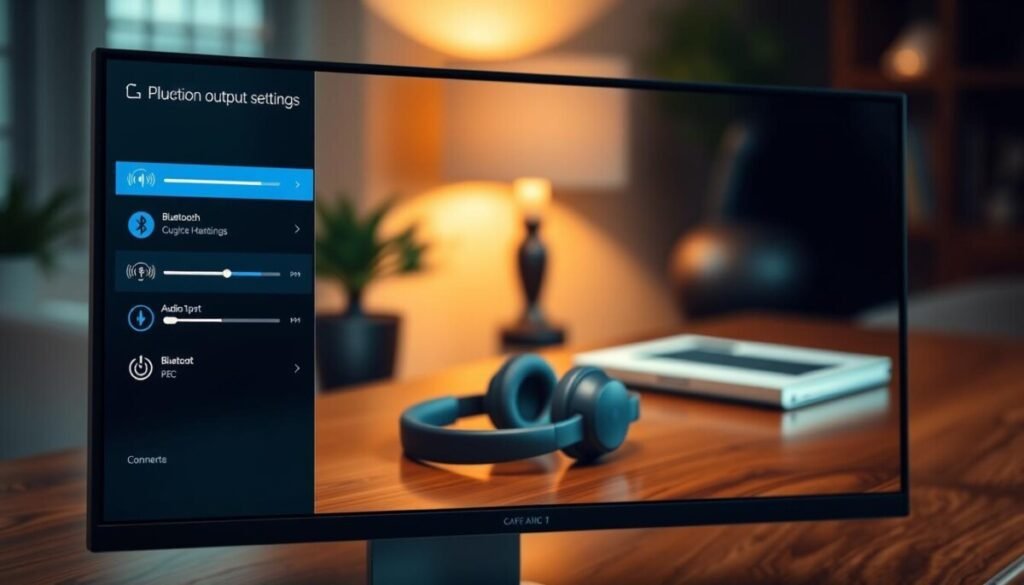
Start by confirming the active playback device and the system volume. These simple checks catch many common audio issues fast.
Verifying Default Playback Devices
On a Windows computer, right-click the sound icon in the taskbar. Open Playback devices or Sounds to see which output is active.
If your headset isn’t listed as the default, set it in the Playback tab. Choosing the correct device ensures media uses the intended output every time.
Open Device Manager to confirm the system recognizes the device. If the driver shows an error, that flags a deeper issue that may need a reset or driver update.
Adjusting System Volume Mixers
Launch the volume mixer to check app-level levels. An app can be muted while the master volume is high.
Adjust both the system volume and individual media sliders. Verify the media player or browser tab is not muted.
- Right-click sound icon → Playback devices → set default
- Open Volume Mixer → adjust app volumes
- Check Device Manager for hardware status
| Check | What to look for | Quick action |
|---|---|---|
| Playback selection | Correct output listed | Set as default in Playback tab |
| Volume mixer | App or tab muted | Raise slider or unmute app |
| Device Manager | Driver error or missing device | Update driver or reset device |
For device-specific guidance, see our troubleshooting AirPods page for targeted steps and recovery tips.
Troubleshooting Bluetooth Audio Issues Across Different Platforms
Start platform-specific checks to isolate whether the issue comes from a mobile setting, a Windows profile, or macOS output selection. This quick approach narrows the cause and guides the right fix.
Mobile Device Configuration
iPhone: If problems persist, reset network settings via Settings > General > Transfer or Reset iPhone. This clears profiles and can restore reliable connectivity.
Android: Clear the system Bluetooth cache in Apps or Application Manager. Removing stale cache helps when multiple devices cause conflicts.
Windows Audio Profile Adjustments
Open Sound settings and check the active profile. Many users get poor output while the system uses Hands-Free AG Audio. To improve the overall meeting experience, ensure you can transcribe meetings in Microsoft Teams accurately. This can help summarize key points and reduce the need for lengthy follow-ups. Moreover, having proper text versions of discussions can enhance collaboration and clarity among team members.
Switch to a stereo profile for high-quality playback. If the device appears but sounds thin, change the mode and test media playback.
macOS Sound Output Settings
Go to System Settings > Sound > Output and confirm the intended device is selected as default. macOS may keep another device active after updates.
If problems continue, forget the device on each platform and re-pair it to create a fresh connection.
- Reset network settings (iPhone) to clear persistent profile issues.
- Use stereo profile on Windows for full audio fidelity.
- Clear Bluetooth cache on Android when many devices are listed.
- Re-pair devices across platforms as a reliable troubleshooting step.
For step-by-step recovery tips specific to Apple earbuds, see our troubleshooting AirPods guide.
Addressing Driver Conflicts and System Software Glitches
Outdated drivers and stalled services often stop audio from reaching your device. Windows 11 (23H2) users have reported Intel driver faults that prevent proper media playback on laptops. Start by updating your system to pick up vendor patches.
Open Device Manager and locate the network or audio adapter entry. Right-click to check for updates or roll back a recent driver if the problem began after an update.
Restart the audio management service on your computer. A quick restart of the service can clear temporary glitches and restore normal apps behavior.
- Use Windows Update to install critical fixes.
- Update drivers in Device Manager or from the vendor site.
- Restart the audio service and test playback in a different mode if available.
| Problem | Symptom | Action |
|---|---|---|
| Intel driver conflict (Win 11 23H2) | Playback fails on laptop | Update driver or install vendor hotfix |
| Corrupted audio service | Apps show active but no media | Restart service and relaunch apps |
| Outdated system software | Hardware not compatible with latest updates | Run Windows Update and reboot |
For community reports and deeper troubleshooting, see the Microsoft thread on connection stability and our focused guide on connectivity fixes at Windows connection thread and connectivity fixes.
Proactive Habits for Maintaining Stable Wireless Connections
A few proactive steps — from firmware updates to clearing paired lists — will improve link stability.
Keep devices within 30 feet of your main device to reduce dropouts. Distance is a simple, data-backed control that protects against interference and weak reception.
Remove physical obstructions and move away from USB 3.0 ports, routers, or large metal objects. These items often block the radio path and cause recurring issues.
- Keep firmware current to prevent bugs that appear many times during daily use.
- Clear old paired devices when you reset your network environment to reduce connection clutter.
- Use the multi-device pairing feature on modern headphones to switch between phone and computer without repeated reconnects.
| Habit | Why it helps | How to do it |
|---|---|---|
| Maintain ≤30 ft distance | Stronger, more reliable reception | Place device and receiver in same room when streaming |
| Keep firmware updated | Fixes bugs that cause repeated disconnects | Check vendor app or device settings monthly |
| Remove unused paired devices | Reduces profile conflicts | Forget old entries in Bluetooth settings, then re-pair needed devices |
For deeper connectivity maintenance tips and targeted recovery steps, see our connectivity fixes guide.
Final Thoughts on Achieving Reliable Audio Performance
Finish with clear, actionable steps to secure steady audio on Windows and mobile devices.
Regular firmware checks and concise settings adjustments prevent many playback problems. The Soundcore Space Q45, for example, pairs advanced ANC and LDAC for a premium listening experience when configured correctly.
Test media across apps and try a short video or music track to confirm output. If your headphones connected status shows active but you still hear nothing, revisit volume and the active playback setting.
For extra help, use our troubleshooting hub at troubleshooting Bluetooth. The community shares fixes that often get devices working again fast.



