Have you ever wondered why your high-end laptop forgets its wireless headset at the worst moment?
The Vector 16 HX A14VHG, powered by an Intel Core i9-14900HX and running Windows 11 Home 24H2, should be rock-solid. Yet many users find a sudden loss of audio or a vanished device from the active list. This is rarely a hardware failure.
Most issues trace back to Windows configuration, driver conflicts, or power-management settings. Quick toggles often offer only temporary relief. A methodical, system-level approach uncovers the root causes and restores stable connections for your Bluetooth headphones and other peripherals.
Below we outline professional, practical steps and targeted fixes so your laptop stops treating wireless devices as intermittent toys. For a deeper troubleshooting guide, see this detailed walkthrough.
Comprehensive troubleshooting guide
Key Takeaways
- Sudden drops on the Vector 16 are often Windows configuration issues, not hardware faults.
- Drivers, power settings, and software conflicts are common culprits behind the problem.
- Quick toggles may help briefly, but a systematic approach prevents recurrence.
- Keep system and driver updates current to reduce platform-related failures.
- Use targeted troubleshooting steps to restore reliable peripheral connections.
Understanding Why Your Bluetooth Keeps Disconnecting
Wireless handshakes between your laptop and headset often fail when the radio signal meets interference. Environmental factors — walls, other wireless devices, and USB radios — can interrupt the brief exchange that establishes a stable connection.
If the Windows troubleshooter cannot provide a reliable solution, look deeper at how the operating system manages the device’s radio state. The OS may mark a device as idle and power down the active radio too aggressively, causing a temporary drop.
When multiple devices and networks share the same frequency, your laptop can struggle to maintain a steady link. That competition creates packet loss and audible gaps in bluetooth headphones during calls or media playback. To enhance your experience, consider using bluetooth connectivity tips for devices such as adjusting the distance between your gadgets and removing obstacles that may cause interference. Additionally, ensure that your devices are updated with the latest firmware, as this can significantly improve connectivity and performance. Remember, keeping your bluetooth headphones charged and within optimal range can also help mitigate issues with sound quality.
Understanding the underlying handshake and radio management helps you apply a long-term solution rather than a short restart. For a step-by-step troubleshooter that walks through registry, driver, and power settings, see this comprehensive troubleshooting guide.
Essential Windows Power Management Adjustments for a Bluetooth Keeps Disconnecting Fix
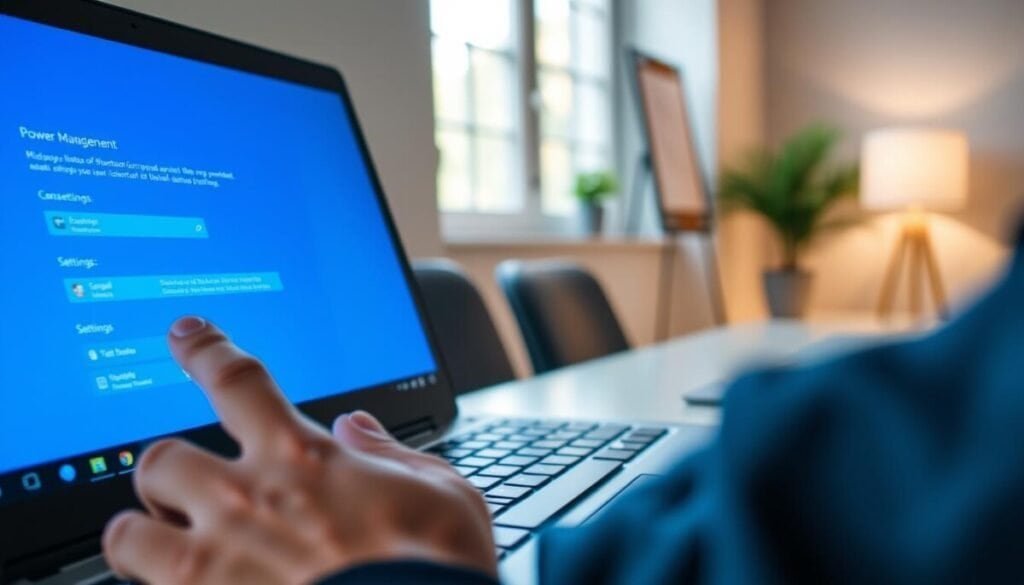
Windows power policies often trim radio activity to save energy, and that behavior can interrupt wireless peripherals.
Open the Device Manager in Windows and locate your adapter under network or system devices. Right-click the device and choose Properties.
Adjust the Power Management Tab
In Properties, select the Power Management tab. This tab controls how the computer treats the device during idle or sleep states.
Disable “Allow the computer to turn off this device to save power”
Uncheck the box labeled “Allow the computer to turn off this device to save power”. This prevents the system from cutting energy to the adapter when idle.
- Open Device Manager and find the adapter.
- Right-click → Properties → Power Management tab.
- Uncheck the power-saving option and click OK.
| Setting | Default Behavior | Recommended Action |
|---|---|---|
| Allow computer to turn off device | Can power down adapter during idle | Uncheck to keep adapter active |
| Power management tab | Controls device sleep policies | Review and align with performance needs |
| Adapter properties | May include additional energy options | Disable aggressive save power modes |
Result: Configuring these settings in the device manager stops Windows from aggressively killing the adapter radio. That is a practical solution for users who see connection drops when the computer sleeps or idles.
Eliminating Wireless Interference and Congestion
When your external drive runs at USB 3.x speeds, it can introduce radio-frequency noise into the 2.4 GHz space.
Addressing USB Interference
High-speed USB transfers emit RF noise that collides with short-range radios. That noise often sits squarely on the 2.4 GHz band used by many wireless devices. Moving the peripherals reduces overlap and restores a stable connection.
- Move the external drive or USB hub away from the laptop. Even a few inches can matter.
- Use a short USB extension to distance the source of interference from the network hub.
- Switch heavy traffic to a 5 GHz Wi‑Fi band so the network does not prioritize the 2.4 GHz spectrum.
| Cause | What to do | Expected result |
|---|---|---|
| USB 3.x RF emissions | Relocate port or add extension cable | Reduced local noise, clearer signals |
| 2.4 GHz congestion | Move Wi‑Fi to 5 GHz or limit heavy transfers | Fewer packet collisions, steadier links |
| Adapter priority issues | Adjust network adapter settings and power policies | Balanced throughput and stable peripherals |
These simple steps eliminate common interference and give you a reliable solution for everyday use. For a detailed signal guide, see this detailed signal guide, or follow a comprehensive troubleshooting guide for deeper steps.
Managing Driver Updates and System Services
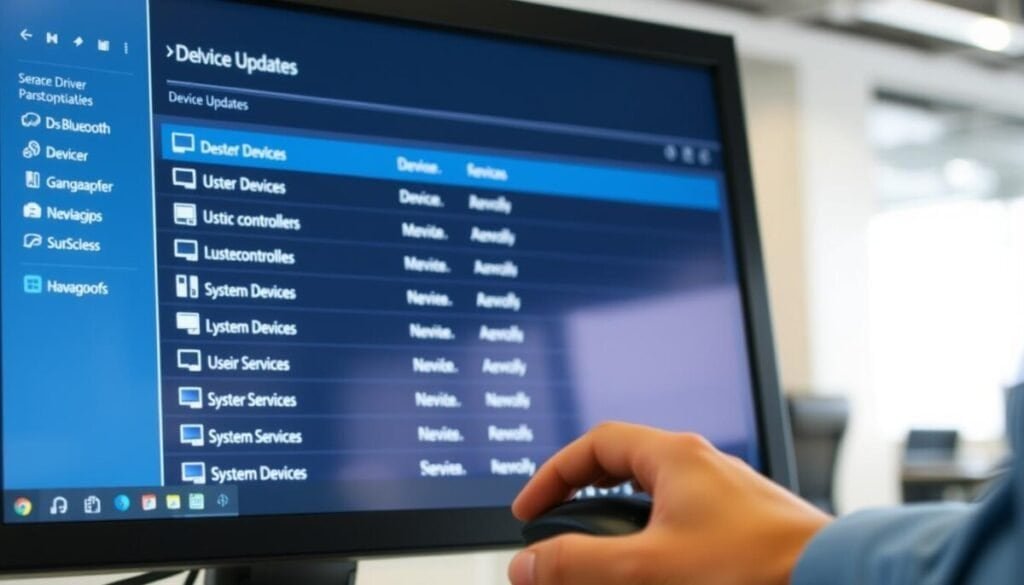
A reliable wireless link begins at the driver level—outdated firmware often breaks the chain.
Updating Network Adapter Drivers
Open the device manager and locate your network adapter entries. You must right-click each entry and choose Update driver to fetch the latest firmware for the Killer Wi‑Fi 7 BE1750x and the Realtek Gaming 2.5GbE.
Keep both wireless and wired adapters current. Updated drivers reduce conflicts and improve how the system handles radio and network traffic.
Restarting the Bluetooth Support Service
Open Services, find the Bluetooth Support Service, then restart it when the background process stalls. A quick restart restores support for paired devices and clears hung states that cause connection drops. If you experience bluetooth connection issues on iPhone, ensure that your device is within range and not connecting to other devices simultaneously. Additionally, checking for software updates can often resolve hidden bugs affecting connectivity. Restarting both your iPhone and Bluetooth accessory may also help in establishing a stable connection.
Auditing Paired Devices
Review paired devices in Windows and remove old entries. Extra legacy devices can cause handshake collisions and degrade stability.
- Right-click bluetooth devices in the device manager to remove or update entries.
- Re-pair only active peripherals to keep the system clean.
If the Windows troubleshooter does not resolve the issue, manually update drivers and restart services. For a deeper walkthrough, see troubleshooting Bluetooth headphones not connecting.
Final Steps for Ensuring Stable Wireless Connections
Finish by rebooting your laptop so all updated drivers and power settings take effect. This simple step ensures the system integrates your recent changes and the new device policies load at startup.
Audit paired devices and remove old entries. Fewer legacy pairings reduce handshake conflicts and help the active devices maintain a steady connection.
If drops continue, consider hardware age; older radio modules can underperform. You can also consult a wireless interference guide for environment checks: wireless interference guide.
Use the Windows troubleshooter as a secondary step after manual tweaks, or follow a step-by-step headset walkthrough here: troubleshooting Bluetooth headphones and AirPods troubleshooting.
Follow these final steps and you’ll have a durable solution that keeps your computer and devices working together reliably.