
Have you ever seen a squiggly line through the wireless icon and wondered what to do next? This error usually appears in the menu bar when the system fails to detect the internal module after a major software update.
Start simple: check your keyboard and mouse, then try power cycling devices for 30 seconds. Many issues clear with basic steps. If the icon stays struck-through, the problem may be corrupted preference files in the Library or a firmware hiccup introduced by an update such as macOS Catalina (released September 23, 2019).
This guide offers a clear, step-by-step way to restore your computer’s wireless peripherals. You will learn how to access the Debug menu, remove specific preference files, and run a PRAM or SMC reset when the module remains unresponsive.
For a broader checklist of connectivity steps and power-cycling tips, see the troubleshooting checklist at troubleshooting connectivity issues.
Key Takeaways
- Start with simple power cycles and device checks.
- Look for the struck-through icon in the menu bar as the primary symptom.
- Delete specific preference files in Library before advanced resets.
- Use Debug menu options and perform PRAM or SMC resets if needed.
- Follow a step-by-step approach to restore all peripherals reliably.
Understanding the Bluetooth Not Available on Mac Fix
The module inside your Mac manages wireless links for your keyboard, mouse, and other essential peripherals. It acts as the bridge between hardware and software, so any fault shows up quickly in the menu bar or system reports.
The Apple System Profiler often reports “No information found” under hardware when the controller stops responding. That warning usually appears after a major software update or when corrupted preference files interfere with recognition.
Start your investigation by checking System Settings to see if the module appears. If the controller is missing, the bluetooth menu may show an error symbol. Deleting corrupted preference files forces the system to recreate clean copies at restart.
- Check System Profiler for hardware status.
- Inspect Settings to confirm device detection.
- Remove bad files so the system regenerates fresh preferences.
Understanding the underlying hardware status helps you pick the correct option for repair. That clarity saves time and avoids unnecessary component replacement.
Initial Troubleshooting Steps for Connectivity
Begin troubleshooting by restarting the computer through the Apple menu; a clean boot often clears transient system glitches that affect wireless peripherals. Give the Mac enough time to shut down fully before powering it back on — wait 10–15 seconds if needed.
Check the menu bar icon after reboot. Use the menu bar to toggle settings and confirm the icon returns. If a keyboard or mouse remains unresponsive, disconnect all external devices to isolate a single problem device.
Restarting the Mac
Choose Apple menu > Restart. This simple step removes locked files and clears temporary caches in system and user preferences. It is the fastest way to see if the issue resolves without deeper changes.
Checking for Software Updates
Open System Settings and install any pending software updates. Apple regularly ships patches that address known wireless issues. After updating, restart again and recheck the menu bar icon and connected devices.
For a full checklist of connection steps, consult the troubleshooting connectivity issues guide.
Resetting the Bluetooth Module via Terminal
A targeted Terminal removal of the bluetooth module preference file often restores device detection after persistent failures.
Use caution: you need administrative access before running Terminal commands. Open Terminal and enter the single command below to remove the corrupted plist:
sudo rm -R /Library/Preferences/com.apple.Bluetooth.plist
The system will prompt for your password. This command deletes the module configuration so the system rebuilds fresh settings at restart. That rebuild often clears issues that affect your keyboard and other devices.
If you prefer a graphical method, hold Shift and Option while clicking the bluetooth icon in the menu bar to reveal the Debug menu. Use the menu options to reset bluetooth module from there.
After either method, restart your computer to let hardware re-initialize and detect devices. Be careful when typing commands — incorrect syntax can remove unrelated files.
For a broader checklist of connectivity steps and recovery options, see the troubleshooting checklist.
Deleting Corrupted Preference Files
Removing bad preference entries can force the system to rebuild clean settings for your peripherals. This step targets files that store pairing data and module states.
Locating System Library Files
Open Finder and navigate to /Library/Preferences/. Look for com.apple.Bluetooth.plist. This plist holds critical settings for your bluetooth devices and hardware detection.
Removing User Preference Files
Next, open your Home folder and go to ~/Library/Preferences/ByHost. Remove any files that reference bluetooth or related device IDs.
Delete both system and user files while authenticated as an admin. After removal, shut down fully and wait at least one minute before restarting. Then turn bluetooth back on via the menu so the system recreates fresh preference files. This method resolves persistent pairing problems and helps the controller recognize previous devices.
| Location | File | Effect |
|---|---|---|
| /Library/Preferences | com.apple.Bluetooth.plist | Resets module configuration |
| ~/Library/Preferences/ByHost | ByHost bluetooth plists | Removes corrupted user pairings |
| Post-clean steps | Restart & power cycle | System generates new files |
Performing a System Management Controller Reset
When deeper hardware states interfere with device detection, an SMC reset often restores normal operation. The System Management Controller manages key hardware functions and power behavior. Resetting it clears transient faults that can hide peripherals from the system.
On a MacBook: shut down the computer fully. Hold Shift, Control, and Option together while you press the power button. Keep all keys held for 10 seconds, then release and press the power button again to start the computer.
For iMac or Mac mini: unplug the power cord for 15 seconds. Reconnect the cord, wait a few seconds, then press the power button to restart.
Watch the power adapter light if you use one; a color change can confirm the command processed. Always ensure the computer is fully off before you begin to avoid system errors or data issues.
- SMC targets low-level hardware and power control.
- Use the exact key combo for laptops; unplug desktops.
- Retry pairing your keyboard and other devices after the restart.
Clearing NVRAM and PRAM Settings
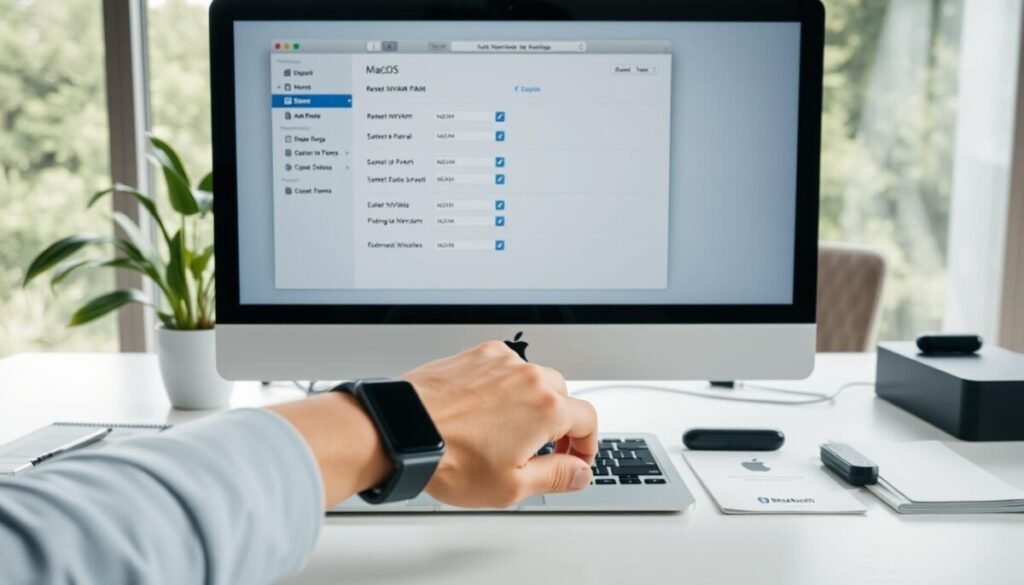
Resetting NVRAM/PRAM clears small system values that can block peripheral initialization. This step targets stored preferences such as display resolution and volume that live outside normal files.
Resetting on Intel-based Macs
Use a wired keyboard for this procedure because wireless devices are inactive during startup. Shut down fully, then press the power button.
Immediately hold Option + Command + P + R for about 20 seconds. Keep the keys held until you hear the startup sound again or see the Apple logo appear a second time.
After the reset: your system settings may revert to defaults. Open System Settings and reapply any personalized preferences from the menu.
| Step | Action | Why it helps |
|---|---|---|
| Prepare | Use a wired keyboard and fully shut down | Ensures the command is registered during boot |
| Execute | Hold Option+Command+P+R for ~20 seconds | Clears NVRAM/PRAM entries that hold startup values |
| Confirm | Listen for second startup sound / second logo | Signals the reset completed successfully |
| Restore | Open System Settings and reconfigure preferences | Returns display, sound, and device options to your choices |
Why this matters: clearing residual files and memory can resolve conflicts that prevent the bluetooth module or other hardware from initializing. This is a low-risk, proven step before deeper repairs.
Running System Maintenance Tasks
Scheduled cleanup tasks help prevent hidden software conflicts that impact wireless modules.
Run routine maintenance to reduce corrupted logs, stale files, and orphaned settings. These can block the bluetooth module or other hardware from initializing correctly.
Start with a clean restart via the Apple menu. That clears temporary caches and sets a stable baseline before deeper scans.
Use a reputable tool such as CleanMyMac to run performance scans. Automated routines can find and repair corrupted system logs faster than manual steps.
Consistent upkeep keeps the computer and devices stable over time. Clearing old files creates a cleaner environment for the module to operate without interference.
| Task | Effect | Time |
|---|---|---|
| Clean system caches | Removes temporary files that cause issues | 10–20 minutes |
| Repair system logs | Fixes corrupted entries that hide devices | 15–30 minutes |
| Restart from Apple menu | Resets low-level services and power states | 5 minutes |
When manual resets fail, these maintenance steps are a reliable way to diagnose and resolve persistent problems. For a detailed walkthrough of advanced recovery, see this repair guide.
Reconnecting Wireless Peripherals
When your wireless gear loses its link, a clear reconnection routine gets you back to work fast. Start with a simple plan: remove stale pairings, put the peripheral into discovery mode, then establish a new connection.
Unpairing Existing Devices
Choose the Apple menu and open System Settings. Select the Bluetooth section and unpair any unresponsive device.
Tip: Removing the old entry prevents the system from trying to reuse corrupted data during the next handshake.
Establishing New Connections
Put your keyboard or mouse into discoverable mode. Watch the Bluetooth icon in the menu bar for the new device entry. Allow sufficient time for the system to scan and list available devices.
If pairing fails, cycle the peripheral by using its power button or press power sequence. As a last resort, choose reset bluetooth module from the menu bar debug options to force a fresh hardware handshake. To manage your connections more effectively, you can access the bluetooth settings on windows 11 and check for any devices that may be in range. Additionally, ensuring that your drivers are up to date can help resolve common connectivity issues. If problems persist, consider troubleshooting through the settings to identify and disable any conflicting Bluetooth services.
- Unpair in Settings.
- Enable discoverable mode on the device.
- Monitor the menu bar icon during pairing.
- Cycle power with the device button if needed.
For an alternate troubleshooting path and detailed steps, consult this guide to resolve wireless issues.
Identifying Potential Hardware Failures
Exhausted all diagnostics? A hardware malfunction could be the underlying cause.
If software steps fail and the internal module still disappears, a physical fault is possible. This is rare but can happen if the computer was dropped or exposed to water.
Open System Profiler and run a quick hardware scan. Wait about 10 seconds for the report. If it shows “No information found”, the system may be missing the internal component.
Before you assume the worst, test with another device. A faulty keyboard or mouse can mimic a system‑wide error. Confirm the issue by trying different devices and checking behavior.
If the problem persists, contact Apple Support or schedule a Genius Bar visit to run diagnostics. Do not open the case yourself; doing repairs can void warranty and cause further damage to the hardware and system.
For related device troubleshooting, see troubleshooting AirPods.
Final Thoughts on Restoring Wireless Functionality
Use targeted resets and preference cleanup to recover device connectivity quickly.
Start here: reset the bluetooth module and remove corrupted preferences. That combination solves most connectivity issues and gets your devices working again.
Next, use the menu option to turn bluetooth back and pair each device. If problems persist, perform a PRAM or SMC step in macOS to clear deeper states. Sometimes, users may experience bluetooth connection problems on laptops that are related to outdated drivers or compatibility issues. Ensure that all necessary drivers are up to date and check for any software updates that might resolve underlying conflicts. If these steps do not alleviate the issue, consider testing the connection with a different device to identify if the problem lies with the laptop or the peripheral.
Keep your settings current and run system updates regularly. If you still cannot restore service, contact Apple for professional diagnostics—hardware repair may be the only way to recover internal module faults.