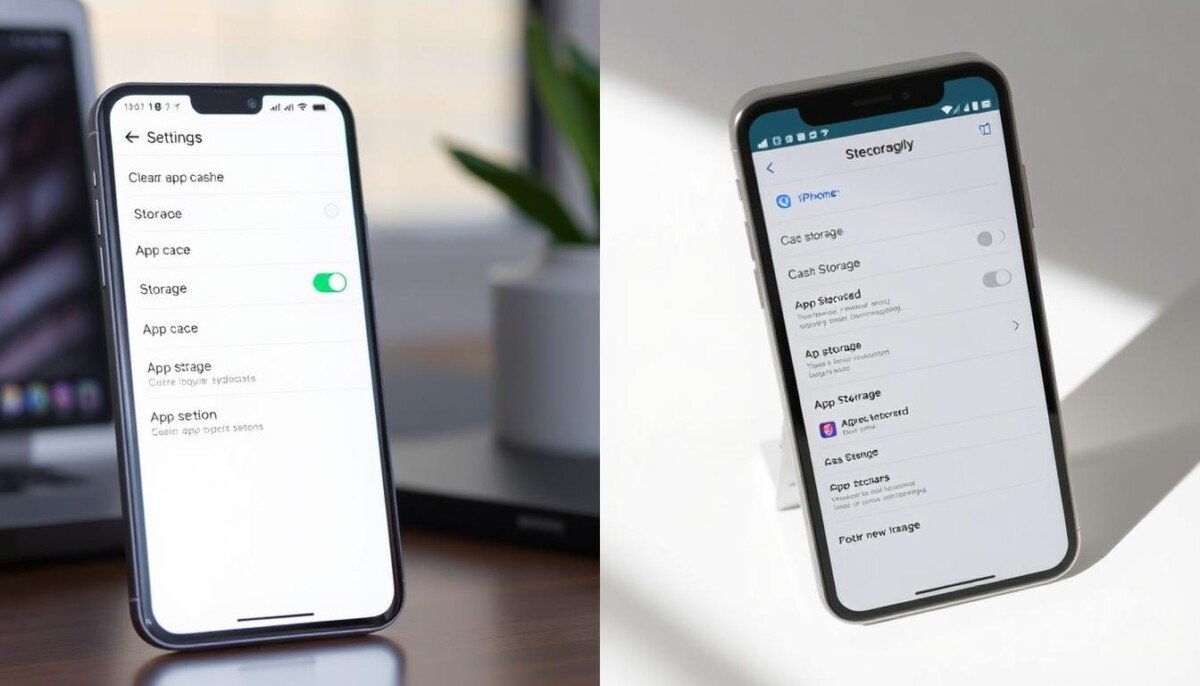
Ever wondered why your phone slows down even when you have room on storage? You may assume slow performance needs a reset, but often temporary files and stored data are the real culprits.
In this short guide you will learn a simple way to remove those temporary files and free space without losing personal data. We show how to find the right settings, tap the right button, and manage apps so your device runs like new.
Whether you use one device or several, these tips save time and keep apps responsive. You will also find a clear list of steps and practical advice to make clearing cache routine maintenance. For extra context on system habits and resource management, see our linked guide to help manage system resources.
Key Takeaways
- You can reclaim storage and improve speed by removing temporary files.
- Find the option in settings for each app to free up space safely.
- Follow a short list of steps to avoid losing important data.
- Use these tips as routine maintenance to keep devices responsive.
- For deeper system guidance, check the linked resource on managing phone resources: manage system resources.
Understanding the Role of Cache in Device Performance
Devices save bits of downloaded content so you see photos and videos faster, but that storage adds up. Temporary storage holds images, videos, and other information so software can load without re-downloading each time.
What is Cache
Cache is a small storage area where each app keeps temporary files to speed load times. For example, Instagram stores images and videos so feeds open quickly and scrolling feels smooth.
Why Cache Matters
System cache helps the operating system boot faster and run common tasks with less delay. When many apps store media and files locally, your available memory shrinks and overall performance can suffer.
- Faster access: Frequently used data is ready in memory, saving download time.
- Space trade-off: Local media and temporary files consume storage that could be used for new data.
- System boost: System-level files make routine tasks feel snappier.
Knowing how temporary storage works helps you keep performance high while managing limited storage.
How to Clear App Cache Android iPhone Devices
Follow a short, focused routine to free temporary files and speed up your phone without touching personal data.
On most Android devices: open Settings, go to Apps, pick an app, then choose Storage & cache and tap the clear cache button. This removes temporary files and often restores responsiveness quickly.
On iPhone models: use Settings → General → iPhone Storage and select Offload App to remove the software but keep documents and data. To fully remove old files, delete the app and reinstall from the App Store.
Quick tips:
- Tap an icon on the home screen to see shortcuts and storage options for individual apps.
- Some Android devices let you enter recovery mode with the power and volume buttons and wipe the cache partition.
- Check Settings for a list of apps using the most storage and prioritize those first.
Result: these steps free space, reduce stalled loads, and keep your device running smoothly with minimal time and risk.
Managing Web Browser Data and Cookies

Your browser keeps media and small files that make pages load faster, plus cookies that remember you.
Why you should care: media files stored by the browser speed up repeat visits, while cookies save login info and preferences. Removing one does not remove the other.
Distinguishing Between Cache and Cookies
Cache holds images and videos from websites so content appears faster. Cookies hold user-specific information like session tokens and form entries.
- Use your browser’s Privacy and security settings to remove cached images and files if pages behave oddly.
- Deleting cookies will log you out of websites, so have login details ready before you begin.
- Removing old website data frees storage and ensures you see the latest content on repeat visits.
- Professionals often wipe browser data on shared devices to protect information and privacy.
Quick action: in Chrome, go to Settings → Privacy and security → Clear browsing data to select cached files and cookies. Tap the button to remove the chosen items and refresh the site.
Advanced Techniques for Clearing System Cache on Android

If basic steps don’t fix slow behavior, recovery mode lets you access deeper tools.
Accessing Recovery Mode
Use the device’s hardware keys to boot into recovery. Hold the power and volume buttons together until the menu appears.
Note: the Pixel 6 requires a specific combo to reach recovery mode. Check your maker’s guide for exact steps.
Wiping the Cache Partition
From recovery, choose the wipe cache partition option to remove temporary system files. This can free memory and improve performance without touching personal data.
When to Perform a Factory Reset
If recovery lacks a wipe option, a factory reset is the last resort. This removes system-level data and restores default software.
Backup first. A reset erases all personal files and apps. Make sure you have copies before proceeding.
- Use recovery for non-invasive system maintenance.
- Try wiping the partition before reinstalling software.
- Consult the manufacturer when unsure about buttons or options.
| Action | Effect | When to Use |
|---|---|---|
| Wipe cache partition | Removes temp system files; frees memory | After repeated slowdowns or update issues |
| Recovery mode reboot | Access diagnostic and install tools | When settings or apps fail to launch |
| Factory reset | Restores factory software; erases data | When other ways fail to resolve persistent issues |
For step-by-step guidance on managing system-level files and safe procedures, see this detailed guide.
Effective Strategies for Freeing Up iPhone Storage

A smarter way to regain gigabytes is to target duplicate photos, large videos, and heavy messaging media.
Start by using the Clever Cleaner app to group identical images and spotlight big video files. This tool speeds the review so you delete only what you don’t need.
Open WhatsApp and Telegram storage settings to remove forwarded media and large attachments. Deleting old threads can free several gigabytes in minutes.
Offload unused apps from Settings to remove software but keep your personal data and preferences. Reinstalling from the App Store refreshes stored data and often restores performance.
Check iPhone storage to see which apps use the most space. Remove old screen recordings, large messages, and website data in Safari to free room fast.
- Use a storage tool to find duplicates and large files.
- Manage media inside messaging apps to reclaim space.
- Offload or reinstall software to refresh stored data.
Result: follow these steps weekly to keep your device ready for new content and avoid storage surprises.
Best Practices for Maintaining Optimal Device Speed
Small, regular housekeeping on your device prevents slowdowns and saves storage.
Keep software and apps up to date. Install updates for the operating system and each app to get bug fixes and performance boosts. This takes little time and can stop many issues before they start.
Check battery health in Settings when things feel sluggish. A worn battery can throttle power and slow performance. Replacing a degraded battery often makes the device feel much faster.
Manage storage on a schedule. Offload unused apps, remove large media files, and run a light removal of temporary files to free memory and space. Limit background refresh and notifications for apps you rarely use.
- Use Settings to spot which apps hold the most data.
- Periodically clear browser site data to protect privacy and speed.
- Make a weekly quick check so no single app hoards storage.
Result: these simple tips save time and extend the life of your phone while keeping software responsive.
Conclusion
A short maintenance habit saves space and makes apps respond faster when you need them.
Follow the steps in this guide to manage stored data, remove unnecessary media, and free storage without risking personal information.
For teams that need more control, tools like Esper offer professional device management and detailed settings for large fleets.
Keep a weekly check on which apps hold the most data and run a targeted removal of old files to avoid slowdowns.
Need a quick walkthrough on how to remove browser files? See the official note about clear cache and cookies for step-by-step information.



