Have you ever feared losing access to your social account after switching to a fresh mobile device? We know that moving to a new device can feel risky. Many of us worry about verification, credentials, and unexpected blocks.
We will walk you through clear, friendly steps that keep your account secure and usable. Our goal is to remove confusion and make setup smooth for all users.
By preparing settings before you start, you reduce delays and frustration. We emphasize proper verification and simple habits that protect data and preserve access.
Key Takeaways
- Prepare recovery info before you switch to a fresh device.
- Verify identity quickly to avoid being locked out.
- Use secure credentials and review security settings.
- Follow a few simple steps for a smooth transition.
- Prioritize protection so messaging and groups stay available.
Preparing Your Account for a New Device
Before you switch devices, let’s verify the key settings that keep your account ready and reachable.
Confirm your basic details: check your registered email and phone entries so recovery messages reach you. Update any outdated contacts now to prevent delays during the transfer.
Review security options: open your account settings and confirm two-step methods and trusted contacts are active. This small effort reduces the chance of being locked out when you sign in from a new phone.
- Verify current email and phone entries.
- Confirm recovery methods and trusted contacts.
- Review active devices and remove ones you no longer use.
| Check | Why it matters | Quick action |
|---|---|---|
| Contact info | Ensures recovery links reach you | Update email or phone |
| Recovery methods | Prevents access interruptions | Enable trusted contacts or codes |
| Active devices | Helps identify unauthorized access | Sign out old devices |
Taking these steps creates a smoother sign-in process when you move to your new phone. If you anticipate password issues, consult our forgot password guide to restore access quickly.
Downloading the Official Facebook Application
Start by installing the official app from your device’s app store to ensure a secure setup.
We recommend getting the app from the Google Play Store or the Apple App Store. This step prepares your new phone for a safe, smooth sign-in to your facebook account.
Verify the publisher and look for the verified listing before you tap install. Installing the correct app protects your account and keeps data encrypted during the access facebook account process.
- Open your device’s store and search for the official app.
- Check reviews, download counts, and the verified publisher name.
- Avoid third-party stores or unofficial installers to reduce security risks.
| Step | Why it matters | Quick tip |
|---|---|---|
| Official app | Ensures encrypted authentication | Use Google Play Store or Apple App Store |
| Publisher check | Prevents fake or malicious installs | Confirm verified developer name |
| Store updates | Keeps features and fixes current | Enable automatic updates |
Following these steps gives users a secure foundation for the rest of the setup process. We find this small effort speeds up the overall experience and reduces lockout risks.
Verifying Your Credentials for Facebook Login on a New Phone
Start by confirming which username or contact details your account actually uses so you avoid delays during sign-in.
Provide the exact username, registered email, or phone number tied to your account. If any entry is wrong, the verification process stops and you cannot continue.
Username Validation
Check the spelling and capitalization of your username. Small typos or missing characters will cause failed attempts.
Tip: If you use nicknames, confirm the official account handle in your account settings first.
Email Address Verification
Ensure your registered email address phone details are current so verification codes arrive without delay.
- Confirm the email address tied to the account and that you can open it.
- Verify the phone number associated is active to receive SMS codes.
- Answer any security questions with precise, remembered responses.
| Check | Why it matters | Quick action |
|---|---|---|
| Username | Identifies your account | Confirm exact spelling |
| Receives verification code | Update or test access | |
| Phone number | Sends SMS authentication | Make sure number is active |
We recommend keeping your registered email phone number updated. Accurate credentials and correct answers to security questions are the fastest route to regain access to your facebook account new device.
Navigating Password Authentication Challenges
Password checks can block progress fast, so we focus on practical moves that keep your account accessible while protecting security.
After you enter your username or email, you must type the correct password linked to the account. Mistyped credentials lead to delays and may trigger extra verification.
Multiple failed attempts often prompt a temporary security lock. When that happens, the system asks for a secondary method such as email or SMS to verify your identity.
- If you forgot your password, start the recovery flow immediately to avoid being locked out of your account new phone.
- Use strong, unique passwords when setting up a new device to reduce risk of unauthorized access.
- Keep recovery options current so verification codes reach you fast when authentication requires them.
| Situation | Likely action | Quick tip |
|---|---|---|
| Forgot password | Initiate recovery | recover your password |
| Unusual device | Answer security question | Use exact stored answers |
| Multiple failures | Temporary lock | Wait then verify via email or SMS |
Remember: incorrect answers to security questions can cause extra lockouts. Follow the steps carefully and avoid repeating passwords across sites to keep the access facebook account experience safe.
Implementing Two-Factor Authentication for Enhanced Security
Two-step protection adds a second barrier that keeps strangers out of your account when you switch devices. This extra layer requires a password plus a short code or token before access is allowed.
We recommend setting up two-factor authentication so your facebook account new setup is safer when you use a new phone. Choose methods that match your needs: an authenticator app, SMS codes, or security keys.
Security Protocol Benefits
Why it matters: two-factor authentication reduces the risk of unauthorized access even if the password is compromised. It adds a step that stops most attacks.
- Enable two-factor authentication: turn it on in security settings so the account new phone process prompts for a code.
- Choose a reliable method: use an authenticator app for stronger protection or SMS if you prefer convenience.
- Confirm your phone number linked: make sure the number and email are current so verification messages arrive.
| Method | What it sends | Best use |
|---|---|---|
| Authenticator app | Time-based code | High security |
| SMS | Texted code | Easy setup |
| Backup codes | One-time codes | Emergency access |
If you do not receive the code, check that your phone service is active and that email or number entries are correct. We find this small effort saves time and prevents lockouts during initial login to a new device.
Utilizing Authenticator Apps for Secure Access
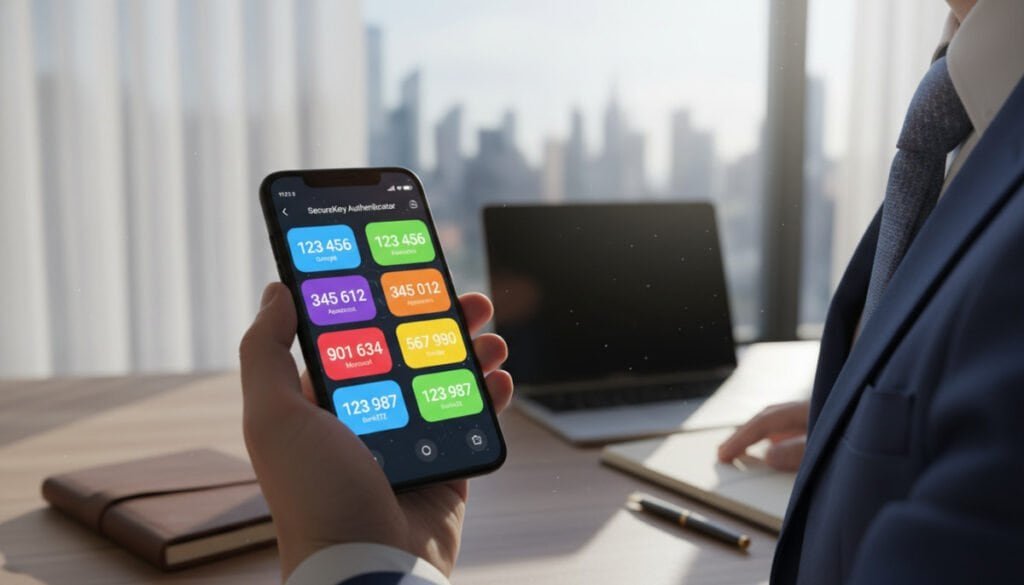
Authenticator apps turn your phone into a secure key that issues short-lived codes.
We recommend using Google Authenticator or Authy because they generate TOTP codes that are hard to intercept. These codes work even if SMS service fails, so they guard against SIM swapping and similar attacks.
Set up the app before you lose access to your old device. That makes the transfer to a facebook new phone much smoother and avoids verification delays.
- Install an authenticator app and link it in security settings when two-factor authentication is enabled.
- Save backup codes in a secure place in case your device is lost.
- Check time sync on your phone if codes fail — the app and device clock must match.
| Method | What it provides | Best use |
|---|---|---|
| Authenticator app | Time-based codes | High security for account new phone |
| SMS | Texted codes | Convenient but less secure |
| Backup codes | One-time tokens | Emergency access |
We find that app-generated codes are reliable and fast. Follow these steps and your facebook account will stay secure when you switch device or use a new phone.
Managing Backup Codes for Emergency Entry
Backup codes act as your fallback key if the usual authentication methods are unavailable.
We generate these codes during two-factor authentication setup. They let us sign in when the phone number linked to the account or the authenticator app is lost.
Always store codes in a secure spot. Print them or save them in a reputable password manager. Never share these codes with anyone because they grant full account access.
- Generate and save codes during 2FA setup to keep a recovery option ready.
- If you lose your phone or phone number, use codes to regain access on your new phone quickly.
- When all codes are used, immediately produce a new set so emergency entry remains available.
| Purpose | When to use | Quick action |
|---|---|---|
| Emergency entry | Authenticator app lost or inaccessible | Use one backup code to sign in |
| SIM or number loss | Phone number linked is no longer available | Apply backup code, then update phone number |
| Device migration | Setting up account on a new device | Keep codes handy during setup |
| Code renewal | After all codes are consumed | Generate new backup codes in security settings |
We recommend checking and storing these codes before any device change. That small step saves time and prevents the frustration of being locked out during the login process.
Confirming Your Identity via Trusted Contacts
Setting up trusted contacts gives us a human backup for account recovery when we change devices. These pre-selected friends or family can generate recovery codes that help bypass the usual verification flow.
We suggest choosing people who know you and are reachable by phone number or email. When you face extra security checks after signing in from a new device, these contacts can help verify your identity quickly.
Identity Verification
Trusted contacts receive instructions to produce a recovery code. Use that code to regain access if you lose your password or cannot receive SMS codes.
- Pick reliable contacts and confirm they understand their role.
- Review the list periodically to keep it current.
- Remember: contacts help recover the account but cannot take control.
| When | What they do | Quick tip |
|---|---|---|
| Locked out | Provide recovery codes | Contact them securely |
| No SMS | Bypass standard steps | Use code to authenticate |
| After device change | Confirm identity | Update phone number or email |
Reviewing Security Settings After Initial Login
Right after you sign in on your new device, take a moment to check that your safety settings are still up to date.
We find this step is simple and effective. The act of accessing your account from a different device is an ideal chance to confirm protections.
First, enable login alerts if they are disabled. Location-based alerts help detect access from unfamiliar places so you can act fast.
- Check authorized devices and remove any you no longer use or recognize.
- Verify two-factor methods and backup codes are current and stored safely.
- Confirm privacy controls match your comfort level for posts and profile info.
If you run into trouble updating credentials or a password won’t accept, consult our password update issue guide for next steps.
| Action | Why it matters | Quick step |
|---|---|---|
| Login alerts | Detects unknown access | Turn on notifications |
| Authorized devices | Removes unused access | Sign out old devices |
| Two-factor & backups | Provides recovery paths | Refresh methods and save codes |
| Privacy settings | Controls who sees content | Adjust to preferred level |
Managing App Permissions on Your New Device
Apps installed during setup can request broad rights to your account and personal data.
We should treat each permission prompt as a choice, not a default. Review what an app asks for before you approve it.
Third-Party Access Risks
Granting too much access raises the chance that sensitive content or contacts get exposed. Some apps request posting rights or full profile access when they really only need a token to work.
We advise limiting permissions to the minimum required for core features. That reduces data sharing and keeps unwanted posts from appearing from our account.
- Review connected apps in security settings after initial setup.
- Revoke access for apps you no longer use or that ask for wide-ranging rights.
- Use selective permissions so an app can function without full profile access.
- Audit permissions periodically to keep control over your digital footprint.
| What to check | Risk if allowed | Quick action |
|---|---|---|
| Post permissions | Unwanted content posted | Disable posting ability |
| Contact access | Exposure of friend list | Restrict contact access |
| Profile details | Data harvesting | Allow only essentials |
After we finish setup on a new phone, this step helps preserve account privacy and strengthens overall security. Small checks now save time and protect our connections later.
Handling Device Verification Prompts
Signing in from an unfamiliar device usually prompts a verification step to confirm the login attempt.
What to expect: the platform often recognizes the device and sends a notification to your registered email or phone. This notification may ask you to approve the sign-in or enter a short code.
Why we verify: these prompts are part of the security process that protects our account from unauthorized access. If we have two-factor authentication enabled, this check becomes even more important.
- Always confirm verification messages before approving access.
- Keep your registered email and phone updated so codes arrive quickly.
- Mark the device as trusted after you verify it to ease future sign-ins.
| Step | Action | Why it matters |
|---|---|---|
| Prompt appears | Check notification or enter code | Confirms the device is legitimate |
| Two-factor enabled | Use authenticator or SMS code | Adds extra protection during the process |
| Trust device | Mark as trusted after verification | Simplifies future sign-ins from the same device |
By following these checks, we confirm legitimate access and reduce interruptions when setting up a facebook new phone or managing our facebook account new device.
Troubleshooting Failed Login Attempts
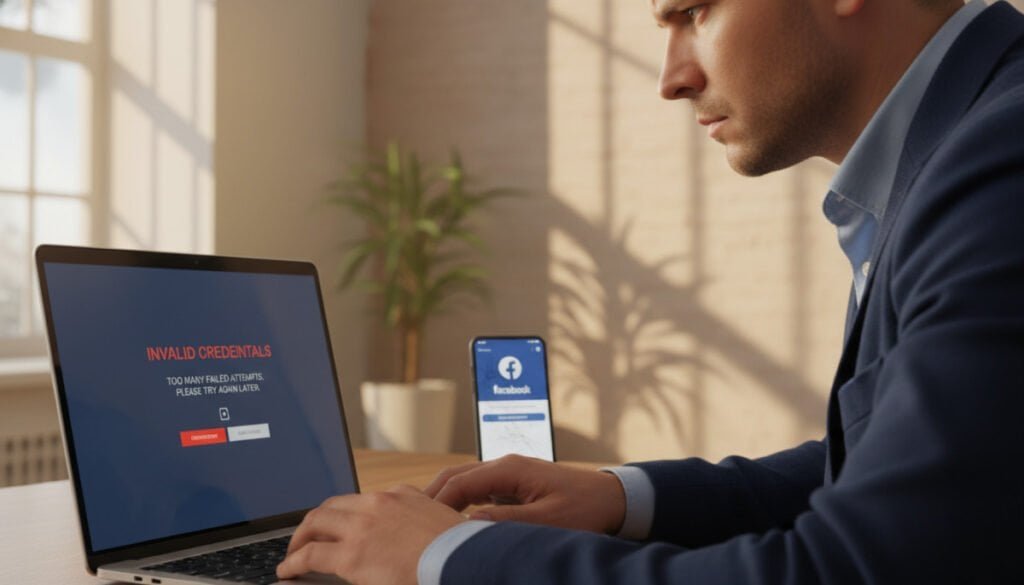
If your attempts to access the account fail, we can run a few quick checks that often fix the issue. Start with the basics: confirm your internet connection and that the app is up to date.
Common Error Messages
Network or timeout errors: retry with a stronger connection or switch networks.
Credential errors: mistyped email or password often cause rejects. Check spelling and case sensitivity before repeating attempts.
App faults: clear cache, force stop, or reinstall the app from the Google Play Store to remove corrupted files.
Password Recovery Pathways
If we forgot the password, we must start the recovery flow. Use the account recovery steps and follow prompts to send a code to your registered email phone number.
- Use backup codes or two-factor authentication methods like Google Authenticator or Authy if SMS fails.
- Keep the registered email and phone number associated with the account up to date so codes arrive fast.
- Limit repeated password tries; multiple failures may trigger a temporary security lock and require verification via email or SMS.
Contacting Support
If all recovery options are exhausted, contact platform support and provide clear details about your device and verification steps tried.
For more guidance on persistent problems, see our account access issues page for extra troubleshooting tips and escalation options.
| Issue | Immediate action | When to contact support |
|---|---|---|
| Forgot password | Initiate recovery flow | After recovery fails |
| Verification code not received | Check email, phone number, and SMS service | If alternate methods fail |
| App error | Clear cache or reinstall from Google Play Store | If reinstall doesn’t help |
Updating Your Registered Email and Phone Number
Accurate contact details are the single best safeguard against losing access after a device change.
We recommend checking the email and phone number tied to your account before you move to any new device. Make sure the email is active and that the phone number still receives texts for verification codes.
Take a moment to update outdated entries, especially if you changed carriers or switched numbers. Many users lose access because they forgot to refresh these details after a number change.
- Open account settings and confirm the registered email address phone is correct.
- Verify the phone number associated with the account and test SMS delivery for codes.
- Update your password and two-factor methods if contact options have changed.
| Check | Why it matters | Quick action |
|---|---|---|
| Registered email | Receives security messages and password resets | Confirm access and update if needed |
| Phone number | Delivers verification codes and alerts | Test SMS and update number linked to account |
| Recovery options | Fallback when password or 2FA fails | Add backup codes or trusted contacts |
Keeping credentials current is the easiest way to avoid lockouts and speed the verification process when we sign in from any device. Make this a routine step after you change contact details to protect your facebook account and stay connected.
Removing Outdated Devices from Your Account
Checking which devices can reach our account is a small step that prevents big security headaches.
We recommend reviewing the list of authorized devices regularly and deleting any entry we no longer use.
This is critical when setting up a new phone. Old or unfamiliar devices left listed can let someone else access our facebook account without our knowledge.
- Remove the old phone once we confirm the new device works and we can access the account.
- Delete unfamiliar devices immediately to stop unauthorized sessions.
- Check this list whenever we update passwords, email, or two-factor methods.
| Action | Why | Quick tip |
|---|---|---|
| Review authorized devices | Find forgotten or lost gadgets | Do this monthly |
| Remove old device | Stops access from lost/stolen items | Confirm new login first |
| Update contact info | Ensures recovery codes reach us | Verify email and number |
If you need step-by-step help to remove an account from devices, see this guide to remove devices from your account: remove devices from your account.
Strengthening Your Privacy Controls
Take a moment to lock down visibility settings so only intended people see your content. We should tighten who can view posts, friend lists, and profile details to reduce unwanted exposure.
Start by reviewing privacy options in your account settings. Limit post audiences, hide friend lists, and restrict profile details to trusted contacts.
Check connected apps and remove permissions that ask for excessive data. That lowers the risk of third-party breaches and keeps passwords, numbers, and email details safer.
- Set posts to friends or custom lists rather than public.
- Revoke unused app access and tighten contact sharing.
- Confirm two-step measures and backup options remain active after device changes.
| Control | Why it matters | Quick action |
|---|---|---|
| Post visibility | Reduces who sees your updates | Set default audience to friends |
| App permissions | Limits data shared externally | Remove or edit app access |
| Contact info | Protects recovery methods | Verify email and number entries |
| Two-step security | Blocks unauthorized access | Keep codes and methods current |
We recommend periodic reviews so privacy settings match our comfort and security needs. Proactive checks make the login process smoother and keep our social connections private on each device.
Maintaining Seamless Access to Your Social Connections
Finally, sticking to a few security habits makes the whole setup process easier and more reliable. For anyone moving to a facebook new phone, these steps keep your access smooth.
Keep your recovery email and phone current and refresh two-step methods in your account. Review app permissions and remove unused entries so access stays private and tidy.
Make this a short monthly check: verify contact info, test backup codes, and confirm trusted contacts. These quick actions reduce lockouts and speed any recovery process.
Thank you for trusting us to guide you through the setup. If you need more detail, visit the official help center for further support.



