Have we ever wondered how easily a profile can change hands with a single weak password or one careless click?
Hundreds of thousands of accounts are compromised every day, so we need clear, practical steps that keep our profiles and business pages safe.
In this guide, we share simple, usable tips: create strong, unique passwords, enable two-factor authentication, review privacy settings, and watch for phishing emails and suspicious links.
We also show how a password manager and routine checks on login activity can stop many common threats before they cause damage.
If you ever lose access or need a quick reset, follow a trusted walkthrough like this one to recover login details and secure email recovery options: forgot password help.
Key Takeaways
- Use strong, unique passwords and a password manager to prevent reuse across accounts.
- Enable two-factor authentication to add an extra security layer for logins.
- Regularly review privacy settings and trusted devices to limit unwanted access.
- Be cautious with emails and links—phishing is a top vector for intrusions.
- Monitor account activity and update recovery options like email and trusted contacts.
Understanding the Risks to Your Social Media Presence
With 1.4 billion social accounts breached each month, we face a constant threat to personal and business data. That kind of scale means any profile can become a vector for larger scams or damage to a firm’s reputation.
The Rise of Account Hacks
Hackers are increasingly automated and patient. After staff changes at major platforms in late 2022, leaders in 41 states warned that reduced oversight can raise chances of intrusion.
Phishing emails now mimic official notices and trick people into handing over login details or email codes. Since 2019, complaints about compromised accounts rose tenfold in some areas.
Why Hackers Target Personal Profiles
A compromised profile is a shortcut to reach friends, clients, or business partners with malicious links or scams. A hacker can use stolen access to extort money, steal card data from a business page, or spread false information.
We must treat account security as essential privacy and security hygiene. Small steps now save time and reputational damage later. If you ever need to recover credentials quickly, follow trusted guidance like this forgot password help.
How to Protect Your Facebook Account From Being Hacked
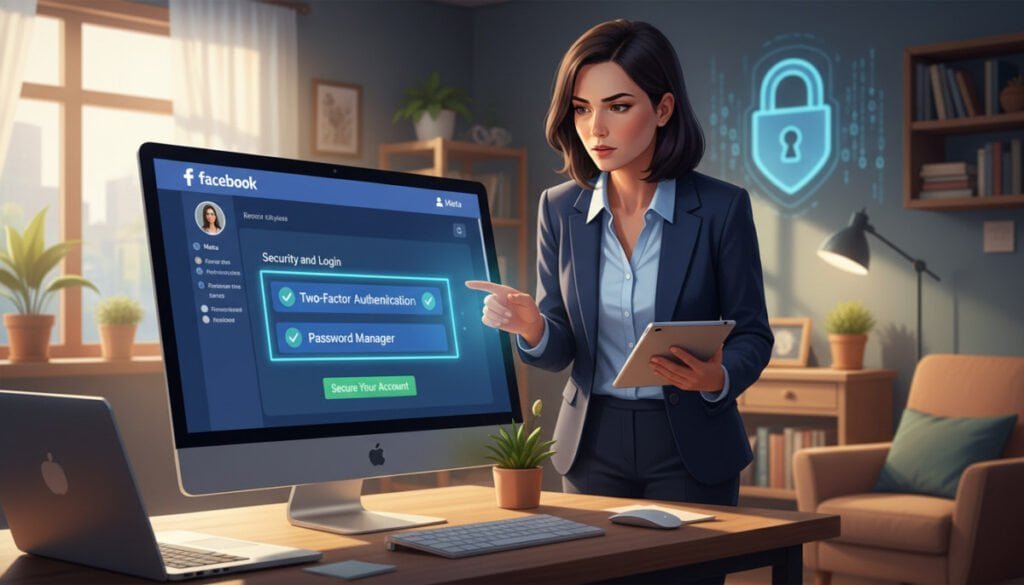
A few focused habits make it much harder for thieves to gain access to our social profiles and business pages.
Make sure the email linked to the profile is secure. Email often acts as the primary key for password resets, so update that inbox with a strong, unique password and two-factor methods.
Regularly review account settings and check which devices have access to the profile. Remove unfamiliar logins and revoke old app permissions to limit who can reach your data.
Never click suspicious links in messages or emails, even if they seem to come from friends or business contacts. Phishing is a leading way hackers gain initial access.
- Update security settings and recovery email now—this small step saves time later.
- Use unique, strong passwords so accounts stay independent if one site is breached.
- Act immediately if we suspect unauthorized activity: change login details and notify trusted contacts.
These steps help secure account access and protect business and personal data from the growing number of attackers.
Creating Unbreakable Passwords
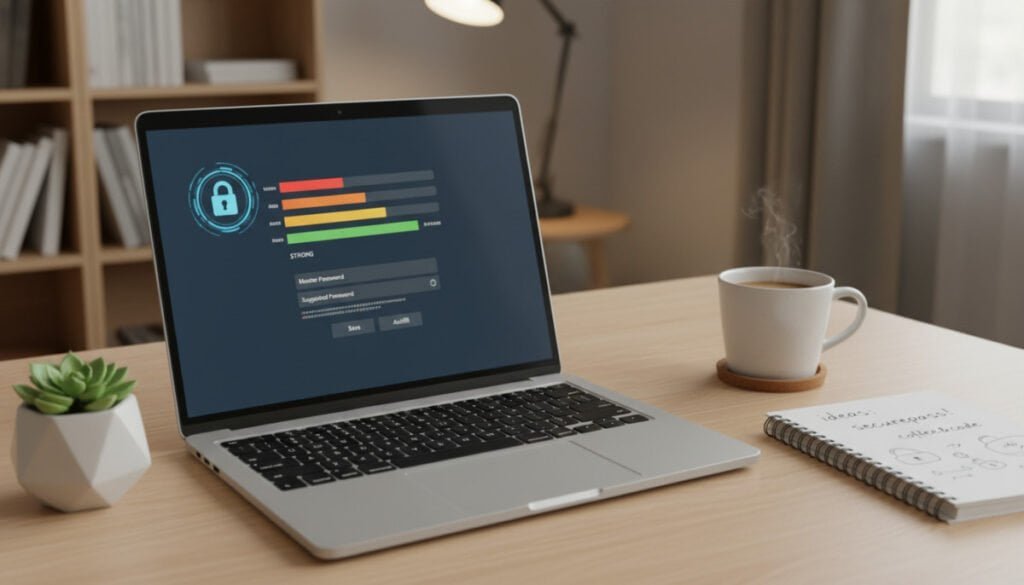
Good password habits give us a simple, powerful line of defense for every account we use.
Using Password Managers
We strongly advise that you use a password manager to keep every password unique. A manager generates long strings with uppercase and lowercase letters, numbers, and special characters.
A professional tool helps store credentials securely so we do not reuse passwords across websites, apps, or a business computer. That lowers the chance of mass compromise if one site leaks data.
The Importance of Unique Credentials
Never use the same password for multiple accounts. If thieves obtain one login, they try it everywhere.
- Use a password manager to generate and store complex passwords.
- If we must change password, make it long and mix characters and numbers.
- Consider writing critical credentials in a safe, physical location only as a last resort.
| Option | Strength | Ease of Use |
|---|---|---|
| Memorized phrase | Moderate (longer phrases help) | Easy |
| Password manager | High (complex, unique passwords) | Very easy after setup |
| Repeating one password | Low (risky across websites/apps) | Easy but unsafe |
Implementing Multi-Factor Authentication
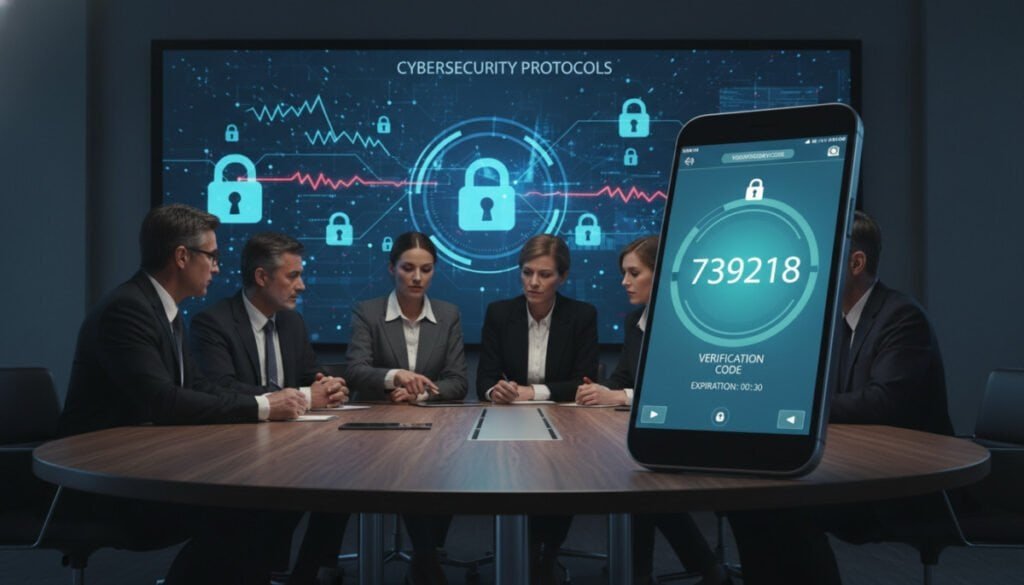
Requiring a short verification code when signing in from a new device adds a strong layer of security.
Two-factor authentication asks for something we know (a password) and something we have (a code sent to phone or email). This step helps stop attackers even if they get our password.
We recommend enabling two-factor authentication for both personal and business profiles. It keeps logins safer across apps and devices with a consistent process.
Make sure to verify backup methods, like an authentication app or recovery email, so you never lose access if a device is misplaced.
- Enable two-factor in security settings.
- Choose an authentication app or SMS code delivery.
- Record recovery codes and update linked email.
These simple steps protect account access and reduce the chance that hackers can hijack our profile. Follow the on-screen setup guides in your security settings to activate this feature quickly.
Identifying Phishing Attempts and Suspicious Emails
A. Scammers often lure people with urgent emails that mimic real services, so we must learn to spot the signs fast.
Phishing tries to steal login details, passwords, and other sensitive information. We should treat any unexpected message that asks for sensitive data as suspect.
Spotting Deceptive Links
Check the sender address first; small typos or odd domains often reveal a fake. Never click links that pressure us to act immediately.
Remember: a legitimate service will not ask for a password or credit card over email.
- Scammers craft urgent language to make people click quickly.
- Deceptive links can install malware that steals business or personal data.
- If an email claims an account will close, verify by visiting the site directly—do not follow embedded links.
- When unsure, contact the company through its official website rather than replying to the message.
| Sign | What to check | Action |
|---|---|---|
| Sender address | Minor typos or wrong domain | Do not click; verify on official site |
| Urgent language | Threats about closure or loss of access | Pause and confirm via direct login |
| Suspicious links | Shortened URLs or mismatched hover text | Hover to view destination, or type URL manually |
| Unexpected attachments | Unknown file types or unsolicited invoices | Scan with antivirus and avoid opening |
Managing Active Login Sessions and Devices
We should keep a short list of devices that have access to our profile. Check login locations in security settings at least once a week. This helps us see where the account is open and spot any odd activity.
If we find unfamiliar devices or locations, log out of those sessions immediately. Log off completely when using a public computer or an unsecured network. Simple steps like this stop hackers from keeping long-term access.
Review the list of apps that can access the account and remove any third-party app you no longer use. Use login history in security settings to track recent access times and devices in real time.
- Check devices regularly and remove unknown sessions.
- Log out of shared or public computers every time.
- Revoke app access for unused apps to limit data exposure.
We can schedule device updates automatically—say at 3 AM—so security patches install without disrupting our time. For step-by-step guidance on security tools, see the security tools page, or follow a recovery walkthrough if you cannot access an account: login help.
Reviewing Privacy Settings and App Permissions
A quick settings audit can cut off unnecessary access and keep personal and business info private.
Make sure we review who can see posts, friend lists, and contact details. Limit public visibility for past and future posts so less data is exposed to strangers.
We should remove apps and websites that we no longer use. Check the list of connected apps and revoke permissions for any unknown entries. This stops third-party services from pulling data from our profile.
- Audit app permissions monthly and delete unused apps.
- Confirm recovery email and trusted contacts are current.
- When on public Wi‑Fi, use a VPN app on a computer or phone to reduce interception risks.
| Action | Why it matters | How often |
|---|---|---|
| Review privacy settings | Limits who can view posts and profile details | Monthly |
| Revoke app access | Stops data sharing with unused apps/websites | After any unknown connection |
| Update recovery email | Ensures we can regain account access quickly | When email changes |
| Use a VPN on public networks | Protects data when using shared Wi‑Fi | Every public session |
For step-by-step controls, visit the security tools page. If we lose access, follow this login help walkthrough to recover quickly.
Responding to Potential Account Compromise
If we suspect someone else has accessed our profile, act fast to limit damage and restore control.
Verifying Unauthorized Activity
First, change your password right away and log out of all active sessions on every device. Luigi Oppido, a tech specialist, advises that this is the best immediate step after a suspected intrusion.
Ask a trusted friend to scan the profile for strange name changes, posts, or messages. Check login history and connected apps in settings for unfamiliar devices or locations.
Reporting Compromised Accounts
Use the platform’s reporting tools to flag the compromised account so the team can help us regain access. If ads or billing were affected, contact support immediately to dispute unauthorized charges on any business ad account.
Notifying Your Connections
Tell friends and business contacts about the breach so they ignore suspicious links or requests from the hacked profile. Enable two-factor authentication and use a password manager to create strong, unique passwords. These steps make it far harder for a hacker to return.
| Action | Why it matters | When to do it |
|---|---|---|
| Change password & log out sessions | Stops ongoing access | Immediately after suspicion |
| Report compromised account | Gets platform support and recovery options | Within first hour |
| Notify friends and partners | Prevents spread of malicious links | As soon as possible |
| Enable two-factor authentication | Adds a second verification layer | After regaining access |
For detailed recovery help and common access issues, follow this access issues guide: account access issues guide.
Maintaining Long-Term Digital Security
Security, we know, is a habit more than a one-time task. Security that lasts comes from regular checks and small, repeatable steps.
Every few months we should update account information and change passwords. We also research how hackers try to steal information so we stay ahead. Use a password manager and keep two-factor authentication enabled to guard login codes and credentials.
Tools like Spikerz add an extra layer for a facebook account and business profile. Review privacy settings, email recovery, and connected devices often. If managing social security feels hard, we offer a free strategy session to help. Stay vigilant and follow these steps for lasting peace of mind.



