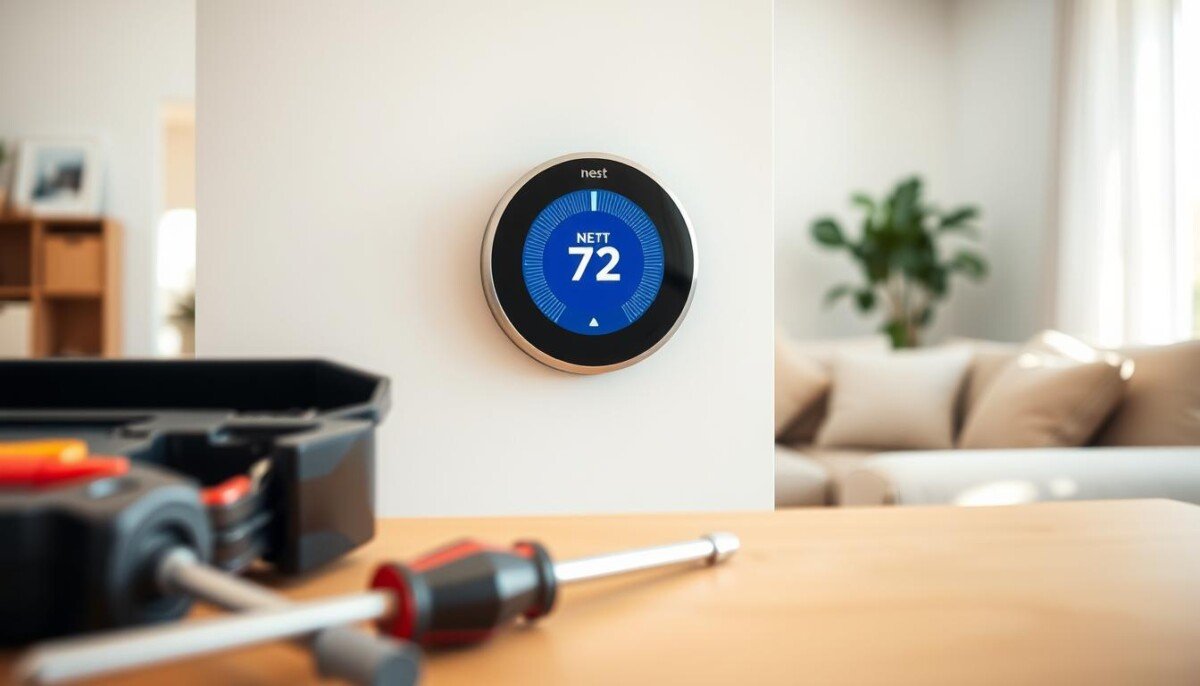
Is your home still warm even when your display shows a low set point? That sudden gap between the temperature you want and the air you feel is frustrating. It can happen when a learning device loses power or a wiring connection slips at the base.
Start simple: check the screen for messages, confirm the settings aren’t set to heat, and make sure the device has steady power. These quick checks often reveal the issue and save time.
If the screen is dark or shows a delayed message, the HVAC system may be paused for a few minutes or the battery needs support. Loose wires at the base can cut power and break the connection between your controller and the heating cooling system.
For Fort Worth homeowners who need help, Comfort Experts offers fast, professional support at (817) 341-5149. Call us if basic checks don’t restore cool air or if you prefer a trained technician to handle wiring and service safely.
Key Takeaways
- Check the display for messages and confirm the mode is set for cooling.
- Ensure wires at the base are secure and the device has power.
- Allow a few minutes if the system shows a delay message before troubleshooting further.
- Verify airflow near vents so the sensor reads temperature correctly.
- Call Comfort Experts at (817) 341-5149 for professional HVAC support in Fort Worth.
Understanding Why Your Nest Thermostat Not Cooling
A weak battery or lost signal can stop the device from telling your HVAC to run, so the house stays warm even with a low set point.
Most problems stem from power and communication. The lithium‑ion cell inside keeps the unit alive and lets the device send commands to your heating cooling system. If that battery drops or the screen shows a message, the system may fail to reach your target temperature.
Another common issue is a blank screen. That often means the internal battery needs charging via USB or the unit lacks steady power. Faulty wiring or poor sensor placement can also break the link between the device and the cooling system.
- Check the display for messages that point to power or connection faults.
- Watch for blank screens—they usually mean the battery is drained.
- Consider a technician if messages persist; a pro can test the HVAC and internal components.
For step‑by‑step diagnosis and deeper checks, see our guide on troubleshooting central air.
Initial Checks for Power and Connectivity

Start by verifying the power path from your breaker to the wall unit.
Check the breaker box first. A tripped breaker or a blown fuse in the air handler often leaves the screen dark and breaks communication with your HVAC system.
Next, inspect battery and charging indicators. The battery level should stay above 20 mA to avoid malfunctions. If the thermostat display shows a low battery message, charge the device for several minutes via USB or replace old batteries.
Battery and Charging Issues
Ensure every wire is fully seated in the base so the unit gets a steady power feed. A missing C-wire or loose wires can cause intermittent power and repeated messages on the screen.
Inspect the air filter in your HVAC. A clogged filter can force short cycles, which may drain battery power faster and create temperature and fan issues.
Wi-Fi and Network Interference
Resetting settings often clears minor Wi‑Fi faults that prevent the device from talking to the app. Move your router away from noisy electronics to reduce wireless interference.
- Check the G wire if the fan runs continuously; it must be seated correctly in the base.
- If the screen is dark, check the fuse box and the air handler fuse.
- For step‑by‑step cooling checks, see our guide on troubleshooting air conditioner.
Troubleshooting Wiring and System Compatibility

Turn off the breaker before you touch any wiring. Then inspect the base for loose or poorly stripped conductors.
Check compatibility first. 24V baseboard systems work with a Nest device, while 120V baseboard heating systems are incompatible and may need your old thermostat reinstalled.
Verifying C-Wire and Connector Integrity
Make sure each wire is stripped to about 3/8 inch (6mm) and fully seated in the connector. Loose ends cause intermittent power and stop the system from responding.
- Confirm the red wire is in the Rh port to feed power to your cooling system.
- If hot air comes when you expect cool, wires may be crossed; check heat pump settings.
- If the unit still fails to power on, test the fuse in the air handler and the breaker.
- Take a photo of your old wiring before disconnecting. It helps if you need service or a technician.
| Issue | Quick Check | Action |
|---|---|---|
| 120V baseboard | Voltage test | Use original thermostat; do not install Nest |
| Loose connector | Wire pull test | Strip to 6mm and reseat |
| No power | Breaker & fuse | Reset breaker, replace blown fuse |
If wiring feels complex, call a certified technician or service to ensure safe installation and steady power to your home system.
Addressing Common Error Codes and Display Messages
Error codes and brief messages on the screen tell you whether the issue is a simple power hiccup or a deeper control board fault.
Read the code first. An E-series error signals a critical problem that can stop your cooling. These need prompt action to restore normal operation.
Interpreting E-Series Critical Errors
If you see an E-series code, treat it as urgent. Check power at the breaker and the air handler fuse before doing anything else.
- Immediate checks: breaker, fuse, and battery level.
- If the control board freezes: remove the display from the base and perform a restart to reset thermostat software.
Resolving Delayed Message Alerts
A delayed message on the thermostat display usually means the device lacks steady power. This often points to a missing C-wire or weak batteries.
Consider C-wire installation if power issues repeat. Also confirm the air filter is clean; a clogged filter can trip safety limits and create messages on the screen.
Managing T-Series System Test Codes
The T-series runs during a system test that lasts 35 minutes. T01 through T12 reveal specific faults with fan or compressor response.
- Let the test finish the full 35 minutes to see if the fan or hvac parts respond.
- If errors persist after the test, turn off power and check wiring at the base for loose wires.
- When in doubt, call professional help to inspect the control board and system wiring.
When to Contact a Professional HVAC Technician

Persistent errors or repeated power losses mean a licensed technician should inspect your wiring and control board.
If you have tried all DIY steps and your nest learning thermostat still fails to cool, contact Comfort Experts at (817) 341-5149.
A trained technician can diagnose complex faults in your hvac control board, furnace safety switches, or hidden short circuits that make breakers trip.
If the system needs a C-wire installation, a licensed pro ensures safe wiring and compatibility with your home. A pro can also test the fuse in your air handler and confirm whether the battery or breaker caused the power loss.
Move the Heat Link at least 30 cm away from large metal objects to avoid interference. If the Heat Link is disconnected, a factory reset takes about 15 seconds to restore pairing.
- A technician can inspect wires and verify fan and compressor responses.
- Same-day service is available for Fort Worth residents to restore home comfort fast.
- Trust a pro to prevent long-term damage from incorrect wiring or repeated power faults.
| Problem | What a Technician Checks | Typical Fix |
|---|---|---|
| Repeated breaker trips | Panel, short circuits, load | Repair short, replace breaker |
| Loss of power to device | Fuse in air handler, C-wire, battery | Replace fuse, install C-wire, test battery |
| Signal interference | Heat Link position, metal nearby | Relocate Heat Link 30 cm away |
| Control board fault | Board diagnostics, safety switches | Repair or replace control board |
For step-by-step HVAC checks and more guidance, see our troubleshooting air conditioner guide or call for professional help.
Conclusion
Regular checks of wiring, power and settings keep your home comfortable. Inspect wires and the thermostat display, clean the air filter, and verify the battery or batteries if the screen shows an alert.
Most minor issues clear in minutes by reseating a wire, restarting the device, or running the system test. If the problem persists, contact a qualified technician for fast hvac service.
For wiring diagrams and step‑by‑step guidance in the Google Home app, see the wiring diagram in Google Home. A little routine care saves time and avoids unnecessary service calls.



