Have you ever tapped Send and watched a message sit stalled, wondering what broke your conversation?
With over 1.3 billion active users, facebook messenger is a core tool for personal and professional chat. When the messenger app stalls, simple connectivity or an app bug often causes the error. You need clear steps to find the root cause and restore reliable message delivery.
This guide gives a systematic path to resolve messenger sending issues. You will get concise checks, practical repairs, and preventive tips so your app works smoothly. Follow the steps and reclaim fast, consistent messaging across devices.
Key Takeaways
- Start simple: check connection and app updates first.
- Understand whether the problem is local device, account, or platform-level.
- Use step-by-step troubleshooting to isolate the issue fast.
- Regular maintenance prevents many common interruptions.
- This guide arms you with practical, expert-backed fixes.
Initial Connectivity and Network Checks
A quick internet check often reveals whether the problem is the app or your network. Start here before deeper troubleshooting. Confirming a stable connection saves time and isolates whether the issue is local to your device or broader on the network.
Verifying Internet Stability
Open a browser and load a simple site like google.com. If the page loads in a few seconds, your internet connection is likely active.
If pages stall, switch from Wi‑Fi to mobile data and test again. Many users find 4G or 5G restores reliable data when home networks lag.
Try this quick sequence:
- Turn Wi‑Fi off for 10 seconds, then back on.
- Enable airplane mode for 30 seconds, then disable it.
- Restart your router if the whole household shows slow speeds.
Resetting Network Configurations
If toggles and restarts fail, review your device settings to ensure the app has permission to use mobile or Wi‑Fi data.
When configuration errors persist, perform a full reset network from system settings. This clears outdated entries and often restores steady connection behavior.
For step‑by‑step guidance on related media or file delivery issues, see this helpful walkthrough on resolving photo transfer problems.
Essential Facebook Messenger Not Sending Messages Fix Strategies

A few practical app and network checks will clear most send interruptions.
Force-close the app to stop hung background processes. Long-press the app icon, open App Info, and choose Force Stop. Wait about 15 seconds before reopening; this allows the system to clear cached sessions.
Enable background data in settings so the app stays active while you multitask. Verify mobile data and overall internet connection are stable before you try sending again.
Check storage space. Full storage can block outgoing packets and cause a delivery issue. If space is low, clear temporary files or uninstall unused apps.
- Update the app in the store to patch known bugs.
- Send a quick test to a different contact to isolate account-level problems.
- Clear cache or temporary files for more reliable delivery across varied network conditions.
These simple, systematic fixes resolve most messenger send problems without specialist help. Apply them in sequence to find the root cause fast.
Managing App Data and Cache
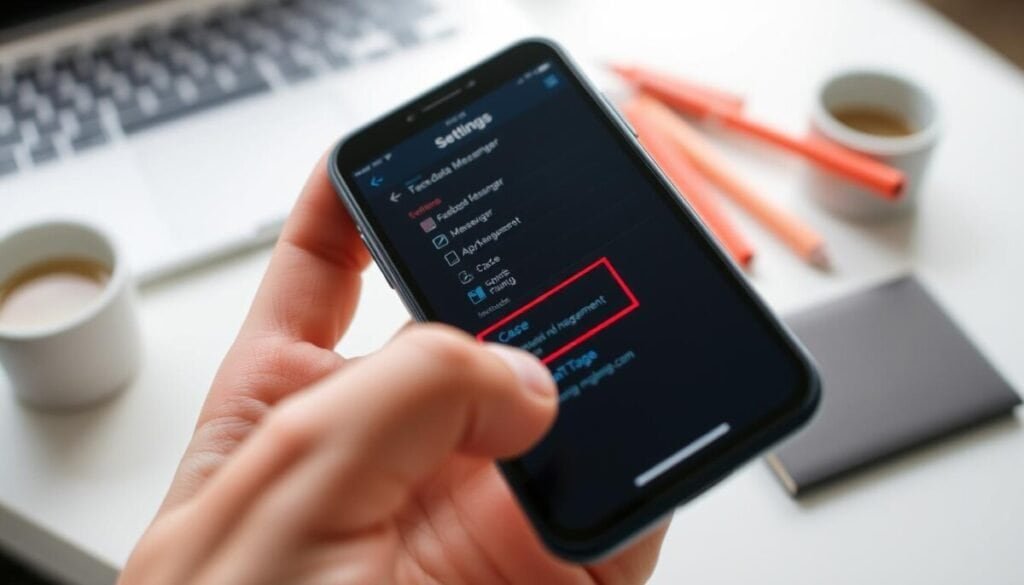
Clearing temporary files and app data often restores normal delivery and responsiveness. This step targets corrupted cache and stale entries that slow the app.
Clearing Temporary App Files
On Android, open Settings > Apps, pick facebook messenger, then tap Clear cache. This removes temporary files without erasing your chat history.
Note: If problems persist, select Clear Data only after you confirm login credentials. Clearing data resets the app to default and removes local settings.
- iPhone: uninstall and reinstall the messenger app to purge cache safely.
- Keep the app version updated; updates often fix background sync and delivery bugs.
- Ensure notifications and background data are allowed in device settings so the app can run reliably.
- If the app uses over 2GB storage, free space to improve performance and messenger sending reliability.
Regular maintenance — clearing cache and reviewing permissions — keeps the app fast. Manage app data proactively to reduce interruptions and maintain steady message delivery.
Investigating Account Restrictions and Privacy
Check your account status to rule out restrictions before troubleshooting the app. A quick account audit saves time and pinpoints whether limits or user blocks cause failed delivery.
Identifying blocked status
Identifying Blocked Status
If you cannot send a message to one person, first confirm their name on your friend list. If their profile no longer appears, they may have removed or blocked you.
Look for missing active indicators. That often signals a personal block or a privacy restriction the other user set.
Reviewing community standard violations
Reviewing Community Standard Violations
Open your support inbox on the page to see any alerts about policy breaches. Temporary restrictions for first-time violations usually last 24 to 48 hours.
If your account is restricted, you may be unable to send messages to anyone until the penalty ends. Visit the main website to verify there is no broader platform ban.
- Check friend list and active status to spot user-level blocks.
- Review support notices and appeals if flagged for spam or suspicious activity.
- Keep account behavior within community rules to avoid future restrictions.
| Issue | Indicator | Action |
|---|---|---|
| User block | Missing name or active status | Confirm friend list; try alternate contact |
| Account restriction | Support inbox alert; global send limits | Wait 24–48 hours or appeal via support |
| Privacy restriction by user | Still friends but message denied | Respect privacy settings; contact via another channel |
Advanced System and Device Troubleshooting
Start advanced troubleshooting by confirming whether the platform has a global outage. Use status sites like Downdetector to see if other users report problems. If the platform is down, outages typically last between 15 minutes and 2 hours.
If the service is healthy, check your device. Older OS versions (below iOS 13.4 or Android 8.0) can block the messenger app from functioning correctly. Update the system before more invasive steps. If you’re using an iPhone, you might want to check your facebook notification settings on iPhone to ensure they are configured properly. Adjusting these settings can improve your experience and help you stay updated on important messages. Additionally, consider reviewing any permissions that the app might need to operate optimally on your device. Another important aspect to enhance your messaging experience is staying informed about facebook algorithm adjustments for better visibility. These changes can affect how your notifications reach you, which is crucial for timely responses. Keeping your app and settings updated will ensure that you’re not missing out on any essential communication.
Perform a full device restart to clear RAM and stop system-level conflicts. Disable any VPN or proxy in your settings; these often disrupt the app’s connection and mobile data flow.
- Hard reset network settings to clear corrupted configurations.
- Ensure at least 2GB free storage so the app can write temporary cache and background files.
- Verify app permissions for camera, microphone, and storage so all message types send properly.
If problems persist, report the issue via the app’s help and support menu for targeted assistance. For related troubleshooting on search and account behavior, see this guide on why you may be unable to.
Alternative Access Methods for Persistent Issues
When the full app struggles on low-data or low-storage devices, a slim client can keep you online.
Use lighter options to bypass app bugs while you wait for an update.
Utilizing Messenger Lite and Other Paths
Messenger Lite is built for Android. It uses far less data and storage. That makes it ideal for older devices or weak connections.
Try the web at messenger.com if the mobile app continues to behave unpredictably. A browser session often offers a steadier connection for sending larger files.
- The desktop app can handle large uploads and stays active in the background more reliably.
- Log into your page on a computer to manage chats when a phone is unresponsive.
- Keep account credentials in a secure manager so you can switch methods quickly.
| Method | Best use | Limitations |
|---|---|---|
| Messenger Lite | Low storage, limited data plans | Fewer features, Android only |
| Web (messenger.com) | Quick access from any browser | Depends on browser stability |
| Desktop app | Stable transfers, background uploads | Requires desktop OS and resources |
Pro tip: Keep a secondary access method ready. If app-level issues persist, these alternatives let you send an urgent message and continue work with minimal disruption.
For related notification troubleshooting on groups, see group notification troubleshooting.
Maintaining Long-Term Messenger Performance
Small, regular steps keep your chats reliable. Once a month, check internet connection, update the messenger app to the latest version, and clear cache to avoid slowdowns.
Enable background data and monitor mobile data use so the app stays active. If you see a weak signal, toggle airplane mode or perform a quick reset network to refresh the connection.
Keep account health current by following community rules and trimming old threads to free storage. If a persistent issue appears, use in-app support and report the problem with screenshots.
For detailed guidance on notification behavior and related upkeep, see our page notifications guide.