
Struggling to remove a business profile that should be gone? Have you checked your role and the settings path yet?
You can usually fix this fast. Most blockage comes from permissions, the wrong profile, or a simple UI glitch. Confirm you are the Page admin and switch to the correct profile before you begin. If problems persist, consider clearing your browser’s cache or trying a different browser altogether. Additionally, reviewing Facebook’s guidelines for page management can help you identify any overlooked settings. Remember, troubleshooting Facebook tag issues often requires a closer look at your account configuration. If you continue to encounter difficulties, it may be helpful to reach out to Facebook support for assistance. Additionally, there are numerous online resources available that provide guidance on how to fix Facebook scheduling issues effectively. Taking the time to explore these options can save you frustration and streamline your page management tasks.
Start the process from Settings & privacy > Settings > Access and control > Deactivation and deletion on mobile or desktop. The flow includes a 30-day safety window so you can reactivate if needed. If a button fails, refresh, try another browser, disable extensions, or update the app.
If troubleshooting still fails, follow detailed troubleshooting steps and record timestamps and screenshots for escalation. Keep your team informed when removing a business asset to avoid disruption.
Key Takeaways
- Only a Page admin can start the deletion process; confirm your role first.
- Use Settings & privacy → Settings → Access and control → Deactivation and deletion.
- Deletion includes a 30-day window to cancel via Reactivate a Page.
- Try another browser, disable ad blockers, and enable JavaScript if buttons fail.
- Document attempts with screenshots and coordinate with your team for business assets.
Why Facebook Blocks Page Deletion and How to Get Unstuck
Many removal failures trace back to role or profile mismatches. First, confirm you are signed in with the admin profile for the specific business asset. Without admin access, the deletion control will not appear in Settings.
If controls are missing, switch to the correct profile and reopen Settings & privacy > Settings > Access and control. Business ownership inside Business Manager can limit what you see. Ask the business admin to raise your role if needed.
- Check your role under the Page’s settings; only an admin can initiate deletion.
- Try another browser, clear cache, or use incognito if a button is unresponsive.
- Confirm you opened the correct asset — companies often manage multiple pages with different permissions.
- Complete any recent security checks first; the platform may block destructive actions during reviews.
If problems persist, review roles in Business Manager and follow detailed troubleshooting steps. Document each attempt so teams avoid repeated errors and can escalate with clear evidence.
Quick Pre-Checks Before You Try to Delete a Facebook Page

Before you tap any delete controls, run a quick checklist. Confirming roles, profile identity, and environment prevents most failures. Follow these checks so the process runs smoothly.
Confirm you’re an admin of the Page you want to remove
Open Settings & privacy > Settings and review Roles. If you are not listed as admin, the delete control will not appear.
Switch to the correct profile before opening Settings
Use the profile switcher so you act as the right account. On desktop, check the top right controls and the profile picture icon to verify the identity.
Check for role or access changes in Settings & privacy
Look for recent access changes from coworkers or agencies. If your access changed, request admin restoration before continuing.
Verify network, browser, and app version for a smooth experience
- Update your app or browser to the latest software to avoid UI bugs.
- Ensure a stable network; slow connections can make buttons fail.
- Disable extensions (ad blockers, script managers) temporarily.
- Clear cache or use an incognito window if dialogs refuse to open.
- If you manage multiple pages, double-check the Page name to avoid removing the wrong asset.
- Finally, reconfirm the settings privacy path and that Access and control is visible.
Delete a Facebook Page on Mobile (iPhone and Android)
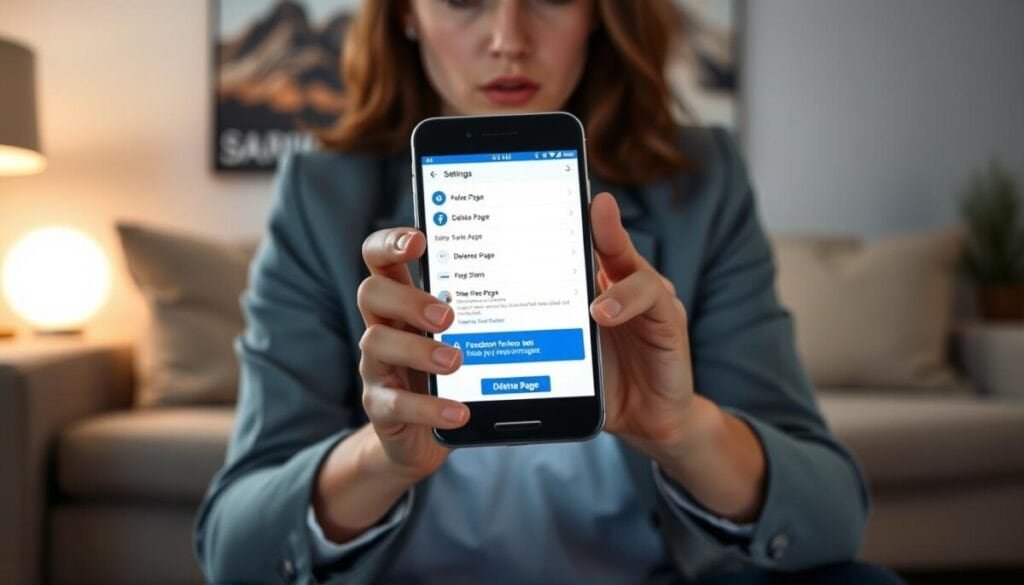
Switch profiles in the app first; that ensures the removal controls appear for the correct asset. Tap the ☰ menu, then tap the down arrow by your name and select the Page you manage. This prevents role and permission errors before you begin.
Once the Page is active, tap ☰ again and go to Settings & privacy > Settings > Access and control. Choose Deactivation and deletion and pick Delete Page. Follow the on-screen prompts to manage content or continue with removal. After your page is deleted, you may still want to leave any groups you are part of. However, it’s important to understand why Facebook restricts leaving groups, as they aim to maintain community integrity and prevent misuse. If you’re facing restrictions, check the group settings or contact support for assistance on navigating these policies.
Confirm and cancel within 30 days
You must confirm the action with your Facebook password. This step prevents accidental removals and unauthorized actions from other accounts. After confirming your password, you’ll be able to navigate to the settings where you can manage your account details. If you’re looking for guidance on how to remove phone number on Facebook, follow these simple steps to ensure your privacy while keeping your account secure. Be sure to review any alternative contact methods that may be associated with your profile before finalizing the changes.
After requesting deletion the asset is unpublished and recoverable for 30 days. To cancel deletion, open Settings > Access and control > Reactivation and tap Reactivate within the 30 days window.
| Step | Expected Screen | Quick Tip |
|---|---|---|
| Switch to the correct profile | ☰ menu → down arrow → select Page | Verify the Page avatar in the top right before proceeding |
| Open Access and control | Settings & privacy → Settings → Access and control | Scroll to find Deactivation and deletion if hidden on the next page |
| Confirm deletion | Deactivation and deletion → Delete Page → enter password | If you manage a business page, notify stakeholders before deleting |
Delete a Facebook Page on Desktop
On desktop, open the left sidebar and click Pages to start. If you do not see it, choose See More and then open Pages from the list.
Switch into the exact business asset before you act. Click the three dots next to the listing, select Switch Now, and confirm Switch. Verify the top right shows the Page context, not your personal account.
Use Settings → Your information → Access and control
In the Page view, click Settings. Scroll to Your information and open Access and control. Choose Deactivate or Delete Page and follow the prompts.
Before you proceed, download your asset data. Export posts, messages, and insights so your team keeps records. If you want to remove the listing permanently, review all prompts and then confirm.
| Action | Where to click | Quick tip |
|---|---|---|
| Open Pages | Left sidebar → Pages (See More) | Use the left rail to ensure correct context |
| Switch to Page | Three dots → Switch Now → Switch | Check top right for Page avatar |
| Start deletion | Settings → Your information → Access and control | Download info first; confirm with password |
| Cancel if needed | Settings → Your information → Reactivate a Page | You have 30 days to cancel deletion |
facebook won’t let me delete page: Common Fixes
If deletion controls are missing, verify your admin role and switch to the business identity before retrying. Confirm you are listed as an admin and that you operate as the target profile. Without that role, the controls and removal flow stay hidden.
Reclaim or update admin access to the Page
Ask an existing admin or the business admin to grant Admin rights if needed. For companies using Business Manager, check ownership and restore permissions there.
Use Reactivate to cancel a pending deletion within 30 days
If deletion started by mistake, open Settings & privacy > Settings > Access and control and choose Reactivate. The asset is unpublished but recoverable during the 30-day window.
Unpublish or deactivate to hide the Page
Want to preserve content? Unpublish or deactivate the business page instead of permanent removal. This keeps data and reduces risk to linked accounts and integrations.
Troubleshooting unresponsive UI
Update your browser or app, disable ad blockers, enable JavaScript, or try another device. These software layers often block dialogs or hide controls.
| Issue | Quick fix | Why it helps |
|---|---|---|
| Missing controls | Confirm admin & switch profile | Shows the right settings context |
| Unresponsive UI | Clear cache or change browser | Removes blocking extensions |
| Business Manager limits | Verify ownership and roles | Restores destructive action rights |
Alternatives to Deleting: Deactivation, Unpublishing, and Privacy Controls
When timing or stakeholder approval is uncertain, pause public access instead of erasing content. Deactivation temporarily removes a business page from public view while preserving posts, messages, and insights. This gives your team time to decide without losing data.
When to deactivate a business Page instead of deleting
Use deactivation when you want a reversible break. It keeps connections and SEO value intact. Admins can reactivate and restore community engagement quickly.
Unpublish to hide your Page from people without losing data
Unpublishing hides the listing from people while keeping it editable for admins. Use this when updating branding, fixing compliance, or reorganizing content.
- Find both options in Settings & privacy > Settings > Access and control.
- Avoid choosing page permanently removal if you might change your mind; deactivate first.
- Export information before any permanent action and set a reactivation timeline with stakeholders.
- Adjust privacy controls to limit who sees posts and who can message the business.
| Option | When to use | Benefit |
|---|---|---|
| Deactivate | Short-term pause or pending decision | Preserves content, SEO, and messages |
| Unpublish | Fix branding or compliance | Hidden from people but editable for admins |
| Privacy adjustments | Reduce exposure without removing | Granular control over who sees information |
If you need more troubleshooting or want to explore visibility options, see why you can’t search for related guidance on access and controls.
Take Control of Your Facebook Presence Today
,Begin by switching into the business identity you manage and confirm the correct admin role. Then open Settings & privacy > Settings > Access and control and follow the prompts to request removal or choose a safer alternative like unpublish or deactivate.
You’re ready to act. Note the date and time you initiated the change and who approved it. If you change your mind, you have 30 days to cancel deletion via Reactivation.
If UI elements fail, confirm the account icon, try another browser, disable extensions, or update the app. Export data, inform stakeholders, and schedule the action outside peak hours to avoid disruption.
Proceed with a clear checklist and governance in place to protect your business assets.