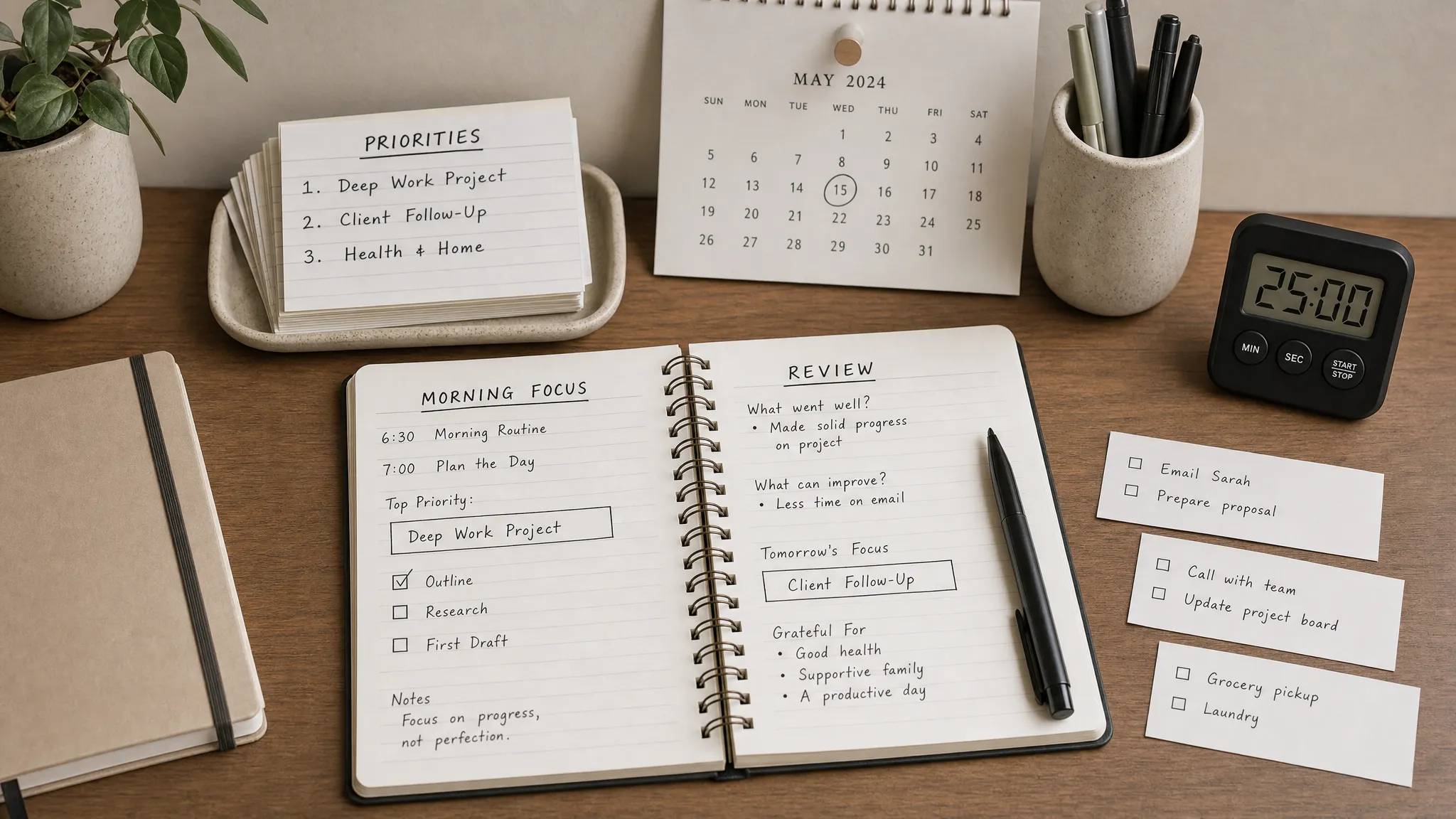
A good Notion dashboard does not need to be beautiful on day one. It needs to answer one question fast: what should I do today?
If your workspace is full of project pages, scattered notes, old templates, and tasks hiding in different databases, a daily dashboard can become your command center. It gives you a simple place to plan the morning, track work during the day, capture loose ideas, and shut down cleanly at the end of the afternoon.
This guide walks you through how to build a daily dashboard in Notion from scratch, without turning it into a complicated second job.
What a daily dashboard should actually do
The biggest mistake people make in Notion is creating effective Notion dashboards that look impressive but require too much maintenance. Your daily dashboard should reduce friction, not add another place to organize your organization system.
A practical daily dashboard should help you:
- See today’s most important tasks.
- Check meetings, deadlines, and time blocks.
- Capture notes without deciding where they belong immediately.
- Track a few useful habits or metrics.
- Review what was completed and what needs to move forward.
Think of it as a daily operating system. Your project databases, notes, CRM, calendar, and knowledge base can live elsewhere. The dashboard simply pulls in the parts you need right now.
Before you build: decide what belongs on the dashboard
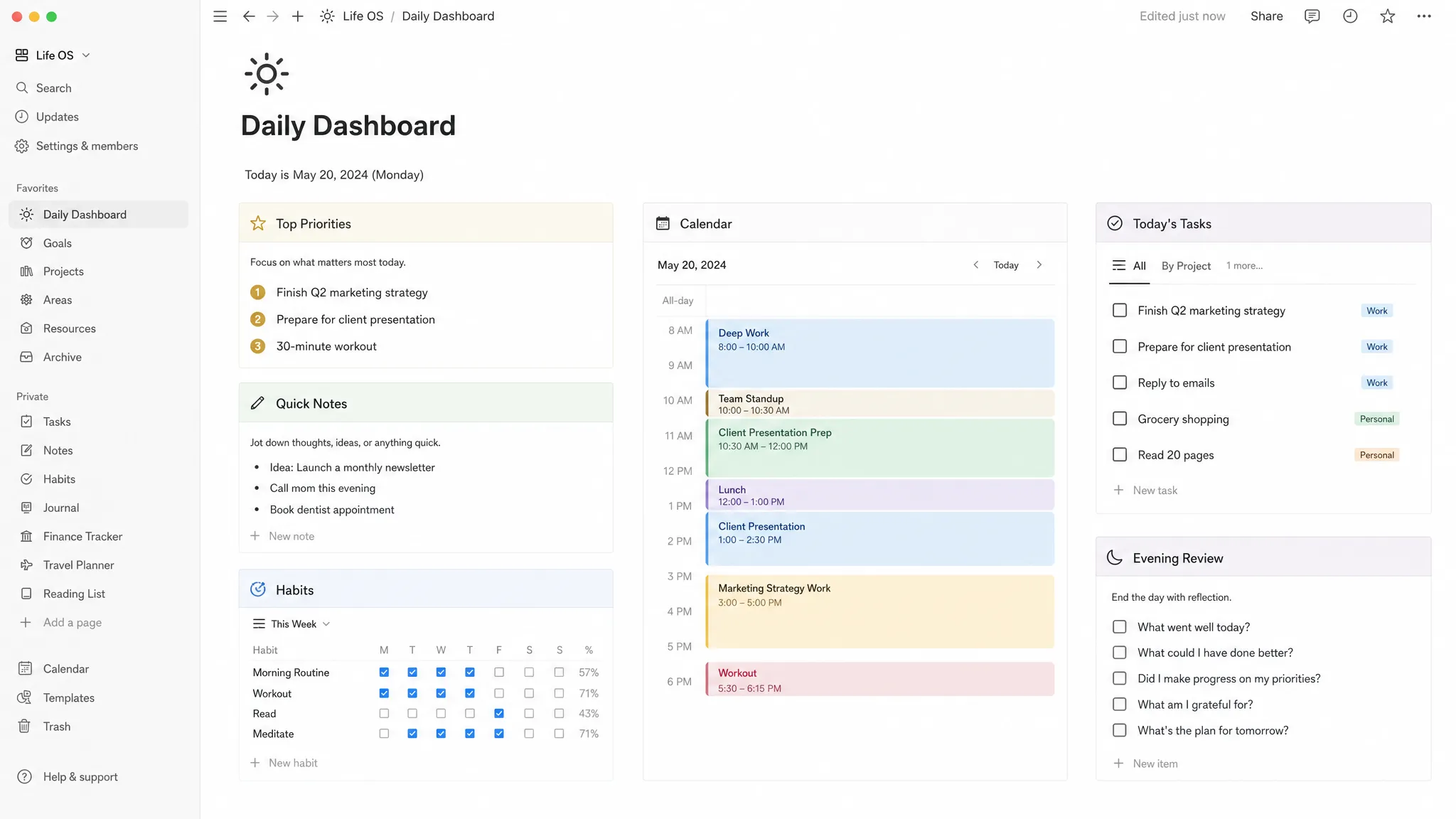
Start with function before layout. A daily dashboard usually works best when it has five core zones: priorities, schedule, tasks, notes, and review. You can add more later, but these sections cover most daily workflows for freelancers, students, creators, remote workers, and team leads.
| Dashboard section | Best Notion source | Purpose |
|---|---|---|
| Daily priorities | Tasks database or daily journal | Keep attention on the top outcomes for the day |
| Schedule | Calendar view, Notion Calendar, or embedded calendar context | Show meetings, deadlines, and time blocks |
| Task list | Linked database view | Pull in tasks due today or marked for today |
| Quick capture | Notes or inbox database | Save ideas, links, and reminders quickly |
| End-of-day review | Daily journal database | Record wins, blockers, and tomorrow’s first action |
If you already use Notion for projects, avoid creating duplicate task lists. Instead, use linked database views that show filtered slices of your existing databases. If you are new to this structure, our guide on creating Notion databases for project management explains the database foundation in more detail.
Step 1: create your main Daily Dashboard page
In Notion, create a new page for your personalized workspace and name it Daily Dashboard, Today, Command Center, or whatever feels natural. The name matters less than whether you will actually open it every morning.
Set the page to full width if you prefer a spacious layout. Add a simple icon, then create three visual areas:
- A top section for the day’s date, mood, and top priorities.
- A main section for tasks, schedule, and active work.
- A bottom section for notes, review, and maintenance.
A clean structure beats a decorative one. You can use columns, callouts, and toggles, but keep the first version simple. If you spend 90 minutes styling the page before you add a working task view, you are building a poster, not a dashboard.
Step 2: set up the databases your dashboard will pull from
You can build a dashboard using only blocks, checkboxes, and headings. That works for a basic personal setup, but databases make the system reusable and easier to filter.
For most users, these four databases are enough:
| Database | Useful properties | Why it matters |
|---|---|---|
| Tasks | Status, Due date, Priority, Project, Effort | Shows what needs to be done and when |
| Projects | Status, Deadline, Area, Next milestone | Gives context for task decisions |
| Daily Journal | Date, Energy, Wins, Blockers, Tomorrow | Creates a record of your workday |
| Notes Inbox | Type, Source, Related project, Date captured | Prevents random ideas from interrupting your flow |
If you are building your first Notion system, start with Tasks and Daily Journal only. Add Projects and Notes Inbox once the dashboard becomes part of your routine.
A good rule: every section should have one clear input. Tasks go into the Tasks database. Reflections go into the Daily Journal. Loose thoughts go into Notes Inbox. When you give each item a home, the dashboard stays clean.
Step 3: create a Today view for your tasks
The most important part of a daily dashboard in Notion is the task view. This is where your dashboard becomes useful instead of decorative.
On your dashboard page, type /linked and choose a linked view of your Tasks database. Then create a view called Today.
Use filters like these:
| View name | Filter logic | Best sort |
|---|---|---|
| Today | Due date is today and status is not complete | Priority, then due time |
| Overdue | Due date is before today and status is not complete | Due date ascending |
| High Priority | Priority is high and status is not complete | Due date ascending |
| Waiting | Status is waiting or blocked | Last edited date |
You do not need all four views at the top of the dashboard. Put Today front and center, then tuck Overdue and Waiting into toggles so they are available without dominating your attention.
For a cleaner workflow, add a Today checkbox or a planned date property if your due dates are not always the same as your intended work dates. This is useful when a task is due Friday but you want to work on it Wednesday.
Step 4: add a Top 3 priorities section
Your task list might contain 12 items. Your day should not.
Add a small section at the top of the dashboard called Top 3 Priorities. You can build it in two ways.
The simplest version is three checkbox lines that you rewrite every morning. This works well if you like a manual planning ritual.
The more structured version is a linked Tasks view filtered to show items where Priority is high or Today is checked. Limit the view visually by keeping it compact and sorting by priority.
Your Top 3 should be outcomes, not tiny actions. For example, write Finish client proposal rather than Open Google Docs. The tiny action can live inside the task page, but the dashboard should remind you of the meaningful result.
Step 5: connect your schedule and time blocks
A daily dashboard is incomplete if it ignores your calendar. Tasks tell you what matters. Your schedule tells you what is actually possible.
You have a few options:
- Use a Calendar view of your Tasks database for due dates and planned work.
- Add a simple time-blocking table with Morning, Midday, Afternoon, and Admin sections.
- Connect Notion Calendar or Google Calendar if your meetings live outside Notion.
If you want your Notion workflow to reflect real meetings and calendar events, use our walkthrough on how to integrate Notion with Google Calendar. If you prefer planning your day in focused blocks, the Notion time-blocking template guide pairs well with this dashboard.
For most people, a hybrid setup works best. Keep official meetings in your calendar, then plan your deep work organization in Notion so your tasks have a realistic place to land.
Step 6: build a quick capture inbox
A dashboard should help you stay focused, but ideas, reminders, links, and follow-ups will appear throughout the day. If you stop to organize every thought immediately, you break momentum.
Add a Quick Capture section connected to a Notes Inbox database. Keep the properties minimal: title, type, date captured, and related project.
Useful note types include idea, meeting note, follow-up, resource, and decision. Do not over-categorize. The goal is to capture now and process later.
If you use Notion buttons, create one button for New note and another for New task. This can save a few clicks and make the dashboard feel more like a working console. If your Notion plan includes database automations, you can later route certain notes or tasks based on type, but this is optional.
Step 7: add a daily journal for planning and review
A Daily Journal database turns your dashboard from a task list into a feedback loop. Each day gets its own entry, and each entry becomes a short record of what happened.
Create a Daily Journal database with a date property. Then create a daily template with these sections:
| Template section | Prompt |
|---|---|
| Morning intention | What would make today successful? |
| Top priorities | What are the three most important outcomes? |
| Risks | What could derail the day? |
| Wins | What went well? |
| Blockers | What needs follow-up or support? |
| Tomorrow’s first action | What should I start with next? |
If you want a low-maintenance setup, create one journal entry each morning and link it near the top of your dashboard. If you prefer a more automated system, you can utilize automated page creation by using a recurring database template, so a new daily page appears on schedule.
The end-of-day review is especially important. It keeps your task database honest. Instead of leaving unfinished work floating around, you decide what gets rescheduled, delegated, deleted, or moved to tomorrow.
Step 8: customize the dashboard for your role
The best dashboard is specific to your work. A student, sales rep, agency owner, and content creator do not need the exact same sections.
Here are a few practical variations:
| Role | Add this section | Why it helps |
|---|---|---|
| Freelancer | Client deliverables and invoices | Keeps paid work visible |
| Manager | Team blockers and follow-ups | Makes communication proactive |
| Student | Assignments, readings, and exam dates | Connects study time with deadlines |
| Creator | Content pipeline and publishing checklist | Keeps ideas moving into production |
| Founder | Sales, product, support, and metrics snapshot | Balances strategic and operational work |
For example, a creative service business such as a Mediterranean elopement storyteller might use the dashboard to track shoot preparation, travel tasks, editing deadlines, client emails, and publishing reminders in one place. The same structure works because the dashboard is organized around daily decisions, not a generic productivity aesthetic.
Step 9: make it visually clear without over-designing
A daily dashboard should be easy to scan in under one minute. If you need to scroll through six decorative sections before reaching your tasks, the design is getting in the way.
Use simple visual hierarchy:
- Put Top 3 and Today’s Tasks above the fold.
- Use columns only when they make comparison easier.
- Hide secondary views inside toggles.
- Use icons sparingly for recognition, not decoration.
- Archive old sections instead of letting the page grow forever.
A strong layout might look like this: priorities on the left, schedule on the right, task views below, quick capture underneath, and daily review at the bottom. Keep recurring reference material, such as SOPs or project notes, linked from the dashboard rather than pasted directly into it.
Step 10: create a daily operating routine
A dashboard only works if you use it at predictable moments. The best routine is short enough to repeat even on busy days.
Try this rhythm:
| Time | Action | Target duration |
|---|---|---|
| Start of day | Choose Top 3, check calendar, review overdue tasks | 5 to 10 minutes |
| Midday | Update task statuses and capture loose notes | 2 to 5 minutes |
| End of day | Complete review, reschedule unfinished work, choose tomorrow’s first action | 5 minutes |
This routine matters more than the template itself. A simple dashboard reviewed daily will beat a complex dashboard ignored after Monday.
Common mistakes to avoid
The first mistake is making the dashboard too broad. If it includes every project, every resource, every goal, and every note, it stops being a daily dashboard and becomes a cluttered homepage.
The second mistake is duplicating data. If a task exists in your project database, do not copy it manually into a dashboard checklist unless you are comfortable cleaning it up later. Use linked views whenever possible.
The third mistake is skipping the review section. Without a review, tasks pile up and the dashboard loses trust. A five-minute shutdown routine prevents stale priorities from carrying into the next day.
Finally, avoid changing the system every morning. Build version one, use it for a full week, then improve it based on friction you actually experienced.
Frequently Asked Questions
Can I build a daily dashboard in Notion for free? Yes. A basic dashboard with pages, databases, linked views, filters, and templates can be built with Notion’s free functionality. Some advanced automations or team features may depend on your Notion plan, so start with the core workflow first.
Should my daily dashboard be one page or a database? Use one page as the visible dashboard, then connect it to databases for tasks, notes, projects, and daily journal entries. This gives you a simple front end while keeping your data organized behind the scenes.
How do I show only today’s tasks in Notion? Create a linked view of your Tasks database and filter it by due date, planned date, or a Today checkbox. Also filter out completed tasks so the view stays focused.
Can Notion replace my calendar? Notion can help you plan work, track deadlines, and view database items by date, but many users still rely on Google Calendar, Outlook, or Notion Calendar for meetings and time-sensitive events. The best setup often combines calendar events with Notion task planning.
How often should I update my dashboard? Update it at least twice a day: once during morning planning and once during shutdown. A quick midday check can help if your work changes frequently.
Build the first version today
Your first daily dashboard in Notion does not need formulas, advanced automations, or a perfect layout. It needs a clear Today view, a Top 3 section, a place to capture notes, and a short review habit.
Start with the simplest version you will actually use tomorrow morning. Once it saves you time for a full week, add time management features like calendar integration, time-blocking, project rollups, or automation where they solve a real problem.
That is the real value of Notion: not building a beautiful workspace, but building a daily workflow that helps you make better decisions with less effort.



