Can a newly launched tool truly replace our usual design platforms and speed up visual production?
We launched an experiment less than three weeks after the Amplifiers MCP arrived. The native generation feature inside the Claude workspace changed how we approach daily work.
We found that creating visuals felt natural and fast. The built-in generator helped us produce higher quality assets without hopping between services. This meant fewer steps and clearer results for our team.
Prompt engineering used to take too long. Now the system handles much of the heavy lifting, so we focus on brand voice and content strategy. The integration keeps our workflow steady and saves time across projects.
In this article, we will guide you through mastering the new MCP features, show practical examples, and explain how these tools can help modern creators stay competitive.
Key Takeaways
- Amplifiers MCP enables native generation directly inside the workspace.
- We achieved professional-grade visuals with less prompt engineering.
- Integration reduced platform switching and improved daily productivity.
- The tool preserves brand consistency across projects.
- Mastering this process is essential for creators aiming to stay ahead.
Understanding the Evolution of Visual Content in Claude
The shift to in-chat generation closed a long-standing gap in our process. Historically, we left the assistant and used separate services to create visuals. That split slowed review cycles and broke our creative flow.
Today, the Amplifiers mcp framework brought generation tools into the same workspace. The Nano Banana Pro model powers this change and often delivers higher quality than many standalone platforms.
We also noticed better handling of text inside designs. Adding text to visuals used to be a clumsy, multi-step task. Now the system embeds text cleanly, which speeds marketing and design work.
Keeping asset creation in one place gave us more consistent results across projects. Seeing images claude produces directly in chat reshaped our brainstorming and cut tab switching entirely.
- Faster iterations from in-chat previews.
- Cleaner text integration into visuals.
- Stable quality from the Nano Banana Pro model.
Getting Started with Image with Claude via Amplifiers
Getting started requires only a few clicks inside the desktop app to add the Amplifiers connector. This quick setup unlocks native generation tools so we can produce visuals without leaving chat.
First, we open the Customize menu and press the plus icon. Then we add the connector URL: https://mcp.aiblewmymind.com. After that, we sign in at auth.aiblewmymind.com to link accounts and enable full functionality.
Initial Connector Setup
We found the initial steps straightforward. The app prompts for any needed input and guides us through account sync. If you are a premium subscriber, check account settings to avoid common questions about synchronization.
Managing API Keys
Google AI Studio is where we grab API keys to enable image generation. Keep an eye on credits and time so generation stays active across projects.
- Add Amplifiers via Customize → plus icon.
- Connect accounts at auth.aiblewmymind.com for full access.
- Manage API keys in Google AI Studio and monitor credits.
- Follow on-screen prompts to refine each request and prompt.
By following these steps, we connected our mcp tools and began creating professional images claude in minutes. The integration reduced setup friction and let us focus on creative details rather than technical hurdles.
Configuring Your Environment for Seamless Generation
We began by validating connectivity and credits so every request runs predictably.
First, confirm the mcp endpoint and account syncing. A stable server connection keeps our tooling responsive and reduces failed requests.
Next, we check model access so both Nano Banana and ChatGPT are available for any visual task. This allows us to pick the best tool for clarity and style.
Every configuration step is deliberate. We validate settings, map storage locations, and confirm that generated assets save to our shared drives. That makes collaboration simple and reliable.
- Verify mcp server settings to handle specific requests.
- Follow a short step checklist to reduce common errors.
- Monitor credits so chosen models stay available for projects.
- Keep a clean config so images are archived and reusable.
By enforcing these checks, we maintain steady production and deliver professional visuals on schedule.
Creating Professional Infographics and Visual Assets

We often begin an infographic project by feeding a URL or topic into the system so it drafts the core content. This quick input gives us a clear concept and a short text outline to match any chosen layout.
Selecting Infographic Styles
The style gallery offers 12 distinct looks that we can apply to our draft. We preview examples like hand-drawn notebook and isometric 3D to pick the best tone for the page.
Customizing Branding Elements
We refine colors, swap backgrounds, and adjust fonts directly in chat. As we tweak details, the tool updates the visuals so we can confirm brand matches fast.
Exporting Final Files
Once satisfied, we export the final file to our desktop or computer. Export options preserve size and quality so the output is ready for LinkedIn, Substack, or a marketing page.
- Start by providing a URL or topic as input.
- Pick a style from the 12-option gallery.
- Use refine tools to change colors, background, and text.
- Export the file and confirm size and final output.
Using these steps we produce scannable images and fast results. The mcp connector keeps credits visible so production time stays predictable.
Designing Click-Worthy Thumbnails for Social Media
Thumbnails must pop at a glance, so we build each concept around a single readable focal point. This helps our video stand out in grid views and search results.
We generate thumbnails in a 16:9 aspect ratio so they remain legible at small sizes. We often upload a portrait from our computer to personalize the design.
Optimizing for Grid Visibility
We pick bold styles and high-contrast backgrounds to improve mobile readability. Using the style gallery, we test examples that keep faces and headlines clear in tiny thumbnails.
We ask a few quick questions in chat to capture the concept and key prompts. That input produces multiple variations so we can compare composition, color, and art direction before export.
- Use an Amplifier to create a concept that matches the video topic.
- Upload a portrait to add a personal touch and boost clicks.
- Review multiple variations, then download the final file once size and style are right.
- Answer context questions to align visuals with branding and credits limits.
For more social tools and workflow examples, see our guide on social content tools.
Leveraging Advanced Models for Realistic Textures
We started testing Flux.1 Krea Dev to remove the telltale “AI gloss” from our visuals. This model focuses on natural lighting and fine surface detail so results read as authentic art rather than synthetic renderings.
Flux.1 Krea Dev helped us achieve textures that felt tactile and nuanced. We used targeted prompts that described material grain, light direction, and subtle imperfections. That guidance made the background and subject match the intended mood.
Choosing between models let us explore techniques that matched each concept. For complex scenes, we favored models that boosted visual fidelity and avoided the plastic skin look common in earlier outputs.
- We tuned prompts to shape lighting and texture.
- We compared outputs across models to pick the best style.
- We integrated chosen models into our mcp workflow to keep quality steady.
By adopting these tools, our images began to read like professional photography. That realism raised trust and made our visual concepts more persuasive. For complementary tools that support high-fidelity art, see our guide to 3D modeling and animation tools.
Refining Your Visual Output with Iterative Feedback
We sharpened visuals by running several short feedback cycles that targeted color and layout.
Iterative refinement works best for tweaks. Small swaps to background hues or a color grade fix usually deliver big improvements. Major structural changes slow the process.
Adjusting Backgrounds and Colors
We ask the assistant for a few color options and compare quick previews. This helps us lock the right mood for an article or a video thumbnail.
Changing the background is often a one-pass job. We test contrast, saturation, and style to keep branding consistent.
Handling Text Edits
Text updates are now fast. We send a concise prompt that specifies the font, size, and exact copy we want changed.
Clear, short instructions guide the tool toward better results and cut back-and-forth time. That saves us from restarting a full generation process.
- Iterate on colors and background before altering layout.
- Give precise text directions to update captions or headlines.
- Keep feedback tight and focused to speed final output.
For a deeper view of our loop and methods, read the iterative refinement loop guide.
Comparing Performance Across Different AI Models
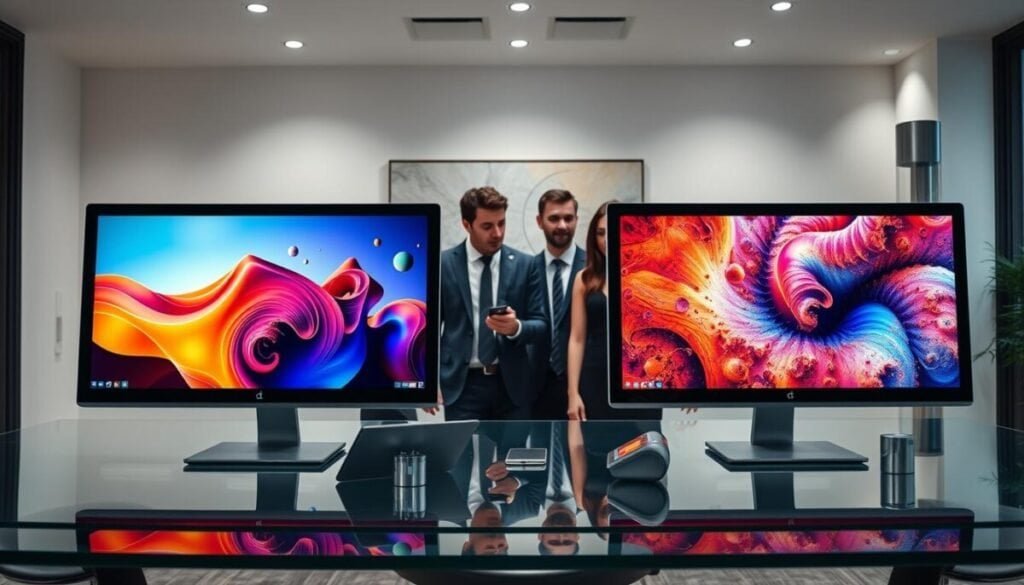
We run parallel tests that generate the same prompt across multiple models so we can judge how each one handles detail, color, and composition.
We generate the same image prompt in Nano Banana and ChatGPT and compare the results side-by-side. This lets us measure speed, fidelity, and final output quality in a way that feels objective and repeatable.
Our notes capture differences in texture, text handling, and color fidelity. Over time, this documentation helps us pick the right model for each job and avoid surprises during large runs.
- We document comparative tests so future projects use the best model for quality and speed.
- Generating the same prompt across models highlights strengths and weaknesses in results.
- Access to multiple models in one interface speeds experimentation and improves output consistency.
By prioritizing models that balance speed and visual fidelity, we keep our workflow efficient and our images professional. This comparative approach has become central to how we push creative boundaries.
Integrating Research Tools for Data-Driven Visuals
We pair data from social platforms with concept prompts to guide every visual decision.
Our research suite covers YouTube, LinkedIn, Instagram, Twitter/X, Reddit, Facebook Ads, and Google Search. We pull transcripts, engagement stats, and trend signals to anchor each creative brief.
By extracting transcripts from a video or engagement numbers from LinkedIn, we shape content that matches audience interest. This helps our generation be more targeted and relevant.
We also gather company details and recent posts to inform background, tone, and visual direction. That makes drafts easier to approve and faster to refine.
- Search the open web for grounded facts while creating a page or article.
- Streamline our work by keeping research inside the mcp flow.
- Combine image generation and analytics to produce rigorous, beautiful assets.
| Platform | Key Metric | Use Case | Result |
|---|---|---|---|
| YouTube | Transcripts & watch time | Thumbnail and video page art | Higher click-through |
| Engagement & post reach | Article header and social cards | Better targeting | |
| Google Search | Query trends | Page visuals and background | Improved relevance |
For tools that help expand this approach, see our guide to Ideogram AI alternatives. We are excited to keep refining how data and creative tools power our visual work.
Elevating Your Creative Workflow with New Capabilities
Adopting these capabilities helped us turn concepts into final art in far fewer steps. The result is faster work and higher overall quality for each image we produce.
By mastering the tools and prompts, we now focus on creative vision rather than technical setup. New style options let us test varied aesthetics for every article and refine our techniques quickly.
We manage credits and watch model releases so our team stays competitive and cost‑effective. We encourage readers to explore an AI workflow setup that maps core prompts and tools into daily practice.
As generation evolves, we expect even richer art and smarter techniques to shape future work.



