Can a short tweak stop your workday from derailing when your device starts to run hot?
You rely on a mobile router to get work done. Many users report the same problem: a phone growing too warm while sharing data. Andreaezio noted an iPhone 12 Pro Max became noticeably hot after 50 minutes of tethering.
Apple Support suggested updating to iOS 14.4.2 to rule out software causes. That step can fix some device faults, but you still need practical habits to protect your battery and performance.
In this article you’ll learn clear, small changes you can make to keep phone temps in check. We will cover simple settings, case choices, and when to contact support for deeper issues.
Key Takeaways
- Brief software updates can fix some thermal issues.
- Monitor battery use and background apps while tethering.
- Choose a case that does not trap heat.
- Move the device to a cooler spot during long sessions.
- Contact support if the issue repeats after basic fixes.
Why Your Device Generates Excessive Heat
Tethering for long stretches forces several systems to run at full tilt. That constant demand explains why a small gadget can feel so hot.
The core issue is a triple-task burden. Your device must keep a mobile data connection, broadcast a Wi‑Fi network, and run apps that keep the processor awake. When these three systems work together, they pull a lot of power.
The Triple-Task Burden
During heavy transfers or video calls, the cellular modem often transmits at high power to feed a laptop or stream videos. That transmission is one of the hottest tasks a smartphone performs. A typical model has no fan, so heat builds inside the case quickly.
Thermal Throttling Explained
Thermal throttling is a protective response. The device slows its processor and radios to reduce temperature. You may see slower speeds, stuttering calls, or a lagging interface when this happens.
- Concurrent data connection, Wi‑Fi broadcast, and active apps cause the most heat.
- High-power transmit during big downloads or video calls increases temperature fast.
- Throttling prevents damage but cuts performance and battery life.
| Cause | Effect | User Sign |
|---|---|---|
| Continuous mobile data transmit | High radio power draw | Warm case; faster battery drain |
| Simultaneous Wi‑Fi broadcast | Extra heat with no cooling | Uncomfortable grip; reduced speeds |
| Busy processor (apps, video calls) | Thermal throttling triggered | Stuttering calls; slow response |
Close unused apps and limit background sync to cut load on radios and battery. For deeper guidance, see smartphone overheating causes and fixes.
Understanding Phone Hotspot Overheating
Sustained data sharing forces your device to run radios and CPU at high power for long periods. That constant load raises internal temperature and can trigger protective shutdowns.
When components exceed safe limits, the unit may feel hot to the touch. Modern models include fail-safes that cut performance or power down to avoid damage.
The sealed case that houses the battery and processor makes the problem worse. Heat cannot escape easily during heavy use. That loss of dissipation shortens battery life and may cause swelling over time.
- Internal parts pushed past thermal limits cause heat buildup and reduced speeds.
- Safety shutdowns protect the hardware but interrupt your work.
- Watch for persistent warmth; inspect batteries or seek service if swelling appears.
| Cause | Effect | User Sign |
|---|---|---|
| Continuous data transmit | High power draw | Warm case; lag |
| Sealed design | Poor dissipation | Rising temperature |
| Long active sessions | Throttle or shutdown | Lost connection |
Monitor temps and pause sessions when needed. A short break helps protect batteries and keeps your connection stable over time.
Immediate Strategies to Cool Your Device
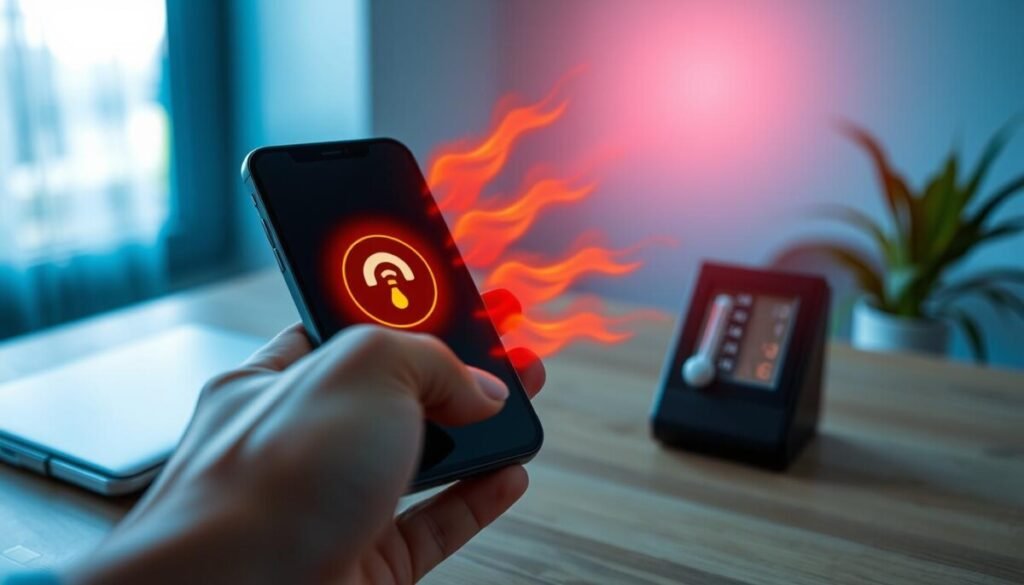
A few practical moves will reduce strain on your radio and battery during long sessions. These steps focus on environment, data load, and power so you can keep the connection without risking damage.
Optimizing Environmental Factors
Keep the unit out of direct sun and set it on a hard, cool surface like a desk. Soft surfaces trap heat; a firm surface lets warmth dissipate faster.
Remove the case during long use when possible. That gives heat a better path out of the enclosure and helps the battery last through the day.
Managing Data Loads
Close browser tabs, pause cloud backups, and stop large downloads to cut modem work. Dropping video calls to audio reduces both CPU and network demand.
Use a monitoring app to spot which devices or services use the most data. Move to a location with better signal when the connection is poor; that reduces transmit power and battery drain.
Power Management Techniques
If you tether for long stretches, plug the unit into a charger to avoid battery drain, even though charging adds slight warmth. Shorten sessions and give the device cooling breaks between calls.
- Remove case and place on a cool, hard surface.
- Close unnecessary apps and pause backups or big downloads.
- Prefer audio-only calls to lower load and heat.
- Monitor network use to find heavy consumers and limit them.
Managing Battery Health and Performance
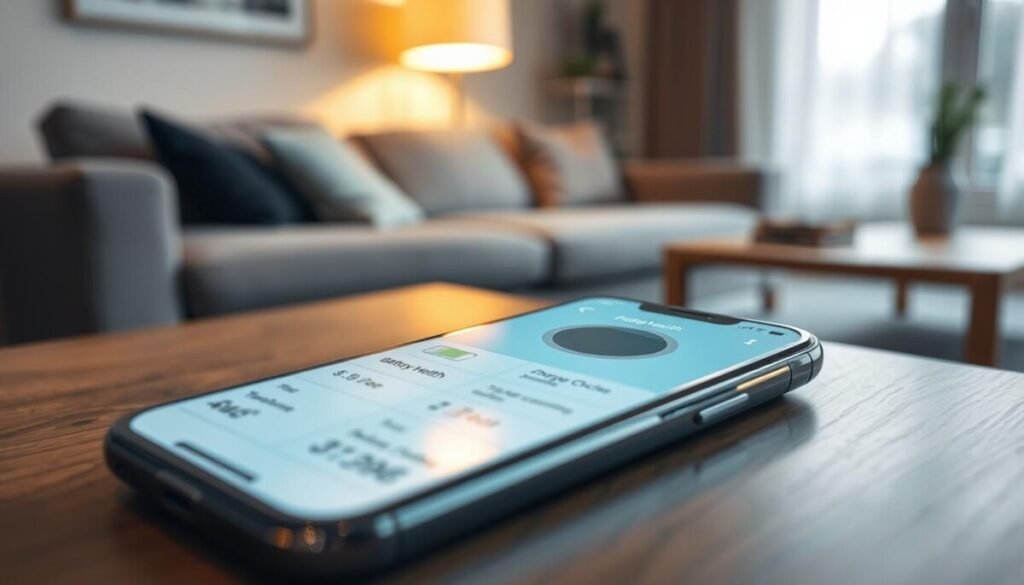
Small charging habits make a big difference to battery longevity. Keep cycles shallow when you can and avoid leaving the unit at 100% for long stretches.
Lithium-ion batteries age faster when they stay warm during heavy use and charge cycles. Periodically run a full discharge and full recharge to help calibration and keep sensors accurate.
Watch for signs that your battery is struggling. If the device feels warm to the touch, or you see swelling, stop using it and seek service. Accelerating battery drain often signals chemistry stress from repeated heat exposure.
- Use a smart app or timer to avoid prolonged 100% charge.
- Check built-in battery health tools to track capacity and cycles.
- Avoid leaving your phone plugged in constantly; give batteries a rest.
Monitor apps and data use during long connections. Closing heavy apps lowers power draw and slows battery drain, so your device performs better for longer.
The Impact of External Accessories
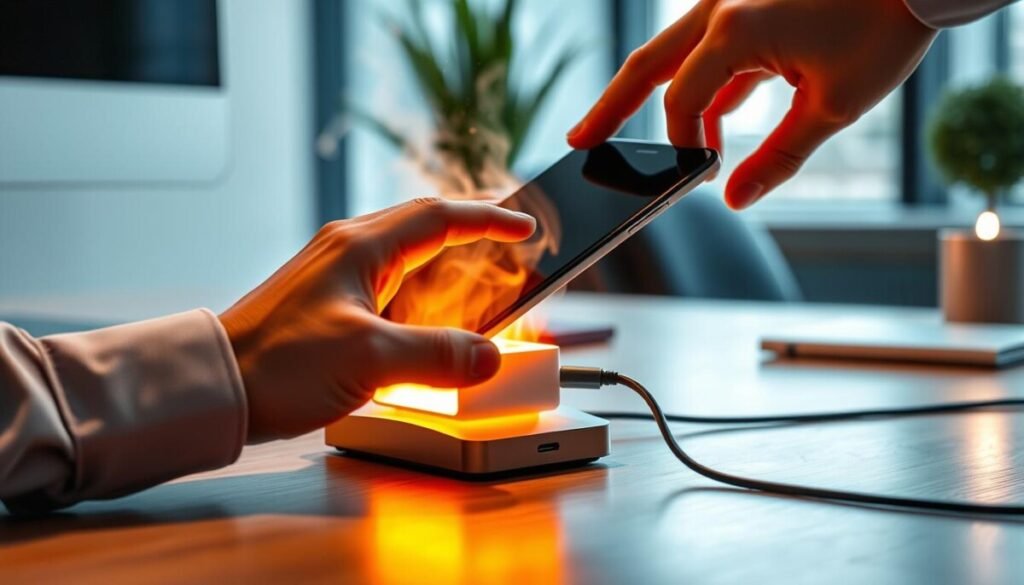
Accessories that press against your device can add unexpected warmth. Cradle boosters such as the weBoost Drive Sleek hold the unit close to an internal antenna and can transfer a lot of heat back into it.
Mitigating Heat from Cradle Boosters
Create an air gap between the booster antenna and your phone. A thin piece of rubber or non-conductive pad lets heat escape while you keep a stronger connection.
Check compatibility before you buy. Mismatched accessories draw extra power and add stress to batteries and radios.
- Use a small spacer to reduce direct contact and protect the battery.
- Consider boosters with separate antennas to lower local heat at the device.
- Keep the booster in a ventilated spot when parked or resting.
| Accessory Type | Heat Risk | Best Practice |
|---|---|---|
| Cradle booster (integrated antenna) | High — holds device against antenna | Use spacer; monitor battery temp |
| Booster with remote antenna | Low — antenna away from device | Place antenna for best signal; keep amp ventilated |
| Passive mount or case | Medium — may trap heat if tight | Choose breathable case; remove during long sessions |
Keep batteries cool when you travel. Small adjustments to mounts and cases reduce heat and make your connection more reliable.
When to Consider Dedicated Hardware
A separate pocket router is a practical way to keep your main device cool during heavy data use.
Choose a MiFi or pocket Wi‑Fi when you run long sessions, share videos, or connect many devices. These units are built to handle steady data and manage power without running apps or a screen.
Dedicated routers usually stay cooler and deliver a more stable connection for video calls and large transfers. Offloading hotspot work saves your battery and frees the handset for calls.
- Better antennas and power control give faster, more reliable network access.
- Lower load on batteries reduces wear and keeps devices ready for important tasks.
- Designed for long sessions so heat and power spikes are less of an issue.
| Device Type | Best Use | Benefit |
|---|---|---|
| Pocket Wi‑Fi (MiFi) | Multiple users, long sessions | Stable connection; lower battery drain on phones |
| Dedicated mobile router (e.g., Netgear M7) | Business travel, heavy data | High antenna gain; sustained speeds; cooler operation |
| Entry-level pocket router (e.g., Inseego M4) | Remote work; occasional sharing | Affordable; built for hotspot duty; preserves battery life |
Conclusion
Smart, brief changes to daily use protect your device and preserve performance. Take small steps to limit background apps, manage charging, and choose a ventilated mount so one common problem becomes easier to handle.
Keep routines simple and give your device short rests during long sessions. These moves help you stay productive through the busiest day and make it easy to keep phone performance consistent over time.
If the warming issue persists, a dedicated router is often the best way forward. For more on causes and practical fixes, see further reading on common causes and. These small changes are a reliable way to reduce strain, protect battery health, and avoid a recurring overheating issue.



