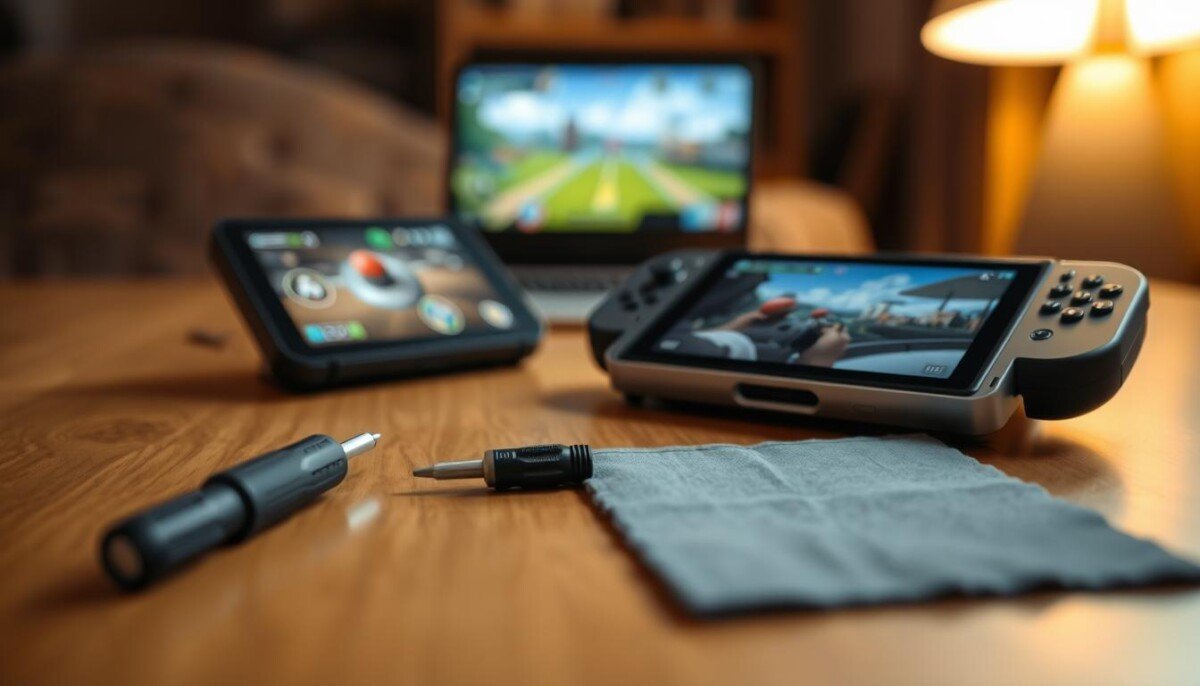
Have you ever wondered why your handheld suddenly lags during a favorite session, or why a game won’t launch when you need it most? This guide puts clear fixes in your hands so you can get back to play fast.
You’ll learn straightforward steps for diagnosing hardware and software problems that affect games and performance. Valve released the original LCD model in 2022 and an improved OLED model in 2023, so hardware versions matter when you troubleshoot.
Important: avoid opening the chassis yourself. Doing so can void your warranty and complicate repairs for users who prefer official support.
This guide stays practical and quick. We focus on safe checks you can do while using steam deck hardware, and we note when to stop and contact professionals.
Key Takeaways
- Start with simple, fast checks before attempting repairs.
- Know your model year—LCD (2022) or OLED (2023)—for targeted fixes.
- Do not open the chassis; it may void your warranty.
- Minor software steps often fix game and performance problems.
- This guide is for users who want clear, quick troubleshooting.
Troubleshooting Steam Deck Common Issues
Start by spotting the small faults that often cause big headaches for portable gaming PCs.
Identify problems fast. Look for drifting sticks, power hiccups, and wireless dropouts first. These symptoms usually point to simple fixes.
Think like a technician: treat the device more like a laptop than a console. Software settings, drivers, and battery health all matter.
- Early checks save time and stop minor glitches from becoming hardware faults.
- Systematic tests often fix problems without sending the unit away.
- Regular maintenance keeps your deck reliable for travel and daily play.
| Symptom | Likely Cause | Quick Fix | When to Contact Support |
|---|---|---|---|
| Analog drift | Calibration or wear | Recalibrate controls; update firmware | Persistent drift after recalibration |
| Won’t power on | Battery or firmware fault | Try a different charger; hard reset | No response after charger and reset |
| Wi‑Fi disconnects | Driver or router conflict | Restart router; update drivers | Multiple networks fail to connect |
Resolving Power and Charging Failures

Before you worry about repairs, try a few fast steps to rule out power and charging faults.
Power Button Quirks
If the unit won’t turn on, make sure the battery has at least 15 minutes on the official charger. New LCD models often need an initial charge; oled models may power up right out of the box.
Try a soft restart by holding the power button for 4–7 seconds. If that fails, perform a hard restart by holding the power button for 10–16 seconds.
Also check that the power button is not stuck or blocked. Physical obstruction can stop the system from registering a press.
Charging Port Maintenance
Inspect the charging port for debris and test the charger on a different outlet. A faulty charger or dirty port is a frequent problem.
When troubleshooting, also check the LED to confirm the charger is delivering power. If the battery charge stays at zero, hold power + volume up to enter BIOS and enable Battery Storage Mode to reset charging circuitry.
- Soft restart: hold power button 4–7 seconds.
- Hard restart: hold power button 10–16 seconds.
- Test charger and outlet; clean the port carefully with a dry brush.
| Symptom | Likely Cause | Quick Action | Next Step |
|---|---|---|---|
| No power at all | Empty battery or bad charger | Charge 15+ minutes with official charger | Try alternate charger or contact support |
| Won’t wake after charging | Software or BIOS setting | Soft/hard restart; enter BIOS and enable Battery Storage Mode | Service if BIOS reset fails |
| Charging light off | Dirty port or faulty charger | Clean port; test another outlet and charger | Replace charger or seek repair |
Fixing Unresponsive Controls and Stick Drift
If button presses feel delayed or sticks wander, quick checks can get controls back to normal.
Start in Game Mode. Open Settings > Controller > Test Controller Inputs to run the controller test suite and confirm every input registers.
Use the calibration tool in Game Mode to adjust dead zones for drifting sticks. Calibrate each stick separately so the analog readings sit centered when idle.
Practical steps
- Run the controller test suite to verify buttons and axes.
- Map buttons in a game’s settings if a title does not detect your layout.
- Exit Desktop Mode before calibrating to ensure accurate inputs.
- Clean a sticky or damaged button with a microfiber cloth and isopropyl alcohol.
Check the steam button regularly; it opens the quick menu and controls active game sessions. Keep it clean to avoid missed presses.
If software calibration does not stop drift, the problem may be worn potentiometers. In that case, consider professional repair to prevent further damage.
For a step-by-step controller test guide, see our controller test guide for additional diagnostics and tips.
Managing Storage and SD Card Recognition

An unreadable card is often a simple seating or format problem you can fix quickly. Start by powering off and reinserting the card to ensure it sits fully in the slot.
If the system still does not detect the card, go to Settings and use Select System to choose Format SD Card. Formatting here prepares the external storage for use and resolves many common file-system conflicts.
- Only use supported UHS‑I, UHS‑II, or UHS‑III cards; UHS‑I offers the best compatibility.
- Inspect the slot for debris and use a thin, dry tool to clear obstructions carefully.
- Test the card in a PC to see if the card itself is faulty or if the console has a hardware problem.
Proper storage management keeps your library organized. After every insertion, verify that the card appears in Settings so your games and save data remain accessible.
If you still face problems with SD recognition, consult the step-by-step guide for troubleshooting a device not recognizing an SD card at not recognizing SD card.
Software Updates and System Maintenance

A short routine of updates and checks keeps your handheld running cool and stable. Regular software updates fix performance bugs and improve compatibility with new games.
Performing System Resets
If you face a black screen, hold the power button to force a restart first. If that fails, check for a BIOS or firmware update before moving to a full factory reset.
Use a factory reset only as a last resort. Back up save data and removes accounts to avoid unexpected loss of progress or battery calibration data.
Managing Desktop Mode
Desktop mode lets advanced users run maintenance and install updates manually. Be cautious: do not change critical system files that may cause damage.
Keep core apps and drivers up to date and only use trusted packages to avoid stability problems.
Preventing Overheating
Dust in vents raises fan noise and can cause thermal throttling. Check vents often and clean them gently to keep fan performance steady.
Use a protective case when transporting the unit to protect the screen and chassis. For oled models, keep firmware current to avoid screen artifacts and touch faults.
- Install updates regularly to keep the system stable.
- Check fan and vents to prevent overheating and reduce noise.
- Try a forced restart for black screen issues; then look for updates or a reset if needed.
| Problem | Quick action | When to escalate |
|---|---|---|
| Black screen | Hold power button; check for BIOS update | After updates and reset, contact support |
| Overheating | Clear vents; verify fan spins | Persistent heat or shutdowns — seek service |
| Software instability | Install pending updates; use desktop mode carefully | Factory reset if problems persist |
For related power troubleshooting or a guided reset walk-through, see our troubleshooting PlayStation not turning on guide for extra reset tips that often apply to handheld systems.
Conclusion
Follow these closing points to manage power, battery life, and updates with confidence. Use simple checks first so you can return to your favorite game quickly.
This guide shows clear steps to solve most problems and protect your investment. Keep your steam deck charged, install regular updates, and clean ports and vents to avoid repeat faults.
If a fault persists after basic fixes, seek professional repair. That protects warranties and prevents bigger damage. With routine care you keep steam running smoothly and enjoy portable gaming for years.



