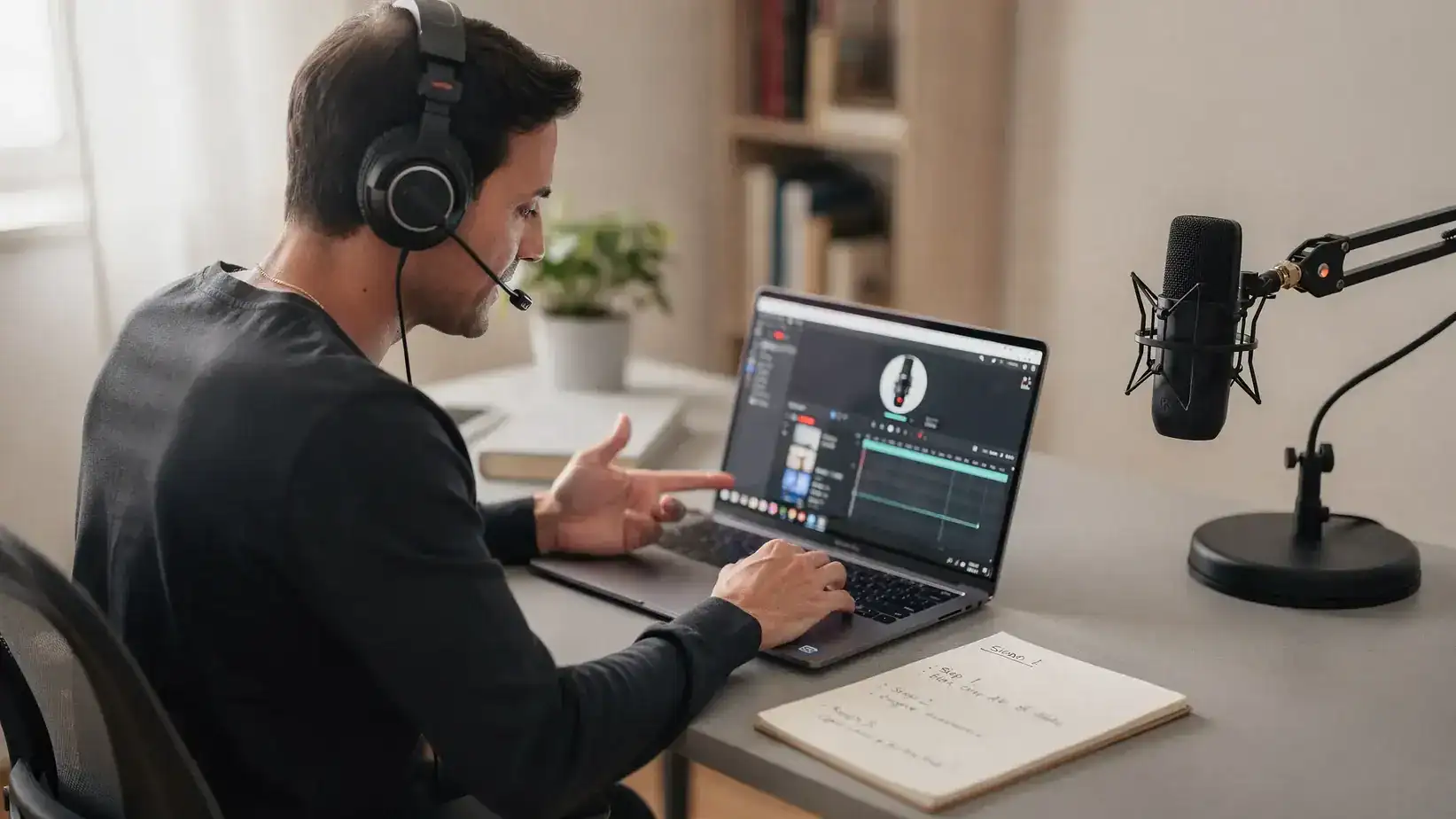
Tutorial videos succeed or fail in the first 30 seconds. If your recording is blurry, your cursor is hard to follow, or viewers cannot hear your explanation clearly, even the best process becomes frustrating.
The best screen recording tools for tutorials do more than capture your screen. They help you record clean audio, highlight clicks, add captions, trim mistakes, blur private information, and share the final walkthrough without a complicated export process.
Below is a practical comparison of the strongest options for 2026, with recommendations for educators, software teams, creators, marketers, support teams, and beginners who need polished tutorials without spending hours learning video production.
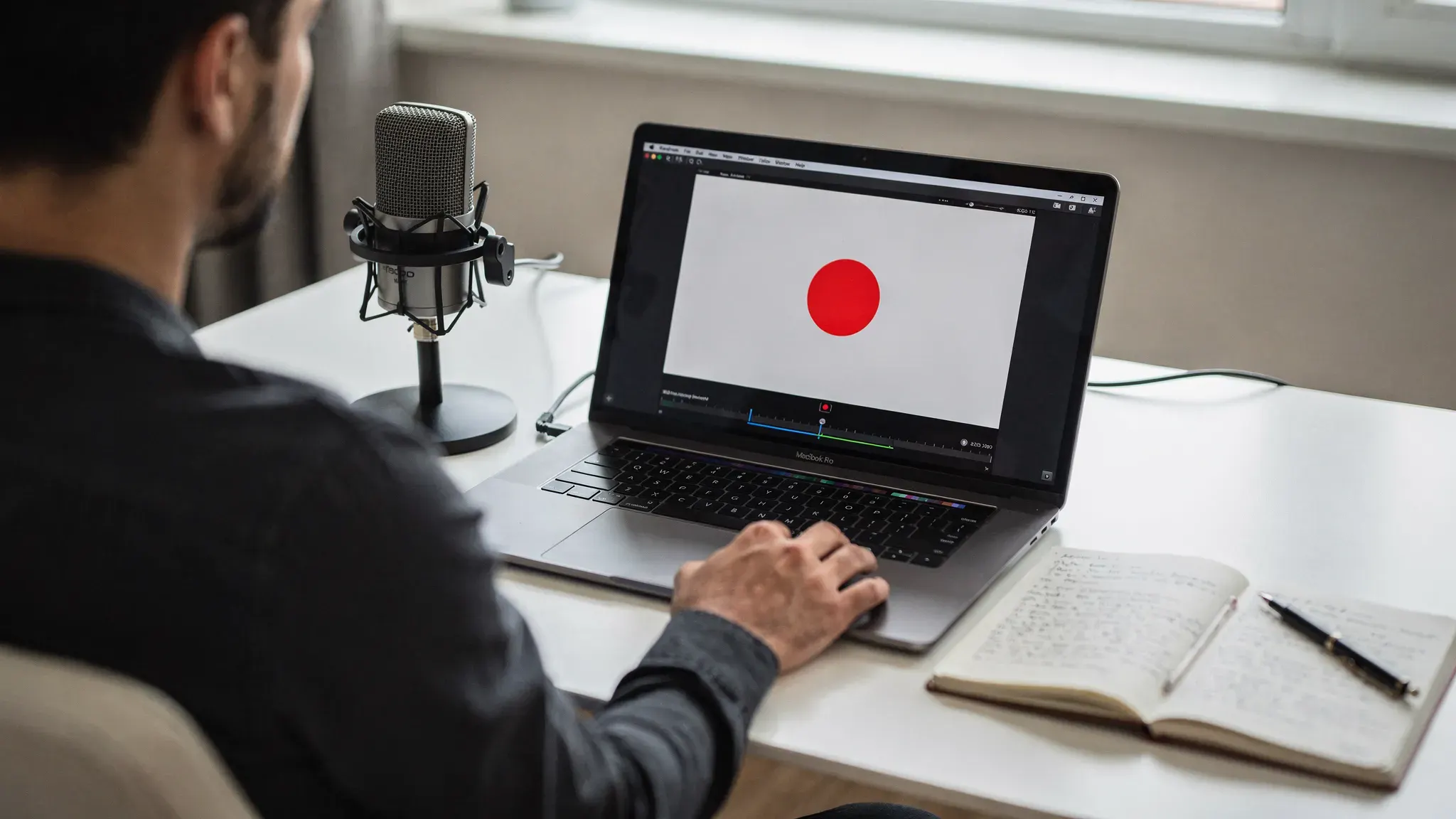
Quick picks: best screen recording tools for tutorials
| Tool | Best for | Key strengths | Watch for |
|---|---|---|---|
| Loom | Fast team tutorials and async walkthroughs | Quick recording, easy sharing, camera bubble, comments | Free and paid plan limits change, advanced editing is limited |
| Camtasia | Polished training videos and courses | Strong editor, cursor effects, annotations, templates | More expensive and heavier than simple recorders |
| ScreenPal | Budget-friendly tutorials | Recorder, editor, captions, hosting options | Interface is simpler than high-end editors |
| OBS Studio | Free advanced recording | Open-source, scenes, high-quality local capture | Steeper learning curve, no built-in tutorial editor |
| Snagit | Short how-to clips and visual documentation | Screenshots, quick videos, annotations, GIFs | Not built for long course-style editing |
| Descript | Transcript-based editing | Edit video like text, captions, screen and webcam recording | AI features and export limits depend on plan |
| Tella | Creator-style product demos | Clean layouts, screen plus camera, easy visual polish | Best for web-based tutorials, not complex editing |
| Screencastify | Teachers and Chrome users | Browser-based, simple classroom workflows | Less flexible for advanced production |
| Zight | Quick support tutorials and visual feedback | Fast captures, GIFs, annotations, shareable links | Better for short clips than long lessons |
What makes a great screen recorder for tutorials?
A screen recorder for tutorials has a different job than a general video recorder. You are not just capturing activity. You are teaching someone how to complete a task, understand a feature, fix a problem, or repeat a workflow.
For most tutorial creators, the best tool for creating effective tutorials should make three things easy: recording, explaining, and sharing. A tool with excellent capture quality but poor editing can slow you down. A tool with strong sharing features but weak audio control can hurt viewer comprehension. The right choice depends on whether you are creating internal SOPs, public YouTube tutorials, online courses, software onboarding, or customer support videos.
Captions are also increasingly important. They help viewers watch in noisy environments, support non-native speakers, and improve accessibility. If your tutorials are used for education or workplace training, review the W3C guidance on captions and choose a tool that makes captioning practical.
| Feature | Why it matters for tutorials | Good sign |
|---|---|---|
| Screen and webcam recording | Adds clarity and human presence | Easy toggle between screen-only and camera layouts |
| Cursor highlighting | Helps viewers follow clicks | Click effects, zoom, cursor smoothing, or callouts |
| Audio controls | Makes explanations easier to understand | Mic selection, noise reduction, audio level checks |
| Simple editing | Saves time after recording | Trim, split, crop, blur, captions, and annotations |
| Sharing options | Reduces friction for viewers | Link sharing, embeds, downloads, and permissions |
| Privacy controls | Protects sensitive data | Blur tools, password links, workspace permissions |
| Export quality | Keeps text readable | 1080p minimum for most tutorials, 4K for detailed UI work |
1. Loom: best for fast team tutorials
Loom is one of the easiest recommendations for people who need to record tutorials quickly and share them with a link. It works well for internal walkthroughs, onboarding videos, bug reports, product demos, and quick client explanations.
The main advantage is speed. You can record your screen, webcam, and microphone, then share the video almost immediately. Viewers can watch in the browser, leave comments, and often skip to the part they need instead of waiting for a meeting.
Loom is especially useful for remote teams that want to reduce live calls. For example, instead of scheduling a 30-minute meeting to explain a dashboard, a manager can record a 5-minute tutorial and let the team watch it asynchronously. If your team already uses async communication, Loom fits naturally into that workflow.
Where Loom is less ideal is detailed post-production. It includes useful editing features, but it is not a full video editor. If you want cinematic intros, multi-track editing, custom animations, or complex course modules, Camtasia or Descript may be a better fit.
Best use case: Record quick tutorials for teams, customers, stakeholders, or students when speed matters more than advanced editing.
2. Camtasia: best for polished training videos
Camtasia is a long-standing favorite for creating professional software tutorials and training content. It combines screen recording with a full editor, which makes it a strong choice for creators who want polished lessons without jumping between multiple tools.
Its biggest strength is the editing environment. You can add callouts, cursor effects, zooms, transitions, annotations, audio adjustments, and templates. That matters when your tutorial needs to look professional, stay clear over a longer lesson, or become part of a paid course or company training library.
Camtasia is also useful when you need to update videos over time. Instead of re-recording a complete tutorial because one step changed, you may be able to replace a section, add a callout, or adjust the narration.
The tradeoff is cost and complexity. Camtasia is not as lightweight as Loom or Snagit. Beginners can learn it, but it takes more time than pressing record and sharing a link. Still, for high-value tutorials, that extra control can be worth it.
Best use case: Build polished training videos, software courses, onboarding modules, and detailed step-by-step tutorials.
3. ScreenPal: best budget-friendly all-rounder
ScreenPal, formerly known as Screencast-O-Matic, is a strong middle-ground option. It is easier than Camtasia, more capable than many basic recorders, and often attractive for educators, small teams, freelancers, and tutorial creators watching their budget.
It supports screen and webcam recording, basic editing, captions, overlays, and publishing options. That makes it practical for YouTube tutorials, classroom videos, product walkthroughs, and internal process documentation.
The appeal is balance. You can record and edit in one place without paying for an advanced professional editor. It does not feel as modern as some newer creator-focused tools, but it covers the core needs of tutorial production very well.
If you are just starting a tutorial library and want to avoid both high costs and complicated setup, ScreenPal is one of the safest first tools to test.
Best use case: Create clear, affordable tutorials with enough editing control for most everyday training needs.
4. OBS Studio: best free screen recording tool for advanced users
OBS Studio is the best free screen recorder for users who want power and control. It is open-source, widely used for streaming and recording, and capable of producing high-quality screen captures with custom scenes, audio sources, overlays, and layout control.
For tutorials, OBS is excellent when you need local recording quality and flexibility. You can capture a specific window, a full display, a webcam, browser sources, external microphones, and multiple audio inputs. If you teach technical workflows, coding, gaming, webinars, or software setups, OBS gives you room to build a customized recording environment.
The downside is that OBS is not a beginner-first tutorial maker. It records well, but it does not include a simple built-in editing workflow for trimming, captions, callouts, or blur effects. You will usually pair it with a separate editor such as DaVinci Resolve, Camtasia, Descript, or a lightweight editor.
If you are comfortable adjusting settings like resolution, bitrate, frame rate, and audio sources, OBS can deliver excellent results at no software cost. If you want a guided workflow, choose Loom, ScreenPal, or Tella instead.
Best use case: Record high-quality tutorials for free when you are comfortable configuring scenes and editing elsewhere.
5. Snagit: best for short how-to clips and documentation
Snagit is not just a screen recorder. It is a visual documentation tool. That makes it especially useful for people who create SOPs, help center articles, technical instructions, process guides, and short explainers.
The strength of Snagit is speed plus clarity. You can capture screenshots, annotate them, create quick screen recordings, turn short clips into GIFs, and add visual steps to written documentation. For many tutorials, especially internal ones, a combination of annotated screenshots and a short video is more useful than a long recording.
Snagit is a great fit when your tutorial is short and task-specific: where to click, how to configure a setting, how to submit a form, or how to fix a common issue. It is less ideal for long-form course videos that need multi-track editing, intros, music, and detailed visual structure.
If your work involves writing tutorials as much as recording them, Snagit can be more useful than a video-only tool.
Best use case: Create visual documentation, quick how-to videos, annotated screenshots, and short support tutorials.
6. Descript: best for editing tutorials by transcript
Descript is a smart choice if you record tutorials with narration and want editing to feel more like editing a document. After recording, Descript can generate a transcript, then let you cut or rearrange parts of the video by editing the text.
That workflow is powerful for tutorial creators who speak naturally and clean things up later. Instead of manually scrubbing through a timeline to remove a mistake, you can find the sentence in the transcript and delete it. Descript also supports captions, screen recording, webcam recording, and AI-assisted editing features, depending on the current plan.
Descript works especially well for explainers, product demos, walkthroughs, and training videos where narration carries the lesson. It is also useful if you repurpose tutorials into blog posts, SOP notes, or social clips because the transcript becomes reusable content.
It may not be the best choice if your tutorials are mostly visual with little narration, or if you prefer a traditional editing timeline. But for spoken tutorials, it can save significant editing time.
Best use case: Record narrated tutorials and edit mistakes quickly using a transcript-based workflow.
7. Tella: best for polished creator-style tutorials
Tella is built for attractive screen and camera videos without heavy editing. It is popular with founders, marketers, creators, course sellers, and product teams that want tutorials to look more polished than a raw screen capture.
The tool makes it easy to combine screen recording and webcam footage, change layouts, add backgrounds, and create clean product demos. This is useful when personality and presentation matter. For example, a SaaS founder can record a product walkthrough that feels more like a polished demo than a basic screen capture.
Tella is strongest for web-based tutorials, product demos, marketing walkthroughs, and short educational videos. It is not designed to replace a full production editor, but it gives non-editors a fast way to create videos that look intentional.
If Loom feels too plain but Camtasia feels too heavy, Tella is a strong middle option.
Best use case: Create polished screen plus camera tutorials for product demos, creator content, and lightweight training.
8. Screencastify: best for teachers and Chrome-based tutorials
Screencastify is a practical option for teachers, trainers, and Chromebook users who want a browser-based recorder. It is especially useful in education because it keeps the workflow simple: record from Chrome, capture a tab or screen, add narration, and share with students.
For classroom tutorials, simplicity matters. Teachers often need to create quick lessons, assignment explanations, feedback videos, or step-by-step guides without installing complicated software. Screencastify fits that need well.
It is less flexible than OBS or Camtasia for advanced recording setups, and it may not be the best tool for high-end commercial tutorials. But for browser workflows, online learning, and quick instructional clips, it remains a reliable choice.
Best use case: Record simple browser-based tutorials for students, classrooms, and Chromebook environments.
9. Zight: best for quick support videos and visual feedback
Zight, formerly CloudApp, is designed for fast visual communication. You can capture screenshots, record short videos, create GIFs, annotate visuals, and share them with a link. That makes it useful for customer support, QA feedback, design reviews, and internal how-to clips.
The tool shines when a written explanation would take too long. Instead of typing a long support response, you can record a quick clip showing exactly where to click or what went wrong. That is often enough to solve the issue.
Zight is not the first tool I would choose for long tutorial courses, but it is excellent for high-volume support teams and fast-moving departments that need visual explanations throughout the day.
Best use case: Record quick tutorial clips for support tickets, bug reports, team feedback, and simple process explanations.
When built-in screen recorders are enough
You may not need a paid screen recording tool for every tutorial. macOS includes screen recording through Screenshot and QuickTime workflows, Windows offers built-in capture options, and PowerPoint can record presentations with narration. These are useful for simple one-off recordings.
Built-in tools are best when you only need a raw recording and plan to edit elsewhere. They are not as convenient for tutorials that need cursor emphasis, captions, cloud sharing, viewer analytics, comments, or easy revisions.
If you create tutorials once a month, built-in recording may be enough. If you create tutorials weekly, support customers, train employees, or build a public content library, a dedicated tool will usually save time.
Best screen recording tools by tutorial type
Different tutorial formats require different strengths. A tool that is perfect for quick Slack-style walkthroughs may be frustrating for course production. Use the table below to match your workflow to the right tool.
| Tutorial type | Recommended tools | Why they fit |
|---|---|---|
| Internal SOPs | Loom, Snagit, Zight | Fast recording, easy sharing, minimal editing |
| Online courses | Camtasia, Descript, ScreenPal | Better editing, captions, structure, export control |
| YouTube tutorials | Camtasia, OBS, Descript, Tella | Strong quality and post-production options |
| Classroom lessons | Screencastify, ScreenPal, Loom | Simple recording and sharing for students |
| Product demos | Tella, Loom, Camtasia | Screen plus webcam layouts and polished presentation |
| Technical tutorials | OBS, Camtasia, Descript | Better control over resolution, audio, and editing |
| Support videos | Zight, Loom, Snagit | Fast visual answers for tickets and client questions |
Screen recordings are not limited to software companies. A retail brand, agency, or product team can use them to explain order forms, review product specs, or document supplier handoffs. For example, a brand coordinating apparel production with an end-to-end partner like Arcus Apparel Group could record short walkthroughs to clarify sample feedback, file naming, or internal approval steps.
How to choose the best screen recording tool for your workflow
Start with your output, not the tool. A polished course lesson, a 90-second support answer, and a private onboarding video all have different requirements.
If you want the fastest workflow, choose Loom or Zight. If you want the most polished instructional videos, choose Camtasia. If you want free control and do not mind setup, choose OBS. If you want strong editing without a traditional timeline, choose Descript. If you want simple browser-based teaching, choose Screencastify. If you want polished camera plus screen demos without much editing, choose Tella.
| Priority | Best choice | Reason |
|---|---|---|
| Fastest recording and sharing | Loom | Excellent for async tutorials and quick team videos |
| Best free advanced recorder | OBS Studio | Powerful local capture with no software cost |
| Best full tutorial editor | Camtasia | Strong recording plus editing in one package |
| Best budget all-rounder | ScreenPal | Good balance of recording, editing, and affordability |
| Best for visual documentation | Snagit | Combines screenshots, annotations, and short clips |
| Best for narrated editing | Descript | Transcript-based editing saves time |
| Best for teachers | Screencastify | Simple Chrome-based workflow |
| Best for polished product demos | Tella | Clean layouts and easy presentation polish |
| Best for support teams | Zight | Fast clips, GIFs, annotations, and link sharing |
A simple workflow for recording better tutorials
The tool matters, but the workflow matters more. A clean 4-minute tutorial usually beats a rambling 15-minute recording, even if the longer one was made with expensive software.
Use this repeatable process before recording your next tutorial:
- Define one outcome for the tutorial, such as creating a calendar event, exporting a report, or fixing a login issue.
- Write a short outline with the exact steps you will demonstrate.
- Close unrelated tabs, enable Do Not Disturb, and remove private information from the screen.
- Test your microphone and record a 10-second sample before starting the real tutorial.
- Record in sections instead of trying to capture the entire lesson perfectly in one take.
- Edit for clarity by trimming pauses, zooming into important clicks, adding captions, and blurring sensitive data.
- Save the final video with a clear file name and store it where your audience can easily find it.
If your tutorial will become part of a larger content workflow, you may also want a video editor or production platform. Online Tool Guides has related resources on beginner-friendly video maker platforms, lightweight video editors, and content creation platforms that can help you build a more complete stack.
Tutorial recording mistakes to avoid
The most common mistake is recording too much. Viewers usually want the shortest clear path to the result. If you need to explain background context, put it at the beginning in one or two sentences, then start demonstrating.
Another mistake is ignoring audio. Viewers can often tolerate average video quality, but poor audio quickly becomes exhausting. Use a decent microphone, record in a quiet room, and avoid speaking while loud keyboard clicks or notifications are active.
Privacy is also critical. Before recording, check for customer names, email addresses, private Slack messages, API keys, browser bookmarks, and open documents. For businesses, this should be part of a broader review process. Our guide to a free digital privacy audit can help you think through what should and should not appear in shared content.
Finally, do not rely only on raw video. Add a clear title, a short description, timestamps when useful, and a written summary. This helps viewers decide whether the tutorial answers their question before watching the full recording.
Final recommendation
For most people, the best screen recording tool for tutorials is the one that matches how often they create tutorials and how polished the final video needs to be.
Loom is the best starting point for quick team tutorials. Camtasia is the strongest choice for polished training content. OBS Studio is the best free option for advanced users. ScreenPal is the best budget all-rounder. Snagit is excellent for documentation, Descript is ideal for transcript-based editing, and Tella is a great fit for polished product demos, making it one of the top video demonstration software options available.
If you are unsure, start with a simple test: record the same 3-minute tutorial in two tools, edit both, and share them with one real viewer. The best tool will be the one that helps you publish a clear, useful tutorial with the least friction.
Frequently Asked Questions
What is the best screen recording tool for tutorials? Loom is the best choice for fast tutorials, while Camtasia is better for polished training videos. OBS Studio is the best free advanced option, and ScreenPal is a strong budget-friendly all-rounder.
What is the best free screen recording tool? OBS Studio is the best free tool for advanced recording because it offers powerful scene control and high-quality local capture. Beginners may prefer free plans from Loom or ScreenPal if they want easier sharing and simpler setup.
Is OBS good for tutorial videos? Yes, OBS is excellent for tutorial videos if you are comfortable configuring sources, scenes, resolution, and audio. It is less convenient if you need built-in editing, captions, annotations, and cloud sharing.
Do I need a webcam for tutorial recordings? Not always. A webcam can make demos feel more personal, especially for onboarding, courses, and product walkthroughs. For technical support resources or support clips, screen plus voice is often enough.
How long should a screen recording tutorial be? Most tutorials should be as short as possible while still completing the task. Aim for 2 to 6 minutes for quick workflows and break longer lessons into chapters or separate videos.
How do I record tutorials without showing private information? Close unrelated apps, use a clean browser profile, hide bookmarks, disable notifications, blur sensitive areas, and review the final video before sharing. For team tutorials, create a privacy checklist before recording.
Keep building a better tutorial workflow
The right screen recorder can save hours of meetings, reduce repeated questions, and make your knowledge easier to reuse. If you are building a bigger productivity stack, explore more Online Tool Guides reviews and tutorials to compare the tools that support your content, training, and workflow goals.