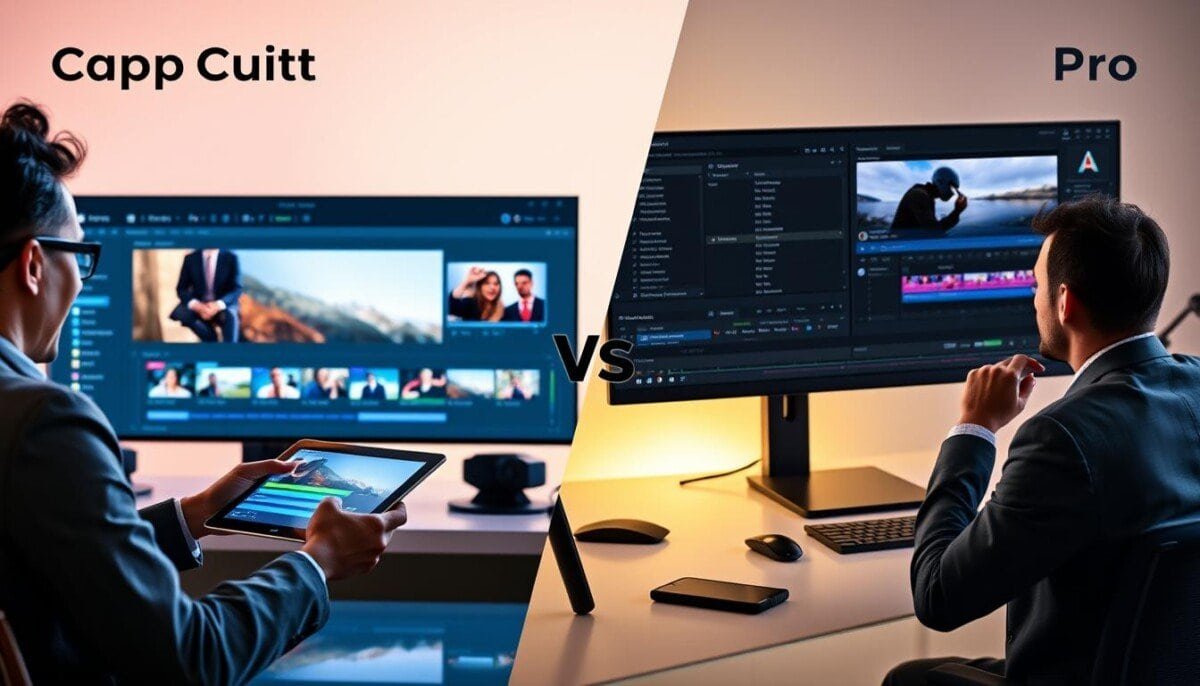
Which editor will speed your work and still give you pro results? You need an answer that matches your goals, team size, and the platforms you publish on.
Choosing between capcut vs premiere pro means weighing speed against deep control.
Adobe premiere pro remains the industry choice for long-form projects, complex color work, and tight delivery standards.
At the same time, many creators use capcut pro to move fast on social clips and trends.
This short guide helps you match software to tasks. You will learn which tool fits daily edits, scaling needs, and career growth.
Key Takeaways
- Decide by your creative goals: speed or granular control.
- Use desktop tools for long-form, high-precision edits.
- Choose faster apps for social-first, repeatable workflows.
- Consider team size, budget, and delivery formats.
- This guide helps you pick the right editor for daily work.
Understanding the CapCut vs Premiere Pro Debate
Deciding between these editors comes down to the work you do and the pace you keep.
The core difference is simple: one path favors studio-grade control, the other favors fast social output.
Adobe Premiere targets long-form, client-facing projects. It gives deep color, layered timelines, and detailed audio tools that professionals need.
The social-first app is built for speed. It streamlines editing, templates, and quick exports so creators turn ideas into content fast.
| Focus | Strength | Best for |
|---|---|---|
| Professional editing | Advanced timelines, color grading, multi-track audio | Long-form films, client projects |
| Social speed | Templates, fast exports, simple trimming | Short videos, daily content |
| Workflow difference | Frame-level control vs rapid assembly | High-precision projects vs high-volume publishing |
- You should pick the editor that fits your delivery cadence and project scale.
- If you manage multi-track projects, the deeper toolset will save time long term.
- If speed and trend responsiveness matter, the social editor cuts your turnaround.
Core Philosophy and Target Audience
Each editor has a guiding idea that shapes its tools and who it serves.
Professional Standards
Adobe Premiere Pro is built for professional creators who need precise control and high-end effects.
You get a full suite of features that support long-form storytelling, color work, and complex audio.
This editor fits teams working on client projects and film-grade deliveries.
Social Media Speed
CapCut premiere workflows favor beginners and creators who publish fast social content.
The emphasis is on simple templates, quick effects, and fast export so you spend less time learning and more time publishing videos.
| Audience | Primary Strength | Best use |
|---|---|---|
| Professional teams | Advanced tools, color, multi-track audio | Long-form projects, commercial work |
| Solo creators / beginners | Templates, fast assembly, easy effects | Short social posts, trend-driven content |
| Hybrid users | Scalable workflows, export flexibility | Cross-platform delivery and repurposing |
Interface Design and User Experience
Interface choices shape how fast you finish a project and how much control you keep.
When you open an editor, the layout tells you what it values: speed or depth. The interface of premiere pro is built for power users who juggle complex timelines and many panels during editing.
By contrast, many capcut premiere users praise a simpler layout that speeds routine tasks. That design helps creators publish short videos fast without hunting through menus.
Adobe Premiere offers a professional workspace where every tool is reachable. That richness helps large projects but can feel intimidating at first.
- Modular panels for detailed timelines.
- Quick-access tools for color and audio work.
- Clean defaults for creators who want minimal friction.
| Editor | Interface Style | Best for |
|---|---|---|
| Adobe Premiere | Modular, feature-rich panels | Large projects, studio workflows |
| CapCut premiere | Minimal, template-driven | Social clips, fast publishing |
| Hybrid users | Custom workspaces, scalable tools | Cross-platform delivery and repurposing |
If you want a quick comparison of modern editors and automation, see our AI-powered editing comparison for workflow ideas.
Performance and Hardware Requirements
Choose the right editor by matching it to your machine. Your computer sets the ceiling for how fast you can edit, render, and deliver high-quality videos. This matters more as projects grow in resolution and complexity.
System Resource Management
Adobe Premiere Pro often needs high RAM, a strong GPU, and fast storage to handle 4K and 8K timelines without lag.
For lighter work, capcut premiere runs smoothly on many laptops and mobile devices. It reduces stalls on simple edits and quick exports.
| Task | Common Needs | Typical Outcome |
|---|---|---|
| Long-form 4K projects | High RAM, dedicated GPU, SSD | Stable playback, fast renders |
| Short social edits | Moderate CPU, basic GPU, mobile-friendly | Quick assembly, fast export |
| Color & effects heavy | More VRAM, multicore CPU | Smooth grading, precise results |
- Invest in a workstation if you do large-scale editing and client projects.
- Choose lighter tools when hardware limits your daily work.
Advanced Color Correction Capabilities
Precise color tools let you shape mood, skin tones, and scene depth.
Adobe Premiere Pro uses the Lumetri Color panel for professional-grade grading.
You get curves, color wheels, and LUT support that give tight control over looks.
That control lets you match footage from different cameras and maintain a consistent style across projects.
For editing quick social clips, many apps supply simple filters and presets.
Those work well for fast content but lack the granular control needed for client or cinematic work.
- Use Lumetri for scene-by-scene grading and camera matching.
- Apply LUTs and refine with curves and wheels for cinematic looks.
- Rely on the deeper tools when visual quality must not be compromised.
Mastering color in this editor is a vital skill for any editor who delivers polished videos.
Audio Editing and Sound Mixing Tools
Strong audio lifts the impact of every cut and keeps viewers engaged. You need tools that let you shape dialog, music, and effects so the story reads clearly on any device.
Keyframe control gives you precise volume automation and effect moves over time.
Use it to fade music under speech, duck sound during voiceover, or automate reverb for dramatic moments.
Noise Reduction
Reliable noise reduction cleans up room tone and background hiss quickly.
Adobe Premiere ties directly to advanced restoration and can hand off tracks to Audition for deeper repair.
- Multi-track mixing handles dialogue, ambients, effects, and music in one session.
- Built-in noise tools reduce hiss, hum, and wind without destroying clarity.
- Keyframes automate level changes so you avoid manual volume fixes on each clip.
You can add music fast with lightweight editors, but the deeper control here helps you balance complex projects and finish client work with confidence.
For a broader look at workflow tools and automation, see our AI-powered editing comparison.
The Role of Templates and Presets
A strong template library can shave hours off routine video builds.
Templates and presets speed your editing and keep results consistent across projects.
Adobe Premiere Pro lets you create custom templates and save presets for repeated tasks. You can build a branded library of transitions and effects that you reuse across many videos.
By contrast, capcut premiere and similar apps lean on ready-made templates. Those templates help creators hit trends fast and publish daily to TikTok or Instagram.
- Create custom presets to keep color, audio, and motion consistent.
- Use transitions and packaged effects to cut assembly time.
- Mix ready templates with custom assets to retain a unique brand voice.
| Tool | Strength | Best use |
|---|---|---|
| Custom templates | Brand control | Client projects |
| Pre-made templates | Speed | Daily social posts |
| Saved presets | Consistency | Series and campaigns |
If you want a quick look at other video tools and workflow ideas, see our video editing software guide.
AI Features and Automation Tools
AI now automates many routine editing tasks so you can focus on storytelling.
Auto captions speed accessibility and searchability for short videos and long projects alike.
Adobe Premiere integrates auto captions and scene edit detection to cut manual transcript time.
That saves editors hours on client projects where accurate captions matter for compliance and reach.
Background removal
Removing a background used to require green screens and manual masks.
Now, pro capcut tools let creators strip backgrounds with a few taps for fast social content.
For studio work, premiere pro keeps more control for complex composites and fine edges.
Smart reframing
Smart reframing lets you retarget a single edit for square, portrait, and landscape formats.
Auto-tracking keeps the subject centered and reduces rework when you publish to multiple platforms.
| Feature | Designed for | Benefit |
|---|---|---|
| Auto captions | Accessibility & search | Faster transcripts, better viewer retention |
| Background removal | Mobile and quick edits | Fast compositing without a studio |
| Smart reframing | Multiformat delivery | One edit, many aspect ratios |
Key takeaway: both editors bring AI tools that cut repetitive work. Use mobile-first automation for speed, and use advanced AI in desktop tools when you need precision for professional projects.
Export Quality and Format Flexibility

Output control separates quick reels from client-ready masters. When you finish editing, the export step locks in color, motion, and audio. Choose settings that match delivery needs.
Adobe Premiere gives unmatched control over bitrates, codecs, and file wrappers. Use its settings to meet broadcast specs or high-end web delivery without guessing.
Many capcut premiere users get fast, simple exports for social clips. Those quick exports work well for daily content but can lack the fidelity needed for long-form work.
- Speed vs. fidelity: pro capcut exports prioritize quick delivery.
- Technical control: premiere pro supports wide formats and detailed bitrate tuning.
- Client trust: professionals rely on export presets to pass QC on any screen.
| Focus | Strength | Best use |
|---|---|---|
| High control | Custom codecs & bitrates | Broadcast & cinema |
| Fast exports | Optimized social presets | Daily posts & trends |
| Formats | Wide format support | Client deliveries |
If you need a quick comparison of desktop and fast social workflows, see our comparison guide. Match exports to the platform and the audience, and you avoid rework down the line.
Collaboration and Cloud Syncing
Cloud sync lets multiple editors work on the same sequence without losing time. This is vital when deadlines are tight and teams are distributed.
Adobe Premiere integrates with Creative Cloud to give teams shared assets and consistent project versions. That connection keeps footage, graphics, and audio in one place so your work moves fast.
For small teams, pro capcut offers easy sharing for quick content builds. It handles simple handoffs and fast tweaks well.
- Version tracking: Adobe tools offer robust history and rollback for multi-user edits.
- Access: Cloud storage lets editors reach assets from any location.
- Team management: Roles and permissions reduce accidental overwrites.
| Feature | Best for | Business benefit |
|---|---|---|
| Creative Cloud sync | Agencies & studios | Centralized assets, clear version history |
| Simple project share | Small creator teams | Faster handoffs, lower learning curve |
| Role controls | Multi-user workflows | Fewer errors, secure collaboration |
Pricing Models and Subscription Costs
Subscription choices shape how you budget and scale your editing work.
Pick a plan that matches the work you deliver and the clients you serve.
Value for Money
Adobe Premiere Pro costs $20.99 per month and includes Creative Cloud access. That subscription gives constant updates, cloud storage, and the full suite of high-end editing tools.
The other editor is free to start, with an optional capcut pro subscription that unlocks premium effects and extra cloud storage. For social creators, the free version often covers daily needs at no cost.
| Option | Cost | Best fit |
|---|---|---|
| Adobe Premiere Pro | $20.99/month | Long-form, client work, studios |
| CapCut (free) | $0 | Fast social videos, beginners |
| CapCut Pro | Optional subscription | Premium effects, cloud storage |
- Consider pro pricing as an investment if you sell higher-rate video services.
- For fast content, the free version or a lightweight subscription offers strong value for money.
Platform Compatibility and Mobile Workflows

Platform choice often decides whether you edit on-the-go or from a dedicated workstation.
Adobe Premiere is a desktop-only editor. That means you need a capable machine to handle complex timelines, high-resolution files, and advanced effects reliably.
The alternative supports mobile, desktop, and web. This cross-platform support lets you start an edit on your phone, refine on a tablet, then finish on desktop without losing work.
If your feed relies on vertical video and trend-driven content, a mobile-first workflow speeds delivery and reduces rework.
- Desktop power: choose the desktop app when you need Creative Cloud integration and full feature depth.
- Mobile flexibility: pick cross-platform tools when you value fast edits and edits on the go.
- Hybrid teams: combine both approaches and move assets between platforms as needed.
Want to compare other tools and how they handle multi-device work? See our video editing software guide for options and practical tips.
Best Use Cases for Social Media Content
Short-form platforms push editors to prioritize fast assembly and clean exports.
Use this editor for speed: Many creators choose capcut because it bundles built-in transitions, quick effects, and mobile export presets that match TikTok and Reels workflows.
Use the other tool for masters: When you need tight color control, layered audio, and frame-accurate editing, use premiere pro to craft longer YouTube videos and client deliverables.
For vertical video, auto captions and aspect-ratio presets cut repurpose time. A common workflow is to edit the main project in adobe premiere for quality, then trim and format clips in the faster app for social channels.
- Rapid social production: templates, transitions, and quick export.
- Professional uploads: color, audio, and export control for final masters.
- Repurposing: main edit on desktop, quick clips on mobile for feeds.
| Use Case | Best Tool | Why it fits |
|---|---|---|
| Daily short clips | capcut | Fast transitions, effects, and mobile export presets |
| YouTube episodes | premiere pro | Advanced editing, color control, and Creative Cloud integration |
| Cross-posting | Hybrid workflow | Main edit in desktop editor, quick formatting on mobile editor |
Professional Production and Long Form Editing
When projects scale to hours of footage, stability and precise control become the deciding factors.
Adobe Premiere is the industry standard for professional production. You get deep control for long-form editing and advanced audio editing that studios depend on.
Use premiere pro to manage multiple timelines, color tracks, and layered audio with predictable results. That control makes handling high-resolution clips and complex effects routine rather than risky.
The color and audio tools let you craft a cinematic look and clear mixes for client deliveries or broadcast. You can match shots, refine skin tones, and fix dialog tracks without leaving the editor.
If your goal is professional production, this editor offers the stability and power to deliver high-quality videos every time.
- Robust timeline handling for long edits and multi-camera shoots.
- Precision color tools and workflows—see our color grading guide for techniques.
- Advanced audio routing and mixing for clean dialog and layered sound design.
| Need | Why it matters | Outcome |
|---|---|---|
| Multi-track timelines | Keep complex projects organized | Smoother collaboration and faster finishing |
| High-res clip support | Handles large files without crashes | Reliable delivery for broadcast and festivals |
| Color & audio control | Shape mood and clarity at frame level | Cinematic, client-ready videos |
Exploring Alternative Editing Solutions

Several high-end editors deliver effects and timeline control comparable to the industry leader, but with different trade-offs.
If premiere pro feels too deep for your daily work, alternatives can save time and money. Some editors give studio-grade features while trimming the learning curve and cost.
Try tools that focus on clear workflows and fast results when you publish frequent content. These editors often include built-in effects, smart templates, and simpler export options.
- Look for an editor that matches team size and delivery needs.
- Test short trials to compare features and speed on real projects.
- Choose what helps you produce better videos without extra friction.
| Type | Strength | Best fit |
|---|---|---|
| Full-featured desktop | Advanced color, audio, and effects | Long-form and client work |
| Streamlined editors | Fast templates and simple export | Daily social content and quick turnarounds |
| Hybrid cloud tools | Cross-device edits and team sync | Remote teams and multi-format delivery |
| Budget-friendly suites | Core features at lower cost | Small businesses and solo creators |
Make a short pilot project in each candidate editor. That hands-on test shows which tools speed your edits and keep quality high.
To explore more options and compare features, see our guide to invideo editing software.
Conclusion
Think of your editor as a partner: it either speeds your delivery or deepens your craft.
If you prioritize studio-grade control and complex color and audio editing, choose premiere pro for reliable export and timeline depth.
If your focus is fast social content, templates, quick features, and cloud sync matter more. Consider capcut vs premiere pro guide to compare mobile workflows, auto captions, and vertical video options.
Both tools give creators useful tools—from templates and captions to cloud storage and fast clips. Pick the one that helps you turn ideas into polished videos that engage your audience.