Curious when your phone might need service or a swap? You rely on this device for work and quick replies, so unexpected shutdowns are costly. Learning the signs of chemical aging helps you plan repairs before they interrupt your day.
Lithium-ion cells charge faster and last longer than older tech, but they still wear out. Lifespan ties to charge cycles and care, and that affects real-world performance and battery life.
This guide shows how to read the key numbers and what they mean for daily use. You’ll learn when to act, how to avoid surprises, and how simple monitoring keeps your phone reliable for meetings and calls.
Key Takeaways
- Modern lithium-ion cells improve charging and run time but age over time.
- Chemical age depends on charge cycles and how you use the device.
- Reading key numbers helps predict when service is needed.
- Monitoring keeps performance steady for professional use.
- Small habits can extend useful life and prevent sudden shutdowns.
Understanding Lithium-Ion Battery Technology
Advances in lithium-ion tech give higher power in a slim pack, while gradual aging limits peak output.
Chemical Aging
Chemical wear is not just the passage of time.
How you use and store the device shapes how quickly cells lose capacity. As cells age, internal impedance rises. That higher impedance can limit the power the system can draw during heavy use.
Charge Cycles
One full cycle equals using 100 percent of usable capacity, whether all at once or across days.
Keeping cycles low where practical extends useful life. Every rechargeable pack has a finite lifespan, so planned replacement is part of sound device management.
- Higher energy density = lighter hardware and better run time.
- Impedance rise reduces peak performance under load.
- Cycle counting helps predict when service will be needed.
How to Check iPhone Battery Health
Since iOS 11.3, Apple added a dedicated screen that shows capacity and performance at a glance.
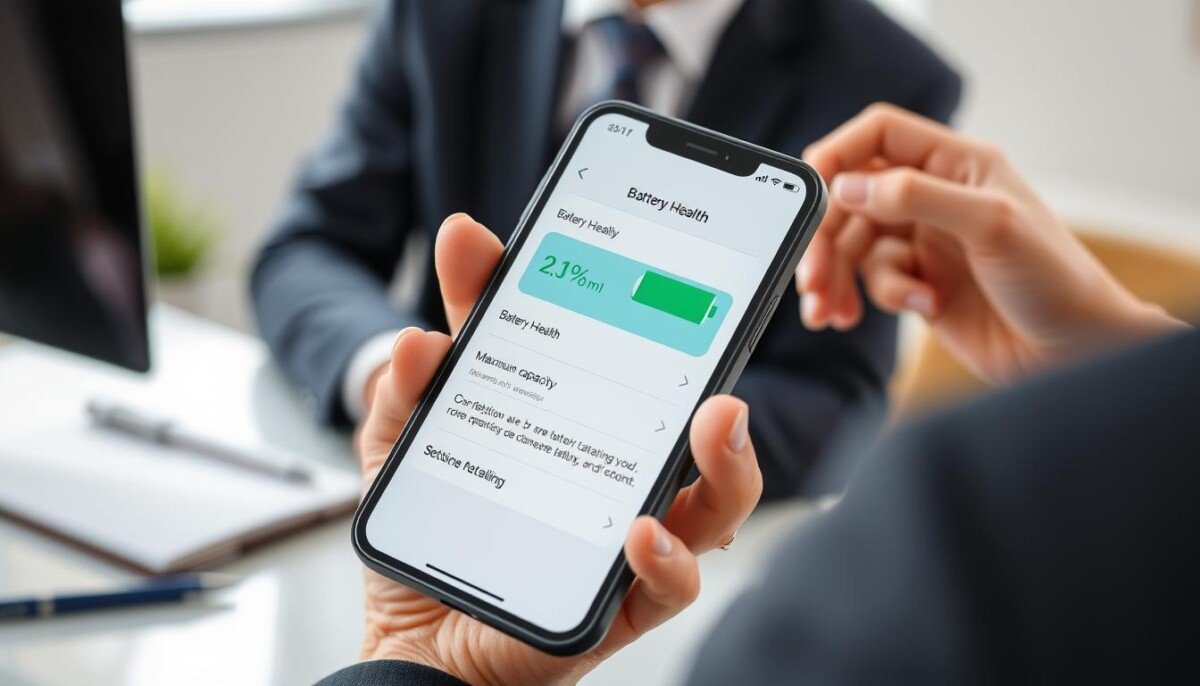
Open the Settings app, tap Battery, then choose the Battery Health menu. That screen gives a clear number for maximum capacity compared to when the device was new.
The page also shows whether peak performance is supported. If the system finds significant degradation, it will recommend service from an Apple Authorized Service Provider.
Use these figures to decide if your iPhone battery meets professional needs. Track the number over time and note sudden drops after heavy usage or repeated full charge cycles.
- Where to look: Settings app → Battery → Battery Health.
- What it shows: Maximum capacity and performance status.
- When to act: System recommendation or a strong decline in capacity.
Interpreting Maximum Capacity and Peak Performance

Maximum capacity is the quick percentage that compares current charge storage to the original spec. It shows how much usable energy the pack holds today versus when it left the factory.
What Maximum Capacity Means
A lower percentage means shorter runtime for the same tasks. If the number drops, your device will run less time between charges and may need service planning sooner.
Peak Performance Capability Messages
Peak performance tells you if the system can draw sudden high power without shutting down. When the pack cannot meet bursts, iOS applies dynamic performance management on older models to avoid unexpected shutdowns.
If the displayed status notes significant degradation—often under 80 percent—you may see a recommendation for service. Recalibration in iOS 14.5 and later refines estimates for newer models and can adjust reported values.
- Maximum capacity: Current vs original charge ability.
- Peak capability: Can the system handle instant power demand?
- Under 80%: Service is often advised.
| Metric | What it Means | Typical Threshold | Action |
|---|---|---|---|
| Maximum capacity | Percent of original charge stored | 100%→declining | Monitor trends; plan replacement near 80% |
| Peak performance | Ability to supply instant power | Supported / Not supported | Allow performance management or service |
| Performance management | Dynamic throttling to avoid shutdowns | Applied when needed | Disable only if stable after service |
| Recalibration | Software refines estimate for newer models | iOS 14.5+ for iPhone models 11 and newer | Let process complete, then re-evaluate |
Managing Performance and Unexpected Shutdowns

When a device shuts down unexpectedly, the system often shifts into protective mode to keep components safe.
Performance management balances CPU and GPU workloads so the phone can stay on without sudden failures.
You may notice longer app launches, lower frame rates, or a dimmer backlight when management is active.
If an unexpected shutdown occurs, the system enables this protection automatically. You can manually disable the setting, but it will return if another shutdown happens.
Some management is mandatory. Low-level rules like voltage regulation in extreme temperatures protect users and internal parts and cannot be turned off.
| Event | What the system does | What you see |
|---|---|---|
| Unexpected shutdown | Enable performance limits to prevent damage | Slower apps, lower frame rates |
| Manual disable | Temporarily lifts throttling | Faster response until next shutdown |
| Thermal stress | Voltage and power regulation enforced | Screen dimming or reduced charging speed |
Monitor trends and use the battery health readouts to decide if service is needed. Clear, simple maintenance keeps performance predictable for work.
Analyzing Daily Usage and App Activity

Daily app use gives the clearest view of what affects runtime and performance. Open the Battery section in the Settings app to see usage information for the last 24 hours or the last 10 days.
Viewing Daily Usage
Tap the timeline to view on-screen time and background time by date. You can also tap View All Battery Usage to see which apps used the most power during work hours.
Identifying High Battery Drain
High drain often comes from background syncs, photo uploads, or apps running in low-signal areas. Look for apps with large background time or sudden spikes in usage percentage on a given date.
- Watch apps with heavy background activity.
- Note large daily percentages that repeat over time.
- Limit or update apps that show consistent high power use.
Background Activity Explained
On-screen vs background time tells a simple story of how your habits affect capacity. If background time is high, the system keeps waking the device to fetch data or sync files.
Recent iOS updates improved accuracy by recalibrating estimates for newer models. For a deeper dive, see battery usage information from Apple.
Advanced Insights for Newer iPhone Models
Recent devices surface extra metrics—like cycle count and first use date—that change how you interpret runtime figures.
On iPhone 15 and later, the Battery Health menu shows cycle count, manufacture date, and first use date. This extra information helps you time service and replacement with confidence.
Under ideal test conditions, newer models are built to retain about 80 percent of original capacity after 1,000 complete cycles. Models from iPhone 8 onward combine hardware and software to estimate power needs more precisely.
You may see an “Unable to verify” message on iPhone XS and later when the system cannot confirm a genuine part. That message guides you toward authorized service to restore full performance.
| Metric | Why it matters | Action |
|---|---|---|
| Cycle count | Tracks wear | Plan replacement |
| Manufacture date | Confirms age | Validate warranty |
| Verification | Genuine parts check | Use authorized service |
These advanced insights let you make smart, timely choices about service. Use them to keep your device reliable for work.
Tips for Extending Battery Lifespan
Simple charging routines make a big difference in long-term capacity. Follow clear habits to keep performance predictable and extend the useful life of your device.
Avoid heat. Do not charge or leave your phone in direct sun or inside hot cars. High temperatures cause permanent loss of capacity and reduce life.
For long storage, keep the charge near 50 percent. That range limits stress on the cell and preserves power over weeks or months.
Best Practices for Charging and Storage
- Enable Optimized Battery Charging so the system limits full-charge time.
- Use overnight charging sparingly; avoid keeping the device at 100% for long stretches.
- Check the Settings app regularly to track cycles and model-specific guidance.
| Action | Why it Matters | When to Act | Expected Benefit |
|---|---|---|---|
| Avoid high heat while charging | Prevents chemical damage to the cell | Always; especially in summer or cars | Slower capacity loss over time |
| Store at ~50% for long periods | Reduces stress and self-discharge effects | When not using the device for weeks | Better retention of stored power |
| Use optimized charging | Limits time at full charge | Enable in settings for daily charging | Extends overall cycle life |
| Monitor in Settings app | Shows trends by model and cycle count | Monthly reviews or after heavy use | Smarter timing for service or replacement |
Conclusion
A short habit of regular metric reviews keeps your device reliable for work.
Open the Settings app and scan the performance and usage figures once a month. Watching cycles and trends helps you spot chemical aging before it interrupts the day.
Identify high‑drain apps and adjust usage to extend daily life. Simple actions—limit background activity or update an app—often restore steady performance quickly.
Apple’s tools give clear information for planning service. For extra monitoring, try the BatteryTesting app to view runtimes and raw estimates.
If metrics fall sharply, seek professional service to restore original capability and keep your device dependable for meetings and travel.



