Do you really help your phone by swiping tasks away every day? Many people think that manually quitting background apps will extend phone life. That idea feels logical, but it often misses how modern systems work.
Lawrence Finch and other specialists call this a widespread myth.
Restarting an app uses more power than leaving it idle. Check your device settings and you’ll see the energy cost to relaunch apps. Instead of constant task killing, learn which background permissions matter and where to adjust limits.
Our guide will show practical ways to truly save battery life. We focus on small changes with real payoff for busy professionals.
For details on background activity and heat control, see this short guide on phone overheating and fixes: managing background apps and heat.
Key Takeaways
- Force-quitting is usually counterproductive for power use.
- Modern OSes manage background processes efficiently.
- Check settings to limit which apps run in the background.
- Restarting apps burns more energy than leaving them idle.
- Simple settings tweaks give better battery gains than habitually quitting tasks.
The Truth About Why You Should Stop Force-Closing Apps
Manually quitting apps often wastes more energy than it seems. Lawrence Finch notes older iPhones had 1–2 GB of RAM, while modern models ship with 8 GB or 16 GB to handle richer features and multitask smoothly.
The operating system is built to manage memory and background work. Force-quitting an app does not clean RAM in any meaningful way. It simply removes a suspended instance and forces a full reload later.
That reload costs power and time. When your phone must pull an app from storage, it uses more energy than waking a paused process. Over time, this habit can harm performance and shorten usable life between charges.
- Expert point: Finch says force-quitting is counterproductive and often drains more energy.
- Design fact: Modern RAM lets your device keep app states without extra work from you.
- Practical tip: Let the OS manage background tasks and focus on settings that limit real heavy use.
Does Closing Apps Save Battery Life or Drain It?
Tombstoning means an app sits quietly in memory until you actively reopen it.
The Reality of App Suspension
Luke Hopewell notes modern systems put idle programs into a deep sleep. This stops processor work and cuts background energy use.
Ritesh Chugh adds that both iOS and Android suspend idle items in RAM so they do not run tasks while idle.
The Cost of Reloading Apps
When you swipe an item away, the phone must fetch its content from storage later. Steven Athwal warns that reloading makes the processor work harder and uses more power than a suspended state.
- Suspend: low energy, fast resume.
- Reload: higher power use and longer wait time.
- Result: little real change to daily battery life for most users.
| State | Processor Use | Impact on Battery |
|---|---|---|
| Suspended (tombstoned) | Minimal | Low drain, quick resume |
| Force-removed | High on reopen | More energy to reload |
| Background services | Variable | Managed by OS via settings |
When You Should Actually Force Quit an Application
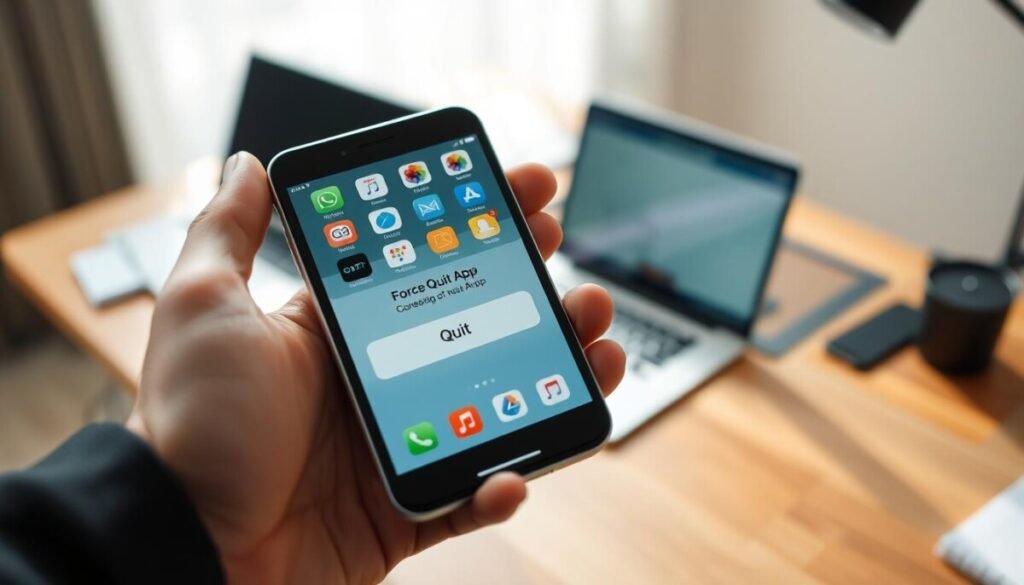
Only force-quitting when an app locks up or acts oddly will truly help your device. Routine task removal rarely improves performance and can cost extra power when you reopen a program.
Handling Misbehaving or Frozen Software
If an app freezes, stops responding, or keeps using location in the background, force quit it to stop excessive drain. Ritesh Chugh recommends this as the main valid reason to intervene.
Video calls, GPS tracking, and constant data-checking are common offenders. Steven Athwal points out these services can keep running and use device energy until you close the problematic app.
- Force quit only when an app is unresponsive or clearly draining power.
- Check location and background refresh settings before repeating manual closes.
- Use a forced close as a fix, not as regular maintenance.
| Issue | When to Force Quit | Better Alternative |
|---|---|---|
| Frozen app | Yes — immediate | Restart app or device |
| Background GPS use | Yes — if persistent | Revoke location access in settings |
| Normal idle | No | Let OS manage memory |
For more context on why habitual closing apps makes things worse, see the linked analysis.
Proven Ways to Optimize Your Device Performance
Your screen and location permissions control more power use than most people expect. Tweak these and you will see an immediate difference in runtime and performance.
Adjusting Screen Brightness and Display Settings
Turn down the screen brightness and use adaptive screen mode when available. The display is often the top contributor to drain.
Set shorter screen timeout and favor dark themes where supported to reduce energy use over time.
Managing Background Refresh and Location Services
Limit background refresh to only the apps that need it. Let operating systems suspend unused tasks to cut needless activity.
Restrict location access to essential services and switch GPS to while‑in‑use where possible. This reduces data checks and power draw.
Maintaining Battery Health and Temperature
Keep your phone out of extreme heat or cold. Batteries age fastest above 35°C and below 0°C, so moderate temperatures protect long-term health.
Use Wi‑Fi over mobile data when practical and enable a low power mode when you need more time away from a charger.
| Action | Why it helps | Quick tip |
|---|---|---|
| Lower screen brightness | Reduces largest single power drain | Use auto-brightness or manual dimming |
| Limit background refresh | Stops unnecessary network and CPU use | Turn off refresh for nonessential apps |
| Restrict location access | Prevents constant GPS and data queries | Set location to “while using” or deny access |
| Avoid extreme temps | Slows battery degradation | Store in cool, dry place; avoid hot cars |
Focus on these settings and habits rather than habitually force-quitting apps. Small, consistent changes give a better way to save battery life and improve device performance over time.
Conclusion
Manually clearing tasks rarely extends your device’s active life. Trust the operating system to manage most background activity and avoid needless effort.
Focus on settings, not force quits. Adjust screen brightness and limit location access to see real gains in battery life and daily runtime.
If an app freezes or behaves badly, then force-stop it. For routine use, letting the OS handle apps avoids extra work for your processor and storage.
Adopt these smarter habits to keep your phone healthy and extend overall device life. A small, steady plan yields better results than frequent, manual closing or constant closing apps.



