Have you ever tapped send and the upload just fails? This guide starts with that exact question to get you thinking about common causes and quick fixes.
facebook won’t let me send photos is a frequent issue for professionals who rely on fast sharing. The problem can come from an outdated app, poor Wi‑Fi or cellular service, permission blocks, data saver modes, VPN interference, or hitting the HD upload limit. Additionally, users encountering this problem may also find that updating their privacy settings can help alleviate issues with sharing photos. If the problem persists, it may be necessary to troubleshoot further to fix Facebook profile picture issues, ensuring that the photo meets the requirements set by the platform. Regular updates and adjustments to settings can provide a smoother experience when sharing content. In addition to photos, users may also encounter the issue of why can’t I send videos on Facebook, which stems from similar causes. Ensuring that the video file format is supported by the platform and checking the file size restrictions can be crucial steps in resolving this problem. If all else fails, reaching out to Facebook support for assistance can provide further guidance on resolving these sharing challenges.
You’ll get concise steps to test your network, update or reinstall the app, clear cache, and check permissions on iPhone and Android. You’ll also learn how the 100MB HD cap affects batches and why a video or large file might stall your transfer.
Follow this practical, step‑by‑step guide to rule out service outages, account blocks, or recipient restrictions. By the end you’ll have a short checklist to fix the issue fast and repeatably.
Key Takeaways
- Test network and restart the app first — it solves many connectivity issues.
- Verify Photos/Media permissions on iPhone and Android before retrying.
- Watch the 100MB HD limit for multiple items; send fewer or use standard quality.
- Clear cache, disable Low Data/Data Saver, and update or reinstall the app.
- Check for service outages or account restrictions before deeper troubleshooting.
Understand why Facebook and Messenger fail to send photos right now
First, note what you see: spinning uploads, “couldn’t send” alerts, or automatic quality drops. Observing the symptom saves time and points you to the right fix.
Users report three main clusters of causes right now: network, app, and limits or restrictions. Each cluster creates distinct signs and requires a different response.
User intent and common symptoms in the present time
Typical symptoms are uploads stuck on “sending,” immediate retry prompts, or images arriving in standard quality only. These signs tell you whether the fault is local or service-wide.
Differentiate app, device, and network causes
- Network: unstable internet connection, wrong Wi‑Fi band, weak mobile data, or VPN throttling.
- App: outdated messenger app, corrupt cache or app data, and disabled Photos/Media permission.
- Limits/Restrictions: HD selection over 100MB, low device storage, account blocks, or platform downtime (check Downdetector).
| Cause | Symptom | Immediate Triage |
|---|---|---|
| Network (Wi‑Fi/4G/5G) | Uploads freeze or fail | Check internet connection; switch to mobile data or different Wi‑Fi band |
| App (cache, permissions) | Retry prompts; only standard quality | Restart or update the app; clear cache; verify media permission |
| Limits / Account | Large batches fail; temp restriction notices | Send fewer files, lower quality, or confirm account status |
Quick triage: check internet connection first, then verify the app state, then review size limits, and lastly confirm service or account status. Target one solution at a time so you can see what works.
For a deeper outage check or step‑by‑step guidance on loading and connectivity, review this guide on facebook messenger sending.
Check your internet connection before anything else
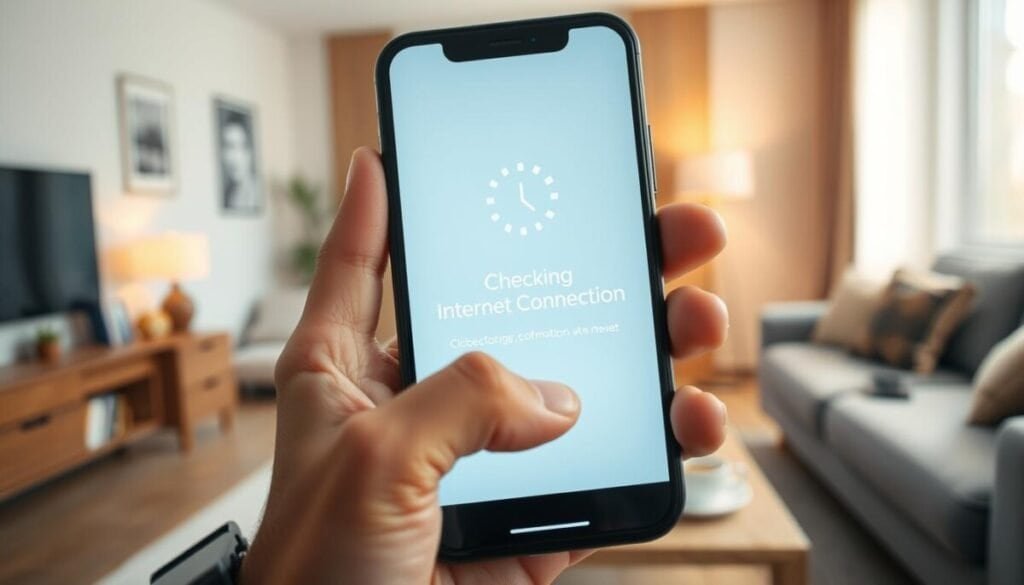
Start by isolating your network: switch from Wi‑Fi to mobile data to see whether the connection is the problem. This simple swap tells you if the router or your carrier is at fault.
Switch between Wi‑Fi and mobile data
Toggle between Wi‑Fi and 4G/5G. If uploads work on mobile data but not Wi‑Fi, reboot the router or move closer to it. If both fail, the issue is likely device or service related.
Toggle Airplane Mode to reset radios
Turn Airplane Mode on for 2–3 minutes, then off. This forces a fresh network registration and often clears transient connection faults.
Disable VPNs that may block media
Temporarily disable any VPN. Many VPNs throttle or block large uploads and can break media transfers.
Verify carrier and outage status
Check your carrier status page or outage maps like Downdetector. Regional disruptions explain sudden failures and save you time on other fixes.
Enable background data and turn off Data Saver / Low Data Mode
On Android: Settings > Network & internet > Data Saver > Off. On iPhone: Settings > Cellular > Cellular Data Options > Data Mode > turn off Low Data Mode. Also enable background app data in Messenger’s data usage settings so uploads continue when you switch apps.
| Action | Why it helps | Quick steps |
|---|---|---|
| Switch networks | Isolates Wi‑Fi vs carrier problems | Toggle Wi‑Fi off, enable mobile data (4G/5G) |
| Airplane Mode | Resets device radios and IP assignment | Turn on 2–3 minutes, then off |
| Disable VPN | Removes throttling or blocking | Disconnect VPN or switch to direct connection |
| Disable Data Saver / Low Data Mode | Allows full data usage for uploads | Follow iPhone/Android settings above |
If connectivity checks fail across networks, move to app-level fixes or consult this facebook messenger sending guide for deeper steps.
facebook won’t let me send photos: quick app and device fixes
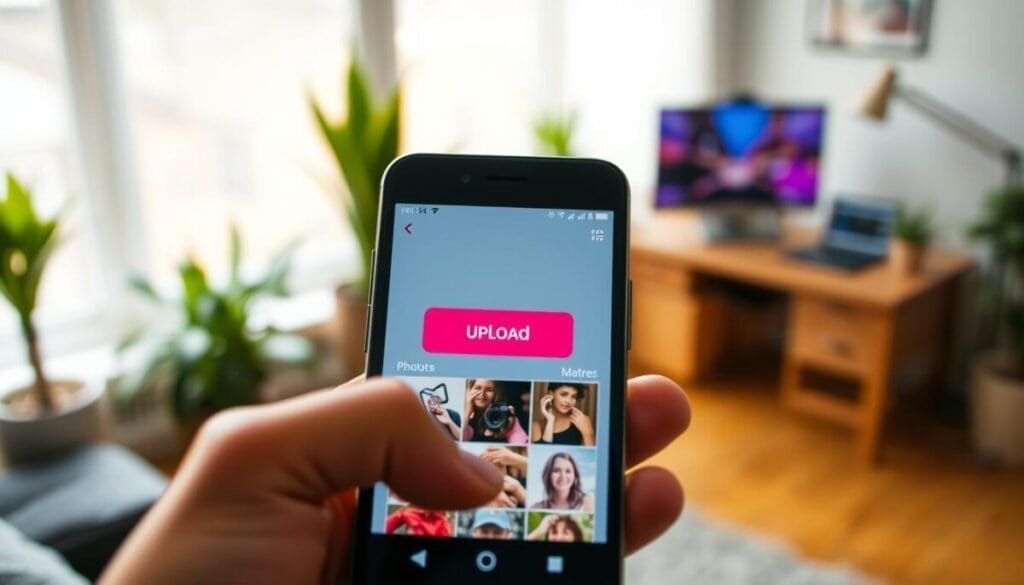
Start with quick app and device checks that fix most upload failures in under five minutes. These steps force a clean state and confirm permissions so you can test faster.
Force close and relaunch the Messenger app
Long‑press the icon > App info > Force stop, then reopen. That kills stuck processes and clears transient data.
Update to the latest version on iPhone and Android
Open App Store or Google Play and install the newest version. Updates include bug fixes and improved upload features for facebook messenger.
Clear cache/data and review permissions
On Android: Settings > Apps > Messenger > Storage > Clear cache. If problems persist, choose Clear data and sign in again.
On iPhone: Settings > Messenger > Photos > select All Photos. On Android: App info > Permissions > Photos and videos > Always allow or Ask every time.
Restart your phone or reinstall the messenger app
Restart the phone to flush system services. If uploads still fail, uninstall and reinstall the messenger app to remove corrupt binaries.
- Confirm free storage so temporary upload files can be created.
- After each step, test sending a single standard image over Wi‑Fi and cellular.
- If you need deeper guidance on app behavior or notifications, see our page notification troubleshooting.
File size, format, and storage limits that block photo sending
Before troubleshooting apps or networks, check how big your files are and how much storage you have.
Key limit: facebook messenger sending supports HD photos up to a total of 100MB per selection. If your high-resolution bundle exceeds that cap, the upload will fail.
Respect the HD cap and send smaller batches
Split large selections into smaller groups or switch to standard quality to stay under 100MB. Avoid mixing long videos with many images in one send; separate them into different sends.
Free up storage and clear temporary files
Uploads can fail when device storage is nearly full because the app cannot create temp media files. Aim to keep 1–2 GB free for smooth transfers.
- Check total size of your HD selection; keep it under 100MB.
- Delete unused videos, large media, and downloads to free storage.
- If a specific file fails, re-export or compress the video or photo and retry.
- On Android, clear cache: Settings > Apps > Messenger > Storage > Clear cache.
- Test with one small file first to confirm messenger sending is working.
| Problem | Why it fails | Quick fix |
|---|---|---|
| Selection >100MB | HD cap blocks upload | Split batch or use standard quality |
| Low device storage | No room for temp media | Delete large files; free 1–2 GB |
| Single file repeats failure | Corrupt export or too large | Compress or re-export the video |
For limits on larger video files and conversion methods, see the video size limit guide. If uploads stall at zero percent, check this troubleshooting article on upload stuck at 0.
When the issue isn’t you: server outages, contacts, and account restrictions
Sometimes the root cause is outside your device — service outages or account restrictions can block uploads for many users. Start here when local fixes fail. A quick outage check saves time.
Confirm a wider outage
Use Downdetector to see if facebook messenger has a live outage in your area. Widespread problems often stop messenger sending for thousands of users at once.
Check the recipient and account status
Ask the recipient if they are online or if notifications are disabled. If they blocked or unfriended you, messages and files will not deliver and you may see no clear error.
Account restrictions for policy violations typically last 24–48 hours on first offenses. Check the app for alerts about temporary limits.
Low‑end devices and workarounds
If your device has low storage or older hardware, try Messenger Lite (Android). The lighter app uses less memory and often completes transfers when the full app stalls.
| What to check | Why it helps | Action |
|---|---|---|
| Downdetector | Confirms service outages | Open site and look for incident reports |
| Recipient status | Recipient-side issues mimic delivery failures | Ask if they are online or blocked |
| Messenger Lite | Uses fewer resources | Install Lite and retry sending small files |
If errors persist across networks and devices, reset network settings on your phone to clear misconfigurations. Keep notes of times, files, and networks used. That log speeds up diagnostics if you need to report the issue.
- Check Downdetector for live outages affecting messenger sending.
- Verify you weren’t blocked; blocked conversations stop delivery quietly.
- Try simple test files after the internet connection returns during an outage.
- If needed, submit a report through the app with logs while the error is active.
- For more app troubleshooting and notification issues, see this guide to fix facebook messenger.
Get back to sharing: prevention tips and when to contact support
A small routine of updates and checks cuts downtime and restores reliable sharing.
Keep Messenger up to date and monitor your phone’s data saver and background data settings. Clear the cache on Android regularly and free 1–2 GB of storage so temporary files can write without errors.
Test with one small file, then scale to HD batches under 100MB. Standardize weekly app updates and permission reviews on iPhone Android to reduce repeat issues.
If problems persist after these solutions, capture diagnostics: device model, OS and app version, network type, timestamps, and sample file sizes. Then contact support and include that data for faster help.
For official troubleshooting steps, see Troubleshooting sharing issues and this explainer on why search may fail.