
Are your notification emails still filling your inbox after you click an unsubscribe link? That question matters because the platform sends messages from multiple sources. One link often stops only a single stream.
You’ll learn a practical, data-driven method to quiet the noise fast. Start by tuning in‑product notification settings. Then apply controls in your email provider: filters, safe senders, and blocks. If one unsubscribe link fails, mark repeat messages as spam and create rules to archive or delete them.
Trusted tools can consolidate sender variations so you avoid clicking dozens of links. We’ll also show which facebook emails to keep for security and which to stop. This approach saves time and reduces interruptions from large companies that often over-notify people.
Need a deeper troubleshooting checklist? See this helpful troubleshooting page for missing and delayed messages: email notification troubleshooting.
Key Takeaways
- Adjust in-app notification settings first to cut volume at the source.
- Use email filters and safe-sender lists to stop leftover messages.
- Mark persistent senders as spam and block repeat addresses.
- Consider a trusted tool to consolidate unsubscribe actions across senders.
- Keep security-related messages enabled to avoid missing critical alerts.
Why you still get Facebook emails after unsubscribing
One click rarely silences every email stream; large platforms use many sender domains and aliases.
The unsubscribe link in a single message often targets only that sender or category. That means other variations, like priority subdomains and group aliases, keep sending notifications from different email addresses.
Some notification controls live in separate menus inside your account. If you only followed an in‑email link, you may not have changed category-level toggles or Email Frequency under settings privacy. Linked tools such as Meta Business Suite or Instagram can also produce their own messages.
- Processing lag: messages queued before your change can arrive for a short time.
- Security and policy mails remain active by design to protect accounts.
- Small address differences let different senders bypass a single subscription change.
| Cause | What to expect | Quick fix |
|---|---|---|
| Multiple sender domains | Only one stream stopped | Use domain-level filters or tools |
| Separate notification toggles | Some categories still send | Adjust Email Frequency and category toggles in the menu |
| Sync delays and linked accounts | Delayed propagation of settings | Wait a short time and check linked accounts |
Fix it inside Facebook: adjust notification settings to stop emails
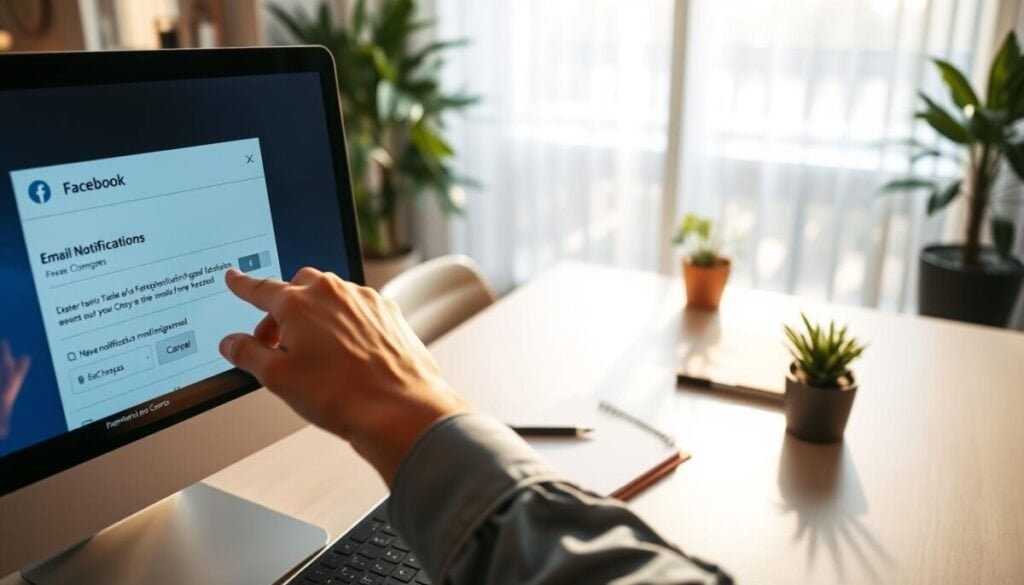
The fastest way to cut message volume is to change notification controls inside the platform. Do this first to reduce noise at the source before building inbox rules.
Mobile app path: Settings & Privacy > Settings > Notification Settings > Email
Open the app, tap the menu, then choose Settings & Privacy and Settings. From Notification Settings open Email and toggle off categories you don’t need. Reduce frequency when you still want occasional alerts.
Browser path:
Browser path: Settings & Privacy > Settings > Notifications > Email > Email Frequency
On desktop, use the profile menu to reach Settings & Privacy → Settings → Notifications. Choose Email and set Email Frequency to “Only about your account” to keep security and account emails only.
Sync delays and linked Meta accounts to watch for
- Expect a short time window for queued emails to arrive.
- Check linked apps such as Meta Business Suite or Instagram; they can send separate messages.
- Confirm you landed in the correct menu and saved changes if a button from an email redirected you.
Revisit your choices after a few days. If volume stays high, next apply inbox rules or follow the troubleshooting guide linked here: notification alerts troubleshooting.
Stop Facebook emails from your inbox using your email provider
Your mail client can shut down most notification streams fast. Start inside the message: use the built‑in unsubscribe link at the footer to stop that specific sender stream without changing account settings.
Use the built‑in unsubscribe link at the bottom of Facebook messages
The link is the quickest way to silence a single thread. Open any message and follow the footer option. If the change does not take effect, allow a short window for processing and then proceed with provider controls.
Create rules and filters to auto‑archive, delete, or mark as junk
If unsubscribe fails, automate the cleanup. Build a rule that targets sender domains or subject patterns. Then set actions: Delete, Skip Inbox, or Move to a folder.
- Domain filter: match addresses like “facebookmail.com” to catch many variants.
- Subject patterns: filter common phrases to trap notifications before they reach your inbox.
- Spam training: mark repeat messages as spam so the provider learns which senders to route to Junk.
Provider tips: Gmail, Outlook, Yahoo — block, spam, and filter options
Gmail: click the vertical ellipsis on a message to Block a sender, or go to Settings > Filters and Blocked Addresses to create a filter that deletes or skips the inbox.
Outlook/Yahoo: use Junk or Spam settings to block addresses, or create rules to move messages to a folder or delete them on arrival. Replicate rules across multiple email addresses to keep control consistent.
| Provider | Quick action | Best rule |
|---|---|---|
| Gmail | Block sender via message menu | Filter From: facebookmail.com → Skip Inbox & Delete |
| Outlook | Mark as Junk or create a Rule | Move messages with “notification” in subject → Archive |
| Yahoo | Block sender or add to Spam | Filter by From domain → Delete or Move to folder |
Faster methods: unsubscribe and block all Facebook senders with trusted tools
If you prefer a one‑shot cleanup, trusted subscription tools speed the work and reduce errors.
Clean Email scans your account so you can bulk remove or block every sender variation in seconds.
Clean Email — Unsubscriber, Block, Read Later
Sign in, open Unsubscriber, search for “facebook,” then choose Unsubscribe or Block both domains. That stops most notification variants without clicking dozens of links.
Use Read Later to move messages out of your inbox while keeping them accessible. Or enable Auto Clean to mark as read, archive, or route messages on arrival.
Leave Me Alone — centralized unsubscribes and Rollups
Connect one or multiple accounts, open Subscriptions, and click Unsubscribe for each sender. Rollups digest non‑urgent messages. Shield blocks mass mailers.
| Tool | Key action | Best use |
|---|---|---|
| Clean Email | Bulk Unsubscribe / Block domains | Remove every sender variant fast |
| Read Later (Clean Email) | Move to folder | Keep emails but clear inbox |
| Leave Me Alone | One‑click unsubscribes, Rollups | Centralize across accounts |
Quick tip: run a scan, unsubscribe aggressively, then whitelist security notices you must keep.
Which Facebook email addresses to stop—and which to keep
Start by targeting the highest-volume sender addresses to cut inbox noise fast. Silence the big streams first and you’ll see immediate improvement.
High-volume streams to remove
Unsubscribe from notification@facebookmail.com and notification@priority.facebookmail.com to stop most likes, comments, tags, and mentions. These two addresses produce the bulk of routine notifications.
Personalized updates that pile up
Consider removing friendupdates@facebookmail.com, close_friend_updates@facebookmail.com, and groupupdates@facebookmail.com if they flood your inbox during busy periods.
Admin, ads, and developer addresses (optional)
If you don’t manage pages or campaigns, drop pages@facebookmail.com, advertise-noreply@facebookmail.com, noreply@facebookmail.com, and developer@facebookmail.com. That trims admin noise without risk if unused.
Do not remove—keep these for account safety
Do not unsubscribe from security@facebookmail.com, confirm@facebookmail.com, and update@em.facebookmail.com. These senders deliver critical account and policy alerts.
- Prioritize senders that produce daily volume for the biggest gain.
- Avoid marking security messages as spam; they protect your privacy and access.
- If unsure, filter low-priority emails into a folder while keeping confirmations in your inbox.
Need a bulk option? Use a trusted tool to unsubscribe facebook senders at scale, or check account email settings if you need to change email.
facebook won’t let me unsubscribe: what to do when the button doesn’t work
Start with the message timestamp. Confirm the email was sent after you clicked the opt‑out link. If it predates your action, it can arrive the same day and is not proof the button failed.
Allow at least one day for settings to propagate. Queued notifications often deliver within 24 hours. Wait that time before taking stronger steps.
- Mark repeat offenders as spam. Consistent reports teach your provider to route similar emails out of sight.
- Use Block Sender when the From address is stable. This neutralizes a persistent stream fast.
- Build a precise rule that matches From contains “facebookmail.com” or a specific address and choose Delete or Skip Inbox as the action.
In Gmail, go to Filters and Blocked Addresses → Create a new filter. Set From to the problem domain, then select Delete it or Skip the Inbox. If you still want occasional updates, route them to a folder and mark as read so they do not interrupt your workflow.
| Action | When to use | Effect |
|---|---|---|
| Mark as spam | After grace period if emails persist | Provider learns to filter similar emails |
| Block sender | From address is consistent | Immediate stop from that sender |
| Create rule | Multiple variants or high volume | Auto‑delete or archive before inbox |
Combine spam reports with a blocking rule for best coverage. Revisit your rules after a day or two to confirm they catch edge cases. Keep security and confirmation messages visible by excluding known safety addresses from filters.
Your next steps to finally stop Facebook emails
A three‑step method—adjust, footer‑opt, then automate—ends most notification noise fast.
First, set Email Frequency to Only about your account and turn off categories that create routine emails. This feature is the fastest way to stop facebook emails at the source.
Next, use the email footer option on remaining messages to unsubscribe specific streams. If that fails, create provider rules to Delete or Skip Inbox for repeat senders and mark persistent mail as spam.
Finally, consider Clean Email or Leave Me Alone to bulk unsubscribe facebook emails, block domains, or roll up low‑priority messages. Keep security addresses exempt so privacy and account alerts still arrive.