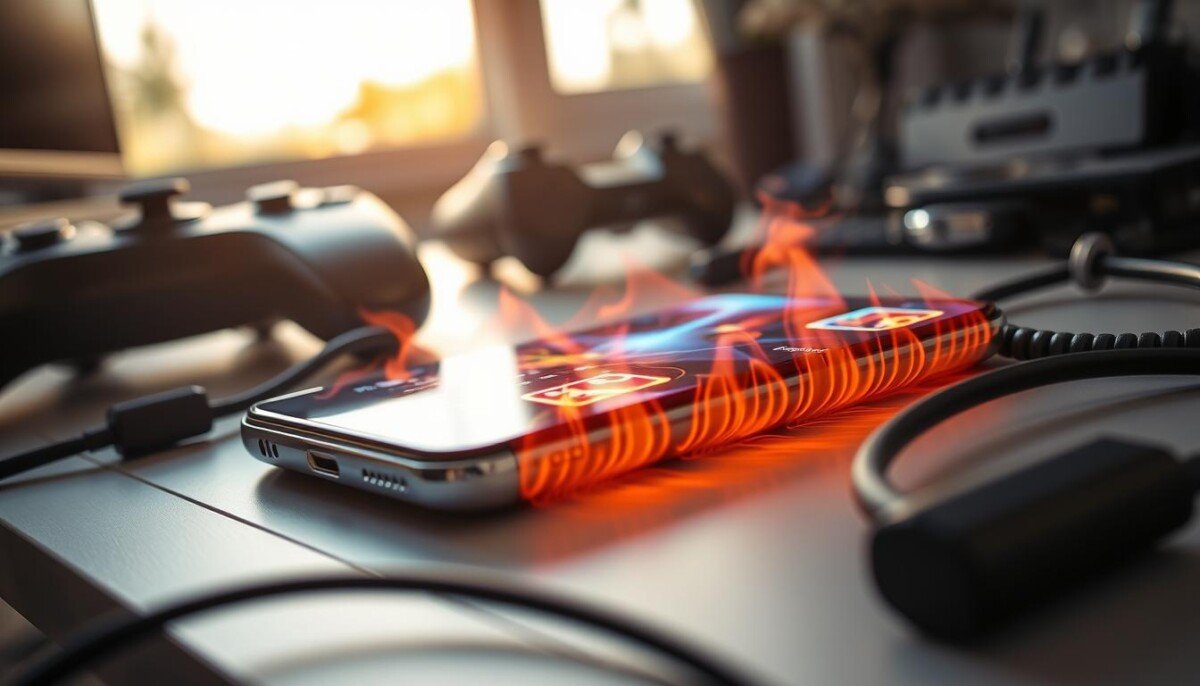
Ever wondered why high-end gaming makes your device feel like a mini space heater? When your CPU and GPU run flat-out to render complex 3D scenes, the result is heat that can push hardware past safe limits.
iGenius Phone Repair technicians see this every day: a warm handset is common, but a smell of burning plastic or a sudden temperature warning means you must stop using the device and seek help.
A failing lithium-ion battery can be a real fire risk if it gets too hot to hold. This post shows practical steps to protect your battery and device, and explains why short breaks, lower graphics, and simple settings changes matter.
For a quick guide to causes and fixes, see our referenced troubleshooting resource on common smartphone heat issues: smartphone overheating causes and fixes.
Key Takeaways
- High-end gaming drives CPU/GPU use and raises device temperature quickly.
- Stop playing if your device shows a temperature warning or smells like burning.
- Lower graphics, take regular breaks, and avoid direct sun to reduce heat.
- A failing battery is a fire risk; seek professional repair when heat is persistent.
- Small settings tweaks can protect your hardware and extend battery life.
Understanding Why Your Device Gets Hot
Complex games force the main chips to calculate billions of operations, and that effort produces heat. The CPU handles game rules and logic while the GPU renders detailed frames. Both run hard during gaming, and that work is the main source of temperature rise.
Battery and screen add to the load. The battery supplies high power to the cpu gpu pair, and the display pulls extra energy to show fast frame rates. This combined power draw is not fully efficient, so energy becomes heat inside the device.
When internal temperature climbs, the system starts thermal throttling to protect circuits. That causes a drop in frame rate and makes the game stutter or lag. Passive cooling—the phone body moving heat outward—helps, but it has limits during long sessions.
- Your phone acts like a small computer: CPU and GPU do heavy math every second.
- The battery is often the warmest part you feel on the back of the device.
- Managing power and screen settings reduces heat and preserves performance.
Software Adjustments to Prevent Genshin Impact Phone Overheating

Start with software—it’s the fastest, safest way to cut heat. Small changes to graphics and background tasks reduce CPU and GPU load. That lowers surface temperature and avoids throttling during longer sessions.
Optimizing Graphics Settings
Lower graphics from High to Medium and drop FPS from 60 to 30. This is the single most effective fix to reduce heat while keeping good visuals.
Closing Background Applications
Close social apps and unused services before you play game sessions. Background apps add CPU cycles and increase heat from the GPU.
Keeping System Software Updated
Install vendor updates promptly. System patches often include performance and thermal optimizations that cut power draw and extend battery life.
- Clear cache if heat persists; it can free system resources.
- Check for updates regularly for better performance and stability.
| Action | Effect on Heat | Ease |
|---|---|---|
| Lower graphics settings (High→Medium) | Reduces GPU load significantly | Simple |
| Reduce frame rate (60→30 FPS) | Cuts sustained power draw and throttling | Very easy |
| Close background apps | Frees CPU cycles, lowers combined heat | Easy |
| Install system updates | Improves thermal management and stability | Moderate |
Physical Changes to Improve Thermal Performance

Simple physical changes can cut surface temperature fast and keep performance steady.
Take the case off. Most plastic or leather covers act as insulators and trap heat. Removing the case lets the frame act as a heat sink and improves cooling.
Avoid charging while you play. Plugging in adds heat and stresses the battery, so never charge during intense gaming sessions.
- Use a small desk fan or an active cooler if you play long sessions. Pros use fans to prevent thermal throttling.
- Play in a cool, well-ventilated room rather than under blankets or inside a hot car.
- Limit continuous play to under 30 minutes in hot conditions to protect battery and hardware.
Physical steps plus software settings make the biggest difference. These moves help your device shed heat and keep fps and graphics stable longer.
| Action | Why it helps | When to use |
|---|---|---|
| Remove case | Improves heat transfer to air | During intense gaming |
| Avoid charging while gaming | Stops stacked heat and battery stress | Always for long sessions |
| Use fan or active cooler | Maintains lower surface temps and prevents throttling | For pro or marathon play |
| Play in cool air | Speeds heat dissipation | Every session, especially outdoors |
Need quick tips on how to cool down an overheating phone? See our detailed guide for more steps and safety advice: cool down an overheating phone.
Identifying When Hardware Damage Is the Culprit

If your device still gets very hot after short use, the root cause may be failing hardware rather than settings.
Start by watching how quickly heat appears. If the unit warms noticeably within five minutes of light use, you likely face a battery-related issue. A health reading below 80% often needs a professional battery replacement to stop persistent heat.
Signs of a Failing Battery
- Warm back or case after only a few minutes of use despite closing background apps.
- Warped frame or screen that looks like it is being pushed out of the device.
- Slower performance and visible throttling even at lower frame rates.
- Excessive heat during charging or short bursts of CPU load.
As lithium-ion cells age, internal resistance rises and the battery must supply more power to maintain performance. That stresses the cpu and other hardware and raises temperature.
| Condition | What it means | Recommended action |
|---|---|---|
| Rapid heat in | Likely hardware fault | Stop using device; seek service |
| Physical bulge or screen lift | Battery swelling | Do not charge; get replacement |
| Lag after closing apps | Power delivery issue | Professional diagnosis |
Do not use DIY tools to open sealed devices. Modern models are glued and require specialized tools and training. For a trusted repair and safe battery swap, consider a local service like professional battery replacement. Technicians can inspect the logic board for corrosion and replace parts safely.
Conclusion
A few quick changes will help your system stay cool and your frame rate stay stable. Tweak graphics and reduce FPS, close background apps, and remove the case during long sessions to cut excess heat. These moves improve cooling and preserve battery life.
If the device still gets hot within five minutes, stop play and seek professional service like iGenius Phone Repair. Persistent temperature spikes usually point to a failing battery or other hardware that needs a pro check.
Follow these simple optimizations and you’ll protect performance and enjoy longer gaming sessions with fewer issues. Thanks for reading this post — keep settings sensible and your device safe.



