Is your device getting hotter than it should — and what does that mean for your next move? You need a clear, fast answer. We’ll walk you through why phones overheat and how to decide whether a professional fix will do the job.
If your phone is smoking, swelling, or smells like burning plastic, stop using it and contact iDR Tech right away. Those signs are urgent.
Many users see a warm device during heavy use, but the root cause can often be battery issues, a bad battery, cracked screen, or misbehaving apps. Our technicians at iDR Tech have handled hundreds of such cases and can spot when a simple repair will restore safe function.
Understanding temperature ranges and common causes helps you avoid long-term damage and data loss. For deeper reading on causes and practical fixes, see this guide to smartphone overheating causes and fixes.
Key Takeaways
- Immediate danger: stop using the device if you detect smoke, swelling, or burning smell.
- Warmth during heavy use is common, but persistent heat suggests deeper hardware or software issues.
- iDR Tech has handled hundreds of overheating devices, from cracked screens to bad batteries and rogue apps.
- Knowing your device’s normal temperature range helps you choose between a professional service and continued monitoring.
- Quick fixes like closing apps and removing cases can help short-term, but persistent problems need expert attention.
Understanding Why Your Device Gets Hot
Modern mobile devices can run hot during heavy use, but not all warmth signals a serious fault. Heat appears whenever billions of electrons move through the processor and circuits. That basic activity creates normal, short-lived temperature rises.
Common Software Triggers
Running many apps at once taxes memory and drains the battery. Background processes, streaming video, and long gaming sessions push the processor for extended time. Outdated software can make apps use extra power, so keeping updates current helps reduce load.
Environmental and Hardware Factors
Direct sunlight or a hot car can raise internal temps fast. Using features while charging can stress the battery and harm long-term performance.
- Weak cell signal makes the device work harder to connect.
- Android devices can also heat up when infected by malware that runs heavy tasks.
- Thick cases trap heat; remove them during intensive use.
Tip: Watch usage patterns—streaming, video calls, and processor-heavy apps show up as the most common reasons for a device to run hot over time.
Recognizing Hidden Signs of Thermal Damage
Small, sudden failures can be the first clues that internal heat is harming your device.
Unexpected shutdowns during light use or fast battery loss are red flags. These signs often mean internal components are stressed and the battery has started to degrade.
If the screen flickers, lags, or shows sudden brightness drops, your device may be struggling to manage internal heat. Such visual glitches can lead to long-term screen damage and corrupted data.
Performance slowdowns like long boot times and system freezes often indicate the processor is throttling to avoid further harm. Note these signs early to limit damage and preserve performance.
- Rapid battery drain or swelling suggests internal expansion and serious risk.
- Unexpected OS crashes are protective actions against circuit damage.
- Keep backups if you spot persistent issues—your data can be at risk.
| Sign | Likely Cause | Immediate Action |
|---|---|---|
| Unexpected shutdowns | Battery degradation | Back up data and stop heavy use |
| Screen flicker/brightness drop | Display circuitry stress | Reduce brightness and save work |
| Performance lag/freezes | Processor throttling | Close apps and monitor behavior |
| Device expansion/warping | Internal swelling | Power down and seek expert help |
Tip: Spotting these signs early helps protect performance and keeps your personal data safe.
Immediate Steps to Cool Down Your Phone
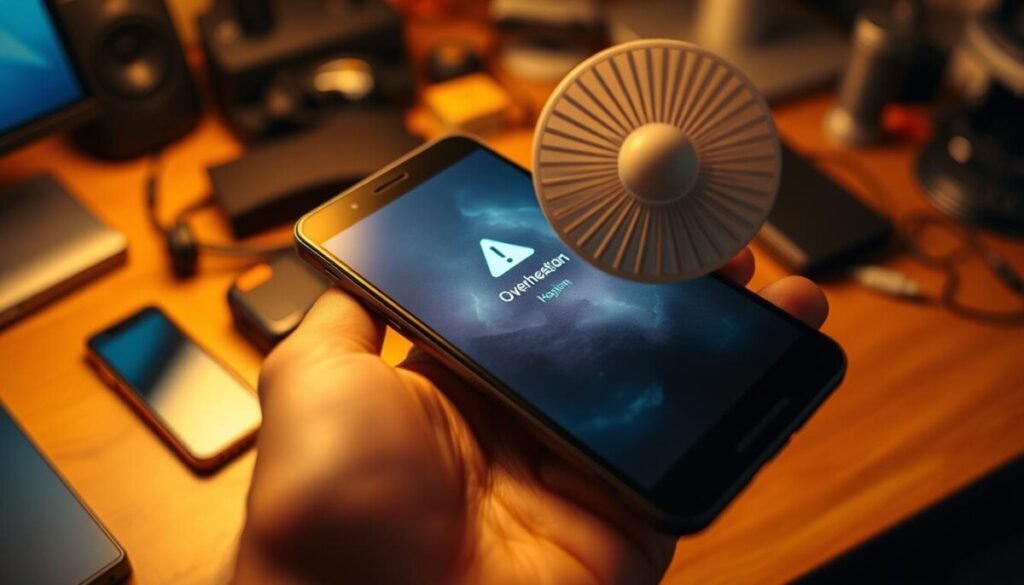
Start with simple steps to lower temperature and stop further damage. Quick action can protect battery life and preserve data.
Safe Cooling Practices
Remove the case to let air flow and let trapped heat escape.
Power down the device or enable airplane mode to cut processor load and stop background apps.
Move to shade and out of direct sunlight. This keeps the screen and battery from climbing further.
Settings Adjustments
Dim the brightness and close streaming or gaming apps to lower power draw.
Turn off GPS, Bluetooth, and unused background syncing. These reduce processor work and help cool the unit.
What to Avoid
Do not charge a hot battery. Apple guidance warns against charging or using devices in high-temperature environments.
Never place a hot device in a refrigerator or freezer. Rapid cooling can cause condensation and permanent damage.
| Action | Why it helps | When to use |
|---|---|---|
| Remove case | Improves airflow | Immediate, anytime device feels hot |
| Airplane mode / Power off | Stops background tasks and radios | If heat persists during light use |
| Dim screen / Close apps | Reduces processor and display power | During streaming, gaming, or video calls |
| Avoid charging | Prevents extra stress on battery and circuits | Until device cools to normal temperature |
Long-Term Strategies for Preventing Overheating

A routine of maintenance and mindful charging prevents many common thermal problems.
Keep apps and the operating system current. Updates fix bugs that can make the processor work too hard. Set automatic updates when possible.
Choose certified chargers and smart plugs. Using proper power accessories lowers stress on the battery. A smart plug can stop overnight charging to protect battery life.
Run cleaner apps like Clean Master or Power Clean. These tools remove junk files and highlight apps that drain battery power in the background. Cleaners help keep system load steady.
Schedule a yearly battery check with a trusted shop. A professional test catches capacity loss early and keeps internal parts safe.
- Update apps and OS regularly to avoid runaway processes.
- Use certified chargers and limit overnight charging.
- Employ cleaner apps to remove junk and find battery-draining apps.
- Get annual battery checks to preserve device life.
Adopt these steps to extend usable life and lower the chance of recurring thermal stress. If you need professional help, choose a reputable service that uses quality parts to keep your device reliable.
When to Choose Overheating Phone Repair or Replace

Deciding whether to fix a device or get a new one starts with a clear cost and performance check. Look at age, current usage, and how often the problem appears.
Evaluating Repair Costs vs. Device Age
If your phone consistently shows excess heat despite simple fixes, have a technician run a diagnostic. A pro can tell if a failing battery is the cause or if the motherboard has deeper damage.
As a rule, if repair costs top 50% of a new model’s price, a replacement often makes better financial sense. Frequent app crashes and slow performance are red flags that point toward a bigger problem.
- Unexpected shutdowns during normal usage mean you should consult an expert.
- Battery swaps can restore life when capacity is low; motherboard faults usually need more investment.
- We perform diagnostics to show whether a battery change or full device upgrade suits your needs.
| Issue | Likely Fix | Consider |
|---|---|---|
| Rapid shutdowns | Battery test and possible replacement | Repair if device is under 3 years |
| Frequent app crashes | Software tune-up or component check | Replace if performance stays poor |
| Repeated thermal events | Full diagnostic for motherboard faults | Choose replacement if repair cost is high |
Tip: Use your time wisely. A quick expert check saves money and keeps data safe. We help you decide between a battery change and a full upgrade based on facts, not guesswork.
The Role of Professional Diagnostics
A trained technician can map whether recurring overheating stems from software or a failing component. This step saves time and money by targeting the root cause instead of guessing.
Experts inspect the power IC, battery, and internal circuits for visible damage. They test the processor under load to see if background apps or software glitches cause excess heat.
Technicians can also perform a full device rebuild. That may include screen or speaker replacements and a clean of dust that blocks airflow.
- Hardware checks: identify faulty power parts and swollen battery.
- Software checks: spot apps that stress the processor and tweak settings.
- Cleaning: remove debris to restore proper cooling.
| Finding | Likely Action | Outcome |
|---|---|---|
| Faulty power IC | Component replacement | Stops repeated heat events |
| Battery capacity loss | Battery swap | Improves run time and heat control |
| Background apps | Software tune and settings | Reduces processor load |
Tip: A clear diagnostic report helps you choose between a focused repair and a full replacement with confidence.
Essential Accessories for Thermal Management
Small accessories make a big difference when you want to manage device temperature during heavy use.
Invest in a heat-dissipating case. A ZAGG graphene case is an example that helps draw heat away from the core parts. This keeps the battery and screen running within safer limits.
If you lack a specialized case, remove your standard cover while charging phone batteries. That step alone cuts trapped heat and speeds cooling.
- Use a cooling attachment with a small fan for long gaming or editing sessions.
- Choose manufacturer-approved chargers to protect the battery during charging.
- Swap an insulating case for a ventilated model if your current case holds too much heat.
- Always confirm accessory compatibility with your model to avoid screen or port damage.
| Accessory | Main Benefit | When to Use |
|---|---|---|
| Graphene heat-dissipating case | Improves thermal transfer from device body | Daily use, heavy multitasking |
| Removable standard cover | Reduces trapped heat while charging | During charging phone batteries |
| Cooling fan attachment | Active airflow for peak workloads | Gaming, long video editing |
| Manufacturer-approved charger | Stable charging, protects battery health | Every charge cycle |
Tip: Combine a breathable case with certified charging to keep phone performance steady and extend battery life. For more on practical steps to prevent a hot device, see this short guide: prevent a hot device.
Conclusion
,Knowing the main reasons phones overheat helps you act fast and protect data. Streaming, long games, and direct sunlight raise internal temperature quickly.
Follow the cooling steps here to keep your mobile phone running longer and to protect your data. Keep software updated, remove cases during heavy use, and pause intense tasks when temps climb.
If heat keeps returning after those steps, seek professional repair or a timely replacement to avoid damage and safety risks.
For a clear diagnostic checklist and next steps, see this guide on how to diagnose a device that keeps running hot: diagnose a smartphone that keeps running.
Tip: Not all warmth is dangerous, but spotting battery issues early preserves life and performance. We’re here to help you choose the right path.



