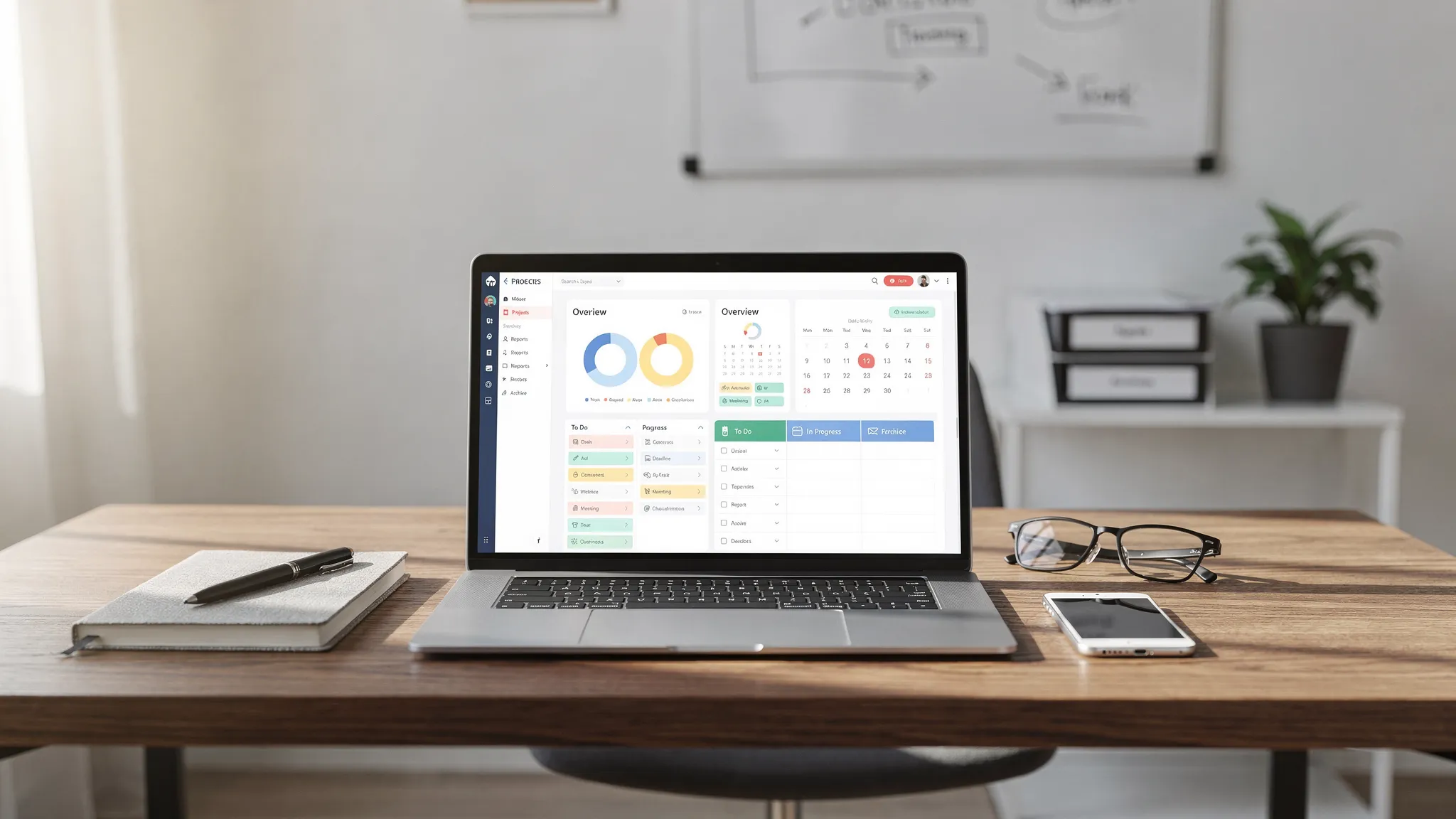
A productive digital workspace is not just a collection of apps. It is the operating system for your work: where tasks enter, where files live, how people communicate, when focus time is protected, and how information stays easy to find.
If your current setup feels busy but not productive, the issue is usually not a lack of tools. It is tool overlap, unclear ownership, scattered files, noisy notifications, and workflows that depend too much on memory. Microsoft’s Work Trend Index has highlighted how many workers struggle with constant digital debt and insufficient uninterrupted focus time. A better workspace reduces that friction before it becomes burnout.
This guide walks through the steps involved in building a digital workspace from the ground up, using practical tool categories, workflow rules, automation, and maintenance habits that work for solo professionals, small teams, and growing businesses.
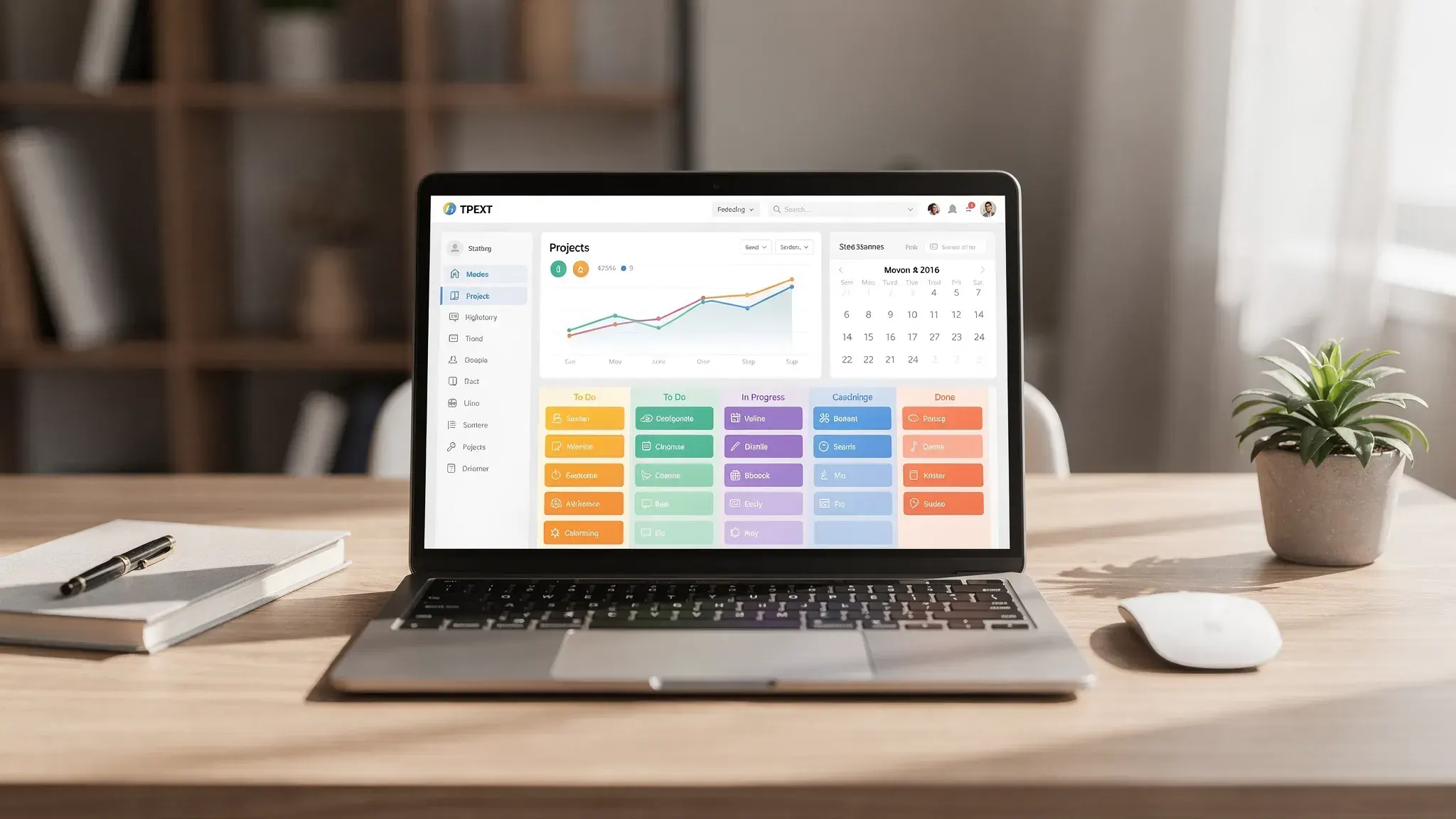
Start with the purpose of your digital workspace
Before choosing apps, define what your workspace must help you do. A designer, consultant, virtual assistant, content team, and sales department will all need different systems. The productive digital workspace is the one that supports your actual work, not the one with the most features.
A good workspace should answer five questions quickly:
- What needs to be done next?
- Who owns each task or decision?
- Where is the latest version of a file?
- What requires a meeting, and what can be handled asynchronously?
- Which tools are official, and which are optional?
If those answers are unclear, adding more software usually makes things worse. Start by documenting the current workflow process from request to completion. Note where work enters, where it gets discussed, where files are stored, where approval happens, and where final outputs are archived.
Audit your current tools before adding new ones
Most teams already have enough tools. The problem is that each tool has grown into a mini-workspace of its own. One project might live in Slack, another in email, a third in project management tools like Google Drive, and a fourth in someone’s private notes app.
Create a simple tool inventory. You do not need a complex spreadsheet at first. You just need to see what each app is supposed to do and where duplication exists.
| Workspace layer | Main question | Common tools | Warning sign |
|---|---|---|---|
| Tasks | What work is assigned and due? | Asana, ClickUp, Trello, Todoist | Tasks are discussed in chat but never captured |
| Files | Where is the source file? | Google Drive, OneDrive, Dropbox, Box | Multiple final versions exist |
| Communication | Where do conversations happen? | Slack, Teams, email | Every topic becomes urgent |
| Knowledge | Where do processes live? | Notion, Confluence, Google Docs | People repeatedly ask the same questions |
| Calendar | When does work happen? | Google Calendar, Outlook, Calendly | Meetings fill every open gap |
| Automation | What can happen without manual effort? | Zapier, Make, native automations | People copy and paste data between apps |
After the audit, remove or downgrade tools that do not have a clear role. If two tools solve the same problem, choose one default and document when exceptions are allowed.
Choose a lean tool stack
A productive digital workspace usually needs fewer apps than people think. The goal is not to find the perfect tool in every category. The goal is to create a connected stack where each tool has a clear job.
For most professionals and small teams, start with these layers:
| Tool category | Purpose | Setup rule |
|---|---|---|
| Task management | Capture commitments, deadlines, owners, and status | Every task must have one owner and one next action |
| Cloud storage | Store shared files, templates, and deliverables | One official folder structure for each project |
| Calendar | Protect focus blocks and manage meetings | Work should be scheduled, not just listed |
| Notes and knowledge base | Document decisions, SOPs, and references | Repeatable answers should become reusable docs |
| Communication | Coordinate fast questions and updates | Chat is for coordination, not permanent storage |
| Automation | Reduce repetitive admin work | Automate only stable workflows first |
If you are still comparing options, Online Tool Guides has helpful resources on task management tools and how data is handled in cloud storage services. Use reviews to narrow your choices, then test your shortlist with a real project before rolling it out everywhere.
Create a single source of truth for every project
The most important rule in a digital workspace is simple: each type of information needs one official home.
For example, project tasks should not be split between email, chat, and a project management board. Files should not be half in Google Drive and half on someone’s desktop. Meeting notes should not disappear into private notebooks unless they are personal notes.
A practical project workspace might include:
- A project dashboard for goals, milestones, owners, and status
- A task board for assignments and deadlines
- A folder for source files, drafts, assets, and final deliverables
- A decision log for approvals, changes, and important context
- A communication channel for quick updates and questions
For customer-facing teams, the single source of truth may also include a CRM. Before choosing a CRM, document the minimum features your team needs, such as contacts, pipelines, task tracking, communication history, reports, and automations. This guide to a CRM system for small businesses is a useful checklist for thinking through those essentials before adoption.
Build a file system people can actually use
Cloud storage becomes messy when everyone names and organizes files differently. A productive workspace needs predictable structure, not perfect structure.
Start with a standard naming convention. Keep it readable and consistent. A simple format works well:
YYYY-MM-DD_Client-or-Project_Document-Type_Version
For example:
2026-05-03_Acme-Launch_Content-Brief_v1
Then create a repeatable folder structure for active projects. A simple structure might include Admin, Research, Drafts, Assets, Reviews, Final, and Archive. The exact folder names matter less than using the same names every time.
Permissions also matter. Give people access based on the work they need to do. Avoid making every folder open to everyone by default, especially when client data, financial documents, or private team files are involved.
Make task management visible and action-oriented
A task management tool only works if tasks are written clearly. Vague tasks create confusion, missed deadlines, and unnecessary follow-up messages.
Every task should include four basic elements: owner, outcome, due date, and context. Instead of writing Update website, write Update homepage hero copy for May campaign and send draft to Marco by Friday. The second version tells the owner what done means.
Use simple statuses at first. Too many workflow columns slow people down. A small team can often run well with Backlog, In Progress, Waiting, Review, and Done. Add more complexity only when reporting or handoffs require it.
Custom fields can also help when work becomes more advanced. For example, you might track priority, department, content type, client name, budget, or estimated hours. If you use ClickUp, this guide on ClickUp custom fields for project tracking shows how structured metadata can improve visibility without turning your workspace into a database nobody wants to maintain.
Protect focus time inside your workspace
A digital workspace should not just organize work. It should protect the time needed to complete it.
Calendar design is a major part of digital workflow optimization. If your calendar is only used for meetings, your real work is left to compete for whatever time remains. Add focus blocks for deep work, admin time, planning, reviews, and recovery after demanding calls.
For teams, create meeting rules that everyone understands. For example, require agendas for meetings longer than 15 minutes, move status updates to async posts, and protect at least one weekly block for uninterrupted work. If your team struggles with calendar overload, start with a guide like meeting-free days and adapt the model to your culture.
Status settings also help reduce interruptions. Slack, Microsoft Teams, Zoom, and Asana all offer ways to signal availability. The key is consistency. If focus time means you are not responding for 90 minutes, your status should say that, and your team should respect it.
Decide what belongs in chat, email, tasks, and docs
Many digital workspaces fail because every channel is used for everything. Chat becomes a task list. Email becomes a file archive. Meetings become knowledge bases. Nobody knows where to look.
Use a communication map so people know the right place for each type of message.
| Work type | Best channel | Why it works |
|---|---|---|
| Quick coordination | Chat | Fast, lightweight, temporary |
| Formal external communication | Searchable and professional | |
| Assigned work | Task manager | Owner, due date, and status are visible |
| Long-term processes | Knowledge base | Reusable and easy to update |
| Decisions and approvals | Project dashboard or decision log | Prevents context from getting buried |
| Complex discussion | Meeting with notes | Best for ambiguity and tradeoffs |
This does not mean you need rigid rules for every interaction. It means important information should not live only in the place where it was first mentioned.
Automate repetitive handoffs carefully
Automation is powerful, but it should follow process optimization once your workflow is stable. If a process is unclear, automation can make confusion happen faster.
Start with simple, low-risk automations. For example, a form submission can create a task. A completed task can notify a reviewer. A new lead can trigger a follow-up reminder. A calendar event can update a status. A weekly report can be generated and sent automatically.
Before enabling any automation, define the trigger, action, owner, and failure plan. Someone should know what happens if the automation breaks, duplicates a task, or sends the wrong notification. Review automation logs regularly so errors do not quietly become part of the workflow.
If you are exploring AI-powered improvements, use AI for summarizing, drafting, categorizing, and extracting next actions, but keep human approval for important decisions. Our guide to the best AI productivity tools can help you compare options for writing, automation, and workflow support.
Secure the workspace from day one
Productivity and security are connected. If access is messy, passwords are reused, or sensitive files are stored in random places, the workspace becomes risky and stressful.
At minimum, enable multi-factor authentication for core apps, use a password manager, review permissions quarterly, and remove access when people leave a project. Shared accounts should be avoided whenever possible because they make accountability difficult.
Backups also matter. Cloud storage is not the same as a complete backup strategy. Make sure important files can be recovered if someone deletes a folder, overwrites a document, or loses access to an account. If your team handles client or customer data, document retention and deletion rules as part of your workspace setup.
Review and improve your workspace every month
A digital workspace is never finished. Projects change, teams grow, tools update, and old habits return. Schedule a short monthly workspace review to keep the system healthy.
Track practical indicators rather than vanity metrics. Ask whether the workspace is making work easier to start, complete, and hand off.
| Metric | What it reveals | How to improve it |
|---|---|---|
| Time to find files | Folder and naming quality | Standardize names and archive old versions |
| Overdue tasks | Planning and workload accuracy | Rebalance priorities and clarify ownership |
| Meeting hours | Calendar health | Move status updates async and add focus blocks |
| Repeated questions | Knowledge base gaps | Turn answers into short SOPs |
| Tool switching | Stack complexity | Remove duplicate tools and improve integrations |
| Missed handoffs | Workflow clarity | Add task templates, checklists, or automations |
Keep the review lightweight. The goal is not to create more admin work. The goal is to prevent your workspace from becoming digital clutter again.
A simple 7-day setup plan
If you want to improve your workspace this week, use a phased approach instead of trying to rebuild everything in one sitting.
- Day 1: Audit your tools: List the tools you use, their purpose, and where overlap exists.
- Day 2: Choose official homes: Decide where tasks, files, conversations, notes, and approvals should live.
- Day 3: Clean active projects: Move current work into the right places and archive obvious clutter.
- Day 4: Standardize tasks and files: Add naming rules, required task fields, and reusable templates.
- Day 5: Protect focus time: Add focus blocks, notification settings, and meeting rules.
- Day 6: Add one automation: Choose a simple, stable workflow and test it carefully.
- Day 7: Document the system: Create a one-page workspace guide so future work follows the same rules.
This plan is intentionally simple. The fastest way to build a productive digital workspace is to make the next correct action obvious.
Frequently Asked Questions
What is a digital workspace? A digital workspace is the connected set of tools, workflows, files, communication channels, and rules people use to get work done online. It includes software, but also the habits and standards that make the software useful.
What tools do I need for a productive digital workspace? Most people need a task manager, cloud storage, calendar, communication app, notes or knowledge base, and basic automation tool. Teams may also need a CRM, password manager, analytics tool, or approval system depending on their work.
How do I avoid using too many productivity tools? Give every tool one clear role. If two apps do the same job, pick a default. Review your stack monthly and remove tools that create duplicate information, extra notifications, or unclear ownership.
How often should I clean up my digital workspace? Do a small cleanup weekly and a deeper review monthly. Archive completed projects, remove outdated documents, check permissions, and update templates or workflows that no longer match reality.
Can a solo freelancer use the same workspace principles as a team? Yes. Freelancers benefit from the same structure: one place for tasks, one place for files, one calendar for focus time, and one repeatable process for client work. The system can be simpler, but the principles are the same.
Final thoughts
Building a productive digital workspace is less about chasing the newest app and more about designing a system people can trust. Start with clear roles for each tool, create one source of truth, protect focus time, automate carefully, and review the setup regularly.
For more practical tutorials and comparisons, explore Online Tool Guides for productivity tools, automation tips, task management guides, and digital workflow optimization ideas you can apply right away.



