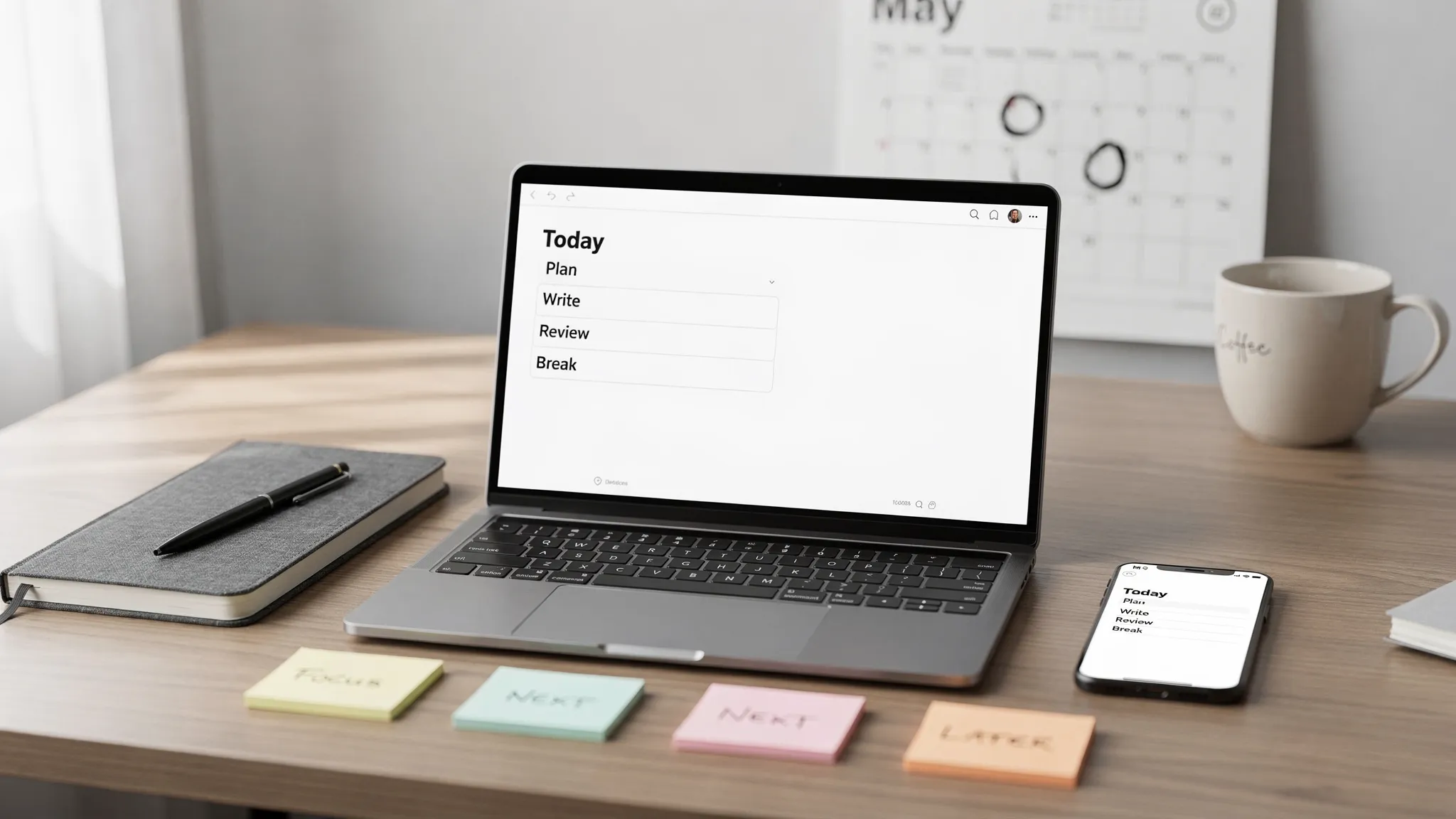
The best note-taking app for work is not always the one with the most features. It is the one your team will actually use, trust, search, and maintain after the first week of excitement wears off.
That matters because work notes are rarely just notes. They become meeting records, project decisions, client context, research, task follow-ups, SOPs, brainstorming spaces, and sometimes the unofficial memory of your team. Choose the wrong app, and you create scattered information, duplicated documents, and a constant “where did we write that down?” problem.
This guide walks you through a practical decision process so you can choose a note-taking app that fits your workflow, security needs, collaboration style, and long-term productivity goals.
Start with the real job your notes need to do
Before comparing apps, define what “note-taking” means in your work environment. A solo consultant, a product team, a legal office, and a sales department may all need notes, but they use them very differently.
For some teams, the main need is fast capture during meetings. For others, it is organizing research across multiple projects. Some people need handwritten notes on a tablet, while others need a searchable knowledge base connected to tasks and calendars.
A good first question is: what happens after the note is created? If the note needs to become an assigned task, choose an app with task management or integrations. If it becomes a shared reference document, prioritize permissions, search, and structure. If it stays personal, speed and simplicity may matter more than advanced collaboration.
Here are the most common work note-taking use cases:
- Meeting notes with action items and decisions
- Project documentation and status updates
- Client or customer interaction notes
- Research, reading notes, and saved web clips
- Personal daily planning and time-blocking support
- Team knowledge bases and standard operating procedures
- Brainstorming, outlines, and content planning
If you cannot clearly identify your top two use cases, pause before picking a tool. The “best” app changes completely depending on the job.
Compare note-taking apps by workflow, not hype
Many note-taking apps look similar on the surface. They all let you create pages, folders, tags, and lists. The differences show up when you use them under real work pressure.
Ask how the app fits into your day. Can you open it quickly before a meeting starts? Can you find a decision from three months ago? Can a teammate understand your structure without asking you for help? Can you turn notes into next steps without copying and pasting across five tools?
Use this comparison table as a starting point.
| Work need | Features to prioritize | Apps often considered |
|---|---|---|
| Fast personal notes | Quick capture, mobile app, widgets, reminders | Google Keep, Apple Notes, Bear |
| Meeting notes | Templates, calendar links, action items, sharing | OneNote, Notion, Evernote, Fellow |
| Team knowledge base | Permissions, page hierarchy, search, comments | Notion, Confluence, Coda, Slite |
| Research and deep thinking | Backlinks, markdown, local files, graph view | Obsidian, Logseq, Roam Research |
| Microsoft-heavy workplace | Outlook, Teams, OneDrive, Microsoft 365 integration | OneNote, Loop |
| Project execution | Tasks, docs, dashboards, project links | ClickUp Docs, Notion, Coda |
| Secure or regulated work | Admin controls, audit logs, encryption, compliance options | OneNote, Confluence, Notion Enterprise, Evernote Teams |
The goal is not to pick from this table blindly. It is to match your daily work pattern to the tool category that removes friction.
Decide between personal notes and team knowledge
One of the biggest mistakes is using a personal note-taking app as a team knowledge base. It may work at first, but it usually breaks down as the team grows.
Personal note apps are optimized for speed, privacy, and individual organization. They are ideal for quick ideas, personal checklists, meeting prep, and temporary thinking. Team knowledge systems are designed for shared access, structure, permissions, editing history, and long-term retrieval.
If your notes are only for you, choose the app that feels fastest and least distracting. If other people will rely on your notes, choose an app with stronger structure and collaboration.
A simple rule helps: if a note affects someone else’s work, it should live in a shared system or be moved there after capture. Personal capture is fine, but business-critical knowledge should not stay trapped in one person’s private workspace.
Evaluate capture speed on every device you use
A note-taking app fails quickly if it is slow to open or awkward on your main devices. For work, you need to capture information when it appears, not after you have navigated through folders, workspaces, and formatting menus.
Test the app on desktop, mobile, and tablet if those are part of your workday. Create a note during a live meeting. Save a web page. Add a photo. Dictate a quick voice note if that matters to you. Try editing the same note from another device.
Pay attention to small points that become big over time:
- How many clicks does it take to start a new note?
- Does search work instantly across old notes?
- Can you capture offline and sync later?
- Does the mobile app feel like a full tool or a limited companion?
- Are formatting options helpful, or do they slow you down?
Offline access deserves special attention. If you travel, work from client sites, commute, or use unreliable Wi-Fi, offline note access can be the difference between smooth productivity and lost context. For more on offline-ready workflows, Online Tool Guides has a helpful primer on offline digital tools.
Look closely at search and organization
The value of work notes increases when you can retrieve them later. A note you cannot find is almost the same as a note you never took.
Good organization usually combines three layers: structure, metadata, and search. Structure includes notebooks, folders, pages, databases, or spaces. Metadata includes tags, dates, owners, clients, projects, and status fields. Search brings it all together when you do not remember where something lives.
The right system depends on your personality and team culture. Some teams love strict folder hierarchies. Others prefer flexible tags and powerful search. Database-style tools such as Notion or Coda can be useful when notes need fields like project, priority, owner, due date, or client. Simpler tools like Apple Notes or Google Keep work better when notes are short, temporary, and easy to search.
Avoid over-engineering. A beautifully complex note system can become a second job. If your team needs a 20-minute explanation before creating a page, the structure is probably too complicated.
A practical work structure might include:
- Inbox for uncategorized quick captures
- Meetings for recurring team or client notes
- Projects for active workstreams
- Reference for long-term knowledge
- Archive for completed or outdated material
Keep the first version simple. You can add detail later once real usage patterns appear.
Check collaboration features before you need them
If your work involves a team, collaboration should be tested early. Do not assume that “sharing” means the app is good for teamwork.
Strong collaboration features include real-time editing, comments, mentions, version history, page permissions, shared templates, and clear ownership. For meeting-heavy teams, it also helps if the app connects with Google Calendar, Outlook, Zoom, Microsoft Teams, or Slack.
Version history is especially important. Work notes often include decisions, requirements, and approvals. If someone edits or deletes something by mistake, you need a way to recover it.
Permissions also matter. A company-wide wiki, a leadership planning page, and a client account note should not all have the same access level. If your organization handles sensitive information, choose a tool that makes access controls easy to understand.
Match the app to your existing work stack
A note-taking app should reduce context switching, not add another isolated place to check. The best choice often depends on the tools you already use.
If your company lives in Microsoft 365, OneNote and Loop may feel natural because they sit close to Outlook, Teams, and OneDrive. If your team runs projects in ClickUp, ClickUp Docs can connect notes directly to tasks and workflows. If your team uses Google Workspace, Google Keep and Docs may be enough for lightweight note-taking, especially when paired with Calendar and Tasks.
If you already use Notion for dashboards or planning, adding notes there may keep everything in one workspace. Online Tool Guides has a related walkthrough on building a personal dashboard in Notion for time blocking, which is useful if your notes and schedule are closely connected.
Think about the systems where notes need to travel. Do meeting notes need to become tasks in Asana or ClickUp? Do client notes need to connect with a CRM? Do research notes need to become content briefs? Do project decisions need to show up in Slack or Teams?
For example, a real estate investment team may need to connect property research, client requirements, market commentary, and follow-up tasks in one place. If you work with specialized property partners such as Azimira’s UAE real estate investment services, your note-taking app should make it easy to organize due diligence notes, meeting summaries, and action items by opportunity or client.
The app does not need to do everything natively, but it should integrate cleanly with the tools that already run your workday.
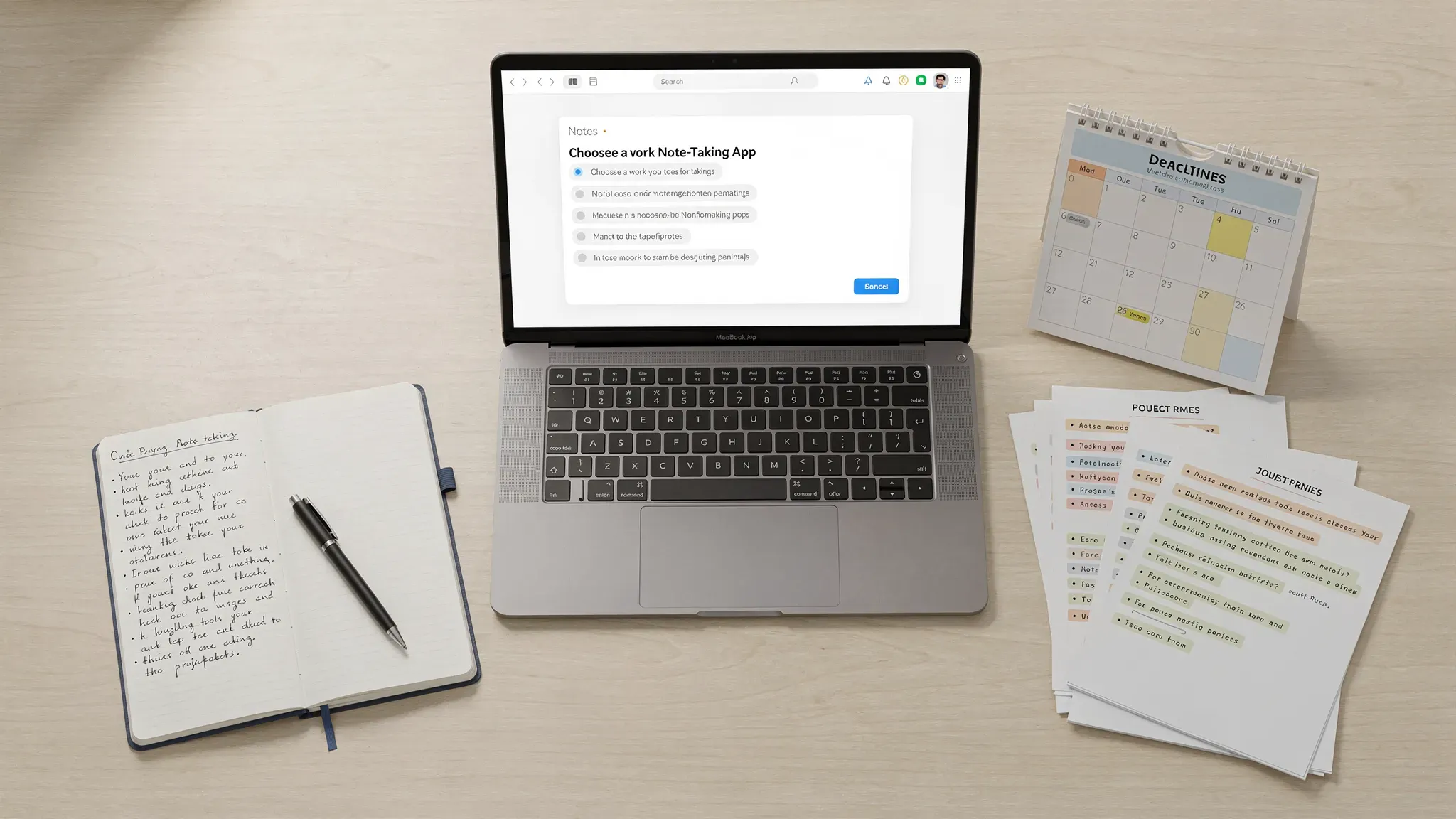
Consider privacy, security, and data ownership
Work notes can contain sensitive information: client names, internal strategy, financial details, passwords that should not be there, HR discussions, product ideas, legal notes, and customer data. Security is not only an enterprise concern.
At a minimum, check whether the app offers two-factor authentication, reliable account recovery, encryption in transit and at rest, admin controls for team plans, and clear data export options. For regulated industries, you may also need compliance features such as SOC 2 reports, HIPAA support, GDPR-related controls, audit logs, or enterprise key management. Verify these directly with the vendor, because availability can vary by plan.
Data export is easy to overlook. You should know whether you can export notes in common formats such as PDF, Markdown, HTML, DOCX, or CSV. If a tool makes it hard to leave, switching later may become expensive.
Also decide what should never go into the note-taking app. Even secure apps are not a replacement for a password manager, legal document repository, or approved customer database. Your note policy should clarify what belongs in notes and what belongs elsewhere.
Test templates, automation, and AI carefully
Templates can save a huge amount of time when your notes follow a repeated format. Meeting notes, one-on-one notes, project updates, research summaries, sales calls, and decision logs are all good template candidates.
A practical meeting template might include:
| Section | Purpose |
|---|---|
| Context | Why the meeting exists |
| Agenda | What needs to be covered |
| Decisions | What was agreed |
| Action items | Who does what by when |
| Open questions | What still needs follow-up |
Automation can also help. Some apps can create notes from calendar events, assign tasks from checkboxes, send summaries to Slack, or connect with workflow tools like Zapier. The benefit is consistency. The risk is clutter. Automating every note can create a pile of pages nobody reads.
AI features are becoming common in note-taking apps, especially for summaries, rewriting, transcription, and search. These can be valuable, but they need human review. For important meetings, AI summaries should support your judgment, not replace it. Always confirm decisions, deadlines, names, and numbers before sharing.
If you regularly use AI productivity tools, compare whether your note app’s built-in AI is enough or whether it should connect to your broader AI workflow. You can also explore our guide to the best AI productivity tools for a broader view of how AI fits into daily work.
Calculate the true cost
Free plans are useful for testing, but the real cost of a note-taking app is more than the monthly price. You also need to consider setup time, team training, migration effort, admin overhead, and the cost of switching later.
A free app may be perfect for personal notes. For teams, a paid plan can be worth it if it includes permissions, version history, support, storage, admin controls, and reliable collaboration. On the other hand, paying for a powerful workspace tool is wasteful if your team only needs simple meeting notes.
When comparing costs, ask:
- How many people need access?
- Are guests or clients included in the price?
- Do key features require a higher-tier plan?
- Is storage limited?
- Can you export everything if you leave?
- How much training will the team need?
The cheapest app is not always the best value. The best value is the tool that saves time, reduces lost information, and fits your workflow without constant maintenance.
Run a 14-day pilot before rolling it out
Do not choose a note-taking app from feature lists alone. Run a short pilot with real work.
Pick one or two teams, choose a small set of use cases, and test the app under normal conditions. Use it for recurring meetings, project notes, research capture, and action tracking. At the end of two weeks, review whether people used it without reminders and whether the notes were easy to find.
A simple pilot scorecard can keep the decision objective.
| Criterion | What to test | Score 1 to 5 |
|---|---|---|
| Speed | Can users capture notes quickly? | |
| Search | Can users find old notes easily? | |
| Collaboration | Can multiple people edit and comment smoothly? | |
| Organization | Does the structure make sense after two weeks? | |
| Integrations | Does it connect with key work tools? | |
| Security | Are permissions and access controls adequate? | |
| Adoption | Did people keep using it voluntarily? |
If the app scores well but adoption is low, investigate why. It may be too complex, too slow, or too disconnected from the team’s main workflow. Adoption is a feature, even if it never appears on a pricing page.
Recommended choices by work style
There is no universal winner, but some apps tend to fit certain work styles better.
For simple personal work notes: Google Keep, Apple Notes, or Bear are good options if you value speed and low friction.
For Microsoft-based teams: OneNote is a strong fit when Outlook, Teams, and OneDrive are already central to your work.
For flexible team workspaces: Notion is popular for teams that want notes, docs, databases, and lightweight project organization in one place.
For technical users and deep research: Obsidian is excellent for markdown-based notes, local files, backlinks, and personal knowledge management.
For structured company documentation: Confluence, Slite, Coda, or Notion can work well when notes need to become durable team knowledge.
For project-driven teams: ClickUp Docs or Notion can be useful when notes need to sit close to tasks, timelines, and project updates.
Choose based on fit, not popularity. A powerful app that nobody maintains will lose to a simpler app that everyone uses consistently.
Frequently Asked Questions
What is the best note-taking app for work? The best note-taking app for work depends on your workflow. OneNote is often a good fit for Microsoft 365 teams, Notion works well for flexible team workspaces, Google Keep is useful for quick notes, and Obsidian is strong for deep research and personal knowledge management.
Should I use one app for personal and work notes? It is usually better to separate personal and work notes, especially if your employer has security, compliance, or data retention requirements. If you use the same app, keep work and personal spaces clearly separated.
Are free note-taking apps good enough for business use? Free apps can be enough for individuals and small teams with simple needs. Businesses should check whether important features such as permissions, version history, admin controls, storage, and support are limited to paid plans.
How important is offline access in a note-taking app? Offline access is very important if you travel, attend client meetings, work from shared spaces, or have unreliable internet. It lets you capture and review notes without depending on a live connection.
Should I choose a note-taking app with AI features? AI features can help summarize meetings, rewrite notes, and search information faster, but they should not be the only reason you choose an app. Prioritize reliability, security, search, collaboration, and export options first.
Build a note-taking system your team can actually maintain
Choosing a note-taking app for work is less about finding the most impressive tool and more about building a reliable information habit. Start with your real use cases, test the app in daily work, check integrations and security, and keep the structure simple enough that people will use it.
If you want more practical productivity software walkthroughs, explore the latest guides on Online Tool Guides, where we review and explain tools for better workflows, task management, automation, and digital organization.



