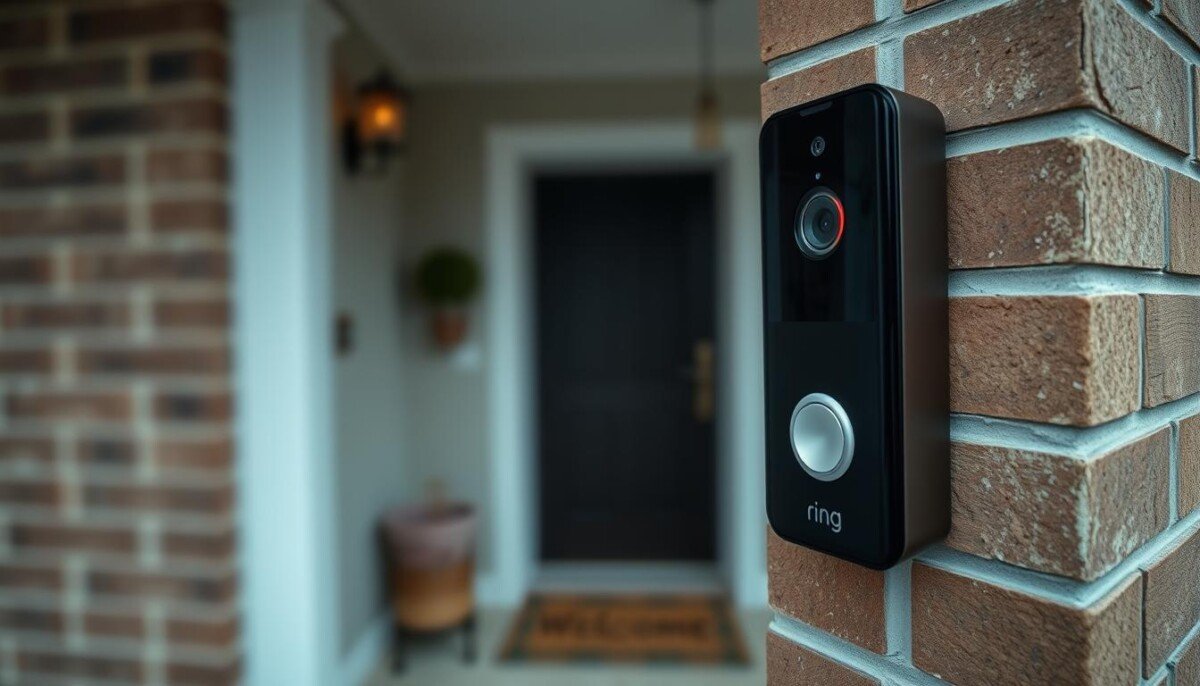
Ring Doorbell Not Recording? How to Fix It Fast

Published:

Updated:

ring doorbell not recording

Disclaimer

As an affiliate, we may earn a commission from qualifying purchases. We get commissions for purchases made through links on this website from Amazon and other third parties.

Have you ever missed a key motion alert and wondered why your system failed when it mattered most?

If your ring doorbell not recording, you could miss critical motion events that protect your property and your device’s trustworthiness.

Start with the app and settings. The camera often skips clips because of a simple configuration or connection hiccup.

We will walk you through quick checks that restore normal video capture. You’ll learn how to verify the app, tweak motion zones, and confirm device health.

Use these practical steps to stop gaps and keep a clear, reliable view of your property.

Key Takeaways

  • Verify the app and device connection first to rule out simple faults.
  • Adjust motion settings to reduce missed events.
  • Check camera power and Wi‑Fi strength for consistent video.
  • Update firmware and app to fix known issues fast.
  • Follow step‑by‑step troubleshooting to avoid premature replacements.

Troubleshooting Your Ring Doorbell Not Recording

Start troubleshooting by confirming the app can access the device and video features.

Open the ring app and go to Menu > Devices > Device Settings > Video Settings. Toggle Live View on if it is off. This often fixes missed motion clips fast.

If you still have issues, update your phone and the app. Disable any VPN that could block device traffic.

One user spent two hours on the phone with support before they found a disabled Live View. If a quick check fails, contact support for deeper diagnostics.

  • Verify app permissions for motion and video.
  • Test a live session to confirm the camera view and connectivity.
  • Check device settings to ensure the app is authorized to capture motion.
Step Where to Check Why it Matters
Live View Menu > Devices > Device Settings > Video Settings Enables on-demand view and confirms video link
App Permissions Phone Settings > Apps > Ring App Allows motion capture and file access
Network & VPN Phone Network Settings VPNs or weak Wi‑Fi can block video streams

For step-by-step guidance, follow the full troubleshooting steps to restore normal video capture.

Optimizing Motion Detection and App Settings

A visually striking illustration representing "motion zones" for a smart doorbell system. In the foreground, a close-up of a well-defined electronic device with glowing indicators, symbolizing motion detection technology. The middle layer features an overlay of a semi-transparent graphic showing various zones in a home, highlighted with soft neon colors—green for active areas, red for restricted zones. The background depicts a serene suburban environment during dusk, with ambient lighting illuminating pathways and doorways. The atmosphere should be calm yet technologically advanced, showcasing the digital integration of the doorbell system into everyday home security. Utilize a wide-angle lens effect to emphasize the depth of the scene, enhancing the sense of motion within the designated zones.

Focus the view by creating two custom zones and dialing in sensitivity for reliable clips.

Configuring Motion Zones and Sensitivity

Create two distinct motion zones in the ring app so the camera concentrates on entry paths and ignores busy background areas.

Use one zone for the walk path and a second for the porch or stoop. This helps the motion detection pick real events and cut false alerts.

Next, adjust motion sensitivity inside motion settings. Raise sensitivity slightly if small movements are missed. Lower it to reduce wind or tree triggers.

Verifying Subscription Plans

Confirm your plan if saved video is missing. An active subscription is required to store clips and access recorded video.

  • Check device settings in the app to ensure motion detection is enabled.
  • Use the app to review and adjust zones regularly as lighting and angles change.
  • Follow the detailed troubleshooting guide for extra steps when clips still fail.

Addressing Connectivity and Power Issues

A high-tech digital display showcasing varying levels of signal strength in vibrant colors. In the foreground, a sleek, futuristic signal meter with glowing bars indicating low to high connectivity. Each bar is illuminated with a gradient, transitioning from red to green, representing the strength of the connection. In the middle ground, a blurred out Ring Doorbell device is prominently featured, hinting at the subject of connectivity issues. The background depicts a subtly rendered home setting with soft lighting, suggesting evening hours, while maintaining a focus on the signal meter. The atmosphere is professional, reflecting urgency but also a sense of clarity in understanding connectivity problems. Use a slight vignette effect to center attention on the signal strength display.

Begin by testing the network signal that feeds your camera. A weak wireless link is a top cause of missed video and skipped motion clips. Confirm signal strength in your device settings so you know if the connection is stable.

Checking Wi-Fi Signal Strength

Look for an RSSI between -60 and 0 in the app. If the signal is weak, move the router or the camera a short distance to improve strength.

Power Cycling Your Device

If the device is offline, perform a simple power cycle. Remove the battery or unplug the unit for 20 to 30 seconds, then restore power and test the view in the app.

If issues persist, check battery health and ensure the power source is steady before trying other steps.

Managing Router Interference

Use the 2.4 GHz band for better range and fewer drops; 5 GHz has less reach. If you run multiple routers, enable Bridge mode to avoid conflicting connections that block video.

  • Keep firmware updated to resolve known motion detection bugs.
  • Try a factory reset only after backups and with your phone ready for re‑setup.
  • Follow the official fix offline devices steps or the troubleshooting guide for deeper help.

Conclusion

Wrap up by verifying key settings and the device connection to ensure steady operation, and keep checks simple and regular.

Focus on motion zones, sensitivity, and a strong Wi‑Fi signal to reduce missed events. Confirm your subscription so the device can save clips for review.

If problems persist, try a quick power cycle and review app permissions. For help with alerts and connection checks, see the troubleshooting notifications guide.

Follow these steps and you’ll keep a reliable, well‑protected system that works when it matters most.


FAQ

Why is my Ring Doorbell not recording any video?

The most common causes are a weak Wi‑Fi signal, low battery or power issues, and incorrect motion settings in the app. Start by checking device power or battery level, confirm the doorbell is online in the app, and review motion sensitivity and zones. Also verify your subscription and storage settings so clips are allowed to save.

How do I check and improve Wi‑Fi signal strength for my device?

Open the app and view the device settings to see signal strength or RSSI. Move your router closer, add a Wi‑Fi extender, or switch the doorbell to a less crowded channel. Strong, stable signal eliminates dropped connections that stop video uploads.

What motion settings affect recording and how do I adjust them?

In the app, adjust motion sensitivity, motion zones, and the motion scheduling settings. Create tighter motion zones to avoid irrelevant triggers, reduce sensitivity for fewer false clips, and test changes by walking through the zones to confirm the camera records as expected.

Do I need a subscription for full recording features?

Yes, some features like cloud storage and longer video history require an active subscription plan. Verify your plan under account settings and ensure clips are being saved to the cloud rather than relying only on local events or live view.

What should I do if live view works but the device won’t save motion clips?

Check motion schedule, motion settings, and any linked rules that might prevent recording. Confirm subscription status and sufficient storage. If settings look correct, power cycle the device and app, then run a live motion test to see if clips are created.

How do I power cycle my camera safely?

Use the app to perform a soft reboot if available. For battery models, remove and reinsert the battery. For wired units, briefly turn off the circuit or follow manufacturer steps to disconnect power, wait 10 seconds, then restore power. Reconnect in the app after reboot.

Can router interference stop recordings? How to manage it?

Yes. Microwaves, cordless phones, and neighboring networks can interfere. Change your router band (2.4 GHz vs 5 GHz) if the device supports it, move the router away from interference sources, and update firmware. Using a mesh system or dedicated access point often helps.

Why are recordings only a few seconds long?

Short clips often result from motion settings that trigger short recordings, weak signal causing uploads to fail, or limited subscription clip length. Increase clip length in app settings if available, strengthen signal, and ensure the firmware is current.

What if my device shows offline in the app?

Confirm the router is online and the Wi‑Fi password hasn’t changed. Power cycle the doorbell and router, check for app or firmware updates, and move closer for setup if needed. If problems persist, test with another network or hotspot to isolate the issue.

When should I perform a factory reset or contact support?

Try rebooting, checking power, and updating settings first. Use factory reset only when troubleshooting fails or if you’re transferring ownership. Contact official customer support if the device still won’t record after reset, or if hardware damage or persistent firmware errors appear.

About the author

Latest Posts

