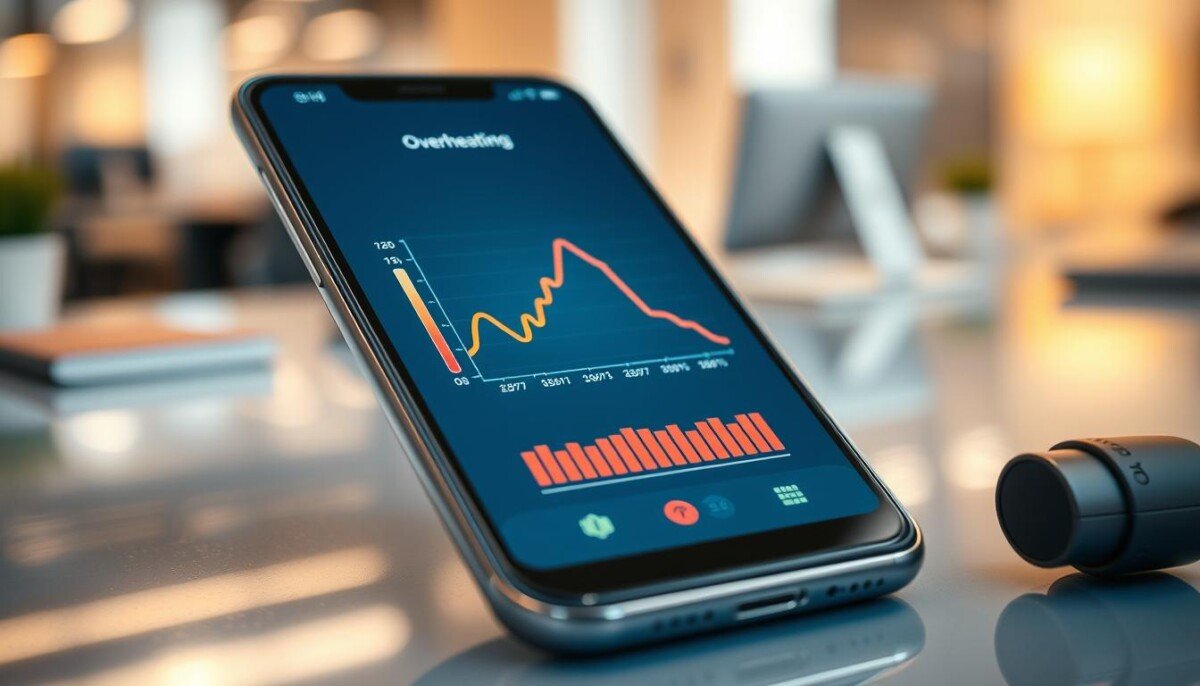
Can a sunny afternoon or a long gaming session silently shave your device’s speed and lifespan?
Modern smartphones handle daily use well, but high temperatures can force automatic throttling that slows the processor and trims battery life. This guide shows the signs of overheating and the real impact on speed and power so you can act fast.
Thermal throttling reduces clock speeds to protect internal components from damage. You may notice apps lag, battery drain faster, or the screen dim during intense tasks like gaming or heavy streaming.
We will explain safe temperature ranges, common causes such as direct sunlight and charging, and practical steps to reduce heat. For more technical detail and fixes, see this guide on smartphone overheating causes and fixes.
Key Takeaways
- Devices throttle the CPU to avoid permanent damage; that cuts usable speed during heavy use.
- Temperatures above recommended ranges speed battery wear and shorten lifespan.
- Close background apps, lower screen brightness, and avoid direct sunlight to reduce heat.
- Charging can add heat—use proper chargers and avoid wireless charging in warm conditions.
- Simple cooling steps and timely software updates help maintain steady daily results.
Understanding Phone Performance Loss When Hot
Heavy apps and long sessions can push a device’s internal temperature above normal and trigger built‑in limits that slow processing to protect parts and the battery.
Modern phones commonly run at 36–43°C under load. That range is often normal during gaming or extended streaming. Still, sustained higher temperatures cause the system to cut clock speeds and reduce responsiveness.
High‑intensity gaming taxes both CPU and GPU. Navigation, video streaming, and running many apps at once raise heat and drain the battery faster. Charging while running heavy tasks makes matters worse.
- Keep screen brightness lower to reduce thermal output.
- Close unneeded background apps to lower processing and battery drain.
- Avoid long sessions in direct sun and limit charging during heavy use.
By spotting these triggers and using simple cooling steps, you can keep your smartphone cooler and more responsive over time.
The Science Behind Thermal Throttling
Devices scale processing to stay safe. Built‑in thermal rules reduce clock rates on the cpu and gpu as temperatures rise. This prevents damage to internal components and keeps the device usable under stress.
Battery protection is part of that balance. Lithium‑ion cells output less usable energy with higher heat, so software trims power draw to protect cell health and extend life.
CPU and GPU Scaling
Systems schedule big cores and lower clock speed under load to limit peak heat. Graphite sheets and vapor chambers move energy away from the processor to the frame for better cooling.
Battery Protection Mechanisms
Sensors monitor internal temperatures and can dim the screen or pause background apps to cut thermal load. That keeps your battery safer during heavy charging or long sessions.
- Software and hardware work together to manage energy and keep the device within safe temperatures.
- Thermal limits preserve components and prevent unexpected shutdowns.
| System | Action | Result |
|---|---|---|
| CPU/GPU scaling | Lower clock speeds | Reduced heat, steadier operation |
| Battery management | Limit power draw | Longer cell life, less strain |
| Thermal hardware | Heat spreaders / vapor chamber | Faster heat dissipation |
Common Culprits That Generate Excessive Heat
Simple environmental and usage factors often cause a device to run warmer than expected. Leaving your phone in direct sunlight or inside a hot car can bake metal and glass into a mini oven and raise internal temperature fast.
Running many apps at once forces the processor to draw more power and heats the battery and chassis. Large downloads, cloud syncs, and long gaming sessions keep the system under heavy load for long time.
Poor cellular signal is another common issue. The antenna works harder to maintain a connection, which increases power draw and adds extra heat to the unit.
- Direct sunlight often makes your phone get hot quickly.
- Multiple apps and long gaming push processors and batteries hard.
- Weak signal increases power use and raises temperature.
- Thick or ill-fitting cases trap heat and block airflow.
- Charging in a hot place speeds battery wear and creates risk.
- Check for updates to fix bugs that cause high energy use.
Spotting these culprits helps you act fast and keep your smartphone cooler and more reliable.
How Environmental Factors Impact Your Device

Direct sunlight and warm surroundings speed up heating and can harm hardware. Modern devices run best between 32 and 95 degrees Fahrenheit. Extended exposure above that range raises internal temperature and stresses chips and the battery.
The Dangers of Direct Sunlight
Leaving a phone on a sunny windowsill or in a hot car can push components to unsafe levels within minutes. That can cause screen warping, battery swelling, and sudden shutdowns.
Moisture is another hidden risk. Water damage can corrode traces and cause short circuits, especially during charging, which may lead to overheating and permanent damage.
- Keep the device shaded in a pocket or bag to reduce exposure to sunlight and high heat.
- Avoid rapid cooling after sun exposure; sudden drops can create condensation and harm internal parts.
- Use software steps such as lowering screen brightness and closing unused apps to aid cooling.
Protecting a device from extreme temperatures is the simplest way to retain battery life and steady performance. Move it to a ventilated spot and let it cool naturally for the best results.
Identifying Signs of Overheating
A warm back panel or a sudden camera warning are clear early signs your device is overheating. If the case feels hot to the touch, pause heavy tasks and unplug charging gear.
Rapid battery drain and unexpected shutdowns are serious. They suggest the battery or internal parts are under thermal stress and may need inspection.
Stuttering or apps closing on their own are protective actions the system uses to lower internal temperature. Frequent alerts at idle indicate deeper trouble like a failing battery or rogue software.
- Check for a hot back panel or hot touch and stop intensive use immediately.
- Use AIDA64 on Android to monitor internal temperature and spot problem apps.
- Rapid battery drop or camera warnings mean you should let the device cool and consider professional service.
Early detection saves parts and battery life. Watch these signs closely to protect your gadget and avoid costly repairs.
Immediate Steps to Cool Down Your Smartphone
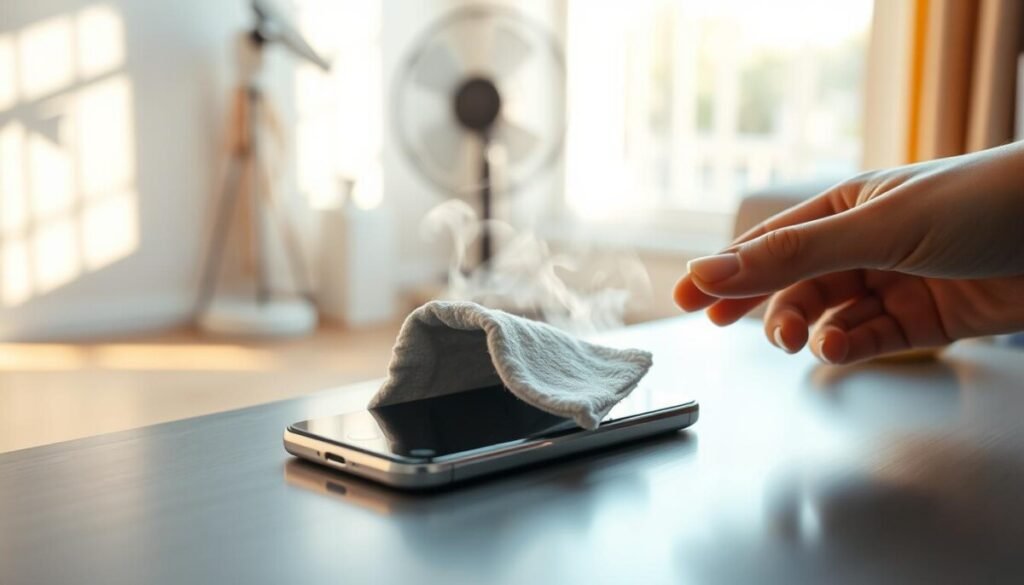
A few quick actions often stop thermal stress before it harms the battery or processor.
Act now and you can lower surface temperature fast. These steps cut energy draw and help the device return to normal without long downtime.
Removing Protective Cases
Take off the case first. Many covers trap heat and block vents.
Removing it lets heat escape and lowers internal temperature faster. This simple step reduces strain on the battery and processor.
Disabling Power-Hungry Features
Turn on Low Power or Battery Saver to limit background activity and reduce peak cpu clocks.
Switch to airplane mode for a few minutes to cut Wi‑Fi, Bluetooth, and cell radios that draw energy. Also lower screen brightness and close heavy apps like gaming or navigation.
Proper Airflow Techniques
Place the device in front of a fan or on a cool, flat surface. Avoid sudden cooling such as a fridge or freezer.
Do not cover vents or keep it inside a thick bag. Gentle airflow speeds heat dissipation without risking moisture damage.
- Quick tip: If charging is active, unplug until the unit cools.
- Watch data and background tasks to find what caused the rise in heat.
- For more guidance on handling severe overheating, see phone overheating guidance.
| Action | Why it helps | Expected result |
|---|---|---|
| Remove case | Stops trapped heat around components | Lower surface temperature in minutes |
| Enable Low Power / Airplane | Limits background apps and radios | Reduced energy draw and steady cpu clocks |
| Use fan / open air | Improves airflow without moisture | Safe, fast cooling and restored responsiveness |
| Stop heavy apps / unplug charger | Removes peak load from battery and processor | Slower battery drain and fewer throttling events |
Best Practices for Charging Safely
Charge on a flat, hard surface so heat can escape. Avoid soft beds or pillows that trap warmth and raise internal temperature.
Use a reliable, manufacturer-approved charger to ensure the correct voltage and reduce risk of overheating or damage to the battery.
Overnight charging is not inherently harmful if the unit sits on a firm nightstand and not under blankets. That simple habit prevents needless temperature spikes during long top-ups.
If the device gets unusually warm while charging, inspect the cable, the charging port, and the charger for wear. A frayed cable or loose port can cause extra heat and signaling that service may be needed.
- Keep the battery between 20% and 80% to reduce stress and extend lifespan.
- Avoid direct sunlight or leaving your unit in hot cars during charging.
- Remove thick cases for faster heat dissipation while topping up.
Adopt these habits to reduce overheating and keep your phone cooler. Safe charging protects the battery and preserves steady device performance over time.
The Role of Software and Background Processes

Background updates and rogue software may run unseen and drive your processor near peak load for long periods.
Malware like cryptominers can hijack CPU cycles. That forces sustained processing and raises heat and battery drain.
Regular apps also add load. Frequent syncing, heavy data transfers, and auto‑updates run in the background and pull extra power.
Managing Malware and Rogue Apps
Scan and remove threats quickly. Install a trusted antivirus and run a full check if your device stays warm or the battery drops fast.
Clean up unused apps and junk files. Removing clutter reduces background tasks and lowers sustained cpu use.
- Review background data to spot apps that eat energy and heat.
- Disable auto‑updates for heavy apps during intensive gaming or long use.
- Limit screen brightness and stop nonessential services to aid cooling.
| Issue | Action | Result |
|---|---|---|
| Hidden malware | Run antivirus scan | Remove rogue processes, lower heat |
| Background sync | Restrict background data | Reduce battery drain and steady cpu |
| App clutter | Uninstall unused apps | Simpler system, fewer tasks |
Proactive software management keeps your phone cool, extends battery life, and avoids frequent overheating. Check apps and settings regularly to keep things running smoothly.
When to Seek Professional Repair
A swollen battery or a back cover that lifts are clear signs you need expert help right away. These are not cosmetic issues; they can cause further damage to the screen or frame and create safety risks.
If your device shuts down often or shows temperature warnings at idle, that points to failing cells or a board problem. Don’t wait: persistent shutdowns and rapid battery drain mean a technician should inspect internal components and sensors.
Water exposure can cause hidden corrosion that leads to repeated overheating and strange power behavior. Professional diagnostics check the battery health, temperature sensors, and the charging port to find the root cause.
- Swollen battery or lifting case: stop using and get service.
- Frequent shutdowns or idle temperature alerts: require inspection.
- Persistent heat or rapid drain after exposure to water: likely hardware damage.
| Issue | Likely cause | Technician action |
|---|---|---|
| Bulging battery | Cell degradation | Replace battery safely |
| Idle overheating | Faulty sensor or board | Run diagnostics and repair |
| Charging heat | Bad charger/port | Test charger and port |
Seek help early. Quick professional service saves time and money and restores steady power and safe operation for your smartphone.
Conclusion
,Acting early on temperature spikes preserves battery health and prevents slowdowns.
Keep a simple routine: avoid direct sun, use approved chargers, and close heavy apps. These steps cut heat and extend cell life.
Understand that thermal throttling is a safety trade‑off. Learn more in this thermal throttling guide to spot causes and fixes.
Keep software current and watch background tasks to maintain steady device operation and better performance. If you see repeated overheating or swelling, seek professional repair to avoid permanent damage.
With these habits, your phone stays reliable for work and daily use.



