
Small teams have the same password problems as large companies, just with fewer people to fix them. One reused password can expose your email platform, payment tools, client files, ad accounts, social profiles, and project management workspace in the same afternoon.
That is why the best password managers for small teams in 2026 need to do more than remember logins. They should help you share credentials safely, remove access when someone leaves, enforce multi-factor authentication, store passkeys, and spot weak or reused passwords before attackers do.
If you are still sharing passwords in spreadsheets, Slack messages, browser sync, or a personal family plan, this guide will help you choose a safer setup without buying an oversized enterprise security stack.
Quick picks: best password managers for small teams
| Password manager | Best for | Why small teams choose it | Watch-outs |
|---|---|---|---|
| 1Password | Best overall for most small teams | Polished apps, strong sharing, admin controls, security reports, passkey support | Advanced provisioning features may require higher business tiers |
| Bitwarden | Best value and open-source option | Transparent security model, flexible plans, self-hosting option, strong admin features | Interface is more functional than premium-feeling |
| Keeper | Best for admin control and compliance-minded teams | Granular roles, policies, reporting, add-on security modules | Can feel more IT-focused than beginner-focused |
| NordPass | Best for fast setup | Clean interface, password health, breach monitoring, strong encryption design | Fewer deep enterprise controls than some competitors |
| Dashlane | Best for ease of adoption | Simple onboarding, password health insights, business-friendly dashboard | Pricing and feature packaging should be checked carefully before buying |
| Proton Pass | Best for privacy-focused teams | End-to-end encryption, email aliases, good fit for Proton ecosystem users | Team admin depth is still worth comparing against longer-established business tools |
| RoboForm | Best budget-friendly form filling | Reliable autofill, shared folders, straightforward team management | Less modern collaboration feel than newer competitors |
For most small teams, 1Password is the safest default recommendation because it balances security, usability, sharing, and admin oversight. If budget transparency and open-source software matter most, Bitwarden is the strongest alternative. If your team needs stricter policies, compliance support, and detailed admin control, start with Keeper.
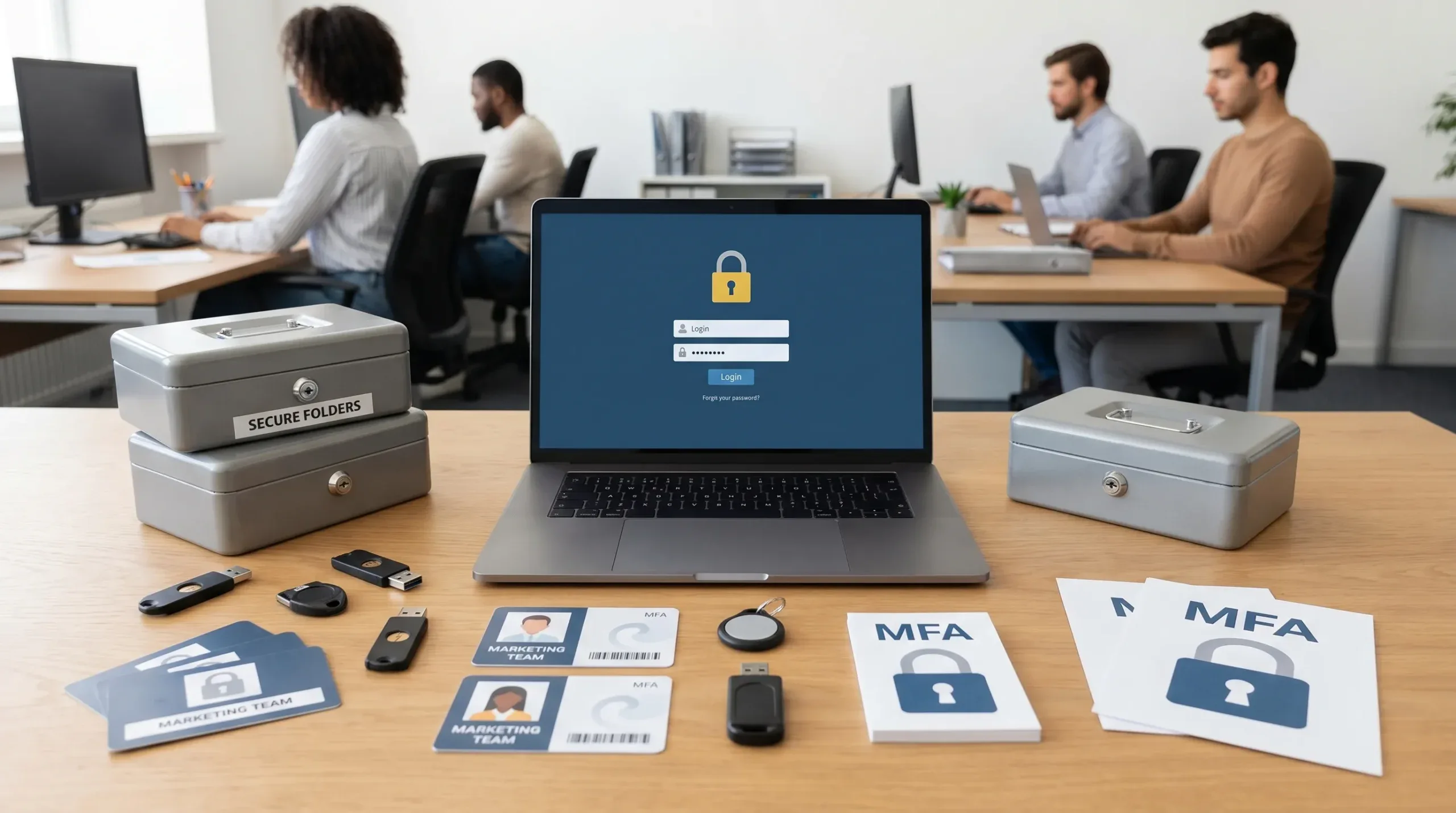
How we chose the best password managers for small teams
A good small-team password manager is not the one with the longest feature list. It is the one your team will actually use every day while still giving owners and managers enough control to reduce risk.
For this guide, we prioritized publicly documented features that matter to small businesses, agencies, startups, freelancers with contractors, and remote teams. We looked at security architecture, admin controls, sharing workflows, passkey readiness, onboarding effort, cross-device support, and long-term scalability.
We also considered practical security guidance. CISA recommends multi-factor authentication as one of the most important protections for online accounts, while the Verizon Data Breach Investigations Report continues to show how stolen credentials play a major role in real-world breaches. The right password manager will not fix every security problem, but it makes credential theft much harder to turn into a business disaster.
If you want a deeper security primer before comparing tools, read our guide on whether password managers are safe and our walkthrough of how password managers work.
What small teams should look for in 2026
Password managers have changed. In 2026, you are not just buying a vault for passwords. You are choosing part of your team access system.
| Feature | Why it matters for small teams |
|---|---|
| End-to-end encryption | Keeps vault data unreadable to outsiders and, in many cases, to the provider itself |
| Zero-knowledge architecture | Reduces the risk that a vendor can access your stored secrets |
| Multi-factor authentication | Protects the vault even if the master password is guessed or stolen |
| Granular sharing | Lets you share only the credentials people need, not an entire company vault |
| Admin recovery options | Helps prevent lockouts when an employee leaves or loses access |
| Audit logs | Shows who accessed, changed, or shared credentials |
| Password health reports | Finds reused, weak, or compromised passwords across the team |
| Passkey support | Prepares your team for passwordless logins across more apps |
| Secure notes and files | Stores recovery codes, license keys, Wi-Fi details, and sensitive instructions |
| Directory, SSO, or SCIM support | Helps growing teams automate provisioning and offboarding |
For small teams, the biggest buying mistake is choosing based only on personal convenience. A personal password manager may be fine for one person, but business use needs ownership, visibility, and offboarding control.
1Password: best overall password manager for small teams
1Password is the best fit for small teams that want strong security without making password management feel like an IT project. Its apps are polished across desktop, browser, and mobile, and its vault system makes it easy to separate company-wide logins from department, client, or project-specific credentials.
The biggest advantage is usability. A password manager only works if your team uses it consistently, and 1Password does a good job of making secure behavior feel normal. Team members can save new logins, generate strong passwords, use autofill, store secure notes, and share items without needing advanced security training.
1Password also uses a Secret Key alongside the account password, which adds protection if someone tries to attack an account remotely. Its Watchtower feature helps flag weak, reused, or compromised passwords, and its business plans include admin oversight that small teams can grow into.
Choose 1Password if you want the best all-around balance of security, ease of use, and team adoption. It is especially strong for agencies, SaaS teams, consultants, operations teams, and businesses that handle many client or vendor accounts.
Bitwarden: best value and open-source password manager
Bitwarden is one of the strongest choices for cost-conscious teams that still want serious security features. It is open source, widely respected by technical users, and flexible enough for both small businesses and more advanced IT teams.
For small teams, Bitwarden offers shared collections, organization management, secure password generation, cross-platform apps, and business-friendly controls. Teams that value transparency often like that Bitwarden publishes its code and has a strong reputation in the security community.
Bitwarden is also attractive if you want more control over deployment. Some organizations prefer cloud hosting for simplicity, while more technical teams may evaluate self-hosting. Most small teams should choose the managed cloud version unless they already have the technical skills to maintain a secure hosted environment.
The trade-off is interface polish. Bitwarden is easy enough for most users, but it feels more utilitarian than 1Password or Dashlane. If your team includes many non-technical users, plan a short onboarding session and provide a simple naming convention for vault items.
Choose Bitwarden if you want strong security, excellent value, open-source transparency, and room to scale.
Keeper: best for admin controls and compliance-minded teams
Keeper is a strong fit for small teams that care about policy enforcement, access control, and auditability. It often appeals to finance teams, legal teams, healthcare-adjacent organizations, IT service providers, and businesses with client security requirements.
Keeper focuses heavily on business administration. Admins can manage roles, permissions, sharing policies, vault access, and reporting in a way that feels more mature than many lightweight tools. It also offers additional security products, which can be useful if your team wants to expand beyond password storage over time.
For a tiny team with no admin experience, Keeper may feel more structured than necessary. But if your business already has formal onboarding, offboarding, compliance checklists, or client security questionnaires, that structure is a benefit.
Choose Keeper if you need stronger administrative control, policy management, and a more security-program-oriented password manager.
NordPass: best for quick setup and simple team adoption
NordPass is a good choice for small teams that want a modern interface and a relatively quick rollout. It supports secure password storage, sharing, password health checks, breach monitoring, and passkey-related workflows in a clean, beginner-friendly environment.
NordPass uses XChaCha20 encryption, a modern encryption approach also associated with privacy-focused tools. The product is designed to be simple enough for everyday users while still giving admins a dashboard to manage team accounts and security posture.
The main reason to consider NordPass is speed. If your team has avoided password managers because they seem complicated, NordPass can be easier to introduce than more IT-heavy platforms. That makes it useful for small agencies, ecommerce shops, creators with contractors, and remote teams that need to stop sharing passwords informally.
Choose NordPass if you want an easy, clean, business-friendly tool and do not need the deepest enterprise administration features.
Dashlane: best for ease of use and password health visibility
Dashlane is known for making password management approachable. Its business dashboard, password health tools, and guided user experience are helpful for teams that need quick wins, especially if many employees have never used a password manager before.
Dashlane works well for small businesses that want to improve security without overwhelming the team. Password health reporting helps owners and managers see whether people are improving their habits, not just whether the software was installed.
The main thing to evaluate is packaging. Password manager pricing and plan features change frequently, so compare Dashlane’s current business tiers against your actual needs before committing. Pay attention to admin controls, SSO options, employee recovery, and whether every feature you want is included in the tier you are considering.
Choose Dashlane if your top priority is ease of adoption and clear security health reporting.
Proton Pass: best for privacy-focused teams
Proton Pass is a compelling option for small teams that already trust Proton’s privacy ecosystem or want email aliasing built into their credential workflow. It supports encrypted password storage, secure sharing, passkeys, and hide-my-email style aliases that can reduce exposure when signing up for online services.
That alias feature is especially useful for small teams that create many accounts for testing, marketing, newsletters, vendor trials, or client work. Instead of exposing one shared company email everywhere, teams can use aliases and track where signups come from.
The trade-off is maturity in team administration. Proton Pass is growing quickly, but teams with complex role policies, large client vault structures, or strict compliance workflows should compare it carefully against 1Password, Bitwarden, and Keeper.
Choose Proton Pass if privacy, encrypted ecosystem alignment, and email aliasing are high priorities.
RoboForm: best for budget-friendly autofill and form-heavy work
RoboForm has been around for a long time and remains a practical option for teams that care about reliable autofill, form filling, and straightforward shared access. It may not feel as modern as some newer tools, but it can be efficient for businesses that regularly complete forms, portals, applications, and client admin tasks.
Small teams that want a simple, affordable business password manager should include RoboForm on the shortlist. Shared folders and centralized management give it the team features that browser-based password saving lacks.
Choose RoboForm if your team wants dependable form filling and a budget-conscious business password manager without unnecessary complexity.
Why browser password managers are not enough for small teams
Google Password Manager, Apple Passwords, Microsoft Edge Wallet, and built-in browser managers are much better than memorizing passwords or reusing the same login everywhere. For individuals, they can be convenient.
For teams, they are usually not enough.
The problem is ownership. If a login is saved in an employee’s personal browser profile, the business may not be able to recover it, transfer it, audit it, or remove it cleanly when the person leaves. Browser password managers also make it harder to create structured shared vaults for clients, vendors, finance, operations, and marketing.
A team password manager gives you a business-owned vault. That difference matters when you need to answer basic questions like who has access to the payroll tool, which contractor still has a client login, or whether the old social media password was rotated after an employee left.
Small-team scenarios: which one should you choose?
| Team situation | Best starting point | Reason |
|---|---|---|
| 2 to 5 people with no IT admin | 1Password or NordPass | Easy setup and strong user adoption |
| Budget-conscious startup | Bitwarden | Strong features at good value |
| Agency managing many client logins | 1Password or Keeper | Vault structure, sharing, and access control matter |
| Technical team that values open source | Bitwarden | Transparency and deployment flexibility |
| Privacy-focused remote team | Proton Pass | Encryption-first ecosystem and email aliases |
| Compliance-minded small business | Keeper | Granular policies and admin controls |
| Form-heavy admin team | RoboForm | Strong form filling and practical shared access |
If you are truly undecided, run a two-week pilot with 1Password and Bitwarden. Invite three users with different roles, such as an owner, an operations person, and a contractor. Ask them to save logins, share credentials, use autofill, and complete an offboarding test. The right choice usually becomes obvious after real use.
Set up your team password manager the right way
Buying the tool is the easy part. The rollout determines whether your team becomes more secure or simply adds another unused subscription.
Start by creating a clean vault structure. Most small teams should use separate vaults or collections for company admin, finance, marketing, client accounts, operations, and emergency access. A marketing vault might include analytics tools, social schedulers, email platforms, SEO software, and AI search monitoring accounts, including an AI visibility platform such as CapstonAI if your team tracks how AI assistants mention your brand.
Then assign ownership. Every shared credential should have a business owner who is responsible for accuracy, access, and rotation. This prevents the common problem where everyone can use a login but nobody knows who maintains it.
A simple first-week rollout can look like this:
- Choose one password manager and create the business account.
- Require multi-factor authentication for every user.
- Create shared vaults based on departments or workflows.
- Import only active business credentials, not every old personal login.
- Replace weak and reused passwords as you go.
- Invite employees and contractors with the minimum access they need.
- Document the offboarding process and test it with a sample account.
Do not migrate chaos. If your team has a spreadsheet with 300 old logins, treat migration as a cleanup project. Archive unknown accounts, rotate important passwords, and delete access that no one can justify.
Security settings to enable on day one
Small teams often skip settings because they seem optional. In a password manager, those settings are the difference between a vault and a security program.
Enable these controls immediately:
- Multi-factor authentication for all users
- Strong master password requirements
- Admin recovery or account recovery rules
- Password health monitoring
- Breach or compromised credential alerts
- Shared vault permissions based on role
- Audit logs for sensitive vaults
- Automatic lock on idle devices
- Removal of access for inactive users
Also store recovery codes safely. Many teams secure their passwords but lose the recovery codes for email, domain, hosting, payment processors, or ad platforms. Secure notes are useful for recovery codes, license keys, API keys, Wi-Fi credentials, and emergency instructions, but access should be limited to people who truly need it.
NIST’s Digital Identity Guidelines emphasize practical password policies such as using long passwords, checking against compromised credentials, and avoiding outdated rules that push users into predictable patterns. Your password manager should help your team follow better habits automatically.
Common mistakes small teams should avoid
The first mistake is using a family plan for business. Family plans are designed for households, not employee access, contractor removal, audits, or business ownership.
The second mistake is sharing one master password. Each person needs an individual account. Shared vaults are fine, shared identities are not.
The third mistake is forgetting offboarding. When someone leaves, remove their password manager account, transfer ownership of important items, rotate high-risk passwords, and review connected apps where they may still have sessions open.
The fourth mistake is storing everything in one vault. If every user can access every password, you have recreated the same risk as a spreadsheet. Use least-privilege access, even if the team is small.
The fifth mistake is ignoring passkeys. Passkeys are becoming more common for Google, Microsoft, Apple, GitHub, ecommerce, and financial services. Choose a password manager that is actively supporting passkeys so your team can move toward passwordless sign-ins where it makes sense.
Final recommendation
If you want the safest choice for most small teams, start with 1Password. It is polished, secure, easy to adopt, and flexible enough for small businesses that expect to grow.
If budget and transparency matter most, choose Bitwarden. It gives small teams a lot of security value and remains one of the most trusted names in open-source password management.
If admin control, auditability, and stricter policies matter most, choose Keeper. It is a strong fit for teams that need a more formal access management process.
For simpler rollouts, consider NordPass or Dashlane. For privacy-focused teams, test Proton Pass. For form-heavy workflows on a tighter budget, evaluate RoboForm.
The best password manager is not the one with the most features. It is the one your team uses correctly, every day, with clear ownership and clean access rules.
Frequently Asked Questions
What is the best password manager for a small team in 2026? For most small teams, 1Password is the best overall choice because it combines strong security, simple sharing, polished apps, and useful admin controls. Bitwarden is the best value option, while Keeper is best for teams that need stricter administrative policies.
Is Bitwarden good enough for a business team? Yes. Bitwarden is a strong business password manager, especially for budget-conscious teams and technical users who value open-source transparency. The main trade-off is that its interface can feel less polished than some premium competitors.
Should a small team use a free password manager? A free password manager is better than reusing passwords, but most teams should use a paid business plan. Business plans usually include admin ownership, shared vaults, user removal, audit logs, and recovery options that free personal plans do not provide.
Can password managers store passkeys? Many leading password managers now support passkeys or are actively expanding passkey support. If your team uses Google, Microsoft, Apple, GitHub, or other modern platforms, passkey support should be part of your buying checklist.
How many vaults should a small team create? Start with a few practical vaults, such as Admin, Finance, Marketing, Client Accounts, and Operations. Avoid one giant shared vault because it gives too many people access to credentials they do not need.
What should we do when an employee leaves? Remove the user from the password manager, transfer ownership of important credentials, rotate passwords for sensitive accounts, revoke active sessions where possible, and review shared vault access. This process should be documented before you need it.
Next step: build a safer small-team workflow
Pick two password managers from this list and run a short pilot with real team workflows, not just demo accounts. Test sharing, autofill, mobile access, password rotation, recovery, and offboarding.
If you want to strengthen your security foundation before choosing, start with our guides on how password managers work and password manager safety. A good password manager is one of the easiest upgrades a small team can make to protect its tools, clients, and daily workflow.



