Is your content stuck on your profile when it should be traveling across social platforms? If so, you’re not alone. Many professionals find the native Share flow blocked by simple audience and privacy settings. These restrictions can prevent your valuable insights and engaging posts from reaching the wider audience they deserve. To navigate this challenge, it’s essential to understand the nuances of platform-specific sharing protocols, including common pitfalls like the facebook shipping issues explained. By optimizing your settings and utilizing tools designed for cross-platform sharing, you can ensure your content travels as far as possible.
By default, a new post can be limited to Friends or Only me, which hides the button that enables sharing. The quickest fix is to set the audience to Public in the composer or edit an existing post and save the change.
Pages behave differently: content published to a managed page is public, but user contributions may appear as visitor items instead of the main feed. Roles and the posting identity matter too — verify you’re publishing as the correct profile to avoid visibility issues.
If the button still disappears, test another browser or app install to rule out cache or version problems. For a broader reach, make Public your default before you post, then copy the link and distribute across other media.
Key Takeaways
- Most share failures stem from privacy or audience limits on the post.
- Edit the post’s audience to Public to restore the native share action.
- Pages are public, but visitor posts may not show in the main feed; confirm roles and identity.
- Test another browser or reinstall the app to rule out cache or version issues.
- For campaigns, set Public, validate the button, then copy the post link for cross-media distribution.
Why the Share button is missing or grayed out right now
If the share control is gone, start by checking who can see that post. Privacy settings drive most visibility rules. When a post is set to Friends or Only me, the platform removes the share option to honor the publisher’s privacy. If you’re unsure about your visibility settings, review the post’s privacy options and consider adjusting them if necessary. Additionally, for users experiencing issues with post visibility or sharing options, following the facebook unsubscribe troubleshooting steps can help identify any underlying problems. Checking your account’s privacy settings regularly ensures that you maintain control over your content and how it is shared within your network. If you continue to encounter difficulties with sharing, consider exploring specific resources dedicated to troubleshooting facebook messenger sharing, as these can provide steps tailored to that platform. Engaging with community forums or support channels may also offer insights from other users who have faced similar challenges. Ensuring that your app permissions are appropriately configured can further streamline your sharing experience and enhance your overall usage of social media platforms. If you’re still facing restrictions on sharing, it may be beneficial to investigate potential account restrictions that could affect your visibility. Look into available resources focusing on facebook account restriction solutions, which may provide guidance on addressing any limitations imposed on your account. Being proactive in understanding and resolving these issues can ultimately improve your experience and interactions on the platform.
On a managed page, native content is public. But when someone posts from a personal account to your property, that contribution can route to Visitor Posts and sit outside the main feed. That reduces discoverability and makes it harder to see post engagement.
Roles and Posting As
Account management and roles change what you can do in the composer. Admins and editors see broader options. Limited roles may not get the same button or the ability to change audience.
- Set audience to Public at creation or edit to restore share functionality.
- Check Posting As to ensure you use the correct profile or Page identity.
- If the audience change doesn’t apply, log out or test another browser to refresh account state.
| Issue | Likely cause | Quick fix | Where to check |
|---|---|---|---|
| No share option | Audience set to Friends/Only me | Edit post → set to Public | Post composer or Edit Post |
| Post routed off feed | Posted as visitor to Page | Moderate Visitor Posts; reshare from Page | Page > Posts or Visitor Posts |
| Grayed-out button | Role limits or wrong Posting As | Switch role or Posting As, republish | Page settings > Page roles |
Fast fixes to make posts shareable on Facebook
Most share issues are solved in the composer — a quick audience check often does the trick. Follow these concise steps to publish or retrofit items so others can reshare your content.
Set your audience to Public before you post from the “What’s on your mind?” box
Open the composer and tap the audience dropdown. Choose Public so anyone can see and share the post.
This single action usually restores the native share option instantly and avoids later edits.
Use the three dots menu to edit older posts and change the audience to Public
Find the item, tap the three dots on the post, and pick Edit Post. Switch the audience to Public and Save.
Retrofits apply without republishing. If the changes don’t stick, repeat the menu path and save again.
Share to a Page you manage: Use the Share menu and pick “Share on a Page you manage”
Tap Share, select Share on a Page you manage, then choose the destination in the second dropdown. Confirm the Page name before you post.
Make sure you’re Posting As yourself and choose the correct Page name
Use the Posting As selector to publish under your personal identity when appropriate. This affects visibility, moderation, and how the item appears in the Page Posts area.
- Before publishing: set audience to Public in the composer.
- To retrofit: tap the three dots → Edit Post → set Public → Save.
- To place on a Page: Share → Share on a Page you manage → confirm name → Post.
| Action | Where | Why it matters | Quick note |
|---|---|---|---|
| Set Public | Composer | Restores share option | Do first |
| Edit audience | Three dots menu | Retrofits visibility | Save changes |
| Share to Page | Share menu | Places content in Page feed | Confirm Page name |
Different sources, different rules: Pages, Groups, and Friends’ posts

Where content starts changes what you can do with it. A page, a group, or a friend’s timeline each uses its own rules for visibility and distribution. Identify the source first; that tells you whether the option to reshare exists.
Pages: All Page posts are public and shareable by default
A page publishes to the open web, so its posts are indexable and visible across social media. That makes a page the best source when you need wide reach or campaign-ready media.
Groups: Public vs private settings determine if the option appears
Group privacy dictates distribution. In a public group the option to move content outward is usually visible.
Private groups restrict external reach to protect members. The platform hides the external option to honor those privacy settings.
Friends’ posts: If there’s no Share button, ask them to change their audience
A friend controls their post audience. If you can’t reshare, ask the friend to edit that single post and set it to Public. That simple change restores visibility without republishing.
- Prefer pages for campaign material — the feed is public and discoverable.
- Verify group rules before relying on user-sourced media for outreach.
- Test one sample from each source to confirm how content renders and whether you can redistribute it.
| Source | Visibility | Quick action |
|---|---|---|
| Page | Public, indexable | Publish from Page for max reach |
| Public group | Visible outside group | Confirm option before reposting |
| Private group / friend | Restricted | Request audience change or reshare from Page |
App, device, and account checks that impact sharing
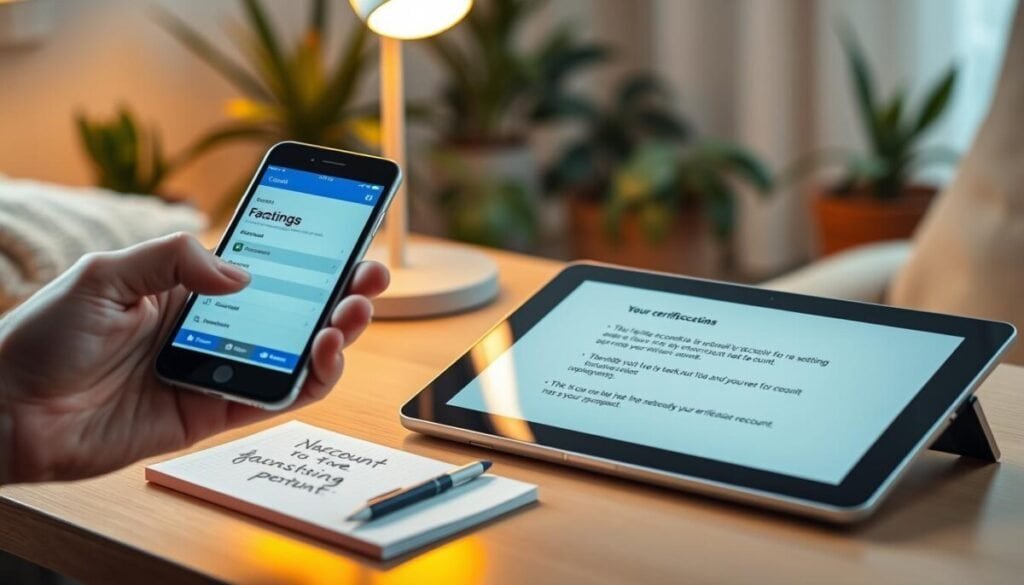
Small client-side issues often block UI elements; check the app and device first. Confirm the app is on the latest build, then force close and relaunch. This reloads UI modules that control the share icon and audience selector.
Update the app, clear cache, and retry on another device
Update the app to the newest version. Then clear cache or local storage in the mobile app and browser.
If the icon still fails, test on a second device or browser. If the control appears elsewhere, you have an environment issue, not a policy block.
Audience selector persistence and account checks
The audience selector remembers your last choice. When you picked Friends previously, new content uses that until you change it.
Verify your account is in good standing and review settings to ensure no compliance messages block the composer.
- Update app → clear cache → force quit.
- Switch device → confirm audience → republish.
- If problems persist, confirm the original source is eligible and document the steps in your team playbook.
For related tagging limits and troubleshooting, see this tagging help.
| Check | Action | Why it matters |
|---|---|---|
| App | Update & relaunch | Restores UI modules that show the icon |
| Device | Test alternate device | Isolates hardware or OS glitches |
| Account | Verify standing & settings | Ensures no restrictions block composer |
facebook won’t let me share posts: follow this quick decision path
Begin with a visibility check: can you actually see the share control on that entry? If not, inspect the audience on the original item and switch it to Public using Edit Post for the fastest solution.
Next, identify the source. Private groups and limited profiles block outward distribution. If the media comes from a public Page, copy the link and test it in a logged-out window to confirm open access.
Verify your profile and account role. Managing a Page under the wrong identity can hide controls you expect. Check both the app and desktop so you exclude a client-side rendering glitch.
- Confirm audience → set Public if needed.
- Confirm source type → public Page, public group, or friend content.
- Confirm identity → correct profile or Page role.
- Test environments → app and web.
- If unresolved, ask the publisher to republish with Public visibility as the final solution.
| Check | Symptom | Fast solution |
|---|---|---|
| Audience | Missing share option | Edit post → set Public |
| Source type | Private group or limited profile | Request audience change or use Page media |
| Identity | Wrong posting profile | Switch Posting As or role |
| Client | Icon renders inconsistently | Test app and desktop; use working environment |
For help finding the original item quickly, use this guide to find a post. Document the scenario and the solution so your team fixes similar issues faster next time.
Get back to sharing: Your final action plan for the United States today
Take one final pass through audience and app settings to get your content moving again.
Compose new items and set the audience to Public before you post. That single change makes a share post visible across channels and reduces friction.
Retrofit older content: open the three dots, tap Edit Post, change the audience to Public, then Save. Confirm the button appears on a second device or browser.
For brand pages, use Share → Share on a Page you manage, pick the right name, and verify your Posting As identity before you tap the icon.
Update the app, clear cache, and standardize an account checklist (roles, privacy, device). For tagging and search issues, see this guide on why you can’t search via this link: search troubleshooting.
Repeat weekly: preflight checks, publish, verify, and amplify. That cadence keeps your US audience engaged and protects campaign performance.