Managing one project is hard enough. Managing five, ten, or twenty at the same time is where task lists start to break down, priorities blur, and important follow-ups disappear into Slack, email, or someone’s notebook.
The best tools for managing tasks across multiple projects do more than store to-dos. They help you see every project in context, assign clear owners, track deadlines, spot bottlenecks, and report progress without manually building a status deck every Friday.
Below is a practical comparison of the strongest task management tools for 2026, including where each one fits best, what to watch out for, and how to set up a system that actually works across projects.
Quick picks: best tools for managing tasks across multiple projects
| Tool | Best for | Main strength | Watch out for |
|---|---|---|---|
| Asana | Teams that need clean project and portfolio visibility | Structured tasks, timelines, portfolios, and workload views | Advanced reporting usually works best on higher-tier plans |
| ClickUp | Teams that want one highly customizable workspace | Custom fields, views, docs, dashboards, automations, and time tracking | Can become messy without workspace rules |
| monday work management | Visual cross-functional teams | Boards, dashboards, automations, and easy status tracking | Requires consistent board design to avoid data silos |
| Trello | Small teams and simple project boards | Fast Kanban-style task tracking with low learning curve | Limited for complex reporting and portfolio management |
| Notion | Teams that want tasks, notes, wikis, and planning in one place | Flexible databases, docs, templates, and knowledge management | More setup required than dedicated PM tools |
| Airtable | Operations teams with data-heavy workflows | Relational databases, views, forms, interfaces, and automations | Feels less like a traditional task manager at first |
| Jira | Software and product teams | Agile backlogs, sprints, epics, releases, and issue tracking | Too technical for many non-engineering teams |
| Wrike | Agencies, PMOs, and client delivery teams | Request forms, dashboards, workload management, proofing, and approvals | Learning curve can be higher for casual users |
| Smartsheet | Spreadsheet-oriented project managers | Grid views, Gantt charts, reports, dashboards, and automation | Less intuitive for teams that dislike spreadsheets |
| Todoist | Solo professionals managing many personal projects | Fast capture, labels, filters, priorities, and natural language entry | Not ideal for complex team collaboration |
What makes a task management tool work across multiple projects?
A basic to-do app can help you remember tasks. A multi-project management tool needs to show how those tasks connect across people, timelines, priorities, and outcomes.
That distinction matters. Project management is not just about checking off items, it is about coordinating scope, schedule, resources, and risks. The Project Management Institute’s standards emphasize the importance of repeatable practices and shared project language, and your tool should support that in daily work.
When comparing task management tools, look for these capabilities first:
| Capability | Why it matters | Questions to ask before choosing |
|---|---|---|
| Cross-project visibility | Lets you see all active work in one place | Can I view tasks by owner, due date, priority, and project? |
| Task hierarchy | Keeps large projects organized | Does the tool support projects, sections, subtasks, milestones, or epics? |
| Dependencies and timelines | Helps prevent scheduling conflicts | Can I see what is blocked and what must happen first? |
| Workload and capacity | Reduces over-assignment | Can managers see who has too much work? |
| Automation | Removes repetitive admin work | Can I automate task assignment, reminders, status changes, or intake? |
| Integrations | Keeps work connected across tools | Does it connect with calendar, email, Slack, Teams, cloud storage, and docs? |
| Reporting | Makes progress visible | Can I build dashboards or export status reports? |
| Permissions | Protects sensitive information | Can I separate internal work from client or executive views? |
1. Asana: best for structured portfolio-level task management
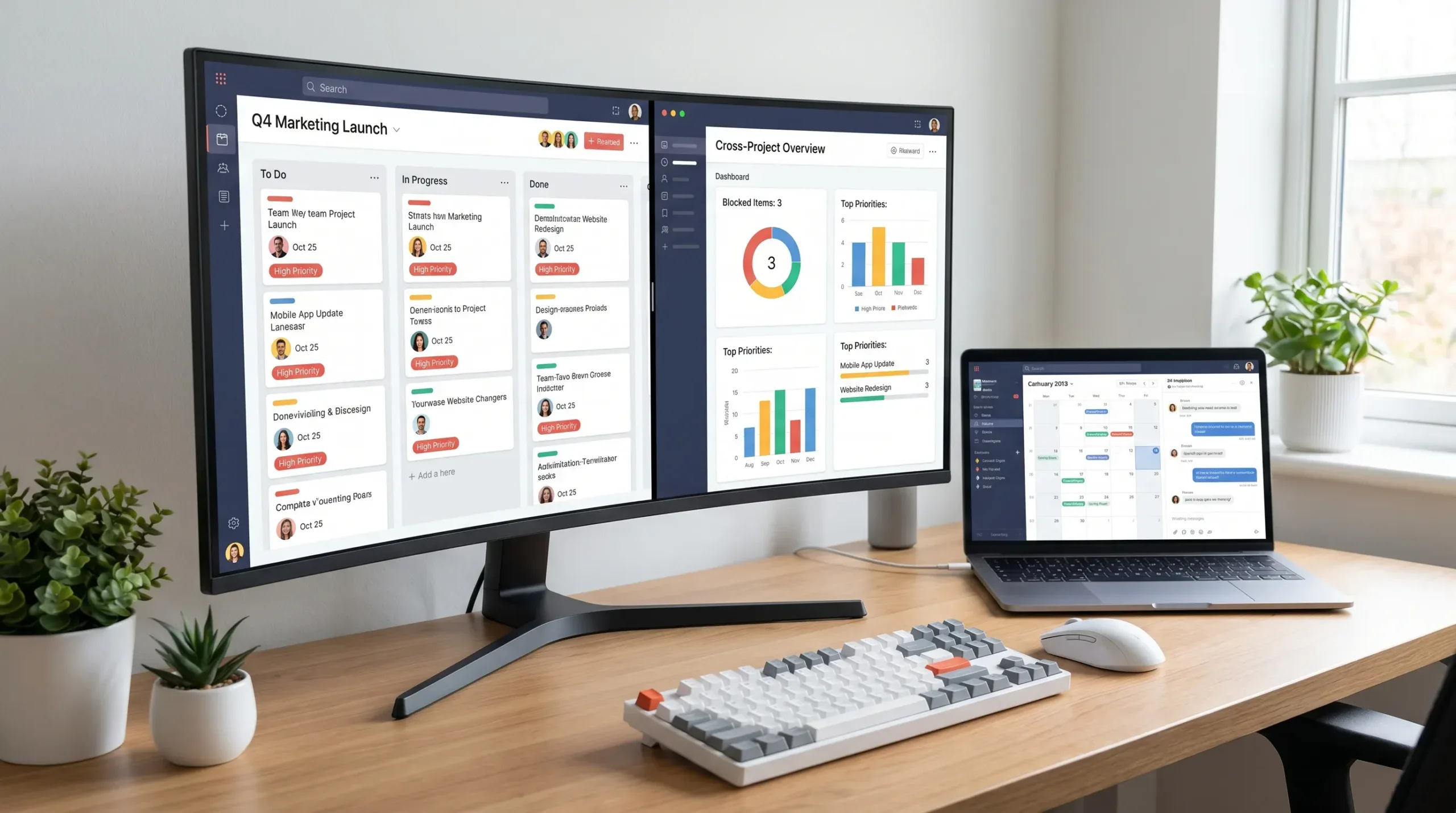
Asana is one of the strongest options for teams that want a clear structure without overwhelming users. It works especially well when your organization has multiple initiatives running at once and leadership needs a simple way to understand what is on track, delayed, or at risk.
Projects can be viewed as lists, boards, timelines, or calendars. Tasks can include owners, due dates, subtasks, custom fields, dependencies, attachments, and comments. For multi-project management, Asana’s real value comes from Portfolios, Goals, Workload, rules, and project templates.
If you manage marketing campaigns, content calendars, product launches, operations projects, or client deliverables, Asana gives you enough structure to standardize work without forcing every team into a rigid system.
Asana is also a good fit when executives need progress summaries. Instead of asking project managers to manually create updates, teams can use consistent fields and portfolio views to surface status, risks, owners, and timelines. If that is a priority, start with our guide on using Asana Portfolio View for executive overview.
Choose Asana if you want polished task management, dependable project views, and strong cross-project reporting without building everything from scratch.
2. ClickUp: best for customizable all-in-one project workspaces
ClickUp is built for teams that want flexibility. It can function as a task manager, project tracker, document hub, dashboard system, sprint board, goal tracker, and lightweight time tracker in the same workspace.
Its hierarchy is one of its biggest advantages. You can organize work into Spaces, Folders, Lists, tasks, and subtasks. That makes it useful for companies managing separate departments, clients, products, or recurring workflows. Views include List, Board, Calendar, Gantt, Timeline, Table, Workload, and more, depending on your plan and setup.
ClickUp is especially powerful when you use custom fields correctly. For example, you can track priority, client, project phase, effort, revenue impact, campaign type, or approval status. This turns task management into a searchable database of work. If you want to build that kind of structure, read our guide to ClickUp custom fields for advanced project tracking.
The main risk with ClickUp is over-customization. Because it can do so much, teams sometimes create too many statuses, fields, dashboards, and views. Keep the system simple at first, then expand only when the team has a clear need.
Choose ClickUp if you want maximum flexibility and are willing to define clear workspace rules.
3. monday work management: best for visual teams and operations workflows
monday work management is a strong choice for teams that prefer visual boards, color-coded statuses, and easy-to-read dashboards. It is popular with marketing, operations, HR, sales, creative, and client service teams because it makes work status obvious at a glance.
The platform is organized around boards. Each board can represent a project, department, campaign, client, or workflow. Items become tasks, columns hold structured information, and dashboards can roll up data across boards.
For teams managing multiple projects, monday works best when you standardize board templates. For example, every campaign board might use the same columns for owner, deadline, priority, status, budget, channel, asset type, and approval stage. Once boards are consistent, dashboards can show workload, overdue tasks, project status, and upcoming deadlines across the team.
Automations are another strength. Teams can create rules for reminders, status changes, notifications, recurring tasks, and handoffs. This is useful when you need to reduce manual follow-up between departments.
Choose monday if your team values visual clarity, dashboards, and workflow automation, especially across non-technical departments.
4. Trello: best for simple Kanban project tracking
Trello remains one of the easiest task management tools to adopt. Its board, list, and card structure is simple enough for beginners but flexible enough for small teams managing multiple projects.
A typical Trello workflow might use lists such as Backlog, This Week, In Progress, Waiting, Review, and Done. Each card can include checklists, due dates, labels, attachments, comments, and assigned members. Power-Ups add integrations and extra features, while Butler automation can handle simple rules and recurring actions.
Trello is excellent for small marketing teams, freelancers, content creators, event planners, and operations teams that want a lightweight project board without extensive setup. It also works well for personal productivity because it has very little friction.
However, Trello becomes harder to manage when you need advanced portfolio views, workload reporting, resource planning, or complex dependency tracking. You can build some of that with Power-Ups, but teams with many concurrent projects may eventually outgrow it.
Choose Trello if you want a simple visual task board and do not need heavy reporting.
5. Notion: best for combining tasks, notes, and project documentation
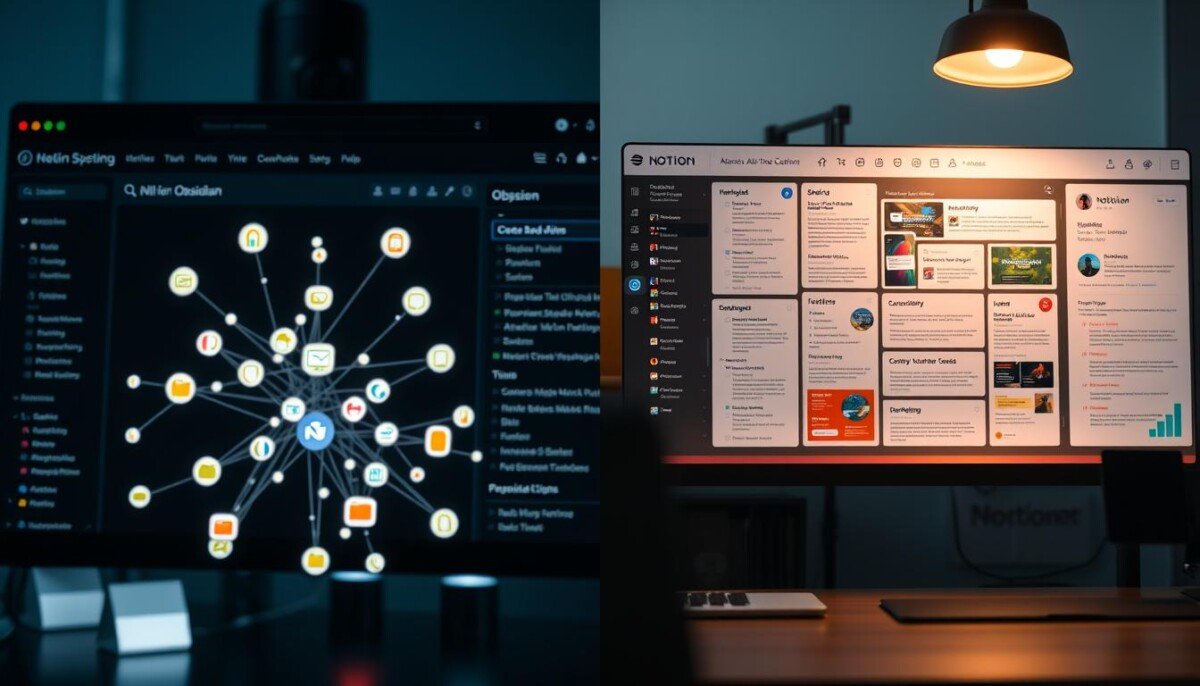
Notion is not a traditional project management tool, and that is exactly why some teams love it. It combines docs, databases, wikis, meeting notes, project trackers, content calendars, and lightweight dashboards in one workspace.
For multi-project work, Notion shines when tasks are closely connected to documentation. A content team, for example, can manage editorial tasks, briefs, research notes, publishing calendars, style guides, and meeting notes in one place. A startup can combine product roadmaps, investor updates, hiring plans, and team tasks inside one knowledge system.
Notion databases can be filtered by owner, project, date, priority, status, and tag. Relations and rollups help connect tasks to projects, clients, campaigns, or goals. Templates make recurring workflows easier to repeat.
It is also useful for research-heavy projects. For example, if you were building a travel planning database or content calendar, you could store task deadlines beside source material such as curated dog-friendly hotels and destinations, notes, images, and publication checklists.
The tradeoff is setup. Notion gives you a blank canvas, which is powerful but can lead to inconsistent systems if every team builds its own structure. If your main goal is calendar-based planning, our guide to creating a personal dashboard in Notion for time blocking is a practical place to start.
Choose Notion if your tasks need to live close to notes, docs, and knowledge management.
6. Airtable: best for database-driven project operations
Airtable is ideal when your projects involve structured data, many views, and repeatable operational processes. It looks like a spreadsheet at first, but it works more like a flexible relational database.
Instead of keeping separate spreadsheets for tasks, clients, campaigns, vendors, assets, budgets, and approvals, Airtable lets you connect records across tables. A single task can be linked to a campaign, owner, asset, client, deadline, and status. Different team members can then view the same data as a grid, Kanban board, calendar, gallery, timeline, or form.
This makes Airtable especially useful for editorial operations, product catalogs, event planning, influencer campaigns, CRM-light workflows, and internal request tracking. Interfaces can give stakeholders cleaner views without exposing every field in the base.
Automations can route requests, send notifications, update records, and connect Airtable with other apps. If you want to reduce manual database work, our tutorial on Airtable automations for database management covers the setup mindset.
Choose Airtable if your projects behave like structured operational databases, not just task lists.
7. Jira: best for software, product, and agile development teams
Jira is one of the strongest tools for software teams managing multiple products, releases, bugs, and sprints. It is designed around agile work, with features for backlogs, boards, epics, issues, sprints, releases, roadmaps, and reporting.
For engineering teams, Jira provides the level of structure needed to manage dependencies, sprint commitments, issue types, development status, and release planning. Product managers can track epics and features, developers can manage tickets, QA teams can report bugs, and leaders can monitor progress across initiatives.
Jira also integrates deeply with developer ecosystems, especially when teams are already using tools like Bitbucket, GitHub, Confluence, or other Atlassian products.
The downside is that Jira can feel heavy for non-technical teams. If you are managing content approvals, office moves, or general business projects, tools like Asana, monday, ClickUp, or Wrike may feel friendlier.
Choose Jira if your work depends on agile software delivery, issue tracking, sprint planning, and release management.
8. Wrike: best for agencies and client delivery teams
Wrike is a strong option for agencies, service teams, and PMOs that need structured request intake, workload management, review cycles, dashboards, and client-facing project controls.
Its strength is operational discipline. Teams can use request forms to standardize incoming work, route tasks to the right people, and prevent vague requests from turning into messy projects. Dashboards help managers track overdue tasks, high-priority work, project health, and team workload.
Wrike is also useful for creative and marketing teams because it supports proofing and approval workflows. That can reduce the back-and-forth that often happens when files are reviewed across email, chat, and cloud folders.
For multi-project management, Wrike works best when your team needs consistent intake, predictable approvals, and visibility into who is available for new work.
Choose Wrike if you manage client projects, creative production, or a PMO-style environment where process consistency matters.
9. Smartsheet: best for spreadsheet-style project management
Smartsheet is a natural fit for project managers who like spreadsheet layouts but need more collaboration, automation, and reporting than a normal spreadsheet can provide.
It supports grid views, Gantt charts, card views, calendars, forms, reports, dashboards, and automations. That makes it useful for project plans, resource tracking, implementation schedules, construction-style workflows, finance operations, and cross-functional reporting.
Smartsheet is especially helpful when stakeholders are already comfortable with rows, columns, dates, dependencies, and formulas. Instead of forcing a new visual workflow, it upgrades the spreadsheet model into a more collaborative system.
For managing tasks across multiple projects, reports and dashboards are the key features. You can pull information from multiple sheets into a central view, track upcoming deadlines, highlight risks, and share executive summaries.
Choose Smartsheet if your team thinks in spreadsheets and needs stronger project controls, dashboards, and Gantt-style planning.
10. Todoist: best for solo multi-project task management
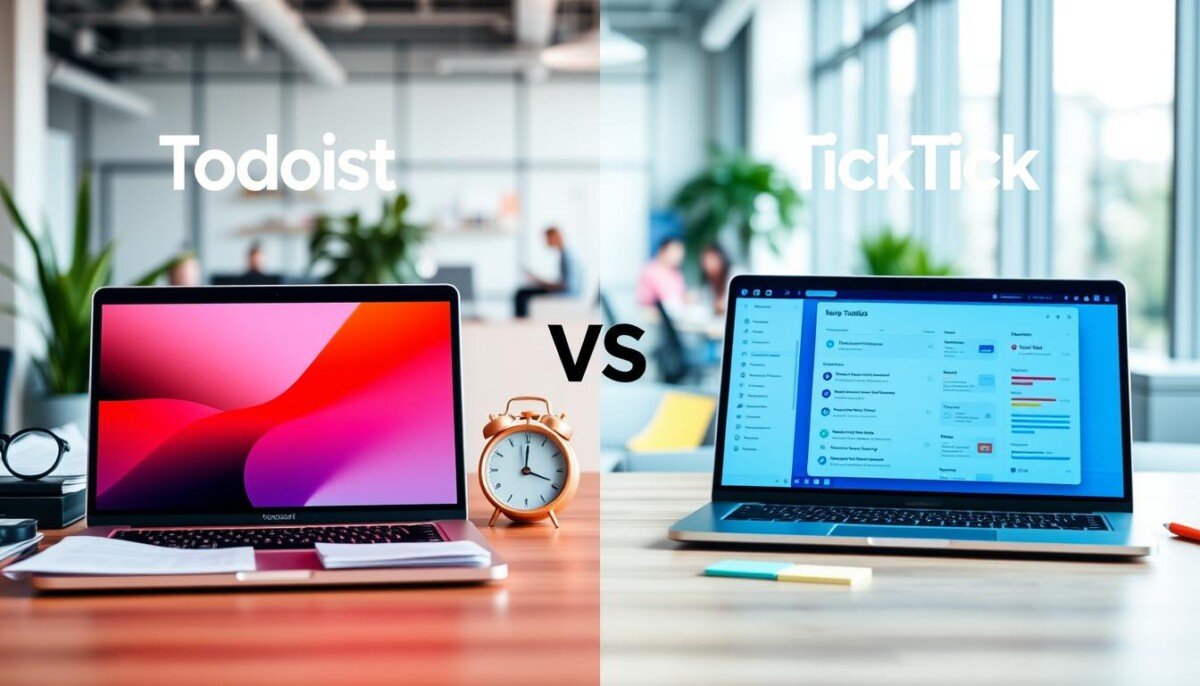
Todoist is the simplest tool on this list, but it is excellent for individuals managing many responsibilities at once. Freelancers, consultants, students, creators, and solo business owners often need fast task capture more than complex team dashboards.
Todoist supports projects, sections, labels, filters, priorities, due dates, recurring tasks, comments, and reminders. Its natural language input is one of its best features. You can type something like “send client report every Friday at 10am” and quickly turn it into a recurring task.
For multiple projects, Todoist works best when you combine projects with labels and filters. For example, you might have separate projects for Client A, Client B, Admin, Content, Finance, and Personal, then use labels like @deepwork, @email, @waiting, or @quick.
It is not the best fit for complex team projects, approval chains, or executive reporting. But if your main challenge is staying on top of many personal workstreams, Todoist is fast, reliable, and easy to maintain.
Choose Todoist if you need a personal command center for tasks, not a full project management suite.
Which tool should you choose?
The best option depends less on feature count and more on your working style, team size, and reporting needs.
| Your situation | Best fit | Why |
|---|---|---|
| You manage several team projects and need leadership updates | Asana | Strong portfolio views and structured project tracking |
| You want one tool for tasks, docs, dashboards, and time tracking | ClickUp | Highly customizable and broad feature set |
| Your team prefers visual boards and simple status dashboards | monday work management | Clear visual workflows and cross-board reporting |
| You need a lightweight board for simple projects | Trello | Fast adoption and minimal setup |
| Your tasks depend heavily on notes, docs, and internal knowledge | Notion | Combines documentation and task databases |
| Your projects involve structured records, forms, and databases | Airtable | Flexible relational data and multiple views |
| You manage software development and agile delivery | Jira | Built for sprints, backlogs, epics, and releases |
| You run client projects or creative approvals | Wrike | Strong intake, proofing, workload, and reporting features |
| You prefer spreadsheet-style planning | Smartsheet | Familiar grid format with project management controls |
| You are a solo professional managing many priorities | Todoist | Fast capture, filters, recurring tasks, and simplicity |
If you are still exploring categories, our broader online tools list for easy task management can help you compare more productivity and workflow tools.
How to set up any tool for managing multiple projects
Even the best software will fail if every team uses it differently. The tool matters, but the operating system behind it matters more.
Use this setup process before rolling out your chosen platform:
- Create a standard project template: Include sections for objectives, milestones, key dates, owners, risks, files, decisions, and recurring tasks.
- Define universal task fields: Start with owner, due date, status, priority, project, phase, effort, and blocked reason.
- Limit your statuses: Use a small set such as Backlog, Ready, In Progress, Waiting, Review, and Done.
- Create one intake process: Use forms, templates, or a shared request board so new work enters the system consistently.
- Build a cross-project dashboard: Show overdue tasks, blocked work, upcoming deadlines, workload, and high-priority items.
- Automate repetitive handoffs: Automate reminders, task assignments, status updates, and review notifications where the workflow is predictable.
- Run a weekly review: Check what moved, what is blocked, what changed priority, and what needs escalation.
Time data can also improve planning, especially when teams repeatedly underestimate project effort. If you use ClickUp, our guide to ClickUp time tracking for busy hour analysis explains how to turn time logs into useful productivity insight.
Common mistakes to avoid
Multi-project task management often fails for predictable reasons. Most of them have little to do with software and everything to do with workflow design.
- Choosing the tool with the longest feature list instead of the tool your team will actually use.
- Creating too many projects, statuses, tags, and custom fields before the team has basic habits in place.
- Letting tasks live in chat messages, email threads, and meeting notes without moving them into the task system.
- Assigning tasks to multiple people without naming one directly responsible owner.
- Tracking progress manually when dashboards, fields, and automations could do the work.
- Treating every project as unique when recurring templates would save time.
- Forgetting to archive old work, which makes the workspace slower and harder to navigate.
A good rule: if someone joins the team tomorrow, they should be able to open your tool and understand what is active, who owns it, what is blocked, and what matters most this week.
FAQ
What is the best tool for managing tasks across multiple projects? Asana is the best overall choice for structured teams that need project and portfolio visibility. ClickUp is better if you want deep customization, while monday is great for visual dashboards and cross-functional workflows.
What is the easiest multi-project task management tool for beginners? Trello and Todoist are the easiest to start with. Trello works better for small team boards, while Todoist is better for personal task management across many projects.
Should I use one workspace for all projects or separate workspaces? Use one workspace when the same team needs shared reporting, workload visibility, and consistent processes. Use separate workspaces only when permissions, clients, or departments need strong separation.
How do I track priorities across multiple projects? Create a shared priority field and define what each level means. For example, Priority 1 might mean urgent business impact, while Priority 3 might mean useful but not time-sensitive. Then build views that sort tasks by priority and due date.
Can task management tools replace meetings? They can reduce meetings, but not replace every discussion. A good tool can replace routine status updates, but teams still need meetings for decisions, conflict resolution, planning, and complex problem-solving.
How often should teams review cross-project dashboards? Most teams should review them weekly. Fast-moving teams may need a short daily review for blocked tasks and workload, while leadership may only need a higher-level monthly portfolio review.
Build a task system your team will actually use
The best tool is the one that gives your team reliable visibility without adding unnecessary admin work. Start with the simplest system that can handle your projects, standardize fields and templates, then add automations and dashboards once the workflow is stable.
For more practical comparisons, tutorials, and productivity workflows, explore Online Tool Guides and keep building a tool stack that supports focused, organized work.