Curious which simple setting steals hours from your day and shortens a device’s useful life?
Published May 15, 2026. This short guide shows how a single visual setting can change performance and longevity.
Understand the link between display power and device behavior so you can make fast choices that keep work moving. High brightness often forces extra draw from the cell, which can affect battery life during a busy day.
When you push a display to full output, internal parts run warmer and stress increases. Over time, that can affect battery longevity and the overall life of your devices.
In the sections that follow, we explain practical steps to balance crisp visuals with longer run times. You’ll learn quick settings and habits that keep your device cool and reliable.
Key Takeaways
- Higher display output commonly increases power draw and can reduce battery life.
- Running maximum output raises internal temperature, which may shorten device lifespan.
- Adjusting output wisely keeps your device cooler and extends useful life.
- Simple habits and settings deliver clear visuals without large performance costs.
- This guide, dated May 15, 2026, offers practical steps for busy professionals.
Understanding How Screen Brightness Heat Battery Consumption Interacts
Your device’s display is often the top consumer of energy during active use.
The science of power consumption
Modern OLED displays can demand a lot of power consumption when pushed to peak output. The iPhone 17, iPhone Air, and 17 Pro hit 3,000 nits peak outdoors and 1,000 nits typically. The 17e reaches 1,200 nits peak HDR and about 800 nits typical.
That higher intensity scales consumption quickly, especially with graphics-heavy apps. In short bursts you may not notice. Over longer sessions the extra draw becomes measurable.
Thermal throttling explained
Internal circuitry warms as consumption rises. To protect components, the system can reduce performance and dim the display. This safety step prevents damage and keeps the battery within safe limits.
Balance is simple: reduce top-level output during long tasks and rely on adaptive controls. For more on fixing overheating and related issues see smartphone overheating fixes.
The Role of Ambient Light Sensors in Display Management
Ambient sensing keeps your view consistent and reduces manual tweaks.
Your device uses an integrated ambient light sensor to adjust brightness levels based on local lighting conditions. This makes the display easier to read and helps avoid sudden swings in visual intensity.
How auto-brightness functions
The system reads ambient lighting continuously. It makes small adjustments so color and intensity remain steady when clouds pass or lights change.
- Auto mode applies real-time adjustments that match current lighting conditions.
- True Tone, on iPhone 8 and later and many iPads, matches color and intensity to ambient light.
- Proper calibration keeps visuals comfortable and prevents unnecessary strain on devices.
| Feature | What it does | Practical benefit |
|---|---|---|
| Ambient light sensor | Reads ambient lighting and signals the display | Smoother viewing across lighting changes |
| Auto adjustment | Alters intensity in real time | Less manual fiddling with settings |
| True Tone | Matches color temperature to the room | More natural colors and reduced eye fatigue |
Why Your Device Dims During High Intensity Usage
When performance peaks, your device may lower its display levels automatically.
Built-in protection keeps components safe. If internal parts run hot, the system reduces screen and display brightness until temperatures fall. This lowers power draw and prevents longer-term damage.
When you use your phone for navigation or gaming, the processor and graphics demand rises. That extra consumption makes the device work harder and triggers an automatic dim so it can cool.
The ambient light sensor can also raise output in direct sunlight. That brief boost may speed warming, so the system reverses it when levels get high.
- High power tasks → reduced display output to cut consumption.
- OLED panels are sensitive; dimming protects them and the battery.
- Automatic drops are normal and let the device return to safe conditions.
| Cause | System Response | User Impact |
|---|---|---|
| Gaming/navigation | Lower display levels | Shorter peak performance, cooler device |
| Direct sunlight boost | Temporary output increase then reduce | Brighter view, faster warming |
| Sustained high power consumption | Dim to protect OLED and battery | Longer device life, fewer shutdowns |
Managing Always On Display Features for Better Efficiency
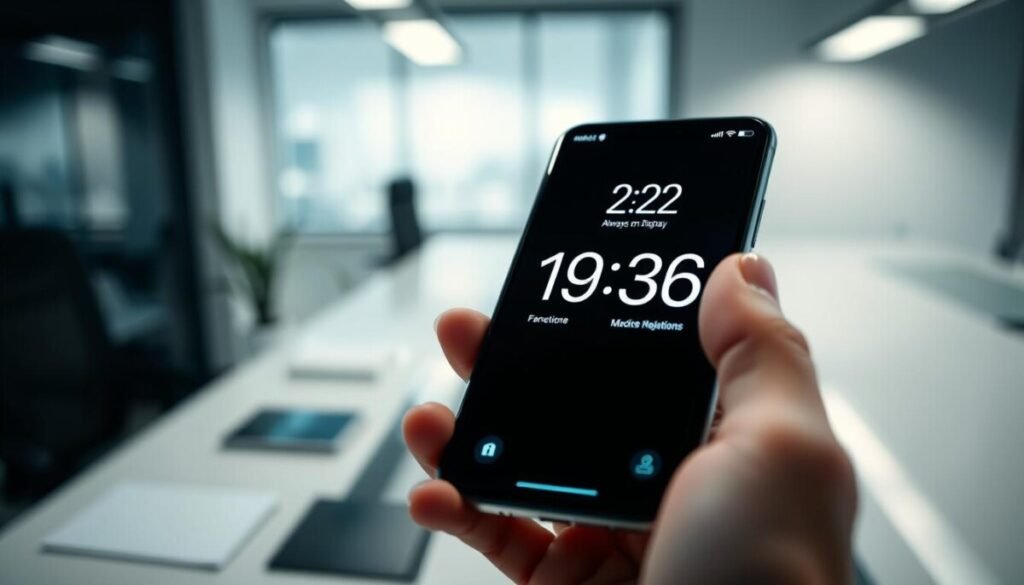
You can keep useful info visible while cutting needless drain.
Always-On displays are common on recent iPhones, including the 14 Pro, 15 Pro, 16 Pro, and 17 series. These models let the locked view run at very low refresh rates so essentials stay readable without constant full output.
Benefits of Variable Refresh Rates
Variable refresh rates let the device step down to as low as 1 Hz when locked. That sharp drop reduces power consumption and helps extend battery life during idle periods.
Modern OLED panels rely on this trick to show time and notifications while drawing minimal energy. The result is a clear trade-off: you keep visibility with far lower consumption.
Disabling Always On Display
If you need the longest run time for long workdays, you can disable the Always-On display in settings. Turning it off stops the lock view and removes that small, constant draw on the battery.
These features also dim the view when the device is in your pocket to prevent wasted power. Manage them based on your day to get the best mix of convenience and efficiency.
- Supported on recent iPhone Pro models starting with the 14 Pro.
- Operates as low as 1 Hz to save power while locked.
- Can be turned off to prioritize maximum run time.
| Feature | Benefit | When to disable |
|---|---|---|
| Always-On display | Keeps info visible with low draw | Long workdays or travel |
| Variable refresh | Reduces power consumption greatly | When idle or locked |
| Pocket dimming | Prevents wasted output | Always on by default |
Adjusting Brightness Settings Through the Control Center
Use the top-right swipe to reach a dedicated control for on-the-fly display adjustments.
Quick access saves time. On iPhone X and later, swipe down from the top-right corner of your display to open Control Center. The large slider lets you adjust brightness levels instantly without digging through nested settings.
The Control Center slider can override auto modes. That gives you precise control when a meeting or outdoor task needs a different view. Make small adjustments so the screen is comfortable and not overly bright.
- Fast manual changes instead of deep system menus.
- Temporary overrides keep adaptive controls intact later.
- Check settings often to avoid unnecessary drain during long days.
| Action | How to do it | Practical result |
|---|---|---|
| Open Control Center | Swipe down from top-right on iPhone X or later | Access slider in one gesture |
| Manual adjustment | Drag slider to desired level | Immediate change to display output |
| Quick override | Adjust while auto mode is on | Personalized view for the moment |
Utilizing Dark Mode and Color Filters to Save Power
Using a dark color scheme across apps lowers energy use on many phones.
Why dark themes help. Dark mode uses deeper tones system‑wide. On OLED devices, darker pixels use less power. That reduces total consumption and can help extend daily battery life.
Practical benefits and simple steps
Enable dark mode in your phone settings to cut how much light the display emits. That step is easy and works across built‑in apps and many third‑party apps.
- Dark mode lowers power consumption on OLED and similar screens.
- Use color filters or Night Shift to warm tones for softer visuals.
- Combine dark themes with adaptive settings to suit lighting conditions.
Result: Small changes to color and mode add up. You get a more comfortable view and measurable power savings without losing clarity.
The Impact of Charging Habits on Thermal Performance
When you charge your phone and use it at once, internal temperatures can climb fast.
Charging while active raises internal load. Plugging in during gaming, navigation, or video calls adds power draw and can cause the system to lower display brightness to protect components.
Wireless charging amplifies this effect because the coil and regulator create additional power loss. That extra loss shows up as increased temperature and altered performance control.
The ambient light sensor and other features can add to power consumption when the device is already warm from charging. Combine them with heavy apps and the system may step back brightness levels to keep conditions safe.
- Avoid graphics‑intensive apps while battery charging to reduce warming.
- Use lower performance settings or pause heavy tasks during a charge.
- Charge on a hard, cool surface and remove thick cases to help thermal control.
| Behavior | What happens | Practical tip |
|---|---|---|
| Charging while using | Device warms; system reduces display brightness | Pause heavy apps or unplug when possible |
| Wireless charging | Higher power loss; extra warming | Prefer wired charging for long sessions |
| Ambient light sensor active | Extra power draw when adjusting to lighting | Limit auto features if device is already warm |
| Consistent charging habits | Better thermal performance over time | Charge during low-use windows for best results |
Troubleshooting Persistent Display Brightness Issues
If your display keeps changing on its own, start with the ambient light sensor and work from there.
Check for simple obstructions first. Make sure nothing covers the front sensor or case cutout. Small smudges and screen protectors can block ambient light readings and cause erratic behavior.
Reset adaptive controls. Go to Accessibility and toggle auto‑brightness off, then on. This often clears calibration glitches and lets the light sensor relearn your lighting.
- Use genuine OEM panels only; third‑party screens can interfere with the ambient light sensor.
- Low‑power modes or energy features may limit display output to save battery and look like a fault.
- Review color filters and accessibility settings if the display appears dim or oddly tinted.
| Issue | Quick fix | When to seek service |
|---|---|---|
| Blocked sensor | Clean lens, remove protector | If problem returns after cleaning |
| Adaptive control glitch | Toggle auto in Accessibility | If toggling has no effect |
| Third‑party panel | Replace with genuine display | If sensor still erratic after replacement |
| Power‑saving mode | Turn mode off to test | If dim limits persist in normal mode |
Best Practices for Maintaining Optimal Battery Life
A few quick adjustments let you balance clarity and long-term performance.
Let adaptive controls do the heavy lifting. Allow auto settings to manage screen brightness so the display matches local light and reduces needless power draw.
When you work in dim places, you can follow these batterysaving tips by manually dimming the view to save battery life. Use dark mode in apps and the system to lower power consumption on OLED devices.
Close or disable unnecessary background apps. That prevents hidden drain and keeps your device responsive during long meetings or travel.
- Check your brightness control settings weekly to avoid excess use.
- Practice sensible battery charging habits: charge during low‑use windows and avoid heavy apps while plugged in.
- Combine adaptive features, dark mode, and app management for the best life and performance.
| Action | Effect | When to use |
|---|---|---|
| Allow auto adjustment | Reduces overall power consumption | Everyday use in mixed lighting |
| Enable dark mode | Lower display draw on OLED | Long workdays and night use |
| Close background apps | Fewer hidden drains, steadier battery life | Before travel or long meetings |
Conclusion
A few small changes to how you use the display can extend device life and daily run time.
Managing your screen brightness is a simple, high‑impact step you can take now. By matching output to ambient light and avoiding long, intense sessions you reduce strain and preserve performance.
Use auto controls, Dark Mode, and sensible charging habits together. For more practical energy‑efficiency tips, see our energy-efficiency tips.
Small, consistent changes yield the best results. Make them part of your routine and your device will stay cooler, last longer, and serve you better each day.



