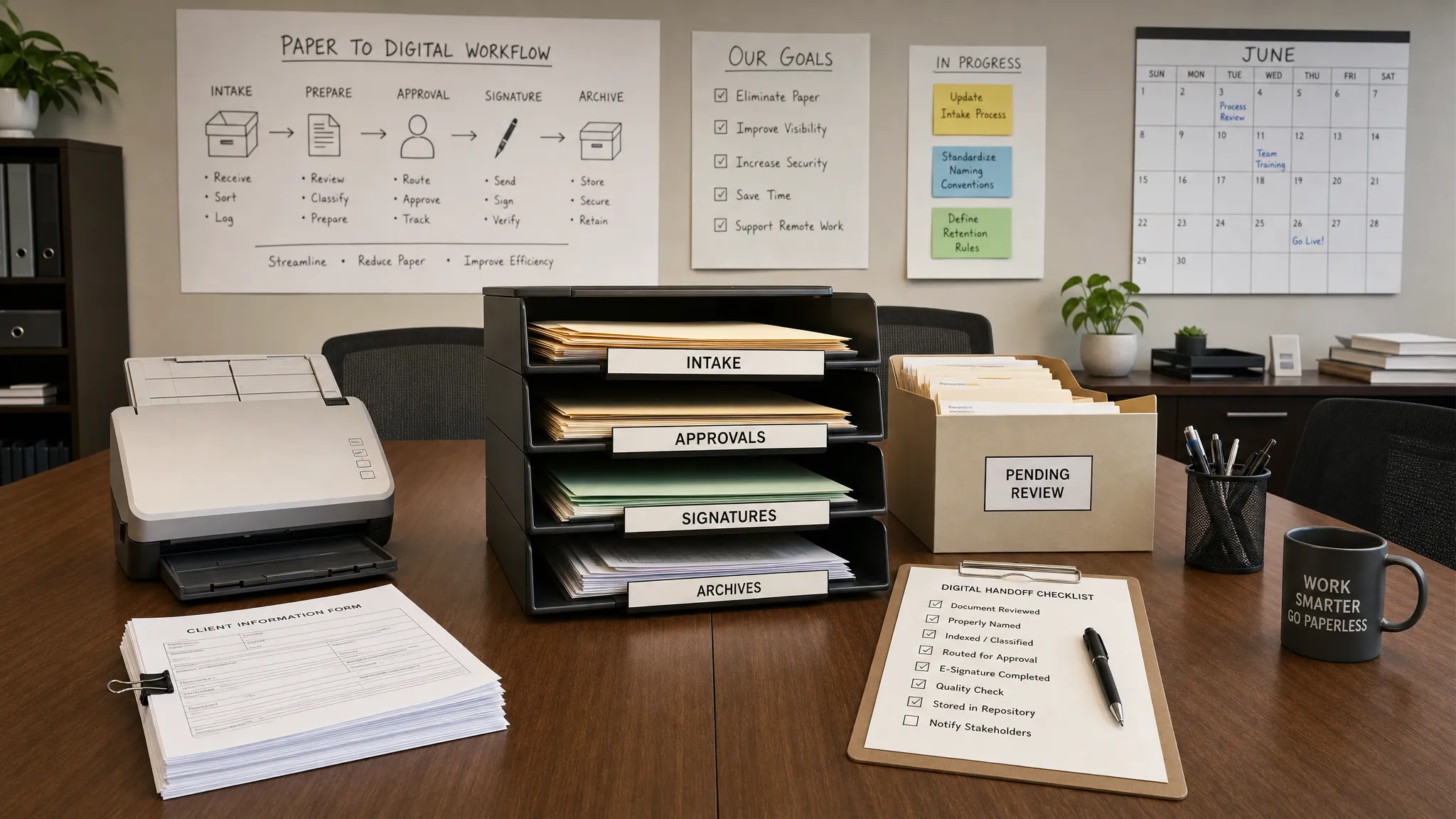
A paperless workflow is not just a promise to stop printing. It is a work system where documents, requests, approvals, signatures, records, and handoffs move digitally from start to finish. When it is designed well, your team spends less time searching for files, chasing approvals, retyping information, and storing paper you may never need again.
The key is to treat paperless work as a workflow project, not a scanning project. Scanning old folders helps, but the real productivity gain comes when new work enters your system digitally, lands in the right place, triggers the right next step, and remains easy to find later.
This guide walks through how to set up a practical paperless workflow for work, whether you run a small business, manage a team, support clients, or simply want a cleaner digital workspace.
Start with the real goal of going paperless
Before choosing apps, define what you want the workflow to improve. A paperless workflow can reduce clutter, but the stronger business case is usually faster execution and fewer missed details.
For example, a team might want invoices to move from email to approval to payment without printing. A consultant might want client intake forms, contracts, notes, and deliverables stored in one client folder. An HR team might want signed policies and onboarding documents collected securely without physical packets.
A useful paperless goal is specific enough to design around. Instead of “use less paper,” choose a target like “all vendor invoices are submitted through one form and routed to finance within one business day” or “all client agreements are signed electronically and saved automatically to the correct folder.”
That clarity prevents you from buying too many tools and recreating the same mess in digital form. If your current setup already feels crowded, review how to simplify your stack before adding more apps. Our guide on reducing app overload in your workflow can help you decide which tools should stay, merge, or go.
Map where paper enters your work
The fastest way to design a paperless workflow is to identify every point where paper currently appears. Do not start with your archive. Start with the paper that is still being created, handed around, signed, photographed, printed, or filed today.
Common paper entry points include signed contracts, meeting notes, expense receipts, purchase approvals, HR forms, checklists, training materials, invoices, proposals, client intake forms, field reports, and printed reports used in meetings.
For each item, ask three questions: who creates it, who needs it next, and where should the final version live? These answers reveal the workflow. If a document is printed because someone needs to approve it, you need a digital approval step. If it is printed because people cannot find the file later, you need better storage and naming. If it is printed for signatures, you need e-signature software.
A simple audit table can make the process easier:
| Paper item | Current problem | Digital replacement | Final storage location |
|---|---|---|---|
| Client intake form | Handwritten details must be retyped | Online form | Client folder in cloud storage |
| Vendor invoice | Printed for manager approval | Email or form submission with approval task | Finance folder |
| Employee policy acknowledgment | Physical signature required | E-signature request | HR records folder |
| Meeting notes | Notes stay in personal notebooks | Shared digital note template | Team workspace |
| Expense receipt | Receipts get lost | Mobile scan or expense app upload | Accounting system or receipt folder |
This step also helps you avoid digitizing unnecessary work. If a paper form does not support a decision, record, payment, client experience, or compliance need, consider removing it entirely.
Choose a simple paperless tool stack
A strong paperless workflow usually needs five tool categories: capture, storage, collaboration, signatures, and automation. You do not need the most advanced app in every category. You need tools your team can use consistently.
Here is a practical way to think about the stack:
| Workflow need | What the tool should do | Common options |
|---|---|---|
| Capture information | Collect requests, forms, receipts, and files digitally | Google Forms, Microsoft Forms, Typeform, Jotform |
| Store documents | Keep files organized, searchable, and permission-controlled | Google Drive, OneDrive, Dropbox, Box |
| Create and edit documents | Let people collaborate without version confusion | Google Docs, Microsoft 365, Notion, Confluence |
| Sign documents | Request, track, and store legally relevant signatures | DocuSign, Adobe Acrobat Sign, Dropbox Sign |
| Route work | Turn documents into tasks, approvals, and reminders | Asana, ClickUp, Trello, monday.com, Airtable |
| Automate handoffs | Move files, send alerts, and create records automatically | Zapier, Make, Power Automate |
The best choice often depends on what your organization already uses. A Microsoft 365 team may get faster adoption with OneDrive, SharePoint, Microsoft Forms, and Power Automate. A Google Workspace team may prefer Google Drive, Docs, Forms, and integrations through Zapier or Make.
Avoid the mistake of choosing tools one document at a time. If HR, sales, operations, and finance all pick separate storage systems, your paperless workflow becomes a scattered workflow. Choose one primary place for official files, then connect supporting tools around it.
Set one source of truth for every document type
Paper workflows often fail because the “latest version” is unclear. Digital workflows can fail for the same reason if files live in email threads, chat attachments, desktop folders, and cloud drives at the same time.
A paperless workflow needs a source of truth. This is the official location where a team knows the current and final version of a document belongs.
For example, client contracts might live in a Contracts folder inside each client account. Project briefs might live in your project management tool. Policies might live in an HR workspace. Meeting notes might live in a shared notes database.
The location matters less than the rule. Everyone should know where the final document goes, who owns it, and when it is considered complete.
A reliable folder structure should be easy to understand at a glance. For many teams, a structure based on function works better than a structure based on individuals:
| Top-level folder | Best for | Example subfolders |
|---|---|---|
| Clients | Client-facing work and records | Client name, contracts, deliverables, invoices |
| Operations | Internal processes and SOPs | Vendors, approvals, policies, templates |
| Finance | Accounting and payment records | Invoices, receipts, reports, tax documents |
| HR | Employee and hiring records | Onboarding, policies, reviews, benefits |
| Projects | Cross-functional initiatives | Project name, assets, decisions, archive |
Keep folder depth reasonable. If people must click through seven folders to save a file, they will save it somewhere else. A good rule is that most active files should be reachable within three or four clicks.
Create naming rules people can actually follow
Search is powerful, but it works best when filenames are consistent. A naming convention should be short, readable, and predictable.
A useful format is:
YYYY-MM-DD_Client-or-Project_Document-Type_Status
Examples include:
2026-06-17_Acme-Co_Proposal_Draft2026-06-17_Acme-Co_Service-Agreement_Signed2026-06-17_Q2-Planning_Meeting-Notes_Final
Dates in year-month-day format sort correctly in folders. Client or project names add context. Document type tells people what the file is. Status prevents confusion between drafts and final versions.
Do not make naming rules too complex. If the rule requires ten fields, people will ignore it. The goal is not perfect metadata. The goal is fast retrieval and fewer duplicates.
Convert paper into digital intake
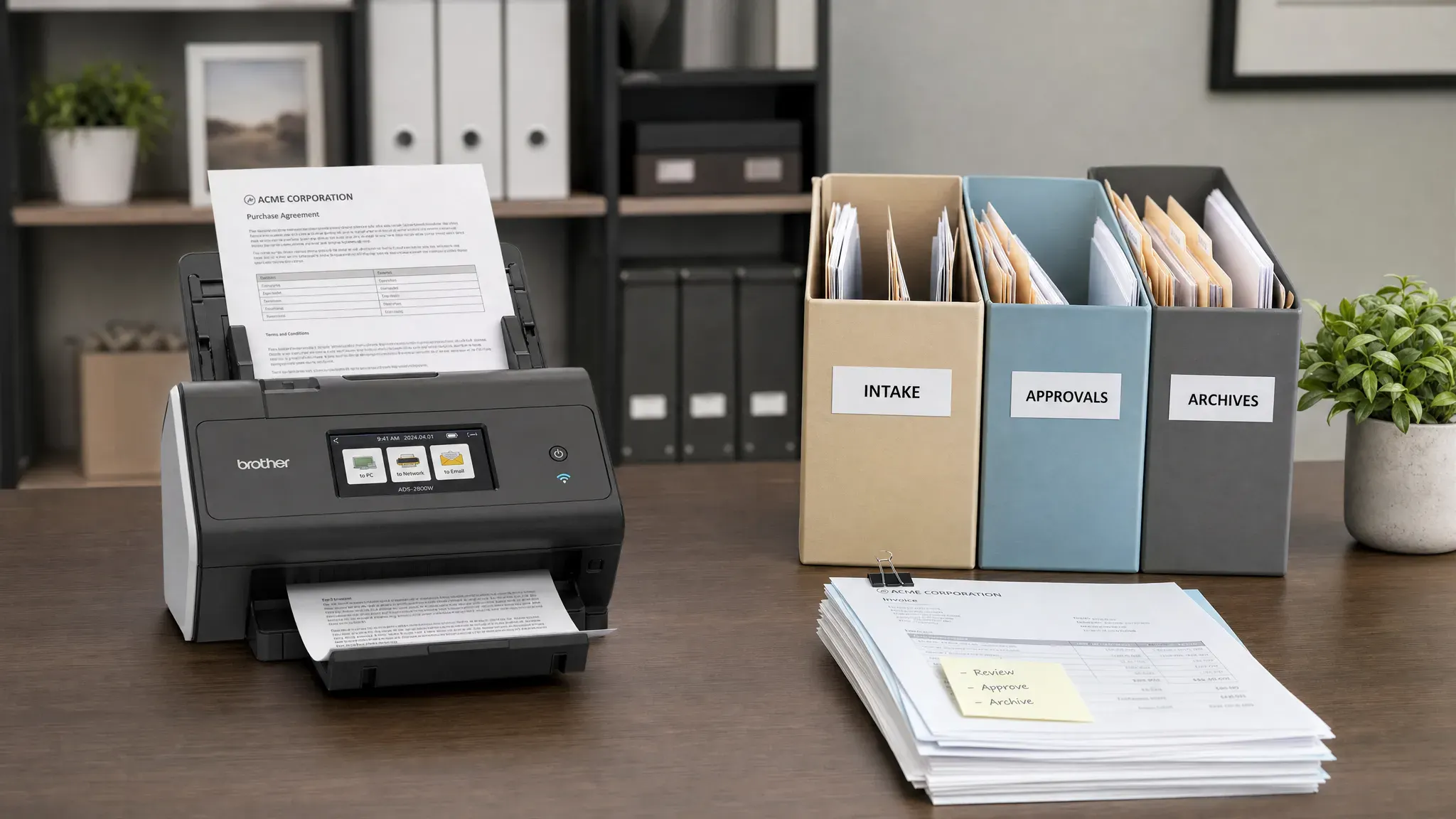
The biggest paperless win comes from preventing new paper from entering the system. Instead of scanning forms after someone fills them out by hand, replace the paper form with a digital form.
Digital intake is useful for client onboarding, internal requests, IT tickets, expense submissions, purchase approvals, job applications, event registrations, and project briefs. A good intake form collects only the information needed to take the next action. Long forms slow people down and increase incomplete submissions.
For each form, include fields that support routing and organization. A department field can route a request to the right person. A client name field can help name the folder. A priority field can help sort tasks. A file upload field can collect receipts, screenshots, IDs, signed documents, or reference materials.
If your work involves client onboarding, you can adapt many of the same principles used in an online client intake workflow: collect structured information, qualify the request, trigger the next step, and store the record where the team can find it.
Replace print approvals with digital routing
Many teams print documents because approval still happens informally. Someone prints an invoice, walks it to a manager, gets a note or signature, then scans or files it. That habit creates delays and makes it difficult to track who approved what.
Digital approval routing solves this by facilitating the document approval process and turning a document into a task. The approver receives a notification, reviews the file, approves or rejects it, and the decision is recorded.
You can keep this simple. A small team might use a task management tool with custom statuses such as Submitted, Under Review, Approved, Rejected, and Completed. A larger team might use workflow automation to route requests based on department, cost, client type, or deadline.
The key is to separate document storage from work tracking. A cloud drive stores the file. A task tool tracks the decision, owner, and due date. When those two pieces are connected, people no longer need to print just to make progress visible.
Use e-signatures where signatures create bottlenecks
If your team still prints contracts, proposals, internal forms, or policy acknowledgments for signatures, e-signature tools can remove a major source of paper.
A strong e-signature workflow should include a standard template, defined signer order, automatic reminders, and a final storage step. After completion, the signed copy should be saved to the right folder or record automatically when possible.
Not every signature process needs a premium tool. For low-risk internal acknowledgments, a form submission or internal approval record may be enough. For contracts, regulated records, or high-value agreements, use a reputable e-signature platform and confirm that it meets your legal and compliance requirements.
This is also a good moment to standardize templates. If every team member sends a different version of a contract or agreement, going paperless will not fix the underlying risk. Create approved templates first, then digitize the signing process.
Automate the repetitive handoffs
Once documents are captured and stored digitally, automation can remove the repetitive steps that usually cause delays. For example, a form submission can create a task, save attachments to a folder, notify the owner, update a spreadsheet, and send a confirmation email.
Start with small automations that are easy to test. Good first candidates include moving uploaded files into the correct folder, creating an approval task when a form is submitted, sending reminders before due dates, renaming files using form fields, and notifying a Slack or Teams channel when a request is ready for review.
The best automations are boring, reliable, and visible. Avoid building a complicated automation that only one person understands. Document what triggers it, what it changes, and who owns it. If you want a beginner-friendly approach, our guide on automating repetitive tasks without coding explains how no-code tools can connect common workplace apps.
Build security and retention into the workflow
Paperless does not mean careless. Digital documents are easier to copy, share, and misplace if permissions are not managed properly. Security should be part of the workflow design from the beginning.
Start with access control. Give people access based on role, not convenience. Finance folders, HR documents, legal agreements, and client records should not be open to the entire organization unless there is a clear reason.
Next, define retention rules. Some documents need to be kept for a specific period. Others should be deleted when they are no longer useful. Retention requirements vary by industry, location, document type, and contract obligation, so confirm the rules that apply to your organization.
A practical paperless security checklist includes:
- Use multi-factor authentication on storage, signature, and workflow tools.
- Limit folder access to the people who need it for their role.
- Create separate spaces for drafts, final documents, and archives.
- Review sharing links regularly, especially public or external links.
- Back up critical records according to your organization’s risk level.
- Assign an owner for each major document category.
If you handle sensitive personal, financial, medical, legal, or client information, involve the right compliance or legal advisor before changing your recordkeeping process.
Digitize old paper selectively
Once your new workflow is digital, decide what to do with old paper. Do not assume every file cabinet needs to be scanned immediately. Bulk scanning can become expensive and time-consuming, especially if the documents are rarely used.
Sort old documents into three categories: active, required, and unnecessary. Active documents are still used in current work and should be digitized first. Required documents must be kept for legal, financial, contractual, or operational reasons. Unnecessary documents can often be shredded or discarded according to your retention policy.
When scanning, prioritize searchability. Optical character recognition, often called OCR, turns scanned images into searchable text. This makes old records far more useful than simple image files. Also decide whether scanned files need quality checks, naming, indexing, or secure destruction of the paper originals.
The goal is not to preserve clutter in a new format. The goal is to make important information accessible while reducing storage burden.
Train the team on the workflow, not just the tools
Most paperless initiatives fail because people are trained on software buttons but not on the new way of working. Your team needs to know what changed, why it matters, and what “good” looks like.
Training should cover where to submit requests, where to save files, how to name documents, how approvals work, when to use e-signatures, what not to print, and who to ask for help.
Hands-on practice works better than a long policy document. Give employees realistic scenarios, such as submitting an invoice, approving a proposal, saving a signed agreement, or finding a client record. For larger organizations, especially those training teams in marketing, sales, strategy, or innovation, experiential business simulation software can help learners practice decisions in a realistic digital environment before applying new processes at work.
You can also create a one-page workflow guide with screenshots and examples. Keep it short. The more practical the guide, the more likely people are to use it.
Add a weekly review to keep the system clean
A paperless workflow still needs maintenance. Without a review habit, folders fill with duplicates, approvals stall, and temporary files become permanent clutter.
Set a weekly review for the parts of the system that create the most movement. This might include open approval tasks, unsorted uploads, unsigned documents, overdue requests, shared links, and files marked draft for too long.
The review does not need to be long. Fifteen to thirty minutes per week can be enough for a small team. The important thing is to make the review recurring, assign ownership, and fix small problems before they become workflow debt. If you need a broader structure for planning and review, use a repeatable system like the one in our guide to creating a weekly workflow that actually works.
Example paperless workflow for a small business
Here is what a simple paperless client agreement workflow might look like in practice.
A prospect completes an online intake form. The form creates a client folder, saves the submission, and notifies the account owner. The account owner prepares a proposal from an approved template and saves it in the client folder. When the client accepts, the agreement is sent through an e-signature tool. Once signed, the final PDF is saved automatically to the contract folder, and a task is created for onboarding.
In this workflow, no one prints the proposal, scans the contract, manually chases the signature, or searches through email for the final version. Each step has a clear owner, tool, and destination.
You can adapt the same structure to invoices, HR forms, purchase requests, internal approvals, and project documentation. The pattern stays the same: capture digitally, route clearly, store consistently, automate repeat steps, and review regularly.
Common mistakes to avoid
The most common paperless mistake is scanning everything without changing the process. That only moves paper clutter into cloud clutter. Focus first on stopping new paper from being created.
Another mistake is letting every team choose its own system. Flexibility is useful, but official records need standard rules. If one department stores files in Dropbox, another in Google Drive, and another in personal desktops, search and security become harder.
Teams also underestimate naming and permissions. These details feel small during setup, but they determine whether the system stays usable six months later.
Finally, avoid automating too early. A broken manual process becomes a faster broken process when automated. Map the workflow first, simplify it, then automate the stable parts.
Frequently Asked Questions
What is a paperless workflow? A paperless workflow is a digital process for capturing, routing, approving, signing, storing, and retrieving work documents without relying on printed paper.
What tools do I need to go paperless at work? Most teams need digital forms, cloud storage, collaborative documents, e-signature software, task management, and optional automation tools. The best stack depends on the apps your team already uses.
Should I scan all old documents first? Usually no. Start by making new work digital, then scan active and required records selectively. Scanning everything can waste time if many documents are outdated or no longer needed.
How do I get employees to stop printing? Make the digital process easier than printing. Provide clear storage rules, templates, approval routing, e-signatures, training, and a simple place to ask questions.
Is a paperless workflow secure? It can be secure if you use strong access controls, multi-factor authentication, clear permissions, retention rules, backups, and regular reviews of shared files and links.
Build a paperless workflow that people will actually use
The best paperless workflow is not the most complex one. It is the one your team can follow every day without friction. Start with one process, define the source of truth, replace paper intake with digital forms, route approvals through tasks, use e-signatures where needed, and automate the repetitive handoffs once the process is stable.
If you approach paperless work this way, you will do more than reduce printing. You will create a faster, cleaner, more searchable workflow that helps people spend less time managing documents and more time doing useful work.



